


Why Is Face ID and Passcode Missing from iPhone Settings? (Fixed!)
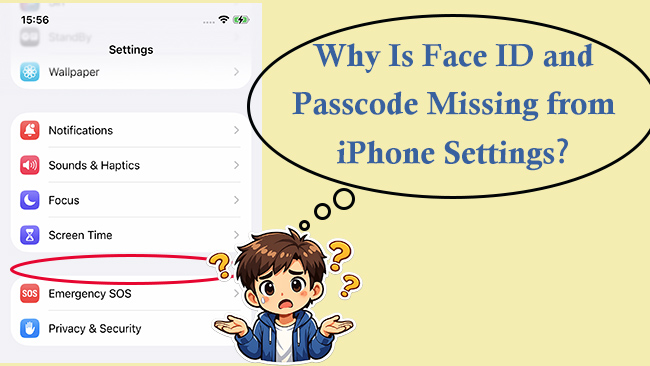
It can be a moment of pure panic: you open your iPhone Settings to update your security, but the Face ID & Passcode (or Touch ID & Passcode) option has completely disappeared. You might worry your phone has been hacked or that a hardware failure has occurred.
Fortunately, this is a well-documented issue that is almost always caused by a hidden software toggle rather than a permanent system failure. In this guide, we will provide an immediate "quick fix" and explain why this happens so you can restore your security settings in seconds.
The Quick Solution: Check Screen Time Restrictions
If your iPhone security settings disappeared, the most common culprit is a feature within Screen Time designed to prevent unauthorized changes to your device. When "Passcode Changes" is restricted, iOS removes the menu entirely to ensure the current passcode cannot be modified.
Instead of completely turning off the "Find My" service, you can choose to share your location from a secondary device. This is the most discreet method as it keeps the "Find My" service active while showing a static location of your choice.
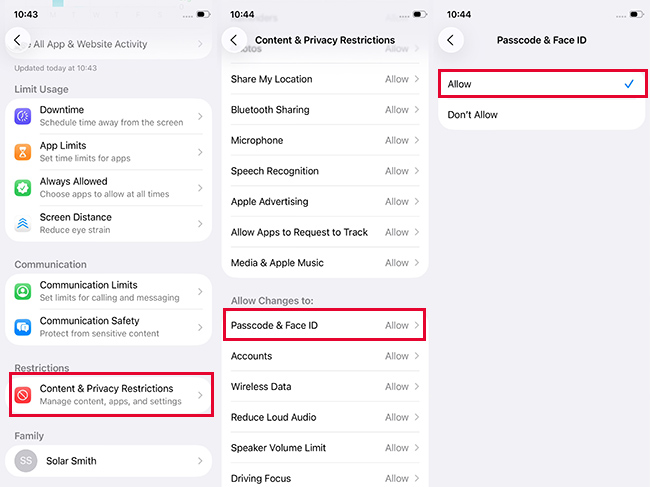
- Step 1. Open Settings and tap on Screen Time.
- Step 2. Navigate to Content & Privacy Restrictions.
- Step 3. If this is turned "On," scroll down to the section titled Allow Changes to.
- Step 4. Tap on Passcode & Face ID and ensure it is set to Allow. Once you do this, return to the main Settings page; the Face ID & Passcode menu should reappear instantly.
What If You Forgot the Screen Time Passcode?
The solution above works perfectly—unless you can't remember the Screen Time passcode to change those restrictions. This is a common hurdle, especially if the restriction was set long ago or by someone else.
In such cases, TunesKit iPhone Unlocker is the most reliable tool to regain control. It is a powerful, multi-functional utility designed to bypass various iOS locks without the need for technical expertise. Whether you need to remove a forgotten Screen Time passcode to unhide your Face ID settings or bypass an MDM profile that is restricting your menu, TunesKit handles it with a high success rate and no data loss.
Key Features of TunesKit iPhone Unlocker
Delete Screen Time data and turn off Screen Time without passcode. Remove screen lock, Apple ID, and MDM restrictions easily. Available on the latest iOS version including 26.
 600,000+ Downloads
How to Restore Missing Settings via TunesKit iPhone Unlocker:
- Step 1. Download and launch TunesKit iPhone Unlocker on your PC or Mac. Connect your iPhone via USB.
- Step 2. On the main interface, select the Unlock Screen Time Passcode option.

- Step 3. Click Start. The software will automatically detect your device and begin removing the restriction.
- Step 4. Once the process is complete, follow the on-screen instructions to set up your device. Your "Face ID & Passcode" menu will now be visible in Settings.
4 Common Reasons Why Face ID and Passcode is Not Showing
Understanding the reasons can help you prevent this from happening again. Usually, the menu vanishes due to one of the following causes:
- 01 Parental or Privacy Restrictions: As mentioned above, Screen Time can hide sensitive menus to protect the device's configuration.
- 02 Corporate MDM Profiles: Work or school profiles may remotely hide security settings.
- 03 Software Glitches: Occasionally, a bug in the iOS UI (even in the latest iOS 26) can cause menu items to fail to load.
- 04 Hardware Failure: In rare cases, if the TrueDepth camera is damaged, the OS may hide Face ID options because the hardware is no longer detectable.
Advanced Solutions If iPhone Face ID and Passcode Are Missing in Settings
If the quick fix didn't solve the problem, follow these advanced steps to force the menu to reappear.
Way 1. Completely Disable Screen Time
If the previous step didn't work, there might be a deeper restriction or a bug within the Screen Time feature itself. Toggling the entire feature off can "force" the system to refresh its menu visibility.
- Step 1. Go to Settings > Screen Time.
- Step 2. Scroll to the very bottom and tap Turn Off App & Website Activity.
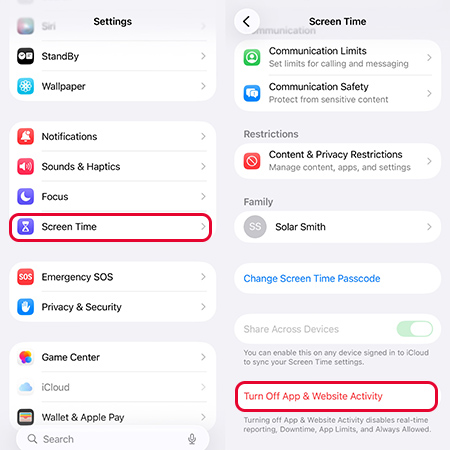
- Step 3. Enter your Screen Time passcode (if prompted) and confirm.
Check your main Settings menu again. If the Face ID and Passcode option returns, you can re-enable Screen Time later, ensuring you don't restrict passcode changes this time.
Way 2. Remove MDM or Configuration Profilesapp
If you use a work or school-issued iPhone, your organization may have installed a Mobile Device Management (MDM) profile. These profiles can remotely disable security settings to comply with company policy.
- Step 1. Navigate to Settings > General.
- Step 2. Look for VPN & Device Management.
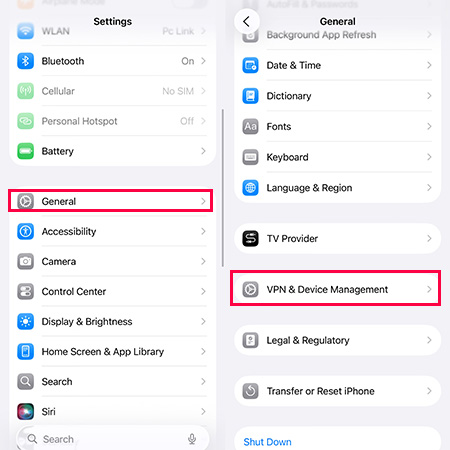
- Step 3. If you see a management profile listed, tap on it to see the restrictions. If it is a personal device and you no longer need the profile, tap Remove Management.

Way 3. Perform a Force Restart
A simple restart is often not enough to clear stuck system processes. A Force Restart (Hard Reset) clears the temporary cache and re-initializes all hardware and software drivers, which can bring back missing menu items.
- Step 1. Quickly press and release Volume Up, then Volume Down.
- Step 2. Finally, press and hold the Side button until the Apple logo appears.

Way 4. Reset All Settings
If you still can't find the Face ID menu, there may be a conflict in your system preferences. Reset All Settings returns your system configurations (Wi-Fi, Bluetooth, Privacy, etc.) to their defaults without erasing your apps or photos.
- Step 1. Go to Settings > General > Transfer or Reset iPhone.
- Step 2. Tap Reset and choose Reset All Settings.
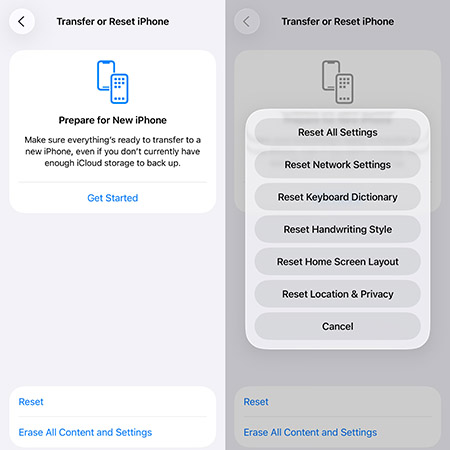
- Step 3. Enter your passcode to confirm. The device will reboot, and you can check if the security settings are back.
Conclusion
The disappearance of the Face ID and Passcode menu is usually a matter of Screen Time restrictions or a minor software bug. By following the steps above, starting with the simplest settings check and moving toward advanced solutions, you can safely restore your iPhone’s security features.


