


[2026 Updated] How to Delete Screen Time History on iPhone
Screen Time is a powerful tool for monitoring digital habits, but it can be rigid. Whether you've left an app running overnight by mistake or you're preparing to hand over your device to a new user, you may find that Apple doesn't offer a "Clear History" button for specific apps.
In this guide, we explore 3 verified methods to delete your Screen Time history on iPhone, covering scenarios with and without a passcode, while ensuring your important files remain safe.

Can You Delete a Specific App's Screen Time History?
No. Apple doesn't support deleting Screen Time data for specific apps or individual days. It is a common misconception that you can delete Screen Time history for a single app like TikTok or Safari. Apple's system is "all-or-nothing." To clear the history, you must toggle the service off and on again. It means that when you disable Screen Time, all recorded data is erased.
How to Delete Screen Time Entirely on iPhone [With Passcode]?
Have you previously set a Screen Time passcode to restrict settings and approve extra screen time? If so, you need to use the passcode to turn off Screen Time feature on your iPhone. Here are some ways you can use to make it directly on Settings.
Way 1. Turn Off Screen Time on Settings
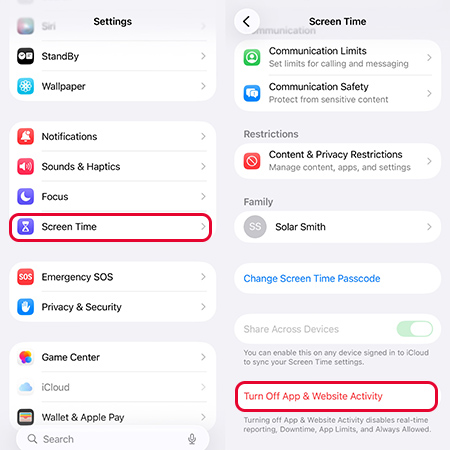
To delete Screen Time data on iPhone, the first solution is to turn off the Screen Time feature on your phone. You can follow the below steps to turn off the Screen Time feature on Settings.
- Step 1. Open the Settings app.
- Step 2. Select the Screen Time feature.
- Step 3. Tap on the Turn off App & Website Activity option to delete Screen Time data on iPhone. Enter the passcode if a prompt appears on the screen.
 Note
Note
If you are part of an Apple Family Sharing plan, turning this off may trigger a notification to the Family Organizer.

Way 2. Reset All Settings on iPhone
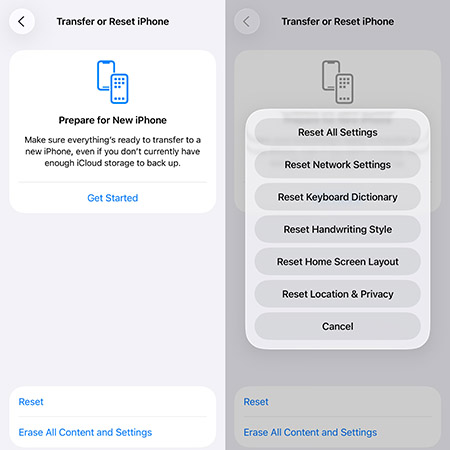
Aside from Screen Time, Battery Usage also logs app activity, which may reveal your usage history. If you want to erase both Screen Time data and Battery Usage records, resetting all settings is a good option. Here's how:
- Step 1. Open Settings > General on iPhone.
- Step 2. Scroll down and tap Transfer or Reset iPhone.
- Step 3. Tap Reset > Reset All Settings.
- Step 4. Enter your screen passcode and screen time passcode to proceed.
How to Clear Screen Time History on iPhone Without Passcode?
If you've forgotten your Screen Time passcode or the "Change Passcode" option via Apple ID is grayed out, you need a specialized solution that bypasses the encryption layer without wiping your device.
TunesKit iPhone Unlocker is designed for this specific scenario. It allows you to remove the restriction profile while keeping your personal data (photos, messages, contacts) completely intact.
Key Features of TunesKit iPhone Unlocker
Delete Screen Time data and turn off Screen Time without passcode. Remove screen lock, Apple ID, and MDM restrictions easily. Available on the latest iOS version including 26.
 600,000+ Downloads
Now, let's see how to delete Screen Time data on iPhone without any passcode by using TunesKit iPhone Unlocker.
Step 1Connect iPhone to computer
Download and install TunesKit iPhone Unlocker on your computer. Connect your iPhone to the computer and then, TunesKit iPhone Unlocker will start to detect your iPhone. When your iPhone is detected, click on the Unlock Screen Time Passcode option and then hit on the Start button.

Step 2Remove Screen Time passcode on iPhone
Then, TunesKit iPhone Unlocker will start to remove the Screen Time passcode, as well as delete Screen Time data on iPhone. When the Screen Time passcode is removed from your iPhone, click on the Next button.

Step 3Set up iPhone again
In this phase, you will need to set up your iPhone again. Please choose Don't Transfer Apps & Data and Set Up later while setting up your iPhone. The content and data on your iPhone are safe and will not be removed.

FAQs About Deleting Screen Time History
-
Can I Clear Screen Time Data by Deleting Apps?
No, you can't. According to Apple, deleting an app only removes it from your device but does not erase its usage history in Screen Time reports.
-
Is It Possible to Modify Screen Time History by Jailbreaking?
No. Currently, there are no jailbreak tweaks that allow you to edit Screen Time history. However, tweaks like Geranium or ByeScreenTime from Github can disable Screen Time on certain iOS versions.
-
How to Reset the Screen Time Passcode After Data Deletion?
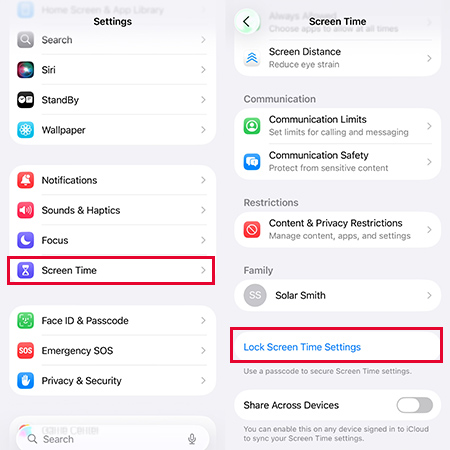
After you've removed Screen Time data completely, you can go to Settings > Screen Time > Lock Screen Time Settings.
Conclusion
That's it! In this post, you've learned how to delete Screen Time history on iPhone in 3 effective ways. Whether you have a passcode or not, you now have the right tools to reset or remove your Screen Time history. Best option for forgotten Screen Time passcode? TunesKit iPhone Unlocker - a fast and reliable solution that lets you delete Screen Time data without losing personal files.


