


How to Open Password Protected PDF without Password
Encountering a locked PDF is a common frustration that can halt your workflow, whether you are dealing with a "User" password that blocks access or an "Owner" restriction that prevents editing. If you are currently stuck and wondering how to open a password protected PDF file without password, you've come to the right place, this post will show you how to do.
- Part 1. "User" vs. "Owner" Passwords: What's the Difference?
- Part 2. 6 Ways to Open a Password Protected PDF File without Password
- Method 1: Use the "Print to PDF" Trick
- Method 2: Use the Google Drive Workaround
- Method 3: Use TunesKit File Password Recovery to Recover a PDF open PasswordHOT
- Method 4: Use the Online PDF Unlockers (iLovePDF / Smallpdf)
- Method 5: Adobe Acrobat Pro (The Official Method)
- Method 6: Use the Command Line Method (QPDF)
- Part 3. FAQs about Password-Protected PDF
- Part 4. Conclusion
Part 1. "User" vs. "Owner" Passwords: What's the Difference?
Before diving into the solutions, it is vital to understand what kind of wall you are hitting. Not all password-protected PDFs are created equal. In the world of document security, there are generally two tiers of protection, and knowing which one you are facing will dictate which method you should use.
1. The Owner Password (Permissions Password) This is the less aggressive form of security. With an Owner Password, you can usually open and read the document without typing anything. However, the author has restricted specific actions. You might find that the "Print" button is grayed out, or you cannot highlight text to copy it. These files are "locked" from editing, not viewing.
 See More:
 2. The User Password (Open Password) This is the true gatekeeper. A User Password encrypts the entire file. You cannot view, read, or access a single page without entering the correct string of characters. If you do not know the password, the contents remain completely scrambled.
 Note
Note
Most simple "hacks" work well for Owner passwords but fail against User passwords. If you are locked out completely, you will likely need the advanced recovery methods we will discuss later, such as TunesKit File Password Recovery.
Part 2. 6 Ways to Open a Password Protected PDF File without Password
Losing access to important PDF file is frustrating, but whether you are dealing with a simple printing restriction or a forgotten code, the right tools can quickly restore your access. Below, we explore six proven methods to bypass restrictions and unlock your PDF files, ranging from simple browser tricks to professional recovery software.
Method 1: Use the "Print to PDF" Trick
This is the oldest and most reliable trick in the book for bypassing editing restrictions. It works by creating a completely new copy of the document. When you "print" a file to a new PDF, the operating system generates a fresh version of the visual data, stripping away the metadata that holds the security restrictions.
Step 1. Open the restricted PDF file in any standard PDF viewer or your web browser (Chrome, Edge, or Safari work perfectly for this).
Step 2. Navigate to the "File" menu and select "Print," or simply press Ctrl + P (Windows) or Cmd + P (Mac) to open the print dialog.
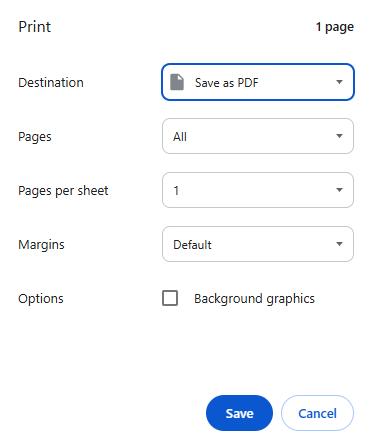
Step 3. In the printer destination menu, do not select your physical printer; instead, choose "Save as PDF" or "Microsoft Print to PDF."

Step 4. Click "Save" and choose a location for your new file; once saved, this new document should be completely free of the original copying or printing restrictions.
Note
This method only works if the file allows printing. If the specific restriction is "Printing Not Allowed," this loophole may be closed.
Method 2: Use the Google Drive Workaround
Google Drive has a built-in PDF viewer that is surprisingly good at ignoring certain types of owner-level security. By uploading and re-downloading the file, you can often scrub the restrictions.
Step 1: Open your web browser, navigate to Google Drive, and log in to your account.
Step 2: Drag and drop your locked PDF file into the Drive interface to upload it.
Step 3: Once uploaded, double-click the file to preview it within the browser.
Step 4: Click the "Print" icon inside the Google Drive previewer (usually top right), which will open a new tab rendering the PDF.
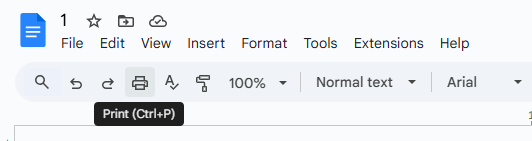
Step 5: From this new tab, use the browser's download or save function to save the file to your desktop; the new version should be unlocked.
Method 3: Use TunesKit File Password Recovery to Recover a PDF open Password
If you cannot open the file at all, the "Print to PDF" trick is useless because you cannot get to the print menu. When a PDF is protected by a strong User Password (especially with 128-bit or 256-bit AES encryption), the data is mathematically scrambled. There is no "backdoor" to simply skip the password prompt. In this scenario, your only option is to recover the password itself.
This is where professional-grade software becomes necessary. One of the most effective tools for this specific task is TunesKit File Password Recovery. It is a comprehensive utility that can recover passwords for PDFs, Excel files, PowerPoint presentations, and ZIP/RAR archives. And it also can remove read only from PDF/Excel/Word document.

Why Use TunesKit File Password Recovery?
TunesKit File Password Recovery offers a fast and reliable way to regain access to your password-protected PDF files when you've forgotten the opening password.
 600,000+ Downloads
600,000+ Downloads
600,000+ Downloads
Here's how to recover a PDF open password with TunesKit File Password Recovery.
Step 1Select File Type
Download and launch the software on your Windows or Mac computer. On the main interface, you will typically see categories for different file types; select the "PDF" tab.

Step 2Select Recover PDF Password
You will be presented with two primary options: "Recover PDF Password" and "Remove PDF Restrictions." Since you are locked out completely, click on "Recover PDF Password". Use the "Add" button (or drag and drop) to import your locked PDF file into the program.

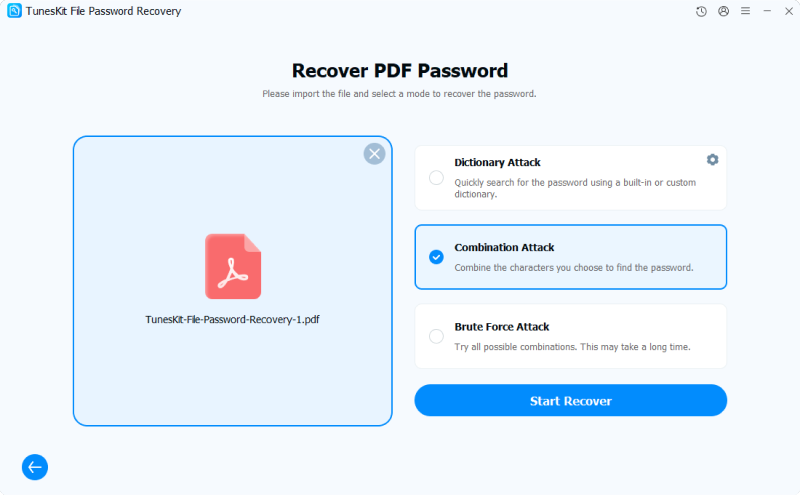
Step 3Select Attack mode
Select your attack mode based on what you remember about the password:
- Dictionary Attack: Choose this if you think the password is a common English word or a standard pattern.
- Combination Attack: This is the most efficient choice if you remember parts of the password. You can set the range (e.g., "6-8 characters") and specify character sets (e.g., "Only numbers" or "Lowercase letters").
- Brute Force Attack: Select this only if you remember absolutely nothing. It will try every possible combination, which takes the longest time.
Step 4Successfully Recover PDF Password
Once you have configured the settings, click the "Start Recover" button. The software will begin testing passwords against the file's encryption. When the correct password is found, it will be displayed clearly in a pop-up window. Click the "Copy" icon to copy the code, then open your PDF file normally and paste the password to unlock it.

Method 4: Use the Online PDF Unlockers (iLovePDF / Smallpdf)
If you do not want to install software, online tools can remove "Owner" passwords instantly. If the file has a "User" (Open) password, these tools will ask you to type it in first.
Step 1: Open your web browser and navigate to a reputable tool like iLovePDF.com or Smallpdf.com.
Step 2: Select the tool labeled "Unlock PDF".
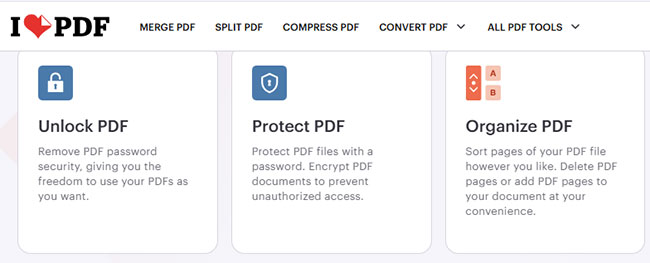
Step 3: Click "Select PDF file" and upload your locked document.
Step 4: Click the large "Unlock PDF" button. The server will process the file and strip the restrictive metadata.

Step 5: Click "Download unlocked PDF" to save the clean version to your device.

Method 5: Adobe Acrobat Pro (The Official Method)
This method is best for users who already have a paid Adobe subscription. If you have the professional version of Adobe Acrobat, you can remove security officially.
Step 1: Open the file in Adobe Acrobat Pro.
Step 2: Click the padlock icon on the left-hand panel, or navigate to File > Properties > Security tab.
Step 3: In the "Security Method" dropdown menu, change the setting from "Password Security" to "No Security".

Step 4: If the file had an "Owner" password, Acrobat may ask you to enter it once to verify you have permission to remove it.
Step 5: Click File > Save to make the changes permanent.
Method 6: Use the Command Line Method (QPDF)
It's best for tech-savvy users who want a free, secure, offline solution. QPDF is a free, open-source command-line tool that can decrypt and manipulate PDFs. It is one of the most reliable ways to strip restrictions without re-compressing the file (unlike the "Print" method, which sometimes lowers quality).
Step 1: Download and install QPDF (available for Windows, Mac, and Linux)..
Step 2: Open your Command Prompt (Windows) or Terminal (Mac/Linux).
Step 3: Type the following command, replacing the filenames with your actual file names:
qpdf --decrypt locked-input.pdf unlocked-output.pdf
Step 4: Press Enter.
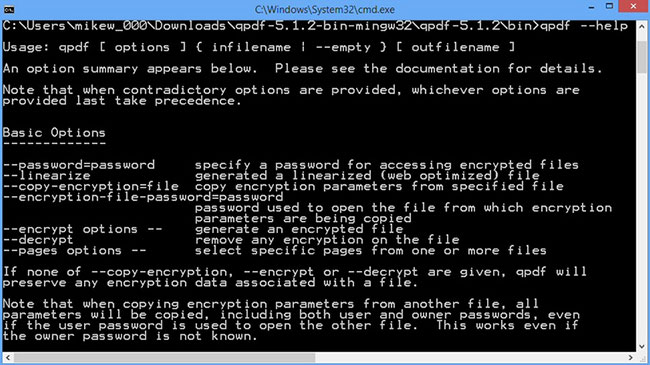
Step 5: Check the folder where your original file is located. You will see a new file (e.g., unlocked-output.pdf) that is completely free of restrictions.
Part 3. FAQs about Password-Protected PDF
-
Q1: Are online PDF unlockers safe to use?
Use with caution. Most online tools require you to upload your file to their server to be processed. For non-sensitive files (e.g., a menu, a public form, a generic manual), online tools are fine.
Never upload files containing Social Security numbers, financial data, or legal contracts to a free online unlocker. You have no control over who sees that file or how long it stays on their server. For sensitive data, always use offline desktop software like TunesKit File Password Recovery. -
Q2: Can I remove a password on my phone?
Yes. For iPhone/iPad user, you can use the "Print" trick. Open the PDF → Share button → Print → Pinch out on the preview → Share icon again → Save to Files.
For Android users, you can open the file in the Google Drive app or a PDF viewer → Print → Select "Save as PDF" as the printer. -
Q3: Does removing the password damage the file?
No. Removing a password simply decrypts the file so it no longer requires a key to be read. The text, images, formatting, and signatures inside the document remain exactly the same.
Part 4. Conclusion
When you are stuck wondering how to open a password protected PDF file without password, simple workarounds like "Print to PDF" often fail against strong encryption. In these cases, TunesKit File Password Recovery is the essential solution, providing powerful, offline decryption to recover lost passwords without compromising data privacy. By utilizing this professional tool alongside standard workarounds, you can effectively resolve any security hurdle and safely restore full access to your critical documents.


