


How to Password Protect a PDF: 6 Ways [Windows/Mac/Mobile]
Sending unsecured documents via email exposes them like a postcard; anyone intercepting them can read your sensitive data. Therefore, learning to password-protect PDFs is a critical skill for securing tax documents, contracts, and invoices. This guide details the most effective encryption methods for Windows, macOS, iOS, and Android. By following these steps, you ensure your private information remains accessible only to authorized recipients, safeguarding your digital privacy across all major platforms.
- Part 1. Why Users Need to Password Protect a PDF
- Part 2. How to Password Protect a PDF on Windows
- Part 3. How to Password Protect a PDF on macOS
- Part 4. How to Password Protect PDFs on Mobile Devices (iOS and Android)
- Part 5. How to Password Protect a PDF with Online Tools
- Part 6. How to Unlock a Password-Protected PDF without PasswordHOT
- Part 7. Expert Tips for Maximum Security
Part 1. Why Users Need to Password Protect a PDF
Before diving into the "how-to," it is crucial to understand what happens when you lock a PDF file. Standard PDF protection uses encryption (usually 128-bit or 256-bit AES), which scrambles the data within the file.
There are generally two types of passwords you can apply, and knowing the difference is vital for your workflow:
- Document Open Password (User Password): This is what most people need. It prevents the user from opening the file at all without the correct password.
- Permissions Password (Owner Password): The file can be opened and read by anyone, but specific actions—such as printing, copying text, or editing pages—are restricted.
This guide focuses primarily on the Document Open Password, as it provides the highest level of security for sharing sensitive information.
 View Also:
Part 2. How to Password Protect a PDF on Windows
Windows does not currently include a native "right-click to encrypt" feature for PDFs in File Explorer. However, you likely already have the tools installed to get the job done without buying expensive software.
Method 1: Using Microsoft Word (Best for Creating New PDFs)
If your document is currently a Word file (or if you can open your PDF in Word), this is the fastest method. Microsoft Office has built-in encryption features that carry over when you export to PDF.
Step 1. Open your document in Microsoft Word.
Step 2. Click on File in the top left corner, then select Export.
Step 3. Choose Create PDF/XPS Document.
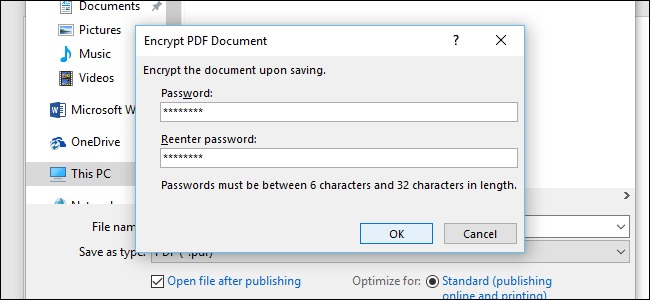
Step 4. In the publish window, look for the Options... button before you hit save.
Step 5. At the bottom of the Options menu, check the box labeled Encrypt the document with a password.
Step 6. Click OK, enter your desired password twice, and save the file.
Method 2: Using PDF24 Creator (Best Free Tool for Existing PDFs)
If you already have a PDF and don't want to risk formatting issues by opening it in Word, you need a dedicated tool. While Adobe Acrobat Pro is the industry standard (and requires a subscription), PDF24 is a highly trusted, free, and lightweight alternative for Windows users.
Step 1. Download and install the PDF24 Creator (ensure you download from the official site).
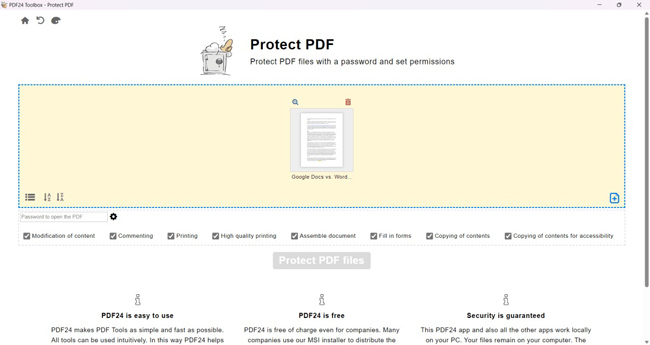
Step 2. Open the PDF24 Toolbox and select Protect PDF.
Step 3. Drag and drop your file into the window.
Step 4. Set your password in the text box provided. You can also adjust permissions here (like disabling printing).
Step 5. Click Protect and then save your new secure PDF document.
Part 3. How to Password Protect a PDF on macOS
Mac users have a significant advantage here. Apple includes powerful PDF manipulation tools directly inside the native Preview app, meaning you do not need third-party software to secure PDF documents on a Mac.
Use Native Preview to Lock PDF
Step 1. Open your PDF file using Preview (this is the default app usually).
Step 2. Go to the menu bar at the top, click File, and select Export... (Note: Do not choose "Export as PDF," just "Export").
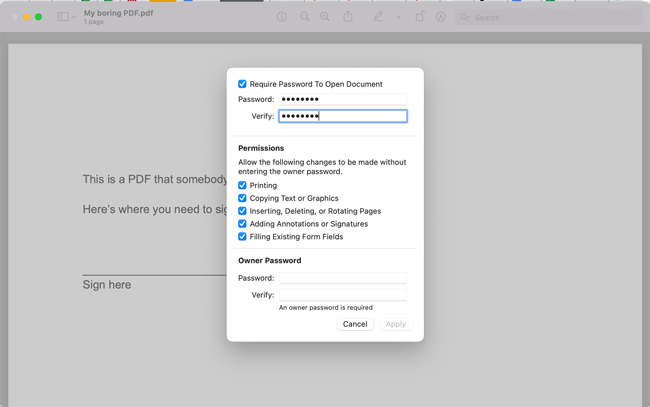
Step 3. Click the Permissions button (sometimes labeled as a padlock icon or a checkbox).

Step 4. Check the box that says Require password to open document.
Step 5. Type your password, verify it, and click Apply.
Step 6. Finally, save the file.
 Pro Tip
If you want to print a webpage or document as a secure PDF, click Command + P, click the PDF dropdown in the print dialog, and select Security Options to add a password immediately.
Part 4. How to Password Protect PDFs on Mobile Devices (iOS and Android)
In a mobile-first world, you often need to lock a contract or financial statement directly from your phone before emailing it. Here is how to handle mobile PDF encryption.
Method 1. Password Protect PDF on iOS
Apple has integrated PDF locking features directly into the Files app, making it incredibly easy to password protect PDF on iPhone.
Step 1. Ensure your PDF is saved to the Files app (not just inside an email).
Step 2. Open Files and locate your document.
Step 3. Tap to open the document, then tap the dropdown arrow next to the file name.
Step 4. Select Lock PDF.
Step 5. Enter your password and verify it.
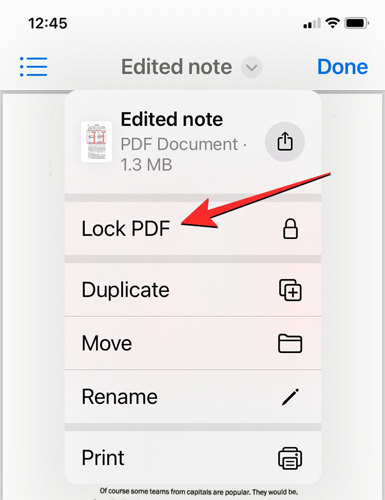
You will now see a small padlock icon on the file thumbnail.
Method 2. Password Protect PDF on Android
Android does not have a standardized, native "lock" feature built into the OS across all manufacturers. The most reliable method is using the Adobe Acrobat Reader app (free version often allows viewing, but protection features usually require a subscription) or a trusted free office suite like OfficeSuite or Xodo.
Step 1. Download and open PDF Reader Pro from the Google Play Store.
Step 2. Open your document within the app.
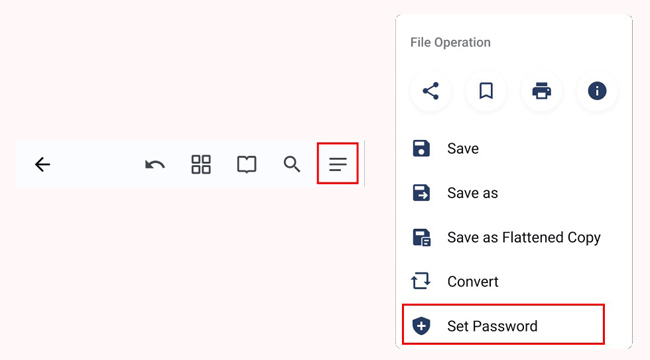
Step 3. Tap on Tools in the bottom menu bar.
Step 4. Scroll down and select Set Password.
Step 5. Enter your desired password and tap OK.
Step 6. The app will save a new, protected copy of your file.
Part 5. Using Online Tools (No Installation Required)
If you are on a public computer or cannot install software, online converters are the quickest solution. Tools like iLovePDF, Smallpdf, and Adobe's Online Converter are popular choices.
How to Password Protect PDF with Online Tools:
Step 1. Navigate to a reputable site like Adobe Acrobat Online.
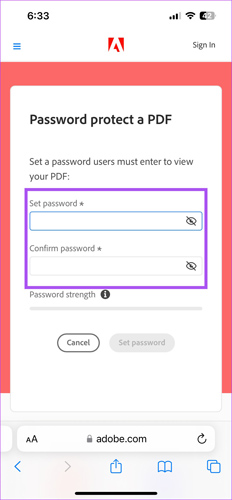
Step 2. Select the Protect PDF tool.
Step 3. Upload your file.
Step 4. Type in your chosen password.
Step 5. Download the encrypted file.
Note
Read this before using online tools: While reputable sites use HTTPS encryption for uploads, you are technically uploading your file to a remote server.
Part 6. How to Unlock a Password-Protected PDF without Password
How can users unlock a PDF when you forgot the correct password? The all-in-one solution is to take assistance from professional unlocking tools like TunesKit File Password Recovery. TunesKit File Password Recovery can help users recover and remove password from your encrypted files, including Excel/Word/PPT, PDF, and ZIP/RAR.
The software is noted for its user-friendly interface that requires no technical expertise, ensuring a secure recovery process that unlocks documents quickly without damaging the original data.

Remove Password from PDF within Seconds
TunesKit File Password Recovery helps you quickly remove permission from PDF files without a password, letting you edit and save your PDF file freely.
 600,000+ Downloads
600,000+ Downloads
600,000+ Downloads
Here's the step-by-step guide to remove password from your PDF file using TunesKit File Password Recovery.
Step 1Select a File Type
Get the TunesKit Excel Password Recovery tool set up on your computer first. After launching the program, simply select PDF to proceed.

Step 2Select Remove PDF Restriction
Click on the Remove PDF Restriction optoin. If you just want to get the PDF password back, select the Recover PDF Password.

Step 3Start to Remove Password from PDF
Drag and drop your PDF file to TunesKit File Password Recovery, or click on the + icon to add the file to the program. Click on the Start Remove button.

Step 4Successfully Remove Password from PDF
Once the process completes, you will get a copy of the PDF file without password. Just open and read it. You can click on the Open Folder button to locate your PDF file.

Part 7. Expert Tips for Maximum Security
Simply adding a password isn't enough if the password is weak. As a best practice for PDF security, follow these guidelines to ensure your protection is actually effective.
1. Password Strength Matters
A password cracking tool can brute-force a simple password like "password123" in seconds.
- Do: Use at least 12 characters, mixing uppercase, lowercase, numbers, and symbols.
- Don't: Use dates of birth, company names, or the word "PDF".
2. Safeguard the Password
Never email the password in the same email as the locked PDF. If the email account is compromised, the hacker has both the lock and the key.
Best Practice: Send the PDF via email, and send the password via a separate channel like a text message (SMS), WhatsApp, or Signal.
3. Recovering a Lost Password
Users frequently ask: "I forgot the password to my PDF, can I open it?"
Technically, if the encryption is strong (AES-256), the answer is no. There is no "forgot password" button for a local PDF file. While there are "PDF Password Remover" tools online, they usually only work for removing owner restrictions (printing/editing) or cracking very weak, old encryption. If you lose the password to a strongly encrypted file, the data is likely gone forever.
Conclusion
Password-protecting your PDFs is a simple, free way to secure your digital footprint. You can easily accomplish this using built-in tools like Microsoft Word's Export feature on Windows, the Preview app on Mac, or the Files app on iPhone. For sensitive data, it is strictly recommended to avoid online converters and process files offline to ensure maximum privacy. If you forgot the PDF password, download and try using TunesKit File Password Recovery.


