


Fixed: YouTube Picture in Picture Not Working on iPhone
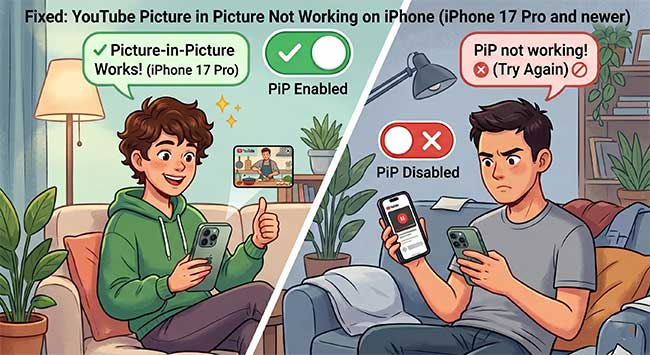
Few things are more annoying than trying to multitask on your iPhone, only to have your video vanish the second you swipe home. If you are currently dealing with YouTube Picture in Picture not working on iPhone, the issue is usually caused by a misplaced setting, a temporary software bug, or regional account restrictions.
Picture-in-Picture is designed to let you watch your favorite creators while texting or browsing, and when it fails, it completely disrupts your mobile experience. Fortunately, you can easily solve this issue by the following 6 fixes.
- Why Is YouTube Picture in Picture Not Working?
- 6 Fixes For YouTube Picture in Picture Not Working on iPhone
- Method 1. Enable System-Level Picture in Picture
- Method 2. Toggle PiP Inside the YouTube App Settings
- Method 3. Fix Deep iOS Bugs with TunesKit iOS System RecoveryHOT
- Method 4. Clear App Glitches by Offloading YouTube
- Method 5. Use the Pause-Play Gesture Workaround
- Method 6: Update YouTube App or iOS Version
- FAQs About YouTube Picture in Picture Not Working
- Conclusion
Why Is YouTube Picture in Picture Not Working?
When YouTube Picture-in-Picture (PiP) suddenly stops working, it is rarely a hardware issue. Here are the common causes.
1. System and App Settings Restraints
The most common culprit is that PiP has been turned off behind the scenes, which frequently happens after a major software or app update.
2. Regional Restrictions and Content Types
YouTube treats PiP availability differently depending on where you live and what kind of video you are trying to minimize.
- Free Users vs. Premium: YouTube offers free PiP functionality for standard, longform, non-music videos to users globally. However, if you are attempting to watch music videos in PiP, this remains an exclusive perk restricted strictly to YouTube Premium subscribers.
- Location and VPNs: If you are traveling or using a VPN that routes your connection through a country with different feature rollouts, PiP may temporarily lock you out. Disconnecting your VPN often restores normalcy.
3. Temporary Software Bugs
Sometimes the background code simply crashes, preventing the mini-player from detaching when you swipe up to go home.

6 Fixes For YouTube Picture in Picture Not Working on iPhone
If you are tired of your video disappearing every time you swipe out of the YouTube app, you can easily troubleshoot this problem. Below are detailed, step-by-step methods to get your floating mini-player working properly again.
Method 1. Enable System-Level Picture in Picture
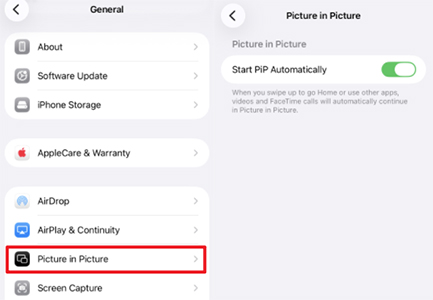
Sometimes an iOS system update can accidentally disable permissions for the background mini-player. You need to ensure your iPhone is allowed to separate video playback from the app interface.
- Step 1. Open the Settings app on your iPhone.
- Step 2. Scroll down and tap on General.
- Step 3. Select Picture in Picture from the list.
- Step 4. Toggle the switch next to Start PiP Automatically so it turns green.
Method 2. Toggle PiP Inside the YouTube App Settings
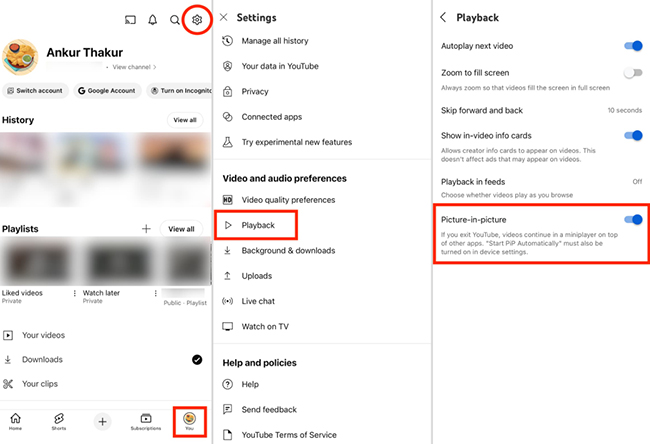
Even if your iPhone allows the feature, the YouTube app itself has its own independent toggle. If this is turned off, the video will simply pause or close when you return to your Home screen.
- Step 1. Open the YouTube app and tap your Profile (You) icon in the bottom right corner.
- Step 2. Tap the Settings (gear) icon located at the top right of the screen.
- Step 3. Select Playback (or Video and audio preferences on some app versions).
- Step 4. Find Picture-in-picture and flip the toggle switch to the On position.
Method 3. Fix Deep iOS Bugs with TunesKit iOS System Recovery
If adjusting your settings yields no results, your iPhone might be suffering from corrupted firmware data or deep system conflicts after a recent iOS update. Utilizing a dedicated repair utility like TunesKit iOS System Recovery allows you to wipe out stubborn software bugs causing the PiP failure without losing any of your personal data.
It helps users fix over 150 iOS and iPadOS issues, including iPhone stuck on the Apple logo, black screen, or boot loop, without losing data. It offers both Standard and Deep Repair modes, allows users to fix SHSH host not working with one click, and supports the latest iPhone models and iOS versions with a simple, beginner-friendly interface.
Fix YouTube PiP Not Working on iPhone
TunesKit iOS System Recovery can quickly fix iPhone system glitches that may cause YouTube Picture in Picture to stop working without losing your data.
 600,000+ Downloads
Here's a step-by-step guide to fix YouTube Picture in Picture not working on iPhone using TunesKit iOS System Recovery.
Step 1Connect iPhone to PC
Download and launch TunesKit iOS System Recovery on your Mac or PC. Connect your iPhone to the computer using a reliable USB cable, then click the iOS System Repair button. On the next page, click the Start button.

Step 2Select Standard Repair
Select Standard Repair on the interface to fix the issue without erasing your phone.

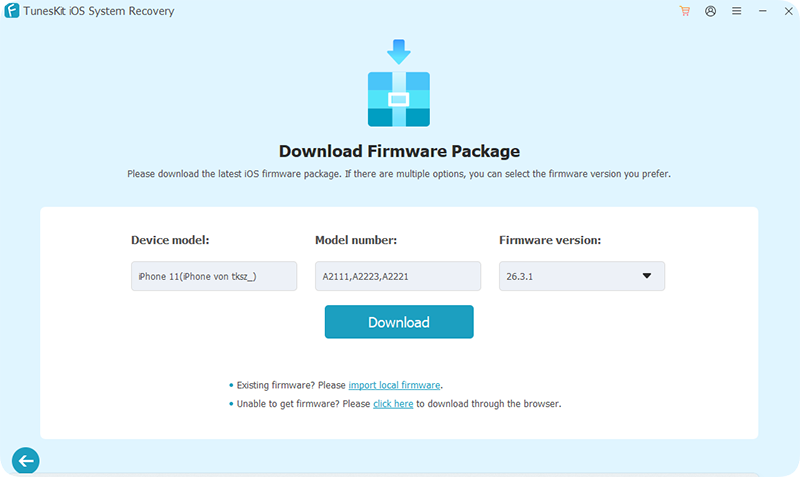
Step 3Download Firmware Package
Confirm your iPhone model details are accurate, and click Download to pull the matching firmware package from Apple.
Step 4Repair iOS Bugs
Once the download completes, click the Start Standard Repair button and keep your device connected until the system finishes recovering.

Method 4. Clear App Glitches by Offloading YouTube
Over time, temporary cached files in the YouTube application can degrade and conflict with multitasking features. Because iOS does not feature a dedicated "Clear Cache" button like Android, you must remove the app's installation files while keeping your login data intact.
- Step 1. Navigate to your iPhone's Settings app, choose General, and select iPhone Storage.
- Step 2. Scroll through the list of applications, locate YouTube, and tap it.
- Step 3. Tap the blue Offload App button to clear the application's temporary system footprint.
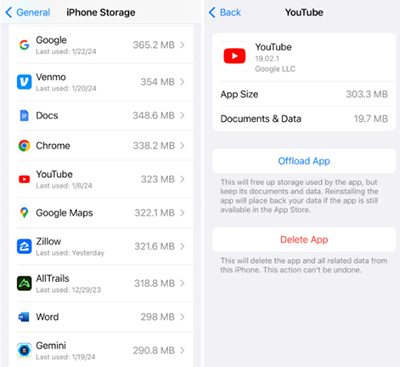
- Step 4. Select Reinstall App on the exact same screen to safely download a fresh copy from the App Store.
Method 5. Use the Pause-Play Gesture Workaround
There is a known minor bug where iOS misses the gesture trigger to detach the video player window. You can manually force the app to register your movement with a quick trick discovered by the user community.
- Step 1. Open the YouTube app and select the video you intend to watch.
- Step 2. Before you swipe out of the app, press the Pause button on the video.
- Step 3. Press the Play button immediately after to resume playback.
- Step 4. Swipe up from the bottom of your screen to exit to the Home screen while the video is playing.
Method 6. Update YouTube App or iOS Version
Outdated firmware can cause compatibility issues between the iOS multitasking engine and the YouTube player. Ensuring both your device and the app are running the most recent code is a critical final step.
- Step 1. Visit the App Store to check if a "YouTube" update is pending.
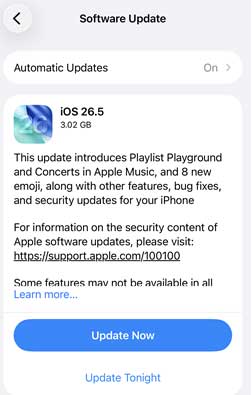
- Step 2. Open your iPhone Settings, go to General, and select Software Update.
- Step 3. If an update is available, download and install it to ensure your system supports the latest PiP protocols.
FAQs About YouTube Picture in Picture Not Working
-
Do I need YouTube Premium to use Picture-in-Picture?
It depends entirely on your geographical location and what you are trying to watch. If you reside within the United States, YouTube allows free users to access PiP for standard, non-music videos. However, if you are located outside of the United States, or if you are attempting to watch music-centric content (like music videos or art tracks) anywhere in the world, an active YouTube Premium subscription is strictly required.
-
Can a VPN block YouTube Picture-in-Picture from triggering?
Yes, using a Virtual Private Network can completely break the mini-player. Because YouTube heavily relies on location parameters to determine feature availability, routing your data through a server in a country where PiP is legally restricted or limited to Premium accounts will lock you out of the feature. Temporarily disconnecting your VPN profile will quickly reveal if regional routing is the root cause.
-
Why does my video pause instead of shrinking when I swipe home?
Picture-in-Picture will only engage if the video is actively processing playback at the exact moment you leave the application. If you hit the pause button or if the video is buffering when you swipe up to go to your Home screen, the iOS multitasking engine will simply suspend the app rather than launching the floating window. Always make sure the media is actively running right before you perform the home gesture.
Conclusion
Restoring YouTube Picture-in-Picture on your iPhone is usually as simple as flipping a forgotten setting or restarting the app. However, if the floating window still refuses to work, the problem is likely tied to a deeper software glitch within your iOS firmware. Using a specialized tool like TunesKit iOS System Recovery provides a definitive, hassle-free fix. It safely repairs underlying system issues without risking any data loss, ensuring your iPhone handles multitasking flawlessly so you can watch your favorite creators uninterrupted.


