


Solved: iPhone Keeps Asking for Email Password
Email is one of the very important aspects of our lives. We can use it to get information and stay informed. It can be very frustrating to not have access to email, whether it's Hotmail, Outlook, or Gmail. Are you bothered by the fact that your iPhone keeps asking you for your email password? No need to worry, many users have experienced a similar situation. In this article, let's learn why and how to fix iPhone keeps asking for email password.
- Why Does My iPhone Keep Asking for Email Password?
-
10 Ways to Fix iPhone Keeps Asking for Email Password
- Way 1: Verify Your Email Address and Password
- Way 2: Check Two-Factor Authentication
- Way 3: Check Your Internet Connection and Email Provider
- Way 4: Turn Mail Off and On for the Account
- Way 5: Restart Your iPhone
- Way 6: Remove and Re-add the Email Account
- Way 7: Check Your Mail Server Settings
- Way 8: Update iOS
- Way 9: Reset Network Settings
- Way 10: Fix iOS Bugs with TunesKit iOS System Recovery Software HOT
- FAQs About iPhone Keeps Asking for Email Password
- Final Word
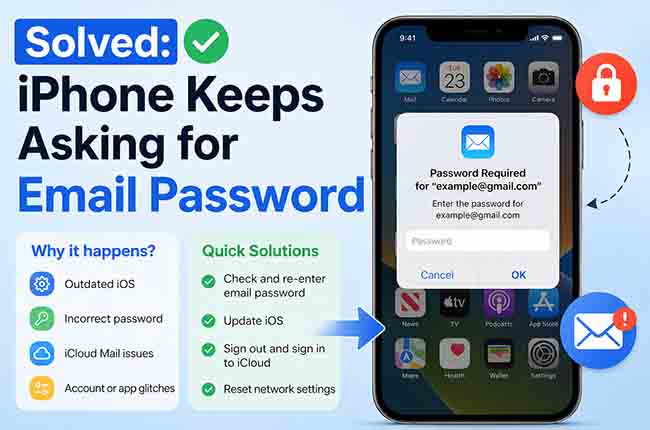
Why Does My iPhone Keep Asking for Email Password?
If your iPhone keeps asking for your email password, the Mail app may be unable to verify your account correctly. Common causes include:
- 01 Wrong or changed password: The password saved on your iPhone may be outdated.
- 02 Account authentication issue: Your email provider may require you to sign in again.
- 03 Incorrect mail settings: Wrong IMAP, POP, or SMTP settings can cause repeated prompts.
- 04 Email server problem: Temporary outages may prevent Mail from verifying your account.
- 05 Two-factor authentication: Some providers require additional verification.
- 06 iOS or Mail glitches: A temporary software issue may also cause the problem.
Once you identify the cause, you can use the fixes below to stop your iPhone Mail from repeatedly asking for a password.
10 Ways to Fix iPhone Keeps Asking for Email Password
If your iPhone keeps asking for your email password, start with your account credentials and email provider before changing system settings. Try the following fixes in order, from the simplest to the more advanced.
Way 1: Verify Your Email Address and Password
First, make sure your email password is actually correct. A changed or outdated password is one of the most common reasons why iPhone Mail keeps asking you to sign in.
- Step 1. Open Safari and go to your email provider's official website.
- Step 2. Sign in using the same email address and password you use in Mail.
- Step 3. If the password doesn't work, reset it with your email provider. Then return to your iPhone and sign in again.
If you can sign in successfully on the provider's website, continue with the fixes below.
Way 2: Check Two-Factor Authentication
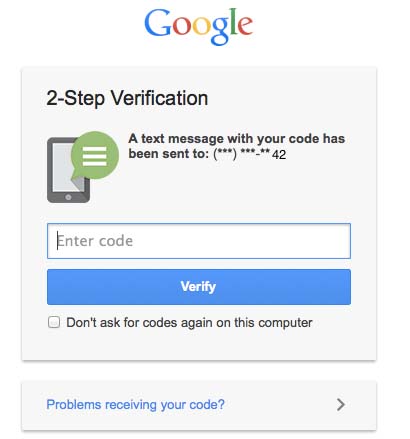
Some email providers require additional authentication before allowing Apple Mail to access your account. This is especially important if you recently enabled two-factor authentication or changed your account security settings.
- Step 1. Sign in to your email provider's account page.
- Step 2. Check whether two-factor authentication or another security feature is enabled.
- Step 3. Complete any pending verification. If your provider requires an app-specific password for third-party mail clients, generate one and use it when setting up the account.
Way 3: Check Your Internet Connection and Email Provider
Mail needs a stable connection to authenticate your account. A temporary outage on your email provider's side can also trigger repeated password prompts.
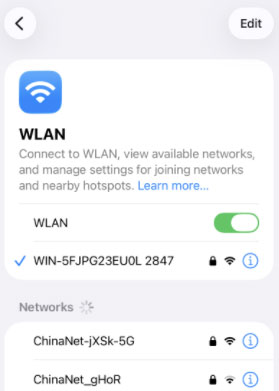
- Step 1. Open Safari and visit a website to make sure your iPhone has internet access.
- Step 2. Switch between Wi-Fi and cellular data to check whether the problem is network-related.
- Step 3. Check your email provider's service-status page for outages.
If the provider is experiencing an outage, wait until its email service is restored before changing your iPhone settings.
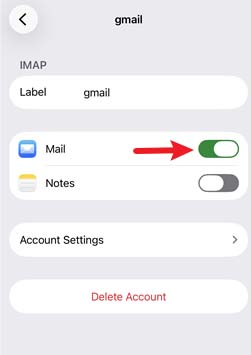
Way 4: Turn Mail Off and On for the Account
Temporarily disabling Mail for the affected account can refresh its connection without removing the account.
- Step 1. Go to Settings > Apps > Mail > Mail Accounts.
- Step 2. Select the email account that keeps requesting your password.
- Step 3. Turn off Mail or Use on This iPhone, depending on the account type.
- Step 4. Wait a few seconds, then turn it back on and open Mail again.
Way 5: Restart Your iPhone
A temporary iOS or Mail glitch can interfere with account authentication. Restarting your iPhone is a simple way to refresh these processes.
- Step 1. Press and hold the Side button and either Volume button until the power-off slider appears.
- Step 2. Drag the slider and wait for the iPhone to turn off completely.
- Step 3. Press and hold the Side button until the Apple logo appears.

Then open Mail and check whether the password prompt returns.
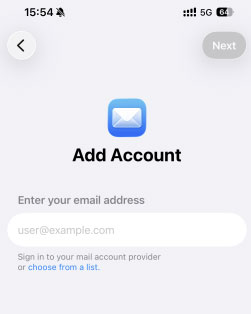
Way 6: Remove and Re-add the Email Account
If the stored authentication information is corrupted or outdated, removing and adding the account again can create a fresh connection with your email provider.
Before doing this, make sure your email is stored on your email provider's server or backed up elsewhere.
- Step 1. Go to Settings > Apps > Mail > Mail Accounts.
- Step 2. Select the affected account and tap Delete Account or Sign Out.
- Step 3. Return to Mail Accounts and tap Add Account.
- Step 4. Select your email provider and follow the onscreen instructions to sign in again.
Way 7: Check Your Mail Server Settings
If you manually configured an IMAP or POP account, incorrect incoming or outgoing mail server settings can cause authentication errors.
Check the following information with your email provider:
- Username and password
- Incoming mail server
- Outgoing SMTP server
- IMAP or POP settings
- SSL/TLS requirements
- Port numbers
If you're unsure about any of these settings, use the values provided by your email service instead of guessing.
Way 8: Update iOS
Updating iOS fixes known system bugs and errors and may be accompanied by new features, so you can fix iPhone keeps asking for your email password by updating iOS. Here are the exact steps:
- Step 1. Go to Settings > General > Software Update.
- Step 2. Wait while your iPhone checks for available updates.
- Step 3. If an update is available, tap Update Now and follow the onscreen instructions.
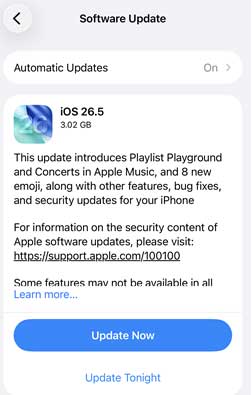
After the update is complete, open Mail and check the affected account again.
Way 9: Reset Network Settings
If Mail still can't authenticate even your password and account settings are correct, reset your iPhone's network settings.
- Step 1. Open Settings > General > Transfer or Reset iPhone.
- Step 2. Tap Reset.
- Step 3. Select Reset Network Settings and confirm with your passcode.

 Note
Note
This doesn't erase your photos, apps, or other personal data. However, it resets previously used Wi-Fi networks and passwords, cellular settings, VPN settings, and APN settings.
Way 10: Fix iOS Bugs with TunesKit iOS System Recovery Software
One of the reasons why the iPhone keeps asking for email passwords is iOS bugs, and these internal iOS bugs can prevent the phone from functioning well. It's time to fix these iOS loopholes with efficient software. TunesKit iOS System Recovery is one such software that can help you fix a wide range of iOS errors, no matter how complex the iOS error is, it can solve it without losing data.
For instance, iPhone could not activate the cellular data network, AirDrop not working on the iPhone, and blue box on the iPhone, etc. Also, it can repair iTunes error for free, and back up or restore your iPhone.
Fix Repeated Email Password Prompts
Repair iOS-related Mail glitches with TunesKit iOS System Recovery and stop repeated email password prompts without losing data.
 600,000+ Downloads
Perform these 4 steps to utilize TunesKit iOS System Recovery to fix the iPhone keeps asking for email password issue apace.
Step 1. Link iPhone to PC
First of all, please download and install TunesKit iOS System Recovery on your computer. Once installed, launch the software and connect your iPhone to the PC using a compatible USB cable. Select iOS System Repair and click the Start button.

Step 2. Select Standard Repair
Both Standard Repair and Deep Repair can be used to fix iOS bugs, the difference is that Standard Repair keeps your data intact and Deep Repair erases all your data after the repair is complete. You can choose Standard Repair first and then Deep Repair if it doesn't solve your problem.

Step 3. Retrieve and Fetch the Firmware Package
The program will automatically detect your iPhone model and display the available firmware files. Select the desired firmware and click on the Download button to obtain it.

Step 4. Fix iPhone Keeps Asking for E-mail Password
Click on the Start Standard Repair button and wait for the repair process to complete. After a short wait, your device will be repaired and the problem of iPhone constantly asking for an email password will be solved.

FAQs About iPhone Keeps Asking for Email Password
-
What if the password is correct, but it still asks repeatedly?
1. Make sure 2-Factor Authentication isn't causing issues.
2. Check if you need an app-specific password (for older accounts).
3. Delete and re-add the email account: Go to Settings > Apps > Mail > Accounts, tap the account, then Delete Account and add it again. -
Does this issue affect all email providers or just one?
It can affect any provider, but it's most common with: iCloud, Gmail, Yahoo, or Outlook/Hitmail.
-
Is this a known issue with certain iOS versions?
Yes, some iOS updates have introduced bugs that cause this issue temporarily. Make sure your iPhone is updated to the latest iOS version.
Final Word
And there you have it. We have listed all the possible reasons and solutions for why the iPhone keeps asking for an email password. These methods are proven and effective. You can try them one by one. If you are experiencing other difficult-to-resolve errors on your iOS device, please do not hesitate to choose TunesKit iOS System Recovery, which can fix iOS software glitches in one click. Hope you can solve this problem from this article. Stay tuned for more useful tips updates.



