


How to Fix iOS 26 Lock Screen Clock Not Working?
If you've recently updated your iPhone and noticed the iOS 26 Lock Screen clock not working, you're not alone. Many users have reported issues where the clock freezes, disappears, or fails to update properly on the lock screen. This problem can be frustrating, especially since the lock screen is meant to provide quick and reliable access to time and notifications. In this guide, we'll explore why the iOS 26 Lock Screen clock is not working and what you can do to fix it quickly.
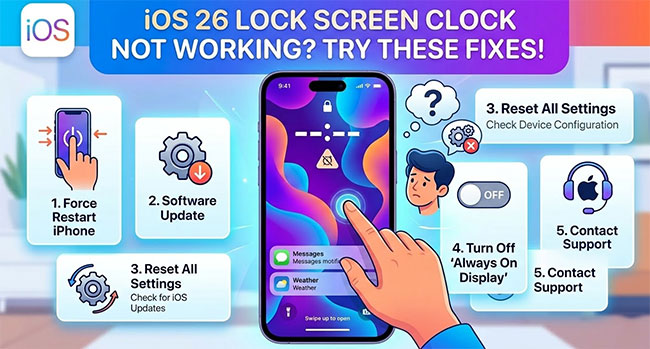
Why Is My Clock Not Working on My Lock Screen?
The iOS 26 Lock Screen clock not working issue isn't just one bug—it usually comes from a mix of new design changes, settings conflicts, and small glitches introduced in the update. Here's what's really going on:
- 01 New "Liquid Glass" Design Issues: Transparent UI can make the clock hard to see or appear broken, and certain wallpapers cause low contrast or overlap.
- 02 Lock Screen Customization Bugs: Clock size/style options may not respond or apply, and older lock screens may not support new features properly.
- 03 Wallpaper Conflicts: Busy or dark backgrounds can hide the clock visually, and depth effects may place elements over the clock.
- 04 System Settings Interference: Low Power Mode may reduce visual effects, Focus Modes can switch or alter lock screens, and display zoom can distort clock layout.
- 05 Software Glitches: Clock may disappear or freeze after update, and minor bugs often fixed by restarting the device.
- 06 Incomplete Update or System Bugs: Early versions of iOS 26 may include unresolved UI issues, and updates may break or reset clock behavior.
How to Fix iOS 26 Lock Screen Clock Not Working?
When iOS 26 Lock Screen clock leaves you guessing the time, a few targeted troubleshooting methods can usually clear up the glitch. Sometimes the fix is as simple as a reboot, while other times you might need to address deeper software conflicts.
Fix 1. Restart Your iPhone
Sometimes the clock doesn't display correctly due to temporary software glitches or incomplete UI refresh after an update. Restarting your iPhone forces iOS to reload the system interface, which often fixes visual glitches like a frozen clock.
- Step 1. Press and hold the Side button + Volume Up or Down until the power slider appears.
- Step 2. Slide the power button icon to the right to completely turn off your iPhone.
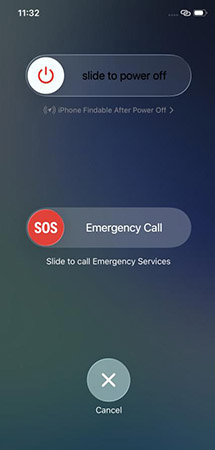
- Step 3. Wait 10–15 seconds to ensure the system fully powers down.
- Step 4. Press the Side button again to restart.
Fix 2. Force a System Restart
A forced restart is often the quickest way to clear out overloaded rendering engines or temporary memory leaks without deleting any personal data. It forces the hardware to completely cycle its power and reload the operating system from scratch.
- Step 1. Quickly press and release the Volume Up button.
- Step 2. Quickly press and release the Volume Down button.
- Step 3. Press and hold the side power button until the Apple logo appears on your screen.

Fix 3. Rebuild Your Lock Screen Profile
Because this update introduces such deep customization, a corrupted font file or a glitching Spatial Scene wallpaper can easily break the clock display. Creating a brand new, basic Lock Screen can help determine if the issue is tied to your specific design choices.
- Step 1. Wake your device and long-press anywhere on the Lock Screen to enter edit mode.
- Step 2. Tap the plus icon to create a new, default wallpaper setup using standard Apple presets.
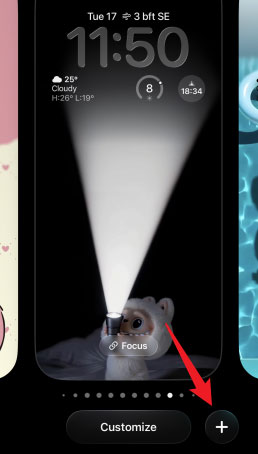
Test this fresh profile to see if the time renders correctly.
Fix 4. Disable Low Power Mode
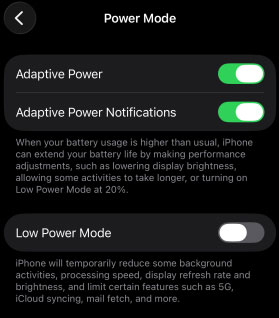
Low Power Mode reduces animations and system effects to save battery. This can affect the Lock Screen clock, causing it to appear frozen or not update in real time.
- Step 1. Go to Settings → Battery.
- Step 2. Scroll down to find Power Mode, and turn off Low Power Mode.
Fix 5. Check Focus Modes
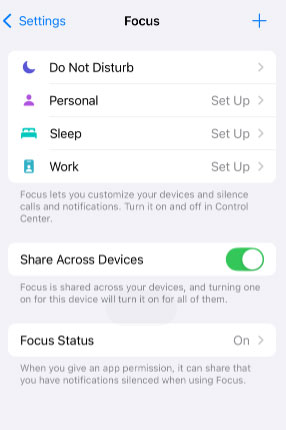
Active Focus modes (e.g., Do Not Disturb, Work, Sleep) can apply alternative Lock Screens that may hide or replace your main clock. Adjusting or disabling these ensures your main clock displays correctly.
- Step 1. Go to Settings → Focus.
- Step 2. Review each Focus mode to see if it applies a separate Lock Screen.
- Step 3. Disable or customize the Focus mode's Lock Screen as needed.
Fix 6. Reset All System Settings
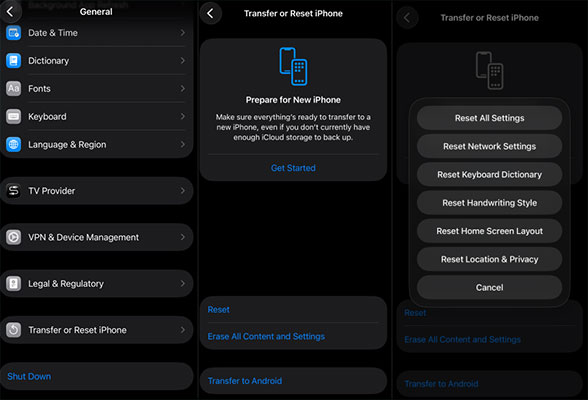
When aggressive power management or conflicting background processes are to blame, wiping your configuration settings might be the final necessary step. This will not erase your apps or media, but it will return your Wi-Fi networks, Bluetooth connections, and custom layout settings to their factory defaults.
- Step 1. Navigate to Settings, tap on General, and scroll down to Transfer or Reset iPhone.
- Step 2. Tap Reset, then choose Reset All Settings and confirm your passcode.
Fix 7. Repair the iOS System to Fix iOS 26 Lock Screen Clock Not Working
If the clock is still missing or frozen, the glitch might be rooted deeper in the iOS firmware itself. Using a dedicated repair program like TunesKit iOS System Recovery can be incredibly effective for resolving these stubborn software bugs. This software can often patch core system files and resolve display glitches without causing any data loss on your device.
For instance, it can fix over 150 iOS system issues like SHSH host not working, blue box on iPhone, and vertical lines on iPhone screen, etc. It is designed with a user-friendly interface, making it easy for beginners to repair their iPhone system in just a few simple steps, and it supports the latest iOS versions, including iOS 26, and works seamlessly with a wide range of iPhone and iPad models. It enables fast repairs, helping you restore your device to normal without relying on iTunes.
Fix iOS 26 Lock Screen Clock Not Working
If your iOS 26 Lock Screen clock is missing, frozen, or not displaying correctly, you can use TunesKit iOS System Recovery to quickly fix system glitches and restore normal functionality without data loss.
 600,000+ Downloads
Now let's follow these easy steps to fix OS 26 lock screen clock not working using TunesKit iOS System Recovery.
Step 1Connect iPhone to PC
Connect your iPhone to your Mac or Windows computer using a certified USB cable, and launch the TunesKit iOS System Recovery application. Click on the iOS System Repair option on the main interface to begin the troubleshooting process. And click the Start button to begin.

Step 2Choose a repair mode
Choose the "Standard Repair" mode from the available options on your screen. This specific mode is crucial because it ensures your device is repaired without erasing any of your personal files or custom settings.

Step 3Download firmware package
Confirm your device model and the firmware version displayed on the screen, then click the "Download" button to fetch the official iOS repair package. Wait patiently for the download and verification process to fully complete.

Step 4Fix iOS 26 lock screen clock not working
Click the "Repair" button to initiate the system recovery, making sure to keep your phone securely connected until the progress bar finishes. Once your device automatically restarts, the underlying glitch causing your iOS 26 Lock Screen clock not working should be completely resolved.

FAQs About iOS 26 Lock Screen Clock Not Working
-
Why won't my iOS 26 clock resize?
Many users find that the drag handle to expand the clock simply disappears when they try to customize their screen. This happens because Apple currently restricts resizing and the Liquid Glass effect exclusively to the default font. If you choose any other typeface, you lose the ability to stretch the time physically. To get the drag handle back, you must edit your Lock Screen and select the far-left font option.
-
Can I make the Lock Screen clock smaller?
You can make the numbers narrower using the customization slider, but you cannot shrink the overall footprint below its base size. Apple allows you to expand the clock to take up a significant portion of the screen, which is fantastic for readability from a distance. However, there is no option to minimize it further than the default starting point to reveal more of your underlying wallpaper.
-
How do I fix the Liquid Glass transparency?
Early versions of iOS 26 left some users confused about how the new translucent design was supposed to look. With the subsequent release of iOS 26.2, Apple introduced much more granular controls for this specific aesthetic. When you tap to customize the clock, you will now see an opacity slider that lets you adjust exactly how clear or solid the Liquid Glass material appears against your background.
Conclusion
In conclusion, issues with the iOS 26 lock screen clock are often caused by minor system glitches, display settings, or customization conflicts, and most can be resolved with simple fixes like restarting your device, adjusting settings, or updating iOS. However, if the problem persists or is caused by deeper system errors, using TunesKit iOS System Recovery can be a reliable solution, as it is designed to fix iOS system issues without data loss and restore your device to normal.


