


How to Disable App Library on iPhone?
The App Library was designed to organize apps automatically, but for many users, it just adds unnecessary confusion. If you are searching for how to disable app library on iPhone, it is important to know upfront that Apple does not currently provide an official "off" switch for this feature.
However, you can effectively bypass it. By adjusting your Home Screen settings to ensure all new downloads appear directly on your pages, you can ignore the library almost entirely. This returns your device to the classic, straightforward layout you prefer without the extra layer of navigation.
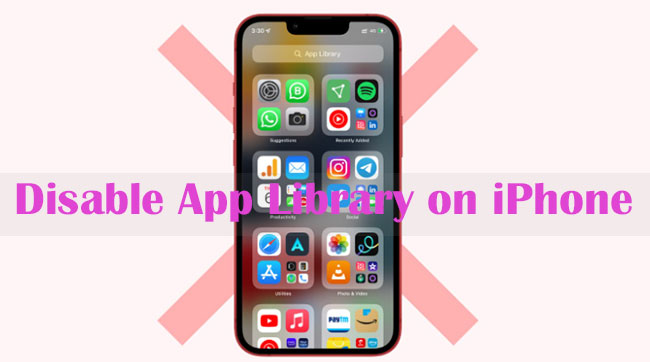
Part 1: Can You Disable the App Library?
The short answer is no. As of the latest iOS versions, Apple has made the App Library a permanent, unremovable feature of the iPhone interface. There is no switch in Settings to turn it off completely.
However, you can change how your iPhone behaves so that you rarely—if ever—have to use it. By adjusting where new apps go and how your Home Screen is laid out, you can effectively ignore the App Library.
 See More:
 Part 2: How to Adjust App Library's Preference on iPhone?
Since a direct "off" switch does not exist, the best solution is to customize your settings so you rarely—if ever—have to interact with the feature. Here are the most effective workarounds to effectively bypass the App Library and restore a classic Home Screen experience.
Method 1: Stop Apps from Hiding in the Library
The most common frustration is when new apps download directly to the App Library instead of appearing on your Home Screen. You can revert this to the classic behavior.
Step 1: Open the Settings app on your iPhone.
Step 2: Scroll down and tap on Home Screen & App Library.
Step 3: Under the "Newly Downloaded Apps" section, select Add to Home Screen.
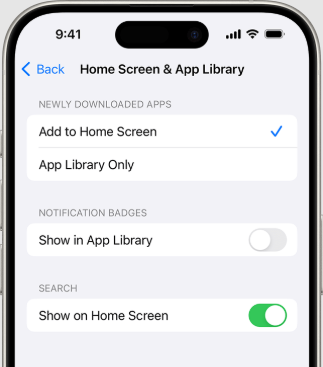
Once you make this change, every new app you install will appear on your visible pages immediately, removing the need to search for them in the Library.
Method 2: Keep the Library "Far Away"
The App Library always lives to the right of your very last Home Screen page. If you have hidden pages to declutter your phone, the Library becomes much easier to accidentally swipe into. Unhiding your pages puts more distance between your main screen and the Library.
Step 1: Long-press on an empty area of your Home Screen until the apps start to jiggle.
Step 2: Tap the row of dots near the bottom of the screen.
Step 3: Check the empty circles under any hidden pages to restore them, then tap Done.
By keeping your Home Screen pages visible, you create a "buffer" that prevents you from bumping into the App Library during normal use.

Method 3: Turn Off Notification Badges
If seeing red notification numbers in the App Library bothers you, you can turn them off specifically for that view.
Step 1: Go to Settings > Home Screen & App Library.
Step 2: Under the "Notification Badges" section, toggle off Show in App Library.
This makes the App Library look much cleaner and less demanding of your attention if you do accidentally swipe over to it.
Method 4: The "Hidden" Folder Trick
If your goal is to stop people from seeing your apps in the Library, iOS 18 introduced a partial fix.
You can now long-press an app and select "Require Face ID" > "Hide and Require Face ID."
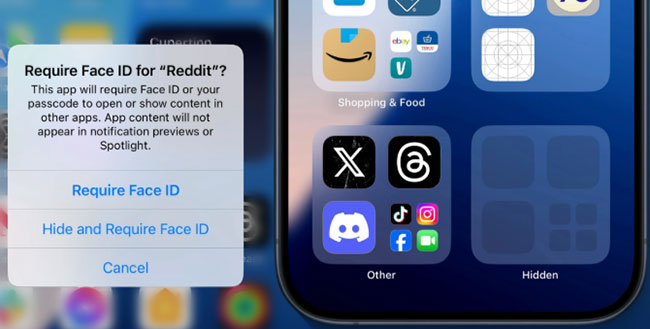
The app disappears from the main App Library categories completely. It is moved to a "Hidden" folder at the bottom of the Library that effectively looks like a blank grey square and cannot be opened without your face scan.
Part 3. What Is App Library on iPhone?
App Library is a feature on iPhones that automatically organizes all your apps in one place, so you don’t have to keep every app on your Home Screen.
What it does
- Automatically groups apps into smart folders like Social, Entertainment, Utilities, Productivity, etc.
- Lets you quickly search for any app using the search bar at the top.
- Reduces Home Screen clutter by allowing apps to live only in the App Library instead of on Home Screens.
Where to find it
- Swipe left past all your Home Screen pages.
- The last screen you reach is the App Library.
How it's different from folders
- You can't manually rearrange the App Library folders—iOS manages them for you.
- Within each folder, iOS highlights apps it thinks you use most often.
Useful things you can do
- Open an app: Tap it directly.
- See all apps in a category: Tap the small grid icon in a folder.
- Search apps: Pull down or use the search bar.
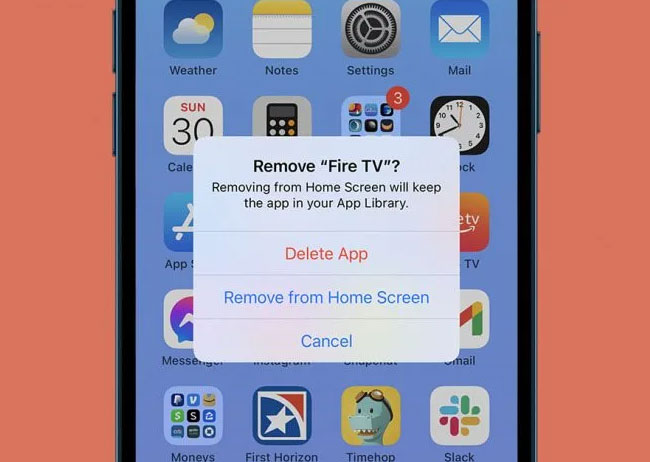
- Remove apps from Home Screen (not delete): Long-press an app → Remove App → Remove from Home Screen.
Why do people want to disable App Library
- They prefer a fully controlled Home Screen.
- It makes finding apps harder for some users.
- Visual clutter or distraction.
Part 4. How to Fix App Library Not Working on iPhone?
While some users simply want to hide the App Library, others are dealing with actual malfunctions like blank folders, freezing, or crashing. If a standard restart doesn't solve these glitches, they often point to deeper system errors that can be easily fixed using TunesKit iOS System Recovery.
It's capable of repairing a wide range of common iOS problems, including the "Apple Logo" loop, black/white screens, frozen apps, boot loops, and iPhone stuck in Recovery Mode. It also allows you to revert to a previous (signed) version of iOS if a new update is buggy or slowing down your phone.
Key Features of TunesKit iOS System Recovery
TunesKit iOS System Recovery quickly repairs iOS glitches causing App Library not working, keeping your data 100% intact.
 600,000+ Downloads
Well, let's follow this guide to fix App Library not working on iPhone using TunesKit iOS System Recovery.
Step 1Connect and Launch
Open the TunesKit software on your computer (Mac or Windows). Connect your iPhone using a USB cable. Once your device is detected, click the "iOS System Repair" button. And click the Start button to move on.

Step 2Select Standard Repair
You will see two modes. Select "Standard Repair".
- Standard Repair: Fixes common bugs (like App Library glitches) without data loss.
- Deep Repair: Wipes all data (do not use this unless Standard Repair fails).

Step 3Download Firmware
The software will automatically detect your iPhone model and the current iOS version. Confirm the details are correct, then click "Download". This downloads a fresh copy of the iOS firmware package (approx. 5GB) to replace the potentially corrupted system files on your phone.

Step 4Start the Repair
Once the download finishes, click "Repair". TunesKit will now verify the firmware and patch your iPhone's system. Do not disconnect your phone during this process. The phone will reboot automatically once finished, and the App Library should function normally

Part 5. Conclusion
While you cannot officially disable the App Library on iPhone, you can minimize its presence by customizing your Home Screen settings to keep new apps visible and unhiding pages to create distance from the Library. However, if your frustration stems from the feature being glitchy or unresponsive rather than just a preference, TunesKit iOS System Recovery provides an effective solution to repair these underlying system errors, ensuring your interface functions smoothly.


