


iPhone 17 Running Slow? Reasons & Solutions
Is your iPhone 17 running slow, lagging when opening apps, or taking longer than usual to respond? Performance issues can be caused by low storage, background apps, outdated iOS software, battery problems, or temporary system glitches. In this guide, we'll explain the common reasons why your iPhone 17 feels slow and show you practical ways to speed it up and improve overall performance.
- Why Is My iPhone 17 Running Slow?
-
How to Fix iPhone 17 Running Slow
- Fix 1. Restart Your iPhone 17
- Fix 2. Free Up Storage on iPhone 17
- Fix 3. Update iOS and Apps
- Fix 4. Reduce Background Activity
- Fix 5. Cool Down Your iPhone 17
- Fix 6. Check Your Wi-Fi or Cellular Connection
- Fix 7. Reset All Settings
- Fix 8. Repair iOS System Problems HOT
- Fix 9. Factory Reset Your iPhone 17
- Conclusion
Why Is My iPhone 17 Running Slow?
If your iPhone 17 is running slow, the problem usually comes from storage, software, background activity, or device conditions. Here are the most common causes:
- 01 Low Storage Space: When your iPhone storage is full, iOS and apps may take longer to load, update, and process data.
- 02 iOS or App Issues: An outdated iOS version, software bugs, or poorly optimized apps can cause lagging, freezing, and slow response.
- 03 Heavy Background Activity: iCloud syncing, app updates, photo indexing, Background App Refresh, and restoring data can consume system resources. This is especially common after an iOS update or when setting up a new iPhone 17.
- 04 Overheating or Performance Limitations: High device temperature and certain power-management conditions can temporarily reduce performance. A weak Wi-Fi or cellular connection can also make online apps appear unusually slow.
 Further Reading: iPad Running Slow? Why It Happens and 6 Ways to Speed It Up
How to Fix iPhone 17 Running Slow
Once you understand what may be slowing down your device, you can fix it from the most common causes first. The following ways cover storage, background processes, iOS problems, overheating, network performance, and system settings.
Fix 1. Restart Your iPhone 17
Temporary system processes and minor software glitches can build up while your iPhone runs for a long time. Apps may also leave background processes active even after you stop using them. Restarting your iPhone closes these temporary processes, refreshes system resources, and gives iOS a clean start. Therefore, a restart is a good first step when your iPhone 17 suddenly becomes slow or laggy.
- Step 1. Press and hold the Side button and either Volume button until the power-off slider appears.
- Step 2. Drag slide to power off to the right.
- Step 3. Wait about 30 seconds for your iPhone to shut down completely.
- Step 4. Press and hold the Side button until the Apple logo appears.

After the iPhone starts, use it for a few minutes and check whether apps and system animations respond more smoothly.
Fix 2. Free Up Storage on iPhone 17
iOS needs sufficient free storage to create temporary files, install updates, cache app data, and perform everyday system operations. When your iPhone storage becomes nearly full, apps may take longer to open and the device can experience lag or delayed responses.
Checking storage also helps you identify which apps, photos, videos, and downloads are consuming the most space.
- Step 1. Open Settings on your iPhone 17.
- Step 2. Go to General > iPhone Storage.
- Step 3. Wait for iOS to calculate your storage usage.
- Step 4. Review large apps and categories such as Photos, Messages, and downloaded media.
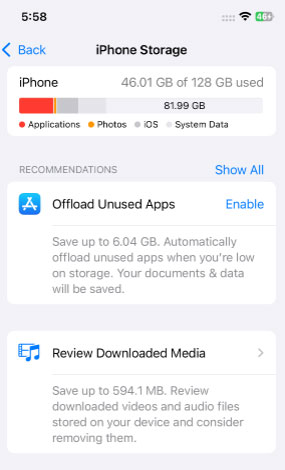
Step 5: Delete files you no longer need or select an unused app and tap Offload App to free storage while retaining its documents and data.
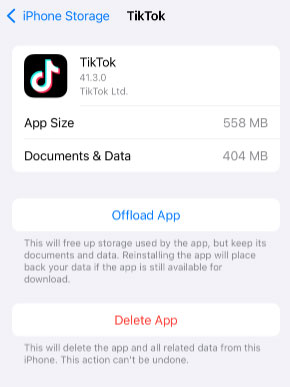
Restart your iPhone afterward and check whether its performance improves.
Fix 3. Update iOS and Apps
A performance problem can sometimes originate from an iOS bug or an app that has not been optimized properly. Apple releases iOS updates containing bug fixes, security updates, and other improvements, while app developers regularly update their apps for newer iOS versions and devices.
If your iPhone 17 is running slow after an update or the lag occurs primarily in certain apps, checking for newer software versions can address known issues.
To update iOS:
- Step 1. Connect your iPhone to a stable Wi-Fi network and make sure it has sufficient battery power.
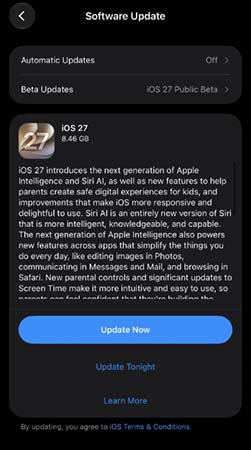
- Step 2. Open Settings > General > Software Update.
- Step 3. Wait while your iPhone checks for available updates.
- Step 4. If an update is available, tap Update Now and follow the onscreen instructions.
To update apps:
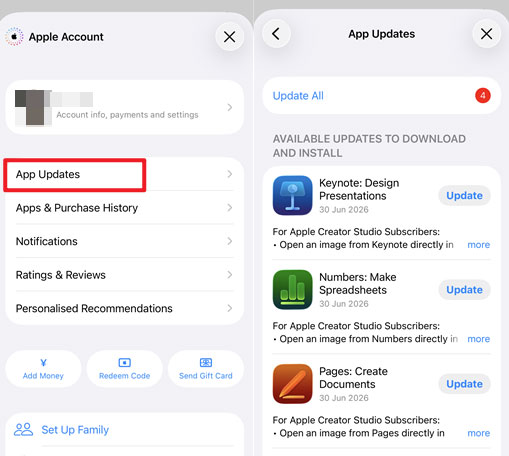
- Step 1. Open App Store on your iPhone, then tap your profile picture.
- Step 2. Tap the App Updates option.
- Step 3. Select the app that you would like to update, tap the Update button to download and install the latest update.
Fix 4. Reduce Background Activity
Your iPhone can perform many tasks even when you are not actively using an app. Background App Refresh, iCloud synchronization, photo processing, app downloads, and other services can use processing power, network bandwidth, and battery resources.
This is particularly noticeable after setting up a new iPhone 17, restoring an iCloud backup, or installing a major iOS update. Reducing unnecessary background activity can leave more resources available for the apps you are actively using.
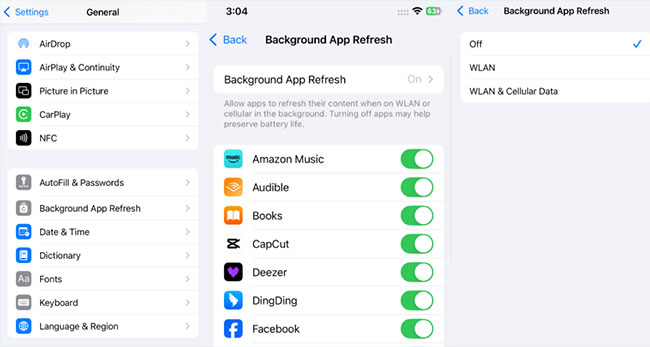
- Step 1. Open Settings > General.
- Step 2. Tap Background App Refresh.
- Step 3. Review the apps that are allowed to refresh in the background.
- Step 4. Turn off Background App Refresh for apps that do not need to update continuously.
If you recently restored or updated your iPhone, you can also leave it connected to power and Wi-Fi for a while so that ongoing synchronization and indexing tasks can finish.
Fix 5. Cool Down Your iPhone 17
High temperatures can affect iPhone performance. When the device becomes too warm, iOS may temporarily adjust certain system behaviors and performance to protect internal components. This can make games, apps, animations, and other tasks feel slower than usual.
Heat can build up during gaming, video recording, wireless charging, navigation, or prolonged use in a hot environment.
- Step 1. Stop resource-intensive apps such as games, video editors, or navigation apps.
- Step 2. Disconnect your iPhone from the charger if it becomes unusually warm while charging.
- Step 3. Move the device away from direct sunlight or other heat sources.
- Step 4. Allow the iPhone to cool naturally before using demanding apps again.

Once its temperature returns to normal, check whether the slowdown disappears.
Fix 6. Check Your Wi-Fi or Cellular Connection
Sometimes an iPhone appears slow even though its processor and system are working normally. If the delay mainly occurs when loading websites, watching videos, refreshing social media, downloading files, or using cloud-based apps, your internet connection may be the actual cause.
Testing the connection can help distinguish iPhone 17 performance issues from network problems.
- Step 1. Open several offline apps and check whether they respond normally.
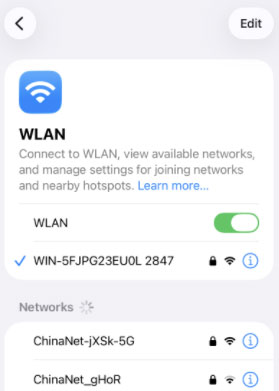
- Step 2. If only online apps are slow, turn WLAN off and back on from Settings > WLAN.
- Step 3. Try connecting to another reliable WLAN network if available.
- Step 4. You can also temporarily switch between WLAN and cellular data to compare performance.
If offline operations remain fast while online content loads slowly, focus on troubleshooting your network connection.
Fix 7. Reset All Settings
Network configurations, privacy preferences, keyboard settings, and other system settings can occasionally conflict or behave unexpectedly after long-term use or an iOS update. Resetting all settings restores these configurations to their defaults without erasing your apps, photos, videos, and other personal content.
This method is worth trying when your iPhone 17 keeps running slow after restarting, updating iOS, and clearing storage.
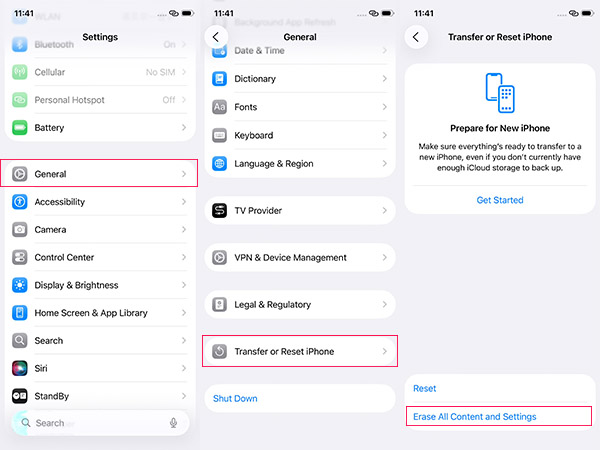
- Step 1. Open Settings > General.
- Step 2. Scroll down and tap Transfer or Reset iPhone.
- Step 3. Tap Reset. Select Reset All Settings.
- Step 4. Enter your iPhone passcode when prompted and confirm the reset.

Your iPhone will restart. You may need to configure settings such as Wi-Fi networks and preferences again afterward.
Fix 8. Repair iOS System Problems
If the previous methods do not improve performance, the slowdown may be related to a deeper iOS software problem. This possibility becomes more relevant when slow performance appears together with freezing, app crashes, randomly restarts, or other abnormal system behavior.
Before completely erasing your iPhone, you can troubleshoot the operating system itself. A dedicated iOS repair utility such as TunesKit iOS System Recovery can also be used at this stage to repair supported iOS system issues.
Speed Up Your iPhone 17 with TunesKit
Repair underlying iOS system issues that may cause your iPhone 17 to run slow, lag, or freeze—without losing your data.
 600,000+ Downloads
Step 1. Connect Your iPhone 17
Launch TunesKit iOS System Recovery, connect your iPhone 17 to the computer, and click iOS System Repair > Start.

Step 2. Choose A Mode
To fix your iOS system without data loss, simply choose the Standard Repair option.

Step 3. Download Firmware Package
Confirm the device information and click Download to get the matching firmware package.

Step 4. Start to Repair
After the firmware is ready, click the Start Standard Repair button and keep your iPhone connected until the process finishes. Then check whether the iPhone 17 running slow issue is solved.

Fix 9. Factory Reset Your iPhone 17
A factory reset removes apps, user data, custom configurations, and other accumulated content before reinstalling a clean system environment. Because it erases your personal information, it is best reserved for persistent software problems that remain after trying the less disruptive solutions above.
Back up your important photos, messages, documents, and other data before proceeding.
- Step 1. Create a backup using iCloud or a computer.
- Step 2. Open Settings > General > Transfer or Reset iPhone.
- Step 3. Tap Erase All Content and Settings.
- Step 4. Review the information that will be removed and tap Continue.
- Step 5. Enter your passcode or Apple Account password when requested and confirm the erase.
Once the reset finishes, set up your iPhone 17 and test its performance. If it remains unusually slow even with a clean setup, consider contacting Apple Support to have the device checked for a possible hardware-related issue.
Conclusion
If your iPhone 17 is running slow, simple fixes like restarting the device, freeing up storage, updating iOS, and reducing background activity can often improve performance. For persistent lag caused by deeper iOS issues, TunesKit iOS System Recovery provides an easy way to repair the system without data loss. Try the methods above to get your iPhone 17 running smoothly again.



