


How to Fix Google Lens Not Working on iPhone Fast
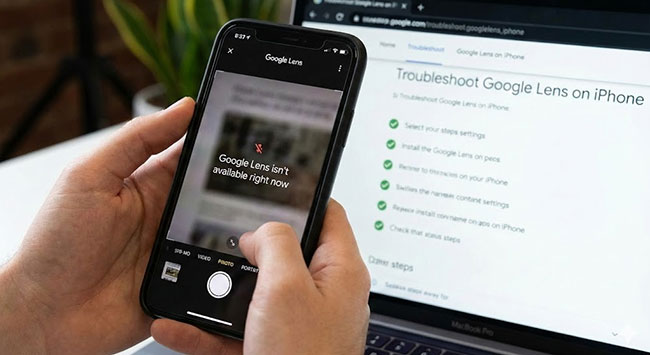
Is your Google Lens not working on iPhone? You're not alone. It can be incredibly frustrating when this handy visual search tool suddenly stops identifying objects, translating text, or scanning QR codes. Whether it's crashing, showing a blank screen, or just plain unresponsive, don't worry – we've got you covered with simple, effective fixes to get it back up and running in no time. Let's dive into the solutions.
- Part 1. Why Is Google Lens Not Working on My iPhone?
- Part 2. How to Fix Google Lens Not Working on iPhone?
- Fix 1. Enable Necessary Permissions
- Fix 2. Restart or Force Restart iPhone
- Fix 3. Check Your Connectivity
- Fix 4. Update the Google App
- Fix 5. Restart the Google App
- Fix 6. Re-sign into Your Google Account
- Fix 7. Reinstall the Google App
- Fix 8. Fix iOS System Glitch Using TunesKit iOS System RecoveryHOT
- Part 3. FAQs about Google Lens Not Working on iPhone
- Part 4. Conclusion
Part 1. Why Is Google Lens Not Working on My iPhone?
There are several reasons why Google Lens might stop working on your iPhone, ranging from simple setting errors to software glitches.
- 01 Permission Issues (Most Common): Google Lens requires explicit permission to access your Camera and Photos. If these were accidentally denied or reset after an iOS update, the feature will not function.
- 02 Network Connection Failures: Unlike some on-device features, Google Lens relies heavily on Google's servers to process images. If your iPhone has a weak Wi-Fi signal or cellular data is turned off for the Google app, the analysis will fail or time out.
- 03 Outdated App Version: If you are using an older version of the Google app or Google Photos, it may no longer be compatible with the latest iOS APIs. Bugs in older versions often cause the lens icon to become unresponsive or disappear entirely.
- 04 Software Glitches & Cache: Temporary software bugs can cause the app to freeze or crash. Over time, the app's cache can become corrupted, leading to performance issues where the shutter button doesn't react or results refuse to load.
- 05 iOS Compatibility: Running an outdated version of iOS can cause conflicts with newer Google app updates. Conversely, beta versions of iOS sometimes break third-party camera features before patches are released.
- 06 Account Sync Errors: Sometimes the issue isn't with the hardware but the account. If your Google account credentials have expired in the background, the app may block data-heavy features like Lens until you sign out and sign back in.
 View Also: How to Fix Google Not Working on iPhone
Part 2. How to Fix Google Lens Not Working on iPhone?
Here is a troubleshooting guide to help you get Google Lens working again on your iPhone.
Fix 1. Enable Necessary Permissions
This is the most common reason for failure. Google Lens cannot function without access to your camera (for real-time scanning) and your photo library (for scanning saved images).
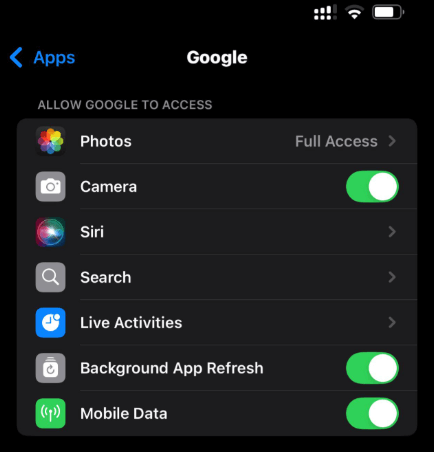
- Step 1. Open the Settings > Apps on your iPhone.
- Step 2. Scroll down and locate the Google app (or Google Photos, depending on which you are using) in the app list.
- Step 3. Tap on it and verify the toggles. Ensure Camera is switched to green (On).
- Step 4. Tap on Photos and select "Full Access" or "Limited Access" (if you only want to share specific images), but ensure it is not set to "None."
Fix 2. Restart or Force Restart iPhone
Restarting your iPhone can fix temporary system glitches, background app conflicts, or memory issues that may cause Google Lens not working on iPhone. A force restart goes deeper by refreshing the system without deleting any data, making it especially useful when the app freezes or won't open.
How to Restart iPhone
- Step 1. Press and hold the Side button and either Volume button.
- Step 2. When the power slider appears, drag it to turn off the iPhone.
- Step 3. Wait about 30 seconds.
- Step 4. Press and hold the Side button again until the Apple logo appears.

How to Force Restart iPhone
For iPhone 8 and later:
- Step 1. Quickly press and release Volume Up.
- Step 2. Quickly press and release Volume Down.
- Step 3. Press and hold the Side button until the Apple logo appears.
For iPhone 7 / 7 Plus:
- Step 1. Press and hold the Volume Down button and the Side button together.
- Step 2. Release when the Apple logo appears.
For iPhone 6s and earlier:
- Step 1. Press and hold the Home button and the Power button at the same time.
- Step 2. Release when you see the Apple logo.

After restarting, open Google Lens again to check if the issue is resolved. This simple step often fixes the problem quickly without any extra tools.
Fix 3. Check Your Connectivity
Google Lens is not an offline tool; it relies on Google's servers to process the visual data. If your connection is weak, the lens shutter may spin indefinitely or return a "No connection" error.
- 1. Test your speed: Open Safari and load a new webpage to ensure data is flowing.
- 2. Toggle Airplane Mode: Swipe down from the top left corner to access to the Control Center, and briefly turn Airplane Mode on and off to reset your cellular or Wi-Fi radio.

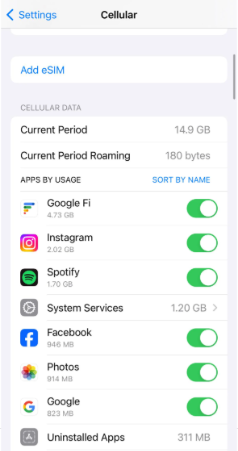
- 3. Grant Cellular Data: Go to Settings > Cellular, scroll down to the Google app, and ensure the toggle is green. If this is off, Lens will only work on Wi-Fi.
Fix 4. Update the Google App
Visual search technology evolves rapidly. If you are running an outdated version of the app, it may conflict with the latest iOS version. So make sure your Google app is the latest version. Here's how:
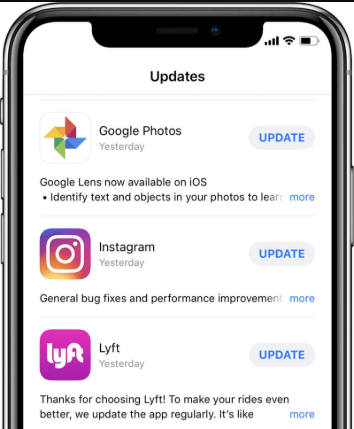
- Step 1. Open the App Store and tap your profile icon in the top right.
- Step 2. Scroll down to see pending updates.
- Step 3. If Google or Google Photos is listed, tap Update.
Fix 5. Restart the Google App
Sometimes, the camera feed within the app may freeze due to a temporary software glitch. Restarting the app can often clear the cache and resolve the issue. You can try restarting the Google app to see if that helps.
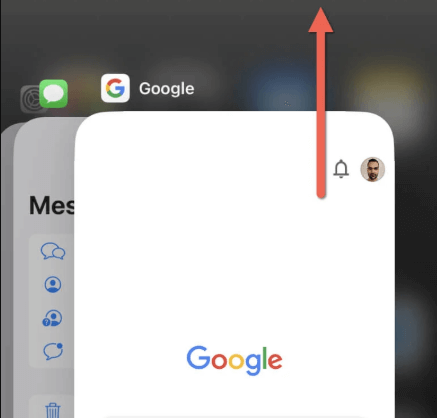
- Step 1. Swipe up from the bottom of your screen (or double-press the Home button) to view open apps.
- Step 2. Swipe the Google app card up and off the screen to close it completely.
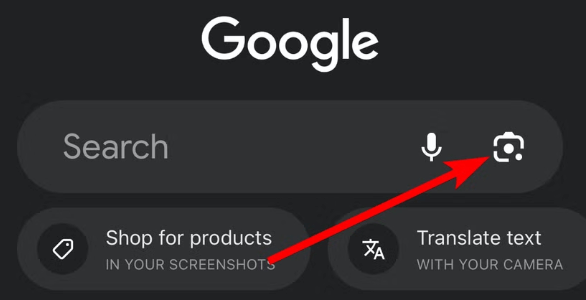
- Step 3. Relaunch the app and tap the Lens icon again.
Fix 6. Re-sign into Your Google Account
Syncing issues can sometimes disable "smart" features associated with your account. Thus, if Google Lens isn't working properly, signing out and back into your Google account can help refresh the app and fix common account-related issues.
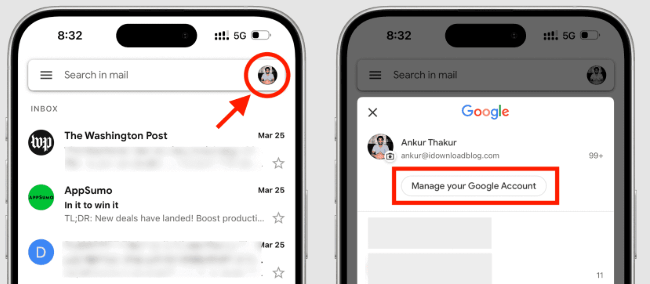
- Step 1. Open the Google app and tap your profile picture in the top right corner.
- Step 2. Select "Manage your Google Account." This opens your account settings. Tap the menu icon (three horizontal lines) in the top-left corner. Choose "Sign out." Confirm when prompted.
- Step 3. Close the Google app completely. Reopen Google it. Tap the profile icon again and select "Sign in."
Fix 7. Reinstall the Google App
Reinstalling the Google App allows users to manually clear app cache to remove corrupted data. Deleting and re-downloading the app can wipe out these temporary glitches, force a hard reset of "stuck" camera permissions, and replace damaged files with a clean, updated version that is fully compatible with your current system.
- Step 1. Long-press the Google app icon on your home screen.
- Step 2. Select Remove App > Delete App.

- Step 3. Go to the App Store and reinstall it. This forces a clean slate for all permissions and settings.
 Note
Note
If the main Google app continues to fail, try using the Google Photos app as a workaround. Open a photo in that app and tap the "Lens" button at the bottom; it often works even when the live camera search in the main app is glitching.
Fix 8. Fix iOS System Glitch Using TunesKit iOS System Recovery
If standard troubleshooting (like reinstalling the app or checking permissions) fails, the issue might not be with the Google app itself, but with the iOS system glitch. Then you can use an iOS system repair tool called TunesKit iOS System Recovery to fix this issue in 1-click. Unlike a factory reset (which wipes your iPhone), TunesKit's "Standard Repair" is designed to refresh the iOS system files without deleting your photos, messages, or apps.
In addition, it can fix 150+ iOS issues like 5G not working on iPhone, AirDrop not working, and iPhone ghost touch, etc. It works with the latest iOS and supports iPhone, iPad, and iPod touch. What's more, it also allows you to upgrade or downgrade iOS, enter or exit recovery mode for free, and explore the iOS beta version without developer account. It's the NO.1 choice when you encounter annoying iOS errors.
Fix Google Lens Issues on iPhone
Instantly fix iOS system issues behind Google Lens errors—safe, fast, and no data loss.
 600,000+ Downloads
Here's a guide to fix Google lens not working on iPhone using TunesKit iOS System Recovery.
Step 1 Connect Your iPhone
Launch the TunesKit program on your computer and connect your iPhone using the USB cable. Wait for the software to detect your device. Click iOS System Repair to begin. On the next page, click the Start button.

Step 2Select Standard Repair
You will see two modes. Select "Standard Repair".
- Standard Repair: Fixes common system issues (like app crashes or camera glitches) without erasing your data.
- Deep Repair: Wipes all data (do not use this unless you have a full backup and Standard Repair failed).

Step 3Download Firmware Package
TunesKit will automatically detect your iPhone model and the latest iOS version compatible with it. Verify the information is correct and click Download. This downloads a fresh, uncorrupted copy of the iOS firmware from Apple's servers.

Step 4Start the Repair
Once the download is complete, click Repair. The software will verify the firmware and automatically replace any damaged system files on your iPhone.
Your iPhone will restart automatically. Once it boots up, open the Google app and try Lens again; the system-level conflicts blocking the camera should now be resolved.

Part 3. FAQs about Google Lens Not Working on iPhone
-
Q1: Does Google Lens save the photos I scan?
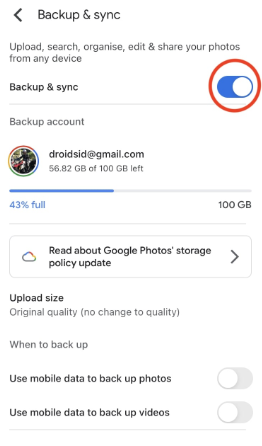
Generally, no. When you use the live search feature, the images are processed in the cloud and then discarded. However, if you use Google Lens via Google Photos, those images are already backed up to your account if you have "Backup & sync" enabled.
-
Q2. Is there a standalone "Google Lens" app for iPhone?
No. Unlike Android, there is no dedicated "Google Lens" app in the Apple App Store. On iPhone, Google Lens is a feature built inside two other apps:
The Google App: Used for live camera searching.
Google Photos: Used for searching images you have already taken. -
Q3: Why is the live camera translation blurry on my iPhone 14 or 15 Pro?
This is a known issue with newer iPhones that have larger camera sensors. The Google app sometimes struggles to automatically switch to "Macro Mode" for close-up text.
You can pull the camera back about 5-6 inches from the text and use the zoom feature (pinch to zoom) on the screen instead of moving the phone physically closer.
Part 4. Conclusion
In conclusion, if Google Lens is not working on your iPhone, simple fixes like restarting the device or updating the app often solve the problem. However, when the issue is caused by deeper iOS system glitches, TunesKit iOS System Recovery offers a reliable solution. It helps repair underlying iOS errors quickly and safely—no technical skills or data loss required—so you can get Google Lens working smoothly again in minutes.


