How to Fix iPhone Bright Spot on Screen
Noticing a sudden bright spot on iPhone screen can instantly ruin your premium viewing experience, leaving you wondering if your device is permanently damaged. Before you assume your phone is headed for an expensive repair shop, let's dive into exactly what causes these localized areas of high brightness and explore the practical methods to fix iPhone bright spot on screen.
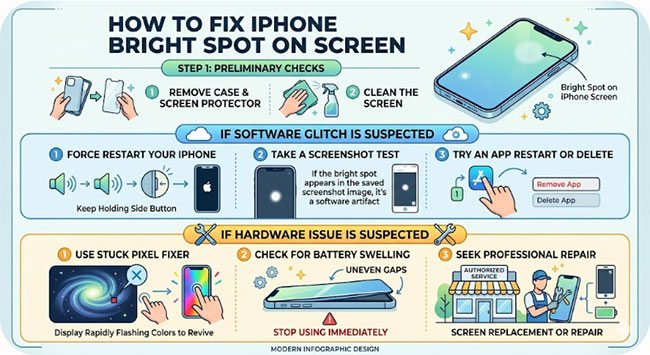
Why Is There a Bright Spot on My iPhone Screen?
A bright spot on an iPhone screen can have several causes. The most common possibilities are:
- 01 Pressure Damage: If the screen has been pressed hard (for example, from sitting on the phone, a tight pocket, or impact), the LCD or OLED layers underneath can become distorted, creating a brighter area.
- 02 Backlight Issue (LCD Models): On iPhones with LCD displays (such as the iPhone 11, iPhone XR, or older models), a bright spot can occur when the backlight diffuses unevenly.
- 03 Battery Swelling: A swelling battery can push against the display from behind, creating a bright spot or pressure mark.
- 04 OLED Display Defect: On OLED-equipped iPhones (such as newer Pro models), a manufacturing defect or display damage can sometimes create unusually bright pixels or bright regions.
- 05 Software Glitch: Software bugs can occasionally trick you into thinking your screen is damaged. A faded AssistiveTouch button, a frozen transparent element from a crashed app, or temporary image retention can easily mimic a glowing patch.
 View Also: Top 7 Ways to Fix White Dot on iPhone Screen
How to Fix Bright Spot on iPhone Screen?
Because a bright spot on your iPhone screen can stem from either a harmless software glitch or serious physical damage, the fix you need depends entirely on the root cause. You should always start with the easiest, non-invasive solutions. Here is exactly how to address the issue.
Method 1. Force Restart iPhone
A forced restart completely clears the iPhone's active memory and forces the graphics processor to redraw every pixel on the screen. This will instantly eliminate any phantom buttons or crashed app graphics mimicking a bright spot.
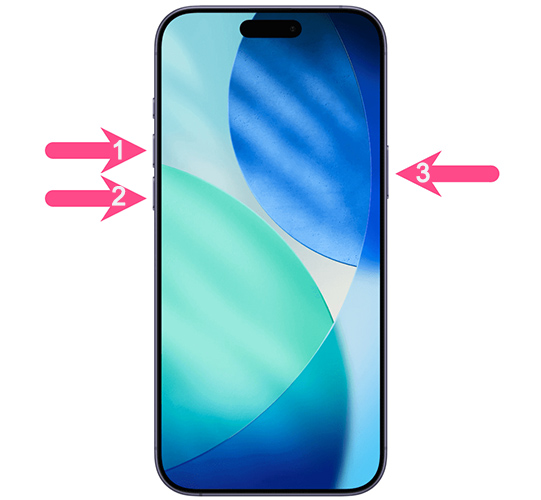
- Step 1. Press and quickly release the Volume Up button on the side of your iPhone.
- Step 2. Immediately press and quickly release the Volume Down button.
- Step 3. Press and hold the Side power button on the opposite side until the screen goes black and the Apple logo appears, then release it.
Method 2. Determine Whether the Issue Is Software or Hardware Related
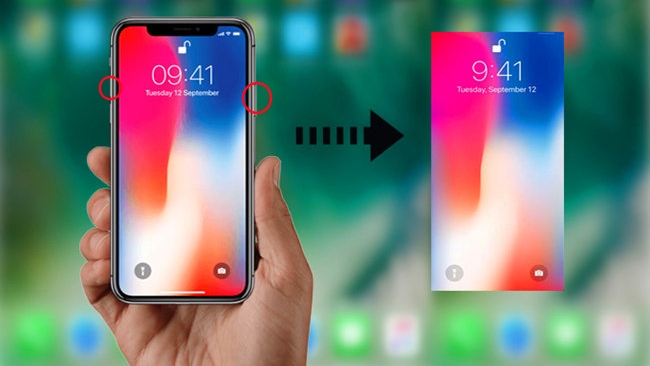
Before attempting complex fixes, it's important to identify whether the bright spot originates from the iOS system or the display hardware itself. A simple screenshot test can help distinguish between these two possibilities and save you time during troubleshooting.
- Step 1. Take a screenshot on your iPhone.
- Step 2. Send the screenshot to another device, such as a computer or another smartphone.
- Step 3. Open the image and carefully inspect the area where the bright spot appears on your iPhone.
- Step 4. If the bright spot is visible in the screenshot, the issue may be software-related.
- Step 5. If the screenshot looks normal, the bright spot is likely caused by a display or hardware problem.
Method 3. Use TunesKit iOS System Recovery to Fix Software Bugs
If software glitches are responsible for the bright spot on your iPhone screen, a professional repair tool can help fix the underlying system issues. TunesKit iOS System Recovery is specifically built to resolve complex software errors without wiping your personal data. It also allows users to downgrade iOS versions when supported by Apple firmware.
It repairs 150+ iOS system issues such as iPhone stuck on the Apple logo, recovery mode loop, black screen, and frozen devices. What's more, it can easily upgrade to the latest iOS beta releases. Its easy-to-use interface and step-by-step guidance make it suitable for both beginners and advanced users.

TunesKit iOS System Recovery
Fix iPhone screen bright spots instantly—the professional, one-click solution that guarantees zero data loss.
 600,000+ Downloads
600,000+ Downloads
600,000+ Downloads
Here's a step-by-step guide to fix bright spot on iPhone screen using TunesKit iOS System Recovery.
Step 1. Connect iPhone to PC
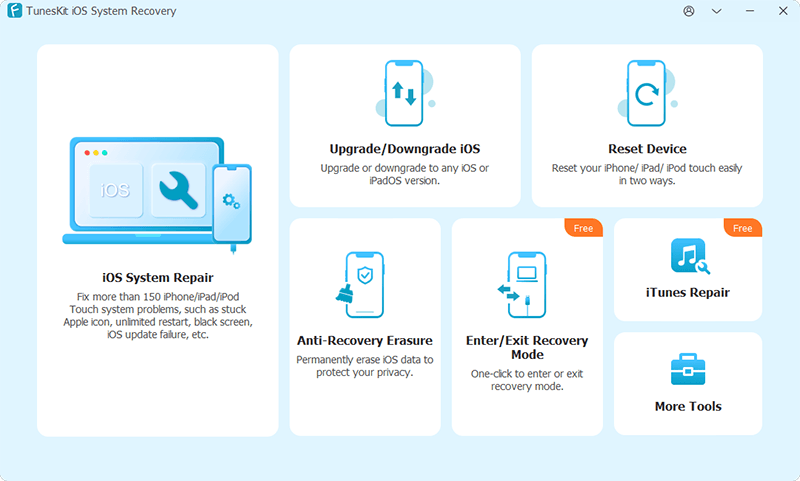
Download and install the TunesKit software onto your Windows PC or Mac, launch the application, and plug in your iPhone. Select the "iOS System Repair" option from the main menu, and then click the Start to continue.
Step 2. Choose Repair Mode
Choose the "Standard Repair" mode to ensure your photos, messages, and apps are not erased.
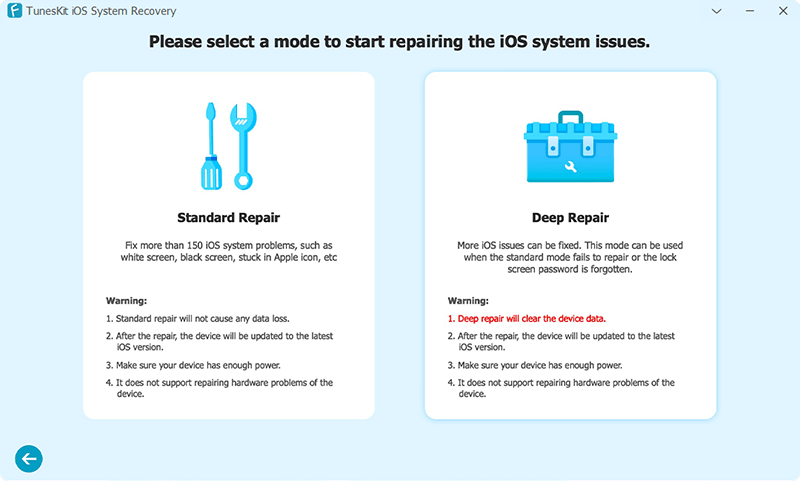
Step 3. Download Firmware Package
Check the screen to verify your iPhone's model and current iOS version, then click the "Download" button so the software can retrieve the correct firmware package from the servers.
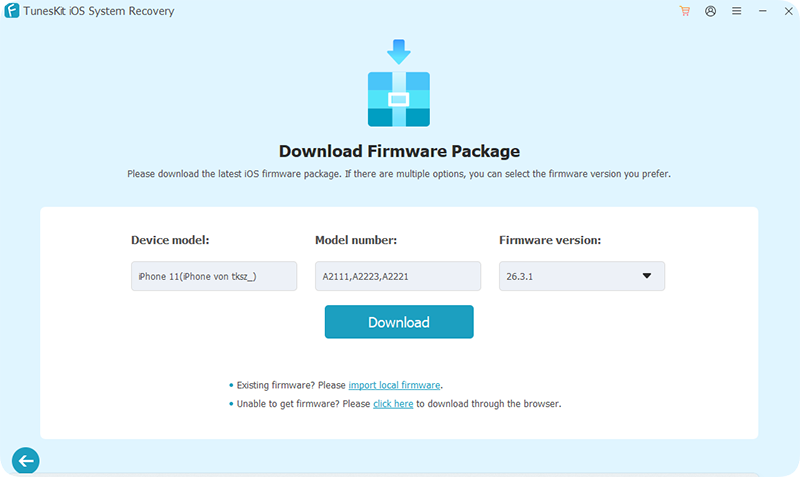
Step 4. Start to Fix iPhone Bright Spot
Once the firmware finishes downloading, click "Start Standard Repair" and leave the phone connected while the software automatically unpacks the files and fixes the operating system. When the iPhone automatically restarts, check your display. If the glowing patch has completely disappeared, it was just a stubborn software illusion and your screen is perfectly fine!
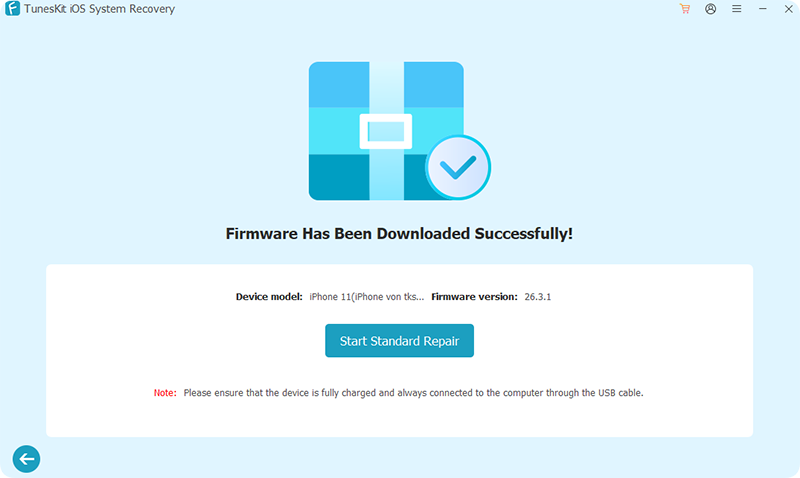
Method 4: Revive Stuck Pixels
If your bright spot is tiny—like a microscopic, razor-sharp pinprick of intense white or colored light—you might just have a stuck pixel. This happens when a tiny transistor gets locked in the "on" position. You can sometimes shock the pixel back into normal operation by rapidly cycling its colors.
- Step 1. Open the YouTube app or Safari on your iPhone and search for a "stuck pixel fix" or "screen burn fix" video.
- Step 2. Turn your screen brightness all the way up and play the video in full screen, which will flash colors very rapidly.
- Step 3. Leave the video running for at least 30 to 60 minutes to give the stuck pixel time to unfreeze.
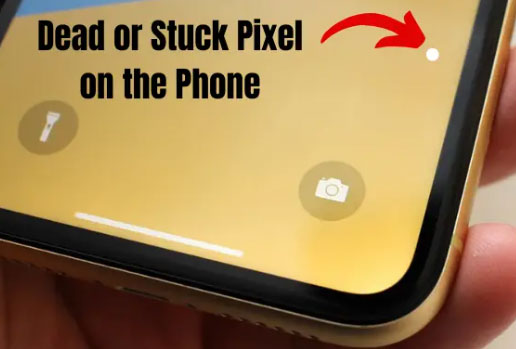
 Warning:Do not look directly at the screen while the video is playing, as the rapid flashing can be disorienting or trigger light sensitivities.
Method 5: Check If the Battery Is Swollen
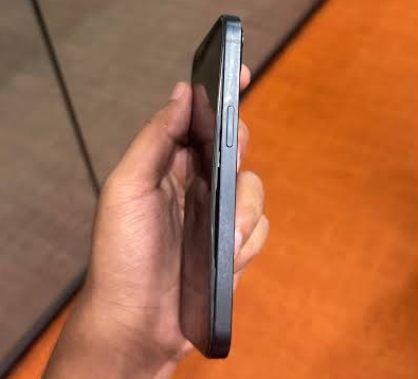
If your bright spot is large, blurry, and looks like a flashlight shining through a cloud, you must check for battery swelling. A degraded lithium-ion battery can expand and push up against the delicate back layers of your display, creating a high-pressure point that distorts the backlight.
- Step 1. Take your phone out of its case and inspect the side profile at eye level, looking for any slight curving or separation between the glass screen and the metal frame.
- Step 2. If you see a bulge or feel the screen physically lifting, immediately power the iPhone down to reduce the risk of a battery fire.
- Step 3. Do not attempt to press the screen back down. Contact Apple Support or take the device to an authorized repair center for a battery replacement.
Method 6: Professional Screen Replacement
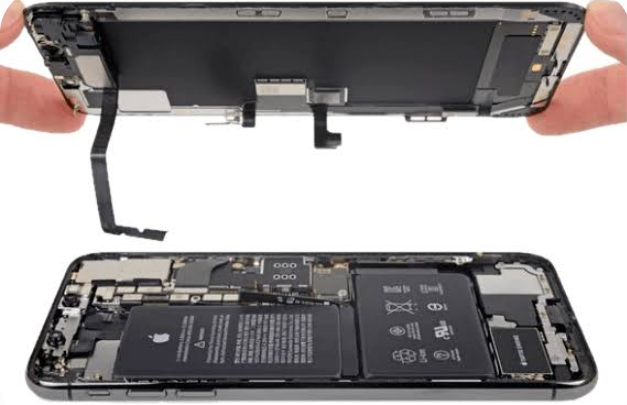
When the screen has been subjected to extreme physical pressure, drops, or water damage, the internal backlight diffuser layers become permanently crushed or warped. Unfortunately, there is no software trick or home remedy that can un-crush physical display layers. The only way to remove the bright spot is to replace the entire display assembly.
- Step 1. Back up your iPhone data to iCloud or plug it into a computer to ensure your photos and messages are safe.
- Step 2. Check your warranty status or AppleCare+ coverage in the Settings app under the "General" and "About" menus.
- Step 3. Book an appointment at an Apple Store or a certified third-party repair shop to have the screen panel professionally swapped out for a new one.
Conclusion
A bright spot on iPhone screen can be caused by pressure damage, battery swelling, display defects, or software-related issues. Identifying the root cause is essential to choosing the right solution and preventing further damage. If the problem is linked to iOS system glitches, TunesKit iOS System Recovery offers an easy and effective way to repair various iPhone issues without data loss. It’s a reliable solution for keeping your iPhone running smoothly.