


Top 8 Ways to Fix iPhone Yellow Screen
Does your iPhone screen look yellow or show an unusual warm tint? The iPhone yellow screen issue can be caused by display settings such as Night Shift, True Tone, or Color Filters, as well as iOS glitches or hardware problems. In some cases, users may notice that the iPhone screen suddenly turns yellow after an update or settings change.
Fortunately, most yellow tint issues can be fixed with a few simple adjustments. In this guide, we'll show you 8 practical ways to fix a yellow screen on iPhone and restore more natural display colors.

Why Is My iPhone Screen Yellow?
An iPhone screen may look yellow because of display settings, software issues, or hardware problems. Common causes are listed here:
- 01 Night Shift or True Tone: Night Shift intentionally shifts the display toward warmer colors, while True Tone adjusts the screen color based on ambient lighting. Either can make your iPhone display look more yellow than usual.
- 02 Color Filters: Accessibility Color Filters can change the hue of the display if they are enabled or adjusted accidentally.
- 03 iOS Glitches: A temporary software bug or issue after an iOS update may cause unusual display colors or a persistent yellow tint.
- 04 Hardware Problems: A damaged display, loose internal connection, liquid exposure, or impact damage can also cause yellow discoloration, especially if changing display settings does not help.
Top 8 Ways to Fix iPhone Yellow Screen
If your iPhone screen looks yellow, start by checking display settings such as Night Shift, True Tone, and Color Filters. If the yellow tint remains, continue with the software troubleshooting methods below.
Way 1. Disable Night Shift
Night Shift makes your iPhone display warmer by reducing blue light, so it is one of the most common reasons an iPhone screen looks yellow.
You can turn it off in either of these ways:
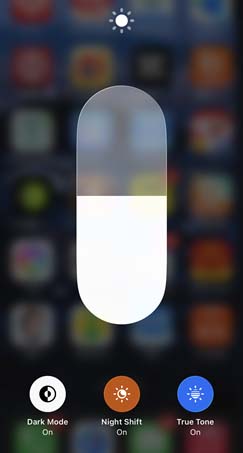
Option 1: Open Control Center, touch and hold the Brightness slider, then tap Night Shift to turn it off.
Option 2: Go to Settings > Display & Brightness > Night Shift, then disable any active Night Shift settings.
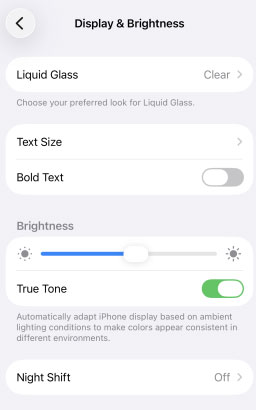
Check whether the screen returns to a more natural color afterward.
Way 2. Disable True Tone
True Tone automatically adjusts the color and intensity of your display according to the surrounding light. In some environments, this may make the screen appear warmer or more yellow.
Go to Settings > Display & Brightness and turn off True Tone.
You can also open Control Center, touch and hold the Brightness control, and tap True Tone.
If the yellow tint disappears, True Tone was likely affecting the display color.
Way 3. Check and Disable Color Filters
Color Filters in Accessibility settings can change the hue of the entire screen. If Color Tint or another filter was enabled accidentally, your iPhone display may look yellow.
- Step 1. Go to Settings > Accessibility > Display & Text Size.
- Step 2. Tap Color Filters.
- Step 3. Turn Color Filters off and check the screen again.
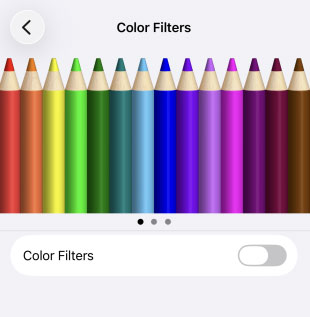
If you intentionally use Color Tint, you can instead adjust the Intensity and Hue sliders until the display looks right.
Way 4. Restart or Force Restart iPhone
If the yellow screen appears because of a temporary software glitch, restarting the iPhone may restore the display to normal. If your iPhone is responsive, turn it off and restart it. If the device is frozen or cannot restart normally, try a force restart.
Restart iPhone:
- Step 1. Press and hold the Side (or Top) button and either the Volume Up or Volume Down button (on models with Face ID) until you see the "slide to power off" slider.
- Step 2. Slide the slider to power off the device.
- Step 3. Wait about 10-15 seconds after the screen goes black, then press and hold the Side (or Top) button until you see the Apple logo — the device will boot up.

Force Restart iPhone:
For models with Face ID or iPhone 8 and later:
- Step 1. Press and quickly release the Volume Up button.
- Step 2. Press and quickly release the Volume Down button.
- Step 3. Then press and hold the Side button until the Apple logo appears.
For iPhone 7 / 7 Plus:
Press and hold the Side (or Sleep/Wake) button and the Volume Down button until the Apple logo appears.
For iPhone 6s, SE (1st gen), or earlier:
Press and hold both the Home button and the Side (or Top) button until the Apple logo appears.

Way 5. Update iOS
If the yellow tint is caused by an iOS bug, installing the latest software version available for your iPhone may help.
- Step 1. Open Settings app on your iPhone.
- Step 2. Go to General > Software Update.
- Step 3. If an update is available, tap Update Now button.
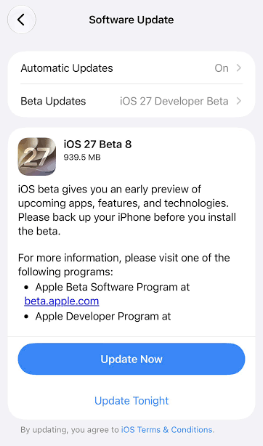
Keep your iPhone connected to Wi-Fi and power if necessary until the update finishes.
Way 6. Reset All Settings
If Night Shift, True Tone, and Color Filters are already disabled but the screen still looks yellow, resetting system settings may help remove an incorrect display or accessibility configuration.
Go to: Settings > General > Transfer or Reset iPhone > Reset > Reset All Settings

This does not erase your photos, apps, messages, or other personal data, but settings such as Wi-Fi networks and display preferences will be reset.
Way 7. Fix iPhone Yellow Screen with TunesKit iOS System Recovery
Although there are many fixes available if your iPhone screen is yellow, some iPhone users still find it difficult to pinpoint the exact cause of the issue. Fortunately, there is software available that can make diagnosing problems with your iPhone easy and seamless.
TunesKit iOS System Recovery software can diagnose over 150 faults, including iPhone boot loop, red screen, green screen, etc. What's amazing is that TunesKit will not erase your data in the process of repair. It works fast and efficiently. Apart from iPhone issues, it can also be applied to iPad, and iPod errors.
Fix iPhone Yellow Screen with TunesKit
Repair iOS-related yellow screen issues with Standard Repair while keeping your existing data intact.
 600,000+ Downloads
Now, let's see how to use TunesKit to fix the iPhone yellow screen of death issue.
Step 1. Connect Your iPhone
By using a USB, connect your iPhone to your computer. Launch TunesKit. Then click iOS System Repair on the main screen, click the Start button.

Step 2. Choose A Mode
To fix iPhone yellow screen without data loss, simply choose the Standard Repair to start.

Step 3. Download the Firmware Package
Confirm the detected device information, then select the appropriate firmware package and click Download.

Step 4. Repair the iPhone
Once the firmware is ready, click Start Standard Repair. Keep the iPhone connected until the repair process finishes.

Way 8. Contact Apple for Hardware Inspection
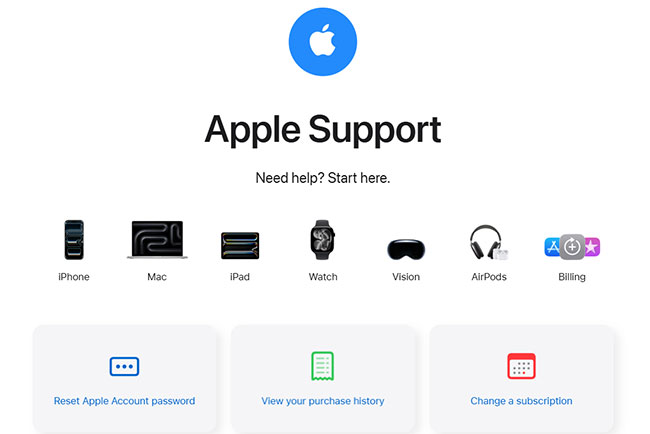
If the screen remains yellow after all software and display settings have been checked, the problem may be hardware-related. This is more likely if the yellow tint appeared after a drop, liquid exposure, screen replacement, or other physical damage. In this case, contact Apple Support or an Apple Authorized Service Provider for further inspection.
FAQs About iPhone Yellow Screen
-
Why does my iPhone screen look yellow after a screen replacement?
A replacement display may have different color calibration or quality from the original screen. If the tint is strong or uneven, contact the repair provider for inspection.
-
Can Low Power Mode make an iPhone screen yellow?
No. Low Power Mode reduces certain background activities and visual effects, but it does not normally change the display color temperature.
-
Why does my iPhone screen turn yellow when True Tone is on?
True Tone adjusts the display's white balance according to ambient light. Under warm indoor lighting, the screen may appear noticeably more yellow.
Final Thoughts
The reason for the iPhone yellow screen of death depends on several factors, including the iOS and the device itself. Using the above-mentioned steps can allow you to eliminate faults from the scenario, so a fix can be put in place.
Although some may refer to such instances as the iPhone screen of death, there is often a way to rectify the issue and ensure that your iPhone display is aligned to your requirements. Of course, if you are struggling to find the fix, you can be assured the TuneKit iOS System Recovery can fix yellow screen and other common occurrences.



