


iPhone Unable to Share Photos? Fixed!
Have you experienced such a situation? When you take some photos and try to share or send them to iCloud, iMessage, or others, a message pops up all of a sudden, saying "There was an error while preparing to share. Please try again later."
This iPhone unable to share photos problem not only happens on you but many other iPhone users. Since this problem is so universal, it is urgent to find some effective solutions for people who have this problem. Based on my study and tests, there are 7 helpful methods.

Why Does iPhone Unable to Share Photos?
To begin with, we should know why there would be an error notification appears when sharing photos on iPhone. And we will list all the possible reasons below.
- 01 Low Power Mode - If you have Low Power Mode turned on, the error notification will appear when sharing photos with other people.
- 02 Full iPhone storage - Free up your iPhone storage can be an effective method to get rid of the unable to share photos on iPhone issues.
- 03 Weak network connection - A bad network connection will cause this sharing error. You can check your Wi-Fi connection or the Cellular data when this notification appears.
- 04 iOS system bugs – There might be some bugs or glitches on your device system that lead to the iPhone unable to share photos error.

Video Guide: How to Fix iPhone Unable to Share Photos
To begin with, you can watch the quick guide below to learn some tips and fix the issue. If your problem still exists, try other solutions in the next part.
Top 7 Methods to Fix Unable to Share Photos on iPhone
Now you've come to the points. The following are the most potential solutions to fix your unable to share photos iPhone issue. You can try them one by one.
Method 1. Close the Low Power Mode
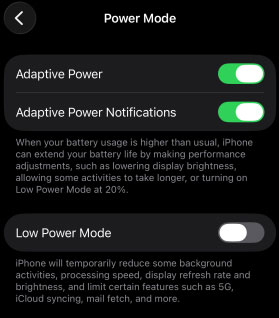
What is the Low Power Mode? What is the main function of it? First of all, let me answer these two questions for you. When your battery of iPhone reaches 20%, iPhone will ask you whether you want to open the Low Power Mode. It can help you save more battery when your iPhone is going to run out of them. It functions by disabling Hey Siri and some other features.
This feature will influence the photos sharing feature. Thus, you can try to disable this feature to see if it can fix your iPhone unable to share.
How to: go to the Settings > choose the Battery > Power Mode, and turn off the Low Power Mode.
Method 2. Check the Internet Connection
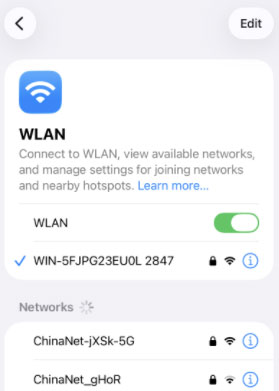
The poor internet connection is an influential factor of any features on iPhone that need the internet including this sharing photo function. Therefore, you'd better check the internet connection of your iPhone. It is easy to check that. You can change to a stable Wi-Fi if you are using Cellular data. Similarly, if the signal of your Wi-Fi is poor, change to Cellular data.
Method 3. Reset Network Settings
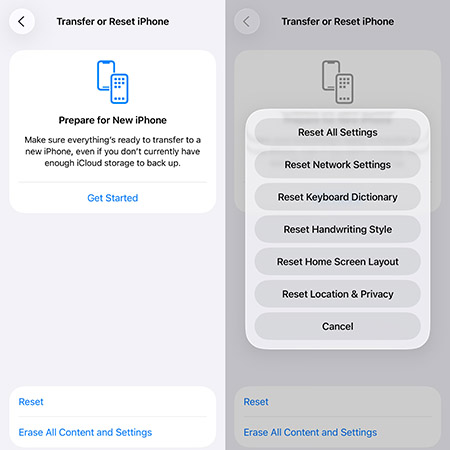
Another way to fix iPhone unable to share photos error is to check your iPhone’s network settings. It will help your device get back to the original internet options. And your problem would be solved.
To reset network settings, you can go to the Settings > General > Transfer or Reset iPhone. Choose the Reset > Reset Network Settings and enter your passcode to confirm the action.
Method 4. Sign in to the iCloud Account Again
This method suits those whose iPhone unable to share with iCloud. You can try to sign out of the account of it. Wait for a while and then sign in to your account again. Mostly, this will help. How to do it:
- Step 1. Launch the Settings application.
- Step 2. Find your name and tap on it.
- Step 3. Scroll down and choose the Sign Out button. Then you can choose either the Erase this iPhone or Sign Out But Don't Erase option.

Method 5. Turn on iCloud Photos Library Again
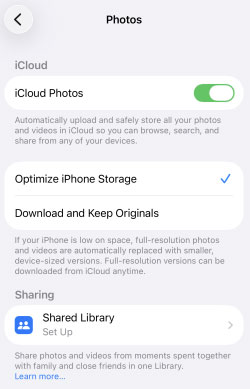
This is also a feasible method to fix the unable to share photos on iPhone issue. It is very similar to the previous one. You need to go to the Settings, and then choose the Apps > Photos choice. Finally, touch the iCloud Photos option to turn it off and then turn it on again.
Method 6. Restart iPhone
Restarting iPhone is easy and effective for the iPhone unable to share problem. Noted that different operations are needed for different models. Here is a guide for you.
For iPhone X, 11, 12, 13, 14, 15, or newer
These models use Face ID and do not have a circular Home button.
- Step 1. Press and hold either the Volume Up or Volume Down button and the Side button (Power button) simultaneously until the power-off slider appears.
- Step 2. Drag the slider to the right and wait 30 seconds for your device to turn off completely.
- Step 3. To turn your iPhone back on, press and hold the Side button until you see the Apple logo.
For iPhone 6, 7, 8, or SE (2nd/3rd Gen)
These models feature a physical or haptic Home button on the front.
- Step 1. Press and hold the Side/Top button until the power-off slider appears.
- Step 2. Drag the slider and wait for the screen to go black.
- Step 3. Press and hold the Side/Top button again until the Apple logo appears to restart the device.

Method 7. Fix iPhone Unable to Share Photos Without Data Loss
Your problem cannot be solved by these methods? Don't fret about it. I have another way, that is, using a kind of iOS system recovery software, the best one of which is TunesKit iOS System Recovery.
This professional software is excellent at solving all the system errors of iOS. It can fix 150+ iOS system issues, containing iPhone camera not working, iPhone stuck in recovery mode, white Apple logo, or becoming black/frozen/disabled screen, etc. This tool supports iPhone, iPod touch, iPad, and even Apple TV. If you are an Apple fan, this tool will definitely bring much convenience to you.
It offers two modes for you: Standard Repair and Deep Repair Mode. Meeting common iOS system issues, you can use the Standard Repair to fix them without any data loss. For serious problems like iPhone disabled screen, I am afraid that you have to use Deep Repair to fix it.
Fix iPhone Unable to Share Photos Instantly
With TunesKit iOS System Recovery, you can quickly resolve photo sharing issues without data loss—fast, safe, and hassle-free.
 600,000+ Downloads
Only 3 steps can you fix unable to share photos on iPhone using TunesKit iOS System Recovery software.
Step 1 Connect the iPhone with PC
Connect the iPhone with PC and start TunesKit iOS System Recovery. Choose iOS System Repair module and click the Start button to begin.

Choose the Standard Repair button to fix it without data loss and click the Next.

Step 2 Download Firmware Package
Make sure the information of your iPhone presented on this page is correct. Then, click the Download button.

Step 3 Fix iPhone Unable to Share Photos
While the firmware package is downloaded, you should click the Repair button to fix your iPhone to normal.

FAQs About iPhone Unable to Share Photos
-
Can full iPhone storage prevent me from sharing photos?
Yes. Sharing a photo often requires the system to create a temporary cache file or a smaller "preview" version of the image. If your iPhone storage is at 0 bytes available, the system cannot create these files, causing the share sheet to crash or fail.
Delete large videos or offload unused apps to free up at least 500MB of space. -
What does the "An error occurred while preparing to share" message mean?
This error typically occurs when you are using iCloud Photos with the "Optimize iPhone Storage" setting turned on. Your phone is trying to download a high-resolution version of the photo from iCloud but fails due to a poor internet connection.
Ensure you have a stable Wi-Fi or Cellular connection. You can also go to Settings > Apps > Photos and select Download and Keep Originals to store full-resolution photos directly on your device, though this requires more storage space.
Summary
In this passage, I introduce 7 methods to fix iPhone unable to share photos error. There are easy checks like checking the internet connection, generic methods for iOS system problems such as restarting iPhone, and the most effective fix – using TunesKit iOS System Recovery to fix. This tool is well-designed to repair any kinds of iOS system issues without causing any data loss. Just choose one or more to revive your iPhone now!


