


iPad Volume Button Stuck? 7 Quick Ways to Fix It
Is your iPad volume button stuck, hard to press, or not changing the volume when you press it? The problem may come from dirt around the button, a tight case, a temporary iPadOS glitch, or a hardware issue. Before considering a repair, try the 7 practical fixes below to get your iPad volume buttons working normally again.

- Why Is My iPad Volume Stuck?
-
7 Ways to Fix iPad Volume Button Stuck
- Fix 1. Remove the iPad Case
- Fix 2. Clean Around the Volume Button
- Fix 3. Press the Volume Button Several Times
- Fix 4. Restart Your iPad Without Using the Volume Buttons
- Fix 5. Update iPadOS
- Fix 6. Repair iPadOS with TunesKit iOS System Recovery HOT
- Fix 7. Reset All Settings
- How to Adjust iPad Volume When the Button Is Stuck
- When Should You Get the iPad Volume Button Repaired?
- Video Tutorial: Fix iPad Volume Button Stuck Easily
- FAQs About iPad Volume Button Stuck
- Conclusion
Why Is My iPad Volume Stuck?
An iPad volume button can become stuck for several reasons. Dirt or debris may collect around the button, a protective case can press against it, or the button mechanism may become damaged after a drop or impact. If the button still clicks normally but the volume does not change, the cause is more likely related to iPadOS or incorrect system settings.
Before trying the fixes below, check how the button behaves. If it is physically jammed or difficult to press, start with the first three methods. If it presses normally but does not respond, focus on the software-related solutions.
 Further Reading: 10 Ways to Fix iPhone Volume Button Stuck
7 Ways to Fix iPad Volume Button Stuck
Now that you know what cause your iPad volume button to get stuck, try the following methods one by one to fix the issue.
Fix 1. Remove the iPad Case
A poorly fitted or damaged case can press against the volume buttons and make them feel stuck. This is especially common with thick protective cases that fit tightly around the edges of the iPad.
- Step 1. Remove the case or cover from your iPad.
- Step 2. Press both volume buttons several times and check whether they move freely.
- Step 3. If the buttons work normally without the case, replace or adjust the case before putting it back on.

If the volume button is still physically stuck, continue with the next method.
Fix 2. Clean Around the Volume Button
Dust, dirt, or other small particles around the volume button can prevent it from moving properly. Carefully cleaning the area may restore normal button movement.
Turn off your iPad first. Then use a clean, dry, soft-bristled brush or lint-free cloth to gently clean around the edges of the volume buttons. Press the button lightly several times while cleaning to help loosen debris.
Avoid inserting sharp objects into the gap around the button or applying cleaning liquid directly to your iPad. These actions could damage the internal components.
After cleaning, turn the iPad back on and test the volume buttons again.

Fix 3. Press the Volume Button Several Times
If the button has become slightly jammed, gently pressing it several times may help return it to its normal position.
Hold your iPad securely and press the stuck volume button repeatedly without using excessive force. Try pressing different parts of the button to see whether it begins moving normally again.
If the button remains completely stuck, do not force it. A button that cannot move at all may have a mechanical problem and require professional repair.

Fix 4. Restart Your iPad Without Using the Volume Buttons
If the volume button clicks normally but does not control the sound, a temporary iPadOS glitch may be responsible. Restarting the device can clear minor software errors.
Since one of your volume buttons may not work, you can shut down the iPad through Settings instead:
- Step 1. Open Settings and tap General.
- Step 2. Scroll down and tap Shut Down.
- Step 3. Drag the power-off slider and wait for the iPad to turn off.
- Step 4. Press and hold the top button to turn your iPad back on.

Then test whether the volume buttons respond normally.
Fix 5. Update iPadOS
An outdated or buggy version of iPadOS may occasionally cause physical buttons to stop responding correctly even when there is nothing wrong with the hardware. Apple also recommends updating iPadOS when troubleshooting device issues.
To check for an update:
- Step 1. Open Settings > General > Software Update.
- Step 2. Wait while your iPad checks for available updates.
- Step 3. If an update appears, click the Update Now button, and follow the on-screen instructions to download and install it.
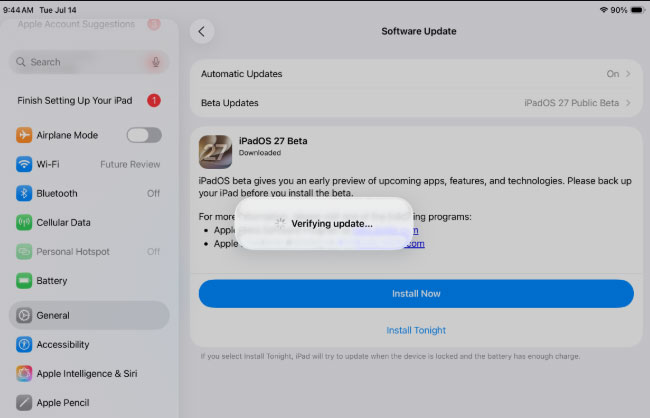
After your iPad restarts, press the volume buttons again to see whether the problem has been resolved.
Fix 6. Repair iPadOS with TunesKit iOS System Recovery
If your iPad volume button is not working even though it still clicks normally, the problem may come from a deeper iPadOS error rather than a physically stuck button. In this situation, you can employ an iOS system repair tool called TunesKit iOS System Recovery. Compared with other methods, what make this one stands out is that this program can settle the problem with efficiency and won't cause you any data loss on the iPad.
TunesKit iOS System Recovery is a professional iOS repair tool that dedicated to fixing 150+ types of iOS issues such as iPad keeps crashing, stuck in boot loop, screen flickering, black or white screen of death, etc. Besides iPad models, it also supports all models of iPhone and iPod touch. With TunesKit, you can fix various iOS problems, enter or exit the recovery mode for free, reset your device to factory settings without iTunes, and more.
Fix iPad Volume Button Not Working
Repair iPadOS issues that make the volume buttons unresponsive while keeping your data intact with Standard Repair.
 600,000+ Downloads
Let's go along the following steps to fix iPad volume button stuck with TunesKit iOS System Recovery.
Step 1. Connect Your iPhone to PC
Firstly, click the Try It Free button to download TunesKit iOS System Recovery on your computer. Open the program after the installation is completed. Then you need to connect your iPad with the computer. After the device has been detected, choose the iOS System Repair module and tap on the Start button.

Step 2. Select A Mode
Next, choose the Standard Repair to fix iPad volume button without data loss.

Step 3. Download iOS Firmware Package
Check if the related info of your iPad including the model version, iOS version, etc. is right, correct it if there's anything wrong. If all information is right, hit on the Download button and the firmware package matched with your device will be downloaded. Then verify the package quickly.
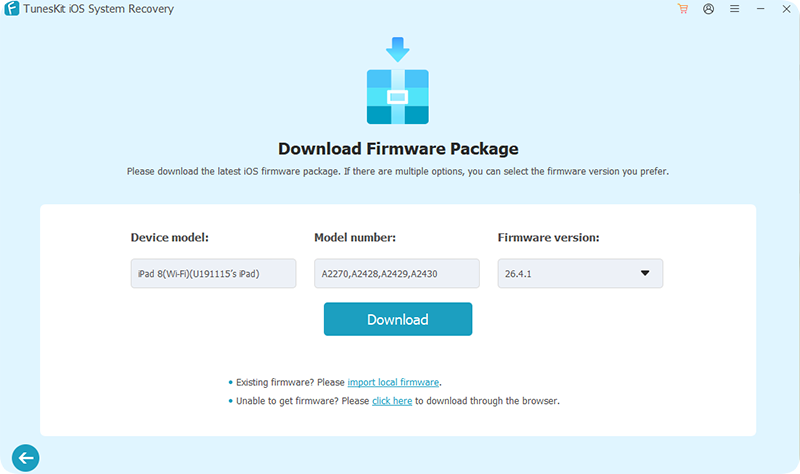
Step 4. Fix the iPad Volume Button Stuck
When the firmware has been downloaded and verified successfully, you just press the Start Standard Repair button and the program will automatically start to fix your iPad. Don't disconnect your device until the whole process is finished.

Fix 7. Reset All Settings
If the button works mechanically but the problem continues, corrupted or incorrect system settings may be involved. You can reset your iPad settings without deleting your photos, apps, messages, documents, or other personal data. Apple notes that settings such as Wi-Fi networks, accessibility preferences, and privacy settings will return to their defaults.
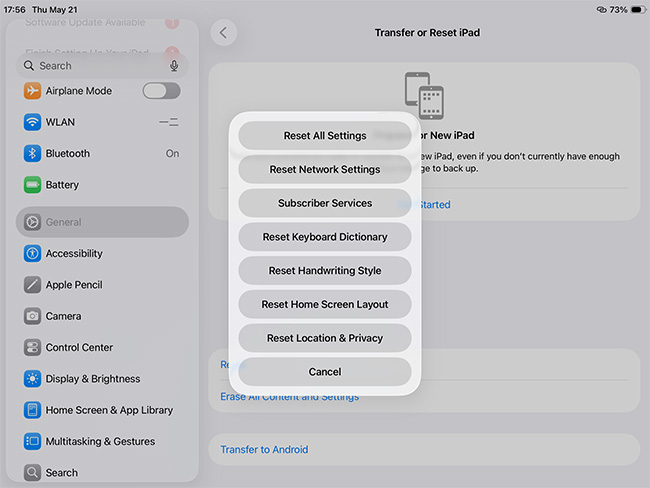
- Step 1. Go to Settings > General > Transfer or Reset iPad.
- Step 2. Tap Reset.
- Step 3. Select Reset All Settings and enter your passcode if requested.
- Step 4. Confirm the reset and wait for your iPad to restart.
 Note
Note
Be careful not to select Erase All Content and Settings option, as that option removes alyour personal content from the device.
How to Adjust iPad Volume When the Button Is Stuck
If you cannot fix the volume button immediately, you can still control the volume without pressing the physical buttons.
One easy option is Control Center. Simply swipe down from the upper-right corner of the screen and drag the volume slider up or down.

You can also use AssistiveTouch. Go to Settings > Accessibility > Touch > AssistiveTouch and turn it on. The floating AssistiveTouch button gives you access to device controls, including volume adjustments.
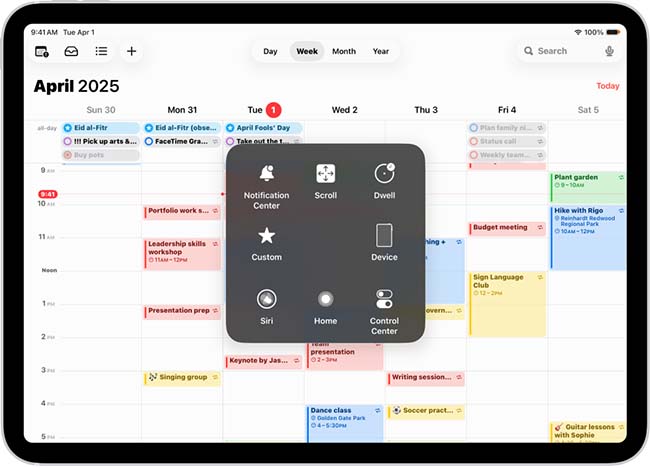
This can serve as a convenient temporary workaround while you troubleshoot or arrange a repair.
When Should You Get the iPad Volume Button Repaired?
Software troubleshooting is useful when the volume button still moves normally but does not produce a response. However, professional repair is more appropriate if the button is physically stuck after cleaning, has become loose or recessed, stopped working after a drop or liquid exposure, or shows visible damage.
In these situations, contact Apple Support or an authorized service provider to have the device inspected. Avoid repeatedly forcing a jammed button, as additional pressure could make the damage worse.
Video Tutorial: Fix iPad Volume Button Stuck Easily
The following is a video tutorial for how to fix iPad volume button stuck with effective methods.
FAQs About iPad Volume Button Stuck
-
Why is my iPad volume button physically stuck?
Dirt around the button, a tight protective case, physical damage, or wear inside the button mechanism can make an iPad volume button difficult or impossible to press. Remove the case and carefully clean around the button first.
-
Why does my iPad volume button click but not work?
If the button moves and clicks normally, the problem may be caused by a temporary iPadOS glitch or incorrect system settings. Restarting your iPad, updating iPadOS, resetting settings, or repairing iPadOS may help.
-
Can I disable the volume button if it is keeping volume up my iPad?
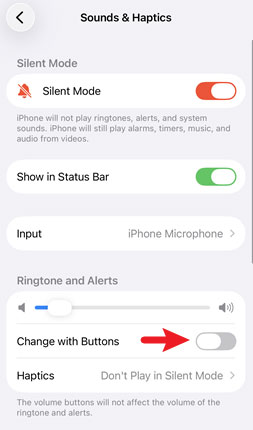
You can disable the volume button feature via Settings > Sounds & Haptics > Change with Buttons. Toggle the switch off to disable this feature. If there are hardware damages on your iPad volume button, it would be a wise choice to fix it in Genius Bar.
Conclusion
When you are facing the issue that iPad volume button stuck, don't be fretted and stressful, just use the tips mentioned above to fix it. Or you can download TunesKit iOS System Recovery and take it a try. It will not let you down when you are facing iOS malfunction. Finally, please give your feedback to us and leave your comment below to let us know if this article is workable for you.



