


Top 9 Ways to Fix iPad Activation Failed with Ease
Q: "My iPad could not be activated. How to fix activation error on iPad? I have tried all online help but no luck. Wait for help!"
Several iPad errors may send you into disarray at an unexpected time, specifically during activation. When iPad activation fails, you may see messages such as "The activation server is unavailable," "Your iPad could not be activated," or "The SIM card is not supported."
It's understandable that iPad activation errors presumably keep on appearing during the most crucial time, disrupting your journey to activate with a new account. Here we've sampled several ways to help you fix iPad activation failed and return your iPad to its normal operations.

- Why Does My iPad Say "Unable to Activate"?
- Video Tutorial: Fix Activation Error on iPad
-
9 Ways to Fix iPad Activation Failed or Unable to Activate
- Method 1. Check Apple System Status
- Method 2. Connect to a Stable Wi-Fi Network
- Method 3: Force Restart Your iPad
- Method 4. Activate Your iPad with a Mac or PC
- Method 5. Check the SIM or eSIM on a Cellular iPad
- Method 6. Remove Activation Lock If Prompted
- Method 7. Fix iPadOS Activation Errors with TunesKit iOS System Recovery HOT
- Method 8. Reinstall iPadOS in Recovery Mode
- Method 9. Contact Apple Support
- FAQs About iPad Activation Failed
- Conclusion
Why Does My iPad Say "Unable to Activate"?
If your iPad says "Could Not Activate" or "Activation Server Is Unavailable," it usually means the device cannot complete verification with Apple's activation servers. The problem may come from your network, Apple services, cellular setup, or the iPadOS system itself.
Here are the most common causes:
- 01 Apple's Activation Server Is Temporarily Unavailable: If Apple's iOS Device Activation service is experiencing an outage or heavy traffic, your iPad may be unable to complete activation until the service is restored.
- 02 Unstable or Restricted Internet Connection: Activation requires an internet connection. Weak Wi-Fi, captive networks, firewalls, VPNs, or network restrictions may prevent your iPad from communicating with Apple's servers.
- 03 SIM or eSIM Problem on Cellular iPads: For Wi-Fi + Cellular models, an unsupported, invalid, or improperly configured SIM or eSIM can prevent activation.
- 04 Activation Lock Is Enabled: If the iPad is linked to a previous owner's Apple Account through Find My, you may be asked to enter that Apple Account and password before activation can continue.
- 05 iPadOS Software Error: A failed update, interrupted restore, corrupted system files, or other iPadOS glitches may cause invalid or unavailable activation information.
Video Tutorial: Fix Activation Error on iPad
In this video, you learn how to fix the activation error on iPad with easy methods. Before exploring each method in detail, you could firstly watch the video to know how to fix this bug.
9 Ways to Fix iPad Activation Failed or Unable to Activate
If your iPad says "Could Not Activate," "Activation Failed," or "Activation Server Is Unavailable," start with the simplest checks first. In many cases, the problem is caused by Apple's servers, your internet connection, or a temporary software issue rather than the iPad itself.
Work through the following methods in order until your iPad activates successfully.
Method 1. Check Apple System Status
Before changing any settings on your iPad, check whether Apple's activation service is working. If the iOS Device Activation service is temporarily unavailable, your iPad may fail to activate even when everything on your device is working normally.
- Step 1. Visit the Apple System Status page in a browser.
- Step 2. Find iOS Device Activation.
- Step 3. If the service is unavailable, wait until Apple restores it and try activating your iPad again.
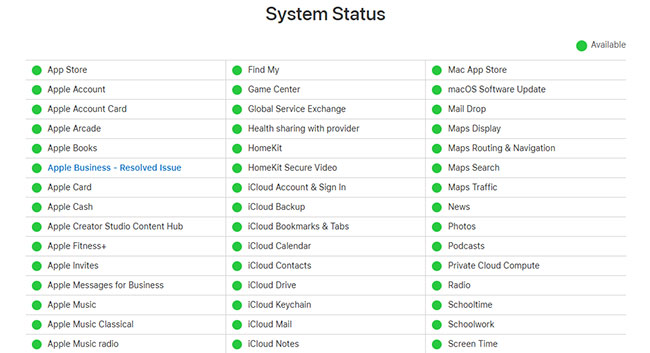
If the service is working normally, continue with the next method.
Method 2. Connect to a Stable Wi-Fi Network
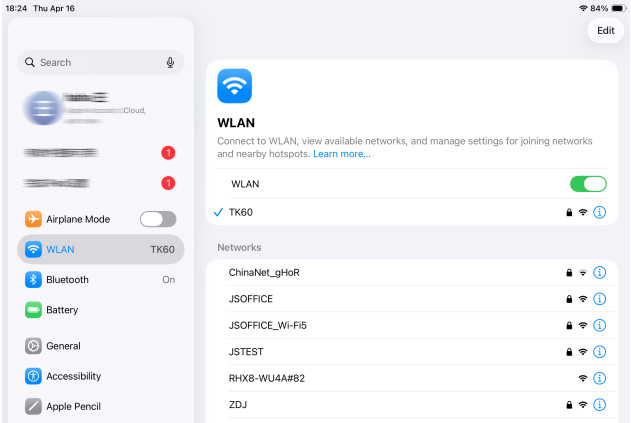
Your iPad needs an internet connection to communicate with Apple's activation servers. Weak Wi-Fi, public networks that require a browser sign-in, VPNs, or restricted networks can interrupt the activation process.
- Step 1. Connect your iPad to a reliable private Wi-Fi network.
- Step 2. If possible, move closer to the router to improve the signal.
- Step 3. Restart your router or switch to another Wi-Fi network if activation still fails.
- Step 4. Try activating your iPad again.
 Note
Note
Avoid using hotel, school, office, or other public Wi-Fi networks that may block Apple's activation services.
Method 3: Force Restart Your iPad
Perhaps the simplest way to fix iPad activation error is via a forced restart. A restart will automatically refresh your iPad, giving it a clean start altogether.
If your iPad does't have a Home button, such as the latest iPad Pro, iPad Air, and iPad Mini, here's how:
- Step 1. Press the quickly release the Volume Up button.
- Step 2. Press and quickly release the Volume Down button.
- Step 3. Press and hold the Power button until your iPad restarts.

If your iPad have a Home button, such as iPad 8, so you should follow:
- Step 1. Hold the Power button and Home button together.
- Step 2. Wait until the iPad turns off and reboots.
- Step 3. At last you will see the Apple logo on the screen.

Method 4. Activate Your iPad with a Mac or PC
You can also fix the activation error on iPad via iTunes. However, you'll have to update iTunes before you can attempt the fix. After the update, follow these steps to fix the activation error.
- Step 1. Restart your iPad then using a USB, connect it to your computer.
- Step 2. Open iTunes and click the iPad icon once it appears.
- Step 3. Next, click on the Activate your iPad on iTunes.
- Step 4. When prompted, enter your Apple Account and passcode then click the Continue tab to activate your iPad. You'll know that iTunes has activated your iPad if it shows Set up as New or Restore from Backup.

If you see Set Up as New or Restore from Backup, the iPad has been activated successfully.
Method 5. Check the SIM or eSIM on a Cellular iPad
If you're using a Wi-Fi + Cellular iPad, activation may fail when the SIM or eSIM is unsupported, or not configured correctly.
You can skip this method if you have a Wi-Fi-only iPad.
- Step 1. Check whether your iPad displays a SIM-related message, such as Invalid SIM, SIM Not Supported, or an eSIM error message.
- Step 2. If your iPad uses a physical SIM, remove and reinsert it properly.
- Step 3. If you're using eSIM, contact your carrier to confirm that the cellular plan is active and supported.
- Step 4. Restart the iPad and try activation again.

If the carrier cannot activate the SIM or eSIM, you may need a replacement or updated cellular plan.
Method 6. Remove Activation Lock If Prompted
Activation Lock is different from a normal activation error. If your iPad shows Activation Lock, iPad Locked to Owner, or asks for another person's Apple Account, the device is still linked to that account through Find My.
If this is your own iPad:
- Step 1. Enter the Apple Account and password previously used on the device.
- Step 2. Complete the verification process if prompted.
If you bought the iPad second-hand:
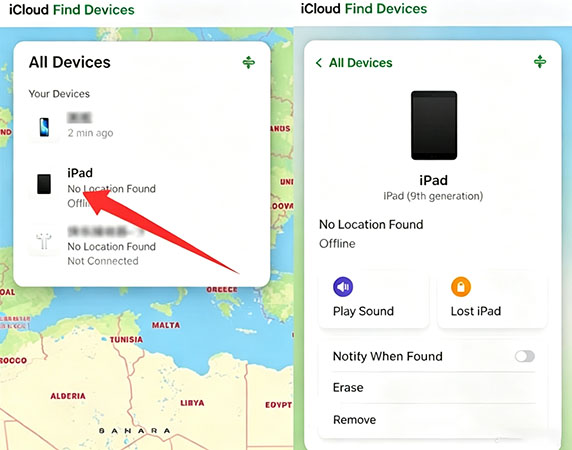
- Step 1. Ask the previous owner to sign in to iCloud Find Devices.
- Step 2. Have them select the iPad from their device list.
- Step 3. Ask them to remove the iPad from their account.
Method 7. Fix iPadOS Activation Errors with TunesKit iOS System Recovery
To fix such iOS activation bugs, the quickest way is to use an third-party iOS repairing tool. TunesKit iOS System Recovery is an apt tool when it comes to resolving activation erros on an iPad. If you're suffering this problem on your iPad, then it probably time to venture into this powerful tool. It will not only fix iPad activation error but will also repair iOS updated failure and fix other issues like iPad stuck in recovery mode, DFU mode, and White Screen.
Fix iPad Activation Failed Easily
Repair iPadOS activation errors with TunesKit iOS System Recovery while keeping your data intact with Standard Repair.
 600,000+ Downloads
Now follow these steps to fix iPad activation failed without data loss. Make sure that you have downloaded and installed TunesKit software to your computer. Then start restoring your iPad.
Step 1. Connect iPad to the Computer
Launch TunesKit iOS System Recovery on your computer and then connect your iPad to the computer using a USB cable. Now click the "iOS System Repair" section and Start button.

Step 2. Select A Mode
Then choose the Standard Repair option to fix the unable to activate iPad issue without data loss.

Step 3. Download the Firmware Package
Next, confirm the information. After that, hit the Download button to download the firmware package that's matched to your iPad after ensuring that the information is correct.

Step 4. Fix iPad Activation Error
Lastly, click the Start Standard Repair button to begin to fix your iPad activation failed. Remember to keep our iPad connected until the fixing process completes.

Note
If Standard Repair does not resolve the issue, TunesKit also provides Deep Repair for more serious system problems. Deep Repair erases the data on the device, so back up your iPad first if possible.
Method 8. Reinstall iPadOS in Recovery Mode
If your computer reports that activation information was invalid or activation information could not be obtained from the device, reinstalling iPadOS in Recovery Mode may help.
This method is more advanced, so try the previous solutions first.
- Step 1. Connect your iPad to a Mac or Windows PC.
- Step 2. pen Finder, Apple Devices, or iTunes.
- Step 3. Put your iPad into Recovery Mode using TunesKit iOS System Recovery with 1-click.
Step 4. When your computer offers the options Update or Restore, choose Update first.
Step 5. Wait while the computer reinstalls iPadOS.
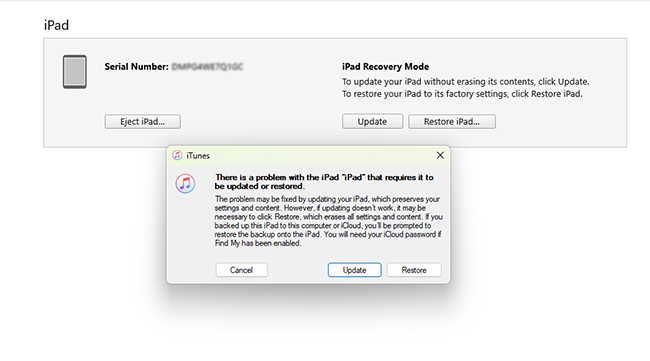
Choosing Update attempts to reinstall the system while keeping your data. Use Restore only as a last resort because it erases the iPad.
Method 9. Contact Apple Support
If your iPad still cannot activate after trying all the methods above, the problem may involve your Apple Account, activation records, cellular service, or hardware.
- Step 1. Back up your iPad if possible.
- Step 2. Note any activation error messages shown on the screen or computer.
- Step 3. Contact Apple Support or visit an Apple Store or Apple Authorized Service Provider.

FAQs About iPad Activation Failed
-
Is the iPad activation issue related to a used or second-hand device?
If the iPad was previously owned by someone else, it could still be linked to their Apple ID. You’ll need the previous owner to remove the device from their Apple ID account remotely.
-
How long does it take to activate an iPad?
Activation typically takes only a few minutes. However, delays may occur if there's an issue with the Wi-Fi connection, or account credentials.
-
Can I activate my iPad without a Wi-Fi connection?
Typically, you need a Wi-Fi or cellular connection to activate an iPad. If you don't have Wi-Fi, you can try connecting to a mobile hotspot or use cellular data if your iPad has that capability.
Conclusion
Activation mishaps can be a thorn in the flesh especially when you are in dire need to put your iPad on a working mode with a new account. We have unleashed some best ways on how to fix iPad activation failed. Furthermore, you can engage the most trusted tool to help fix your errors without data loss. You don't have to run up and down for a technician, take charge and act like a pro with TunesKit iOS System Recovery or other methods.



