


How to Unlock a Locked Chat on WhatsApp: The Complete Guide (2026)
WhatsApp's Chat Lock is an excellent feature for securing sensitive conversations, but it can sometimes be inconvenient. If you are tired of constant fingerprint scans or find yourself struggling to locate hidden chats, the extra layer of security might feel more frustrating than helpful.
Fortunately, managing this feature is simple. This guide provides a step-by-step walkthrough on how to access your hidden Locked Chats folder and disable the lock permanently. Follow these instructions to unlock your conversations and return them to your main chat list for easy, instant access.
- Part 1. Unlock Locked Chat vs. Disable Locked Feature
- Part 2. How to Access Your Locked Chats Folder
- Part 3. How to Unlock a Locked Chat
- Part 4. How to Turn Off the Secret Code Feature
- Part 5. Troubleshooting: Forgot My Secret Code to Unlock a Locked Chat
- Part 6. Bonus Tip. How to Back Up WhatsApp Chats Before Unlock a Locked ChatHOT
- Part 7. FAQs About How to Unlock a Locked Chat
- Part 8. Conclusion
Part 1. Unlock Locked Chat vs. Disable Locked Feature
Before we dive into the settings, it is important to clarify what you are trying to achieve, as the steps differ slightly:
- Accessing Locked Chats: You want to view the messages temporarily but keep the security active.
- Disabling Chat Lock: You want to remove the security completely and return the conversation to your main chat list.
We will cover both scenarios below for Android and iPhone users.
Part 2. How to Access Your Locked Chats Folder
If you cannot find the chat you locked, it hasn't been deleted. It resides in a secure folder separate from your Archived chats.
If you haven't set up a custom password, WhatsApp hides the folder just above your main inbox.
Step 1. Open WhatsApp and go to the Chats tab.
Step 2. Swipe down slowly from the middle of the screen.
Step 3. A folder labeled Locked Chats will appear at the very top.
Step 4. Tap the folder. You will be prompted to use your FaceID, Fingerprint, or Phone Passcode to enter.

 View Also:
 Part 3. How to Unlock a Locked Chat
Once you are inside the secure folder, you might decide you no longer want a specific conversation to be locked. Here is how to move it back to your standard inbox.
For Android Users
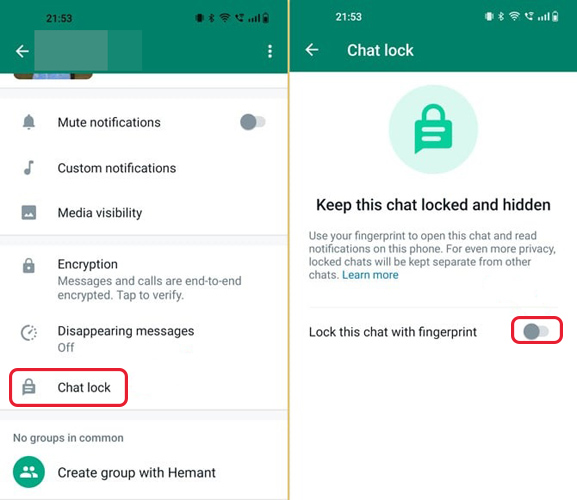
Step 1. Use your fingerprint or PIN to open the Locked Chats folder.
Step 2. Tap on the specific conversation you want to unlock.
Step 3. Tap the contact's name or group subject at the top of the screen.
Step 4. Scroll down until you see Chat Lock. It will show On.
Step 5. Tap it and switch the toggle to Off.
Step 6. You will need to scan your fingerprint or enter your PIN one last time to confirm the removal.
For iPhone (iOS) Users
The process on iPhone is nearly identical but feels smoother due to FaceID integration.
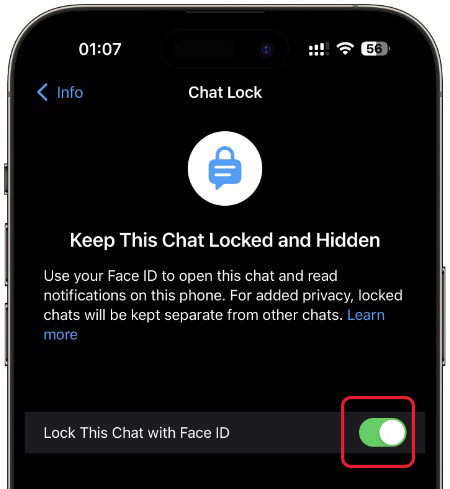
Step 1. Pull down on your chat list and tap Locked Chats. FaceID will authenticate you automatically.
Step 2. Swipe left on the chat you want to unlock, then tap More (three dots), or simply tap the chat to open it.
Step 3. Tap the contact name at the top.
Step 4. Scroll down to Chat Lock and toggle the switch to the Off position.
Step 5. FaceID will scan your face to confirm the action.
Once completed, the chat will immediately move back to your main Chats list, sorted by the date of the last message.
Part 4. How to Turn Off the Secret Code Feature
If you find the Secret Code feature too cumbersome (or you're afraid of forgetting it), you can revert to the standard lock method without unlocking every single chat.
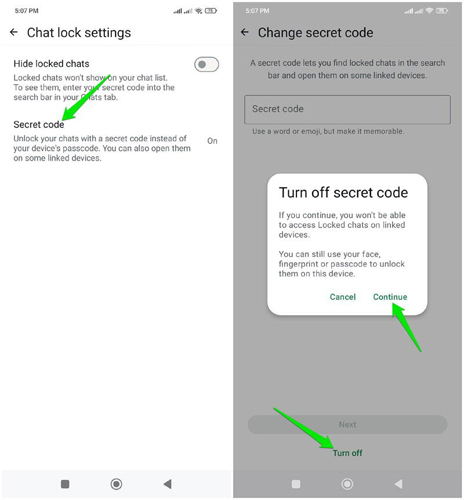
Step 1. Go to your Locked Chats folder.
Step 2. Tap the Settings (three dots) in the top corner.
Step 3. Tap Secret Code.
Step 4. Select Turn off and click on the Continue button.
Now, your locked folder will be visible simply by swiping down on the main screen.
Part 5. Troubleshooting: Forgot My Secret Code to Unlock a Locked Chat
This is the most common issue users face. If you hid your locked chats with a code and cannot remember it, you cannot search for the folder. You will need to reset the feature. Warning: This will unlock your chats, but it will clear the message history of those specific locked chats to protect your privacy.
Step 1. Go to WhatsApp main Settings.
Step 2. Scroll down and select Chat Lock.
Step 3. Tap Unlock and Clear Locked Chats and select Unlock and clear to unlock the locked chat.
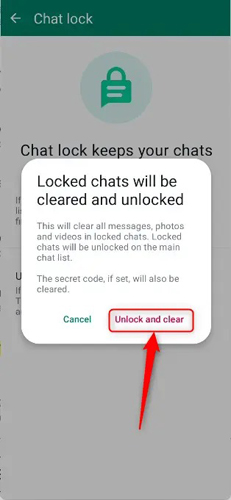
This is a security measure designed to prevent someone from forcing you to reveal your chats; the app assumes if the code is forgotten, it's safer to delete the data than expose it.
Part 6. Bonus Tip. How to Back Up WhatsApp Chats Before Unlock a Locked Chat
Don't want to lose your secret chat data after unlocking? Using a professional WhatsApp data managing tool like TunesKit WhatsApp Transfer can be the most effective solution. TunesKit WhatsApp Transfer is a social app data manage tool allows users to transfer, back up, restore, and export WhatsApp messages. Besides WhatsApp, TunesKit WhatsApp Transfer also supports LINE, KIK, and Viber.
Key Features of TunesKit WhatsApp Transfer
Back up your secret chat before unlocking it easily. Transfer and restore WhatsApp Data in one click.
 600,000+ Downloads
The following steps will show you back up your WhatsApp chats before unlocking a locked chat.
Step 1Launch the Program
Download and install TunesKit WhatsApp Transfer on your computer first. Launch the program when it is installed successfully.

Step 2Back Up WhatsApp Data
Select the Backup feature and click on the Start Backup button. TunesKit WhatsApp Transfer will start to back up your WhatsApp data to the computer.

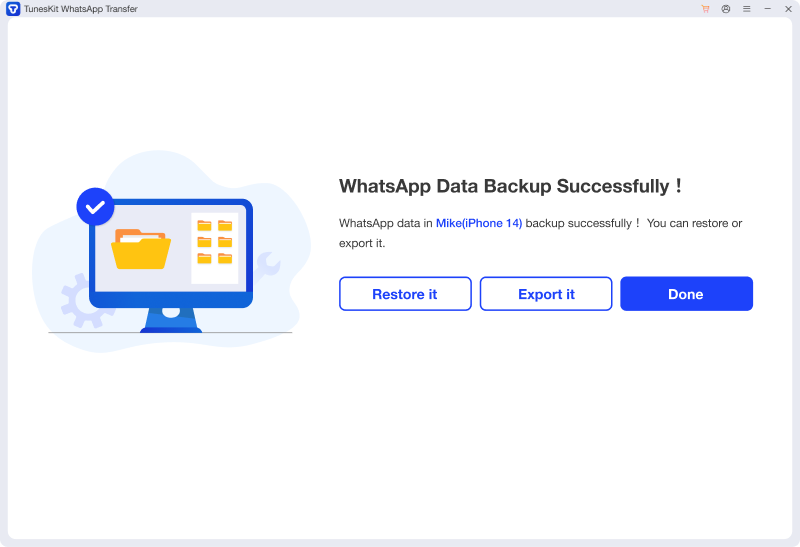
Step 3Back Up Successfully
If you want to view your backup message on your computer, click on the Export it button to export the backup file to the computer.
Part 7. FAQs About How to Unlock a Locked Chat
-
1. If I unlock a chat, will the media (photos/videos) reappear in my phone's gallery?
When a chat is locked, media is hidden from your phone's gallery. When you unlock the chat, new media will save to your gallery (if you have "Media Visibility" on), but old media received while the chat was locked might need to be manually saved.
-
2. Can I lock a chat on my phone but keep it unlocked on WhatsApp Web?
Currently, Chat Lock is primarily a device-specific feature. However, WhatsApp is rolling out updates to sync locks across linked devices. Always check your linked devices if privacy is your main concern.
-
3. Does the other person know I locked our chat?
No. Chat locking is a local privacy setting on your device. The other person receives no notification that you have locked or unlocked their conversation.
Part 8. Conclusion
Knowing how to unlock WhatsApp chats gives you full control over your digital privacy and hidden folders. While the process is simple and reversible, remember to store your Secret Code safely, as resetting it deletes your chat history. To keep your WhatsApp data safe, download and try using TunesKit WhatsApp Transfer to back up your WhatsApp data to computer.


