


How to Read Encrypted WhatsApp Messages: The Complete Guide
Have you found a msgstore.db.crypt file on your phone and wondered how to read encrypted WhatsApp messages? You aren't alone; many users try to recover chat history from these backups, but WhatsApp's End-to-End Encryption makes them impossible to simply open and read without the proper tools.
This guide cuts through the technical jargon to help you access your data. We will show you official, easy ways to convert chats into readable text. For advanced users, we also explain how to decrypt the database using specialized tools like WhatsApp Viewer to recover your messages.
- Why Can't I Open the File?
- Method 1: The Easiest Way – Export Chat to Text or PDF
- Method 2: Reading Old Messages via Backup Restoration
- Method 3: Advanced – Decrypting msgstore.db on PC (Root Required)
- Method 4: Using WhatsApp Web (Linked Devices)
- Bonus Tip. How to Read WhatsApp Backup Messages on Win/MacHOT
- FAQs About How to Read Encrypted WhatsApp Messages
Why Can't I Open the File?
Before we dive into the solutions, it is crucial to understand why you cannot simply open these files in Notepad or Word.
WhatsApp prioritizes user privacy. When your messages are backed up to your phone's storage or the cloud, they are encrypted using advanced algorithms (currently moving from crypt14 to crypt15 and crypt16).
Think of the msgstore.db file as a locked treasure chest. To open it, you need a specific key. This decryption key is stored in a secure, hidden part of your Android system (/data/data/com.whatsapp/files/key). Without this key, the database file is just a scramble of unreadable code.
 Note
Note
If anyone or any website claims they can decrypt your file remotely without your specific key, they are likely a scam. Real decryption requires the key generated on your specific device.
Method 1: The Easiest Way – Export Chat to Text or PDF
If your goal is simply to read a specific conversation and you still have access to the WhatsApp app, you do not need to mess with complex database files. The "Export Chat" feature is the official tool built for this exact purpose.
This method converts your encrypted conversation into a plain .txt file that you can read on any computer or phone. Just follow the steps below:
Step 1. Open WhatsApp and go to the chat you want to read.
Step 2. Tap the three dots (menu) in the top right corner.
Step 3. Select More > Export chat.
Step 4. Choose whether to Include Media (photos/videos) or Without Media.
Step 5. Select where you want to send the file (Email, Google Drive, etc.).

Once you open the .txt file, you will see your messages formatted clearly with timestamps and sender names. This is the safest, most reliable method to read messages outside the app.
Method 2: Reading Old Messages via Backup Restoration
If you have a msgstore backup file but cannot open it, the most reliable way to read it is to let WhatsApp decrypt it for you. By restoring the backup, WhatsApp uses the key stored on your phone to unlock the messages and display them in the app.
This is useful if you want to read messages from a specific date (e.g., a backup from last month). You can force a restore from a local backup by following steps below:
Step 1. Use a File Manager app to go to Android > media > com.whatsapp > WhatsApp > Databases.
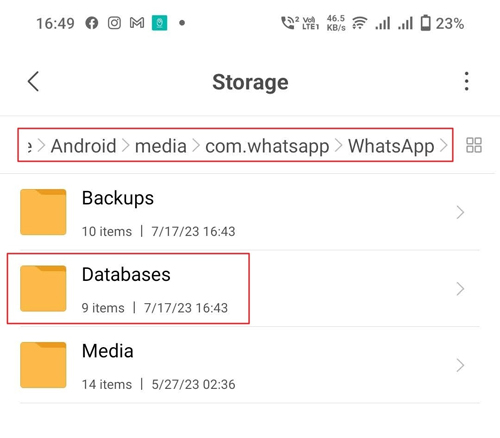
Step 2. Find the backup file you want to read (e.g., msgstore-2023-10-25.1.db.crypt14). Rename it to msgstore.db.crypt14.
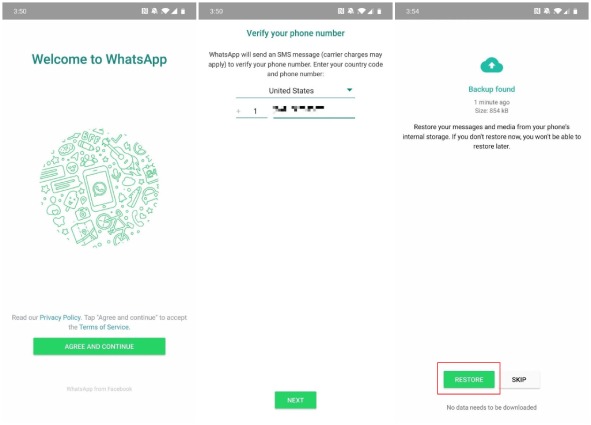
Step 3. Uninstall and reinstall the WhatsApp app.
Step 4. During setup, WhatsApp will detect the local backup. Tap Restore.
Once the process is complete, your old messages will appear in the app, fully readable.
Method 3: Advanced – Decrypting msgstore.db on PC (Root Required)
This section is for advanced users. If you have the msgstore.db.cryptXX file on your computer and want to read it using a tool like WhatsApp Viewer, you strictly need two things:
- The database file.
- The Key file.
The Key file is stored in a system folder that is inaccessible on standard Android phones. You generally need Root Access to get it.
Step 1. Connect your rooted phone to your PC.
Step 2. Using a root file explorer (like ES File Explorer or Root Browser), navigate to: data/data/com.whatsapp/files/key
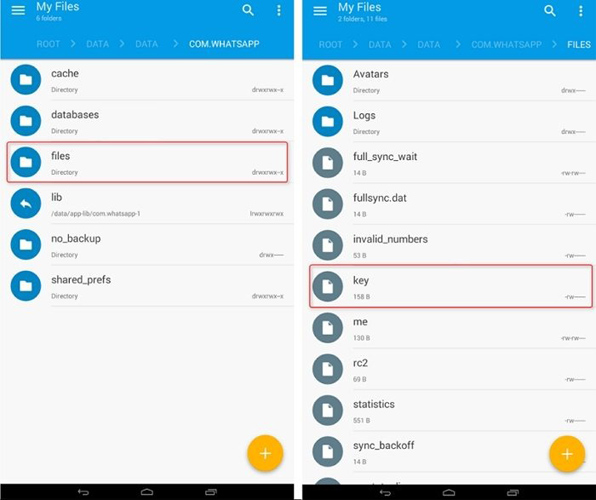
Step 3. Copy this key file to your computer.
Step 4. Navigate to Android/media/com.whatsapp/WhatsApp/Databases/ and copy the msgstore.db.cryptXX file to your computer.
Step 5. Open WhatsApp Viewer on your PC.
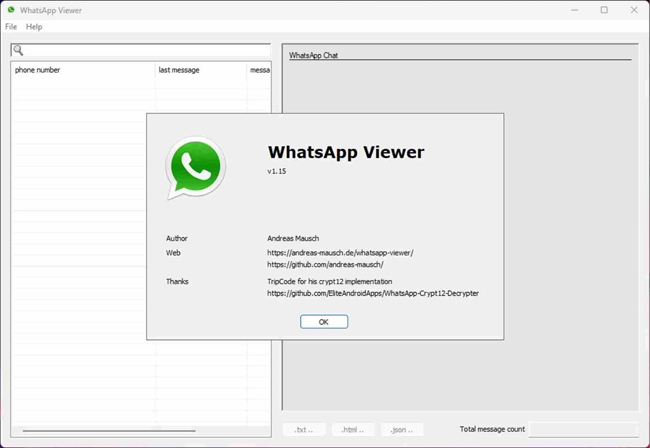
Step 6. Go to File > Decrypt .crypt14 (select the version that matches your file).
Step 7. In the dialogue box:
- Database file: Select your msgstore.db file.
- Key file: Select your extracted key file.
Step 8. Click Decrypt. This will create a decrypted file (usually named msgstore.decrypted.db).
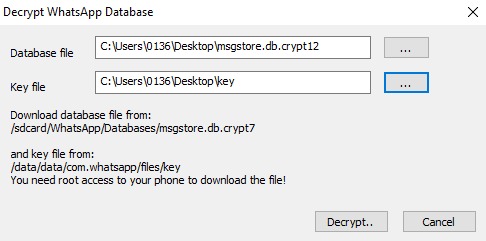
Step 9. Drag and drop the decrypted file into WhatsApp Viewer to browse your messages just like you would on your phone.
Method 4: Using WhatsApp Web (Linked Devices)
If you have physical access to the phone but want to read messages on a larger screen comfortably, you do not need to decrypt anything.
Step 1. Open web.whatsapp.com on your computer browser.
Step 2. Open WhatsApp on the phone and tap Link a device.
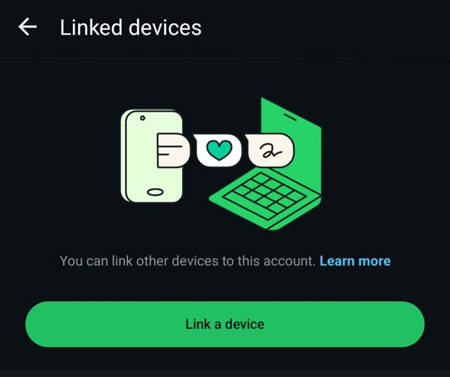
Step 3. Scan the QR code.
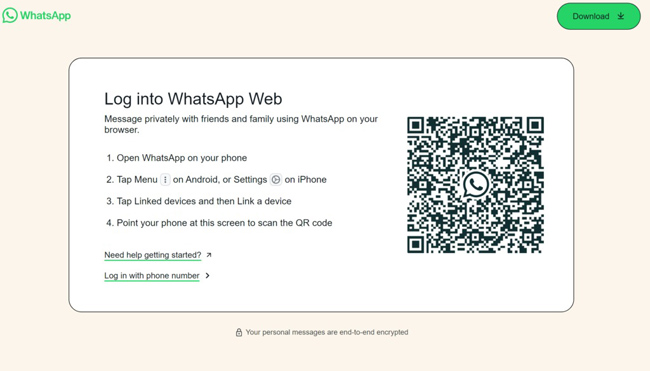
This mirrors all encrypted messages from the phone to your browser instantly. It is the most user-friendly way to "read" messages on a PC without technical hassle.
Bonus Tip. How to Read WhatsApp Backup Messages on Win/Mac
Want to know how to read WhatsApp backup messages on your computer? By using professional tools like TunesKit WhatsApp Transfer, users can easily read a backup file in simple steps. TunesKit WhatsApp Transfer is a multifunctional WhatsApp data manage tool that allows users to transfer, back up, restore, and export WhatsApp messages between iOS devices and computers.
Besides, TunesKit WhatsApp Transfer also supports other social media apps, including WhatsApp Business, LINE, Kik, and Viber. With the straightforward and intuitive user interface, you can easily secure your chat messages safe in simple clicks.
Key Features of TunesKit WhatsApp Transfer
Back up WhatsApp messages easily. Transfer, restore, and export WhatsApp data between iOS devices without encountering any hassle.
 600,000+ Downloads
The following steps will show you how to read WhatsApp backup messages by using TunesKit WhatsApp Transfer.
Step 1Connect iPhone to Computer
Download and install TunesKit WhatsApp Transfer on your computer first. When the program is installed successfully, connect your iPhone to the computer via a workable cable. In the main interface of the program, select WhatsApp.

Step 2Back Up WhatsApp
In this phase, you will need to back up your WhatsApp chat messages to the computer. Just select the Backup feature in the left menu bar of TunesKit WhatsApp Transfer. Click on the Start Backup button to get you WhatsApp backup file.

Step 3Export WhatsApp Messages
After backing up your WhatsApp messages, you can extract the messages from the backup file and read them on your computer. Just simply click on the Export it button to export the messages.

 View Also: How to Export WhatsApp Chats to PC
FAQs About How to Read Encrypted WhatsApp Messages
-
1. Can I decrypt a msgstore.db.crypt file without the key file?
No. It is mathematically impossible to decrypt these files without the specific key file generated on the device that created the backup. The encryption (AES-256) is designed specifically to prevent this.
-
2. Are online "WhatsApp Decryptor" websites safe?
Avoid them. Most websites claiming to "unlock" your database file for free are scams. Uploading your database file means giving a stranger access to your entire chat history. Many of these sites ask you to download "special tools" that are actually malware. Always perform decryption locally on your own PC using trusted tools like WhatsApp Viewer.
-
3. Why does my file extension change (crypt12, crypt14, crypt15)?
WhatsApp regularly updates its encryption algorithms to stay ahead of hackers.
-
4. Can I read my Google Drive backup directly?
No. The backup stored on Google Drive is not a readable file. It is a proprietary, encrypted container that only the WhatsApp application can interact with. You cannot "download" it and open it in Word. The only way to read a Google Drive backup is to install WhatsApp on a phone and select "Restore" during the setup process.
Conclusion
Accessing encrypted WhatsApp messages hinges on account ownership. WhatsApp offers official tools like Export Chat and Backup Restore for account holders. While technical users might encounter msgstore files, these are encrypted for protection. Without the unique digital key from your device's root, they remain inaccessible. Always use official methods or professional tools like TunesKit WhatsApp Transfer to ensure your data's safety, accessibility, and privacy.


