


How to Export More than 40,000 WhatsApp Messages: A Step-by-Step Guide
Exporting WhatsApp messages is a common need, whether you're backing up important conversations or archiving chats for personal or professional reasons. However, WhatsApp's built-in export feature comes with limitations—it allows you to export up to 40,000 messages per chat without media, or up to 10,000 messages if media files are included.
In this article, we'll guide you through easy and effective methods to export more than 40,000 WhatsApp messages, helping you overcome these restrictions and ensure you never lose valuable conversations.

Part 1. Why Export WhatsApp Messages?
Exporting your WhatsApp messages might be necessary for various reasons:
- Documentation: Save key conversations for legal, professional, or personal purposes.
- Backup: Create offline backups of important chats.
- Migrating Platforms: Store messages for future reference when switching devices or messaging apps.
Whether you're preserving valuable business chats or archiving memorable conversations, the right approach allows you to bypass WhatsApp's export limits seamlessly.
Part 2. Why Can't I Export More Than 40,000 Messages?
Before we dive into the solutions, it helps to understand why this restriction exists. It isn't a glitch; it is a hard-coded limitation within the WhatsApp application on both Android and iOS.
When you use the standard "Export Chat" feature, WhatsApp attempts to package your text and media into an email attachment.
- Email Server Limits: Most email providers (like Gmail or Outlook) have a strict attachment size limit (usually 25MB).
- Performance Constraints: Generating a massive text file with hundreds of thousands of lines consumes significant processing power, which could crash the app on older devices.
Because of these factors, WhatsApp caps the export at the most recent 40,000 text messages. If you have a conversation spanning five years with 100,000+ messages, the standard method will leave the majority of your history behind. To export WhatsApp chat history in its entirety, you must stop using the email method and start using local processing tools.
Part 3. How to Export More Than 40,000 WhatsApp Messages: 5 Solutions
Below are proven methods to export more than 40000 WhatsApp messages or chat history.
Method 1. Export Chats in Sections
The easiest workaround is to export your messages in smaller sections. This method splits the chat history into manageable chunks:
Step 1: From WhatsApp, access the chat or group conversation with more than 40,000 messages.
Step 2: Navigate to older messages manually, using the scroll function until you reach a specific point.
Step 3: Tap the three vertical dots > Select Export Chat. Choose Without Media to maximize the number of messages exported.

Step 4: Once the first chunk is exported, scroll back further and export the next section.
Method 2. Use TunesKit WhatsApp Transfer to Export More Than 40000 WhatsApp Messages
Third-party apps and software tools can help you retrieve and export more than 40000 WhatsApp messages beyond the native app's restrictions. These tools often allow for full chat extraction in one go.
TunesKit WhatsApp Transfer is a multifunctional WhatsApp data managing tool with powerful features, allowing users to transfer WhatsApp data between iOS devices, back up WhatsApp data from iOS devices to computer, export WhatsApp chats to computer, and restore WhatsApp backup files to iOS device. By using TunesKit WhatsApp Transfer, users can easily backup and export more than 40000 WhatsApp messages.
Key Features of TunesKit WhatsApp Transfer
Transfer, back up, restore, and export more than 40000 WhatsApp messages between iOS devices without encountering any hassle.
 600,000+ Downloads
You can follow the steps below to learn how to use TunesKit WhatsApp Transfer to export more than 40000 WhatsApp messages.
How to back up and export WhatsApp via TunesKit WhatsApp Transfer
Step 1 Connect iPhone to Computer
To begin with, download and install TunesKit WhatsApp Transfer on your computer. You can connect your iPhone to the computer when the program is installed. Then, select the Backup feature.

Step 2Backup WhatsApp Data
In this section, just click on the Start Backup, and TunesKit WhatsApp Transfer will start to back up the WhatsApp data to the computer. The process will not take a long time.

Step 3Export WhatsApp Message to Computer
When the WhatsApp data is backed up successfully to your computer, just use the Export feature of TunesKit WhatsApp Transfer to export the WhatsApp data. Before exporting, choose the backup file that you want to export, just click on the Export to Computer button. Then, you can select files you want to export to your computer, like Messages, Contacts, Photos, Videos, etc. Hit the Export to Computer button to finish it.

Method 3. Export a WhatsApp Backup File
Exporting your WhatsApp backup file gives access to your complete chat history without needing to split messages manually. This method works well for extracting full conversations directly from backups stored in cloud services like Google Drive or iCloud.
Step 1: Go to Settings > Chats > Chat Backup in WhatsApp. Ensure that media files and messages are included in the backup.
Step 2: Select your device and click Back Up Now to create a full backup.
- For Android users, navigate to Google Drive to retrieve the backup file.
- For iPhone users, access iCloud storage for the backup.
Step 3: Use a third-party software to decrypt and export the backup data into readable formats, such as HTML, CSV, or PDF.

 Pro-tip:
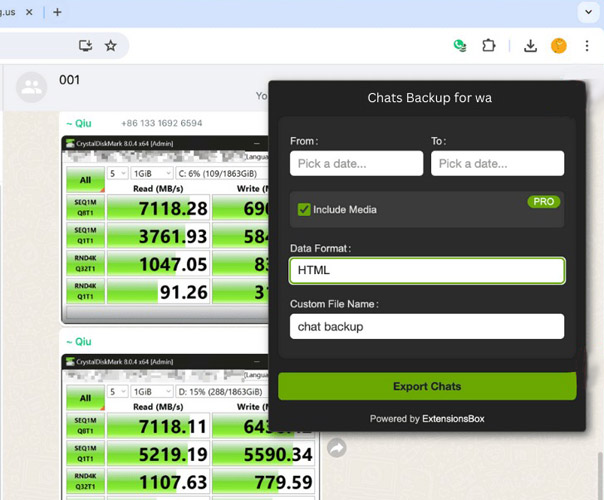
Method 4. Export via WhatsApp Web Chrome Extensions
If you are hesitant to install heavy desktop software or are looking for a cheaper alternative, your web browser holds the key. By using WhatsApp Web in conjunction with specific Google Chrome extensions, you can "scrape" the chat history loaded in your browser.
Step 1. Go to web.whatsapp.com on your computer and scan the QR code with your phone to log in. Ensure your phone stays connected to the internet so all messages can sync.
Step 2. Go to the Chrome Web Store, find a highly-rated WhatsApp export extension, and click "Add to Chrome". You should see a small icon appear in your browser toolbar.
Step 3. Open the specific conversation you want to export. You may need to scroll up to load older messages. Some premium extensions automate this scrolling process for you, while free versions might require you to manually scroll to the very top (which can take time for 40,000+ messages).
Step 4. Click the extension icon. You will typically see options to select the date range and the format.
Step 5. Once the processing is done, the extension will generate a download link. Save the file to your desktop.
Method 5. Convert WhatsApp Chat to a File
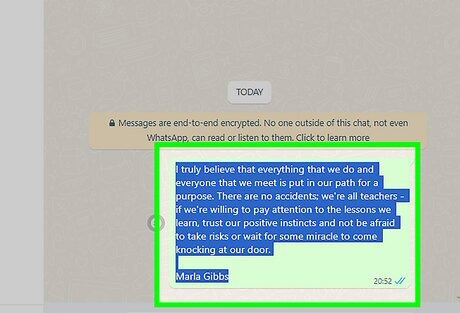
Another option is to copy messages directly from the chat and paste them into a document or spreadsheet. This manual method works for smaller conversations but can be applied incrementally for larger ones.
Step 1. Select and copy multiple messages from WhatsApp.
Step 2. Paste them into a text editor (like Notepad, Word, or Excel).
Step 3. Save the file with proper formatting for organization.
Part 4. FAQs About How to Export More Than 40000 WhatsApp Messages
-
1. Can I Export WhatsApp Messages From Multiple Chats at Once?
Yes, third-party tools like TunesKit WhatsApp Transfer can batch-export messages from multiple chats simultaneously, allowing users to export more than 40000 WhatsApp messages.
-
2. Are Third-Party Tools Safe to Use?
Most reputable tools are safe, but always download from official developer websites and avoid unauthorized software versions.
-
3. Can I Export Messages Without Decrypting Backups?
No, backups must be decrypted to view or export chat messages in a readable format.
Part 5. Conclusion
Exporting more than 40,000 WhatsApp messages is achievable with the right tools and methods. Whether splitting exports manually, relying on third-party software like TunesKit WhatsApp Transfer, or decrypting backup files, the process can be tailored to your needs. Choose the method that best suits your technical proficiency and the volume of your messages.


