


TrueDepth Camera Not Working? Fix It Now!
If you're seeing errors like "TrueDepth camera has an issue" or "Face ID not available", this guide will help you clearly understand what's going wrong and how to fix it. We'll walk you through the most effective solutions so that you can resolve the TrueDepth camera not working issue efficiently without unnecessary steps.

Quick Fixes for TrueDepth Camera Not Working
These are the fastest and least technical solutions that address the most common causes of TrueDepth camera issues. In many cases, the problem is simply due to dirt, obstruction, or a temporary glitch. Trying these first can save you significant time before moving on to more complex fixes.
- Clean the front camera area (remove dirt, oil, or dust).
- Remove your screen protector or case.
- Restart your iPhone.
- Make sure nothing is covering your face.
- Hold your iPhone properly (10–20 inches away).
- Ensure Face ID is enabled.
How to Fix TrueDepth Camera Not Working (Step-by-Step)
This section provides a structured troubleshooting process, starting with the simplest fixes and gradually moving to more advanced solutions. Following this order helps you resolve the issue efficiently while minimizing the risk of data loss or unnecessary effort.
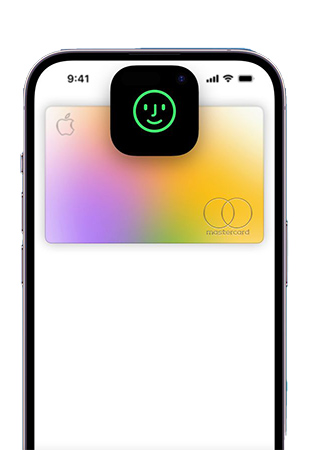
Fix 1. Clean the Camera & Remove Obstructions
This step ensures that nothing is physically blocking the TrueDepth sensors. Since the system depends on clear visibility to map your face, even minor dirt or improperly fitted accessories can disrupt its performance.
- Step 1. Wipe the front camera area gently.
- Step 2. Remove any case or screen protector.
- Step 3. Make sure your face is fully visible.
Fix 2. Restart Your iPhone
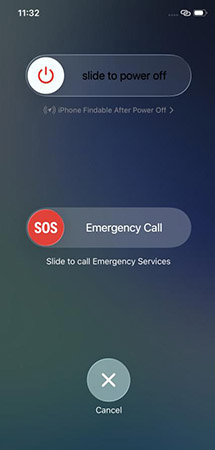
A restart is one of the simplest yet most effective ways to fix temporary software glitches. It refreshes system processes and can resolve issues that occurred due to background errors or system instability.
- Step 1. Press and hold the power + volume button (or press and hold Side/Top button) until the power-off slider appears.
- Step 2. Drag the silde to power off slider to power off.
- Step 3. Turn it back on.
Fix 3. Check Face ID Settings
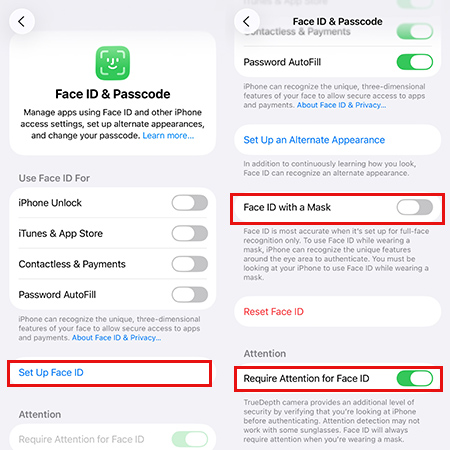
If Face ID is disabled or incorrectly configured, the TrueDepth camera won't function as expected. Verifying these settings ensures that all necessary features are turned on and working properly.
- Step 1. Go to Settings > Face ID & Passcode.
- Step 2. Enable Face ID for unlocking and other features.
Fix 4. Reset Face ID
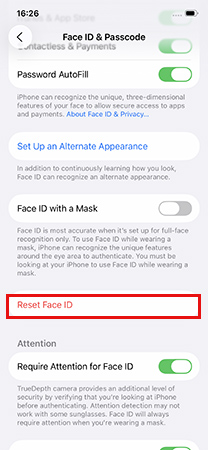
Over time, changes in appearance or minor system inconsistencies can cause Face ID recognition to fail. Resetting Face ID allows the system to relearn your facial data and often resolves recognition-related issues.
- Step 1. Go to Settings > Face ID & Passcode.
- Step 2. Tap Reset Face ID.
- Step 3. Set it up again.
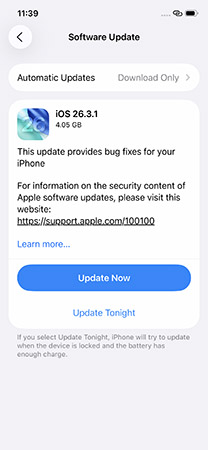
Fix 5.Update iOS
Apple frequently releases updates to fix bugs and improve system stability. If your TrueDepth camera stopped working after a glitch or bug, installing the latest iOS version can often resolve the issue.
- Step 1. Go to Settings > General > Software Update.
- Step 2. If there is an update, tap Update Now.
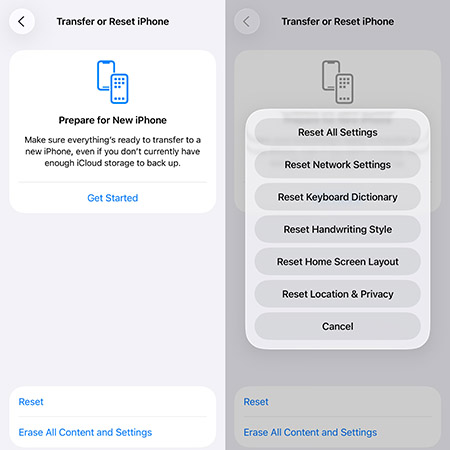
Fix 6. Reset All Settings
This step resets system configurations without deleting your personal data. It's particularly useful if the issue is caused by hidden setting conflicts or misconfigurations that are difficult to identify manually.
- Step 1. Go to Settings > General > Transfer or Reset iPhone.
- Step 2. Tap Reset > Reset All Settings.
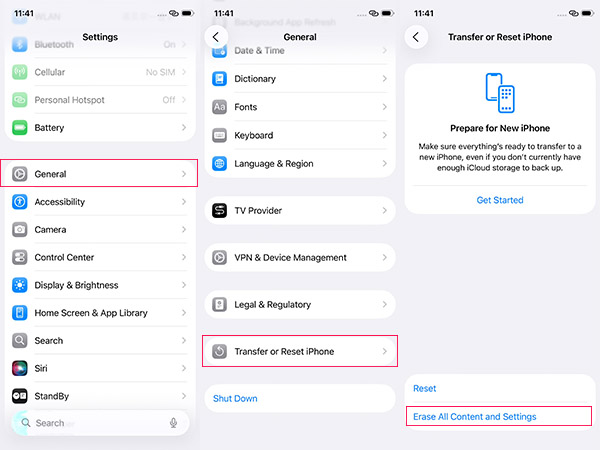
Fix 7. Factory Reset (Last Resort)
A factory reset completely restores your iPhone to its original state, eliminating any deep software issues that may be affecting the TrueDepth camera. Because this process erases all data, it should be used when all other solutions have failed.
- Step 1. Back up your iPhone first.
- Step 2. Go to Settings > General > Transfer or Reset iPhone.
- Step 3. Tap Erase All Content and Settings.
Bonus Tip: How to Factory Reset iPhone/iPad While Locked Out of It
If you're locked out of your device and can't access settings to perform a reset, this method provides a reliable way to factory reset your iPhone or iPad. It's especially useful when you've forgotten the passcode or the device is disabled, and you still need to fix issues like the TrueDepth camera not working.
TunesKit iPhone Unlocker is designed to help users regain access to locked iOS devices when standard methods (like iTunes or iCloud) are not available or fail. It simplifies the reset process and works across multiple iOS versions.
Key Features of TunesKit iPhone Unlocker
Allow users to factory reset iPhone without Apple ID. Remove Screen Time Passcode, screen lock, Apple ID without password.
 600,000+ Downloads
Now, let's see how to factory reset iPhone/iPad by using TunesKit iPhone Unlocker.
Step 1Connect Your Device to the Computer
Start by installing the software on your computer so you can begin the unlocking process. Use a USB cable to connect your iPhone or iPad. Click "Unlock iOS Screen" on the main interface. Click the Start button to proceed.

Step 2Put Your Device into Recovery Mode
Follow the on-screen instructions to enter Recovery Mode. If it doesn't work, switch to DFU Mode as guided.

Step 3Download Firmware Package
The firmware is required to reset and reinstall the iOS system on your device. Confirm your device information (model, iOS version). Click Download to get the firmware package.

Step 4Start Unlocking and Factory Reset
Click Unlock to begin the process. Wait for the software to remove the lock and reset the device.

FAQ About TrueDepth Camera Issues
-
Why does my iPhone say "TrueDepth camera has an issue"?
This message typically appears when the system detects a problem with the sensors or internal components, though software glitches can occasionally trigger it as well.
-
Does low light affect the TrueDepth camera?
The TrueDepth camera uses infrared sensors to scan your face, so it can usually work in low-light conditions. However, extreme darkness or strong direct light hitting the camera can sometimes reduce accuracy.
-
Why does Face ID sometimes work intermittently?
Intermittent issues usually indicate either a temporary software glitch or minor obstruction. Restarting the device, cleaning the camera area, or resetting Face ID often resolves these problems.
Conclusion
The key to fixing the TrueDepth camera is following a logical troubleshooting process. which starts with simple solutions and gradually moves toward more advanced steps if needed. When you cannot enter your device, TunesKit iPhone Unlocker can help you unlock it, and it may fix your TrueDepth camera problem after unlocking.
However, if the issue persists after trying all the steps, it's likely a hardware problem that requires professional repair. Hope this guide helps you.


