


How to Turn Off Find My iPhone Without Parents Knowing? 2026 Guide!
For many young users, the "Find My" feature is a double-edged sword and they are always ask how to turn off Find My iPhone without parents knowing so that they can regain the whole access of their iPhone. While it's designed for device security, it can sometimes feel like a breach of privacy or become a hurdle if you've forgotten your Apple ID credentials.
If you are looking for a way to regain control over your device privacy or need to disable tracking for troubleshooting purposes, this guide provides the most effective methods available today.

Before Turning Off Find My
Before you proceed, it is crucial to understand that Apple has strengthened privacy alerts in recent updates. Simply signing out of an Apple ID or toggling off location services can sometimes trigger an automated email to the primary account holder. To minimize the risk, you must follow the correct technical procedures rather than force-restarting the device.
Use the "Hide My Location" Feature
Instead of completely turning off the "Find My" service, you can choose to share your location from a secondary device. This is the most discreet method as it keeps the "Find My" service active while showing a static location of your choice.
- Step 1. Open the Find My app on your iPhone and tap the Me tab at the bottom.
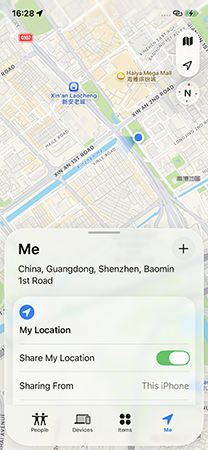
- Step 2. Ensure that "Share My Location" is on, then use another iPad or an older iPhone signed into the same Apple ID to set that device as your "current location." Your parents will see the second device's location instead of yours.
Managing Screen Time Restrictions
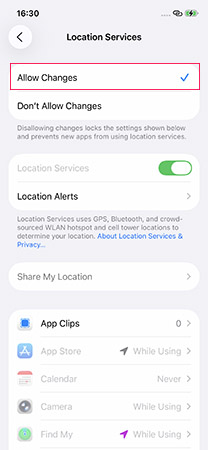
Often, the "Find My" toggle is greyed out because of Screen Time restrictions set by parents. To bypass this, you need to adjust the content and privacy settings if you have the Screen Time passcode.
- Step 1. Navigate to Settings > Screen Time > Content & Privacy Restrictions.
- Step 2. Find the Location Services section and ensure it is set to Allow Changes. If this is restricted, you will not be able to toggle the Find My switch regardless of your Apple ID status.
How to Turn Off Find My iPhone Without Parents Knowing
If you have known the above information and you still need to turn off Find My iPhone feature without parent knowing, the following methods can help you.
Method 1. Disable the Share My Location feature
Apple makes it easy to stop sharing your location by disabling the Share My Location feature. This ensures your location is hidden from family members and approved friends until you choose to share it again.
Steps to turn off Share My Location:
- Step 1. Open Settings and tap your name at the top.
- Step 2. Select Find My from the menu.
- Step 3. In the Find My settings, toggle off Share My Location.
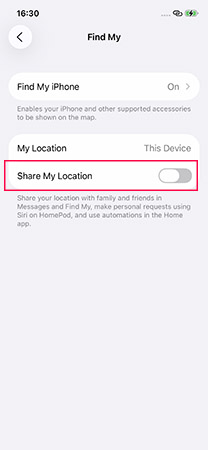
Your location will no longer be visible to others until you decide to enable it again.
Method 2. Turn off Find My iPhone using the Settings app
Turning off the Find My iPhone feature with the Settings app requires an Apple account password. If you know the password, it's easy to turn off the Find My feature and prevent your parents from tracking your location. Here's how:
- Step 1. Go to Settings > [Your Name] > Find My.
- Step 2. Tap Find My iPhone and toggle it off.
- Step 3. Enter the Apple Account password when prompted. Then click the Turn Off button in the upper right corner to confirm that Find My is off.

 Pro Tip:
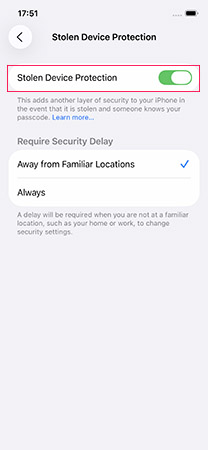
If your Find My iPhone option is grayed out, then you have Stolen Device Protection turned on, and you should turn it off before you can turn off Find My iPhone.
- Step 1. Open the Settings app, and tap Face ID & Passcode.
- Step 2. Enter your lock screen passcode > Scroll down to tap the Stolen Device Protection.
- Step 3. Make sure its toggle button is turned off.
Method 3. Use iCloud to turn Find My iPhone off
Using iCloud to turn off Find My iPhone is a proven way to conceal your whereabouts from connected devices. This method also requires you to know the Apple Account password. Follow these steps to stop sharing your location with others:
- Step 1. Open a web browser on your computer or mobile device and go to iCloud. Sign in using your Apple Account.
- Step 2. Once logged in, click on Find My iPhone from the iCloud dashboard.
- Step 3. In the All Devices dropdown menu, locate and select the device you want to remove.
- Step 4. If the device is offline, you'll see the option to Remove from Account. If the device is online, you may need to erase it remotely before removing it from Find My iPhone.
- Step 5. Click this option to disable Find My iPhone for that device. Enter your Apple Account password again if prompted to confirm the action.

Your location will no longer be visible to others until you decide to enable it again.
Method 4. Use TunesKit iPhone Unlocker to Turn Off Find My
If you are stuck because you don't know the Apple ID password or the Screen Time passcode, standard methods will fail. In these technical deadlocks, a professional utility is required to remove the tracking lock without triggering alerts.
TunesKit iPhone Unlocker is an industry-leading tool designed to help users regain autonomy over their devices. It can bypass Apple ID locks and disable "Find My iPhone" even when the password is lost. This is particularly useful for those using second-hand devices or users who have been locked out of their own accounts after an iOS 26 update.
Why Choose TunesKit iPhone Unlocker?
Remove Apple ID on iPhone & iPad without the associated password. Turn off the Find My iPhone/iPad/iPod without Apple Account credentials. Features a straightforward process with step-by-step instructions.
 600,000+ Downloads
Without further delay, follow the instructions below to learn how to remove Apple ID without password using TunesKit iPhone Unlocker.
Step 1Connect your iPhone
Download TunesKit iPhone Unlocker, and install it on your PC or Mac. Launch the software and connect your iPhone to the computer using a USB cable. Select the Unlock Apple ID option from the main screen. Hit the Start button.

Step 2 Verify iOS Version and Device Status
Find My is Turned Off: Apple ID removal is supported on any iOS version and it won't cause any data loss.
Find My is Turned On: If your device runs iOS 11.4 or later, has the screen lock password, and two-factor authentication enabled—Apple ID removal is supported. If your device's iOS version is below 11.4, Apple ID removal is not supported.

Step 3Download the firmware package
After verifying your device status, review your iPhone's information, including the model and iOS version. Next, click the "Download" button to obtain the appropriate firmware package for your iPhone.

Step 4Remove Apple ID without password & Turn off Find My iPhone
Click the "Unlock" button once the firmware package has been successfully downloaded. It will begin removing the Apple ID from your device. Then, you can set your iPhone with a new Apple ID.

FAQs About Turning Off Find My iPhone Without Parents Knowing
-
Will disabling Find My iPhone notify others on Family Sharing?
If Family Sharing is enabled, your actions might notify connected users. To avoid this, consider removing the device from the family group first.
-
Can your parents see if you turn off Find My iPhone?
Disabling the Find My iPhone feature through your device settings will not send a direct notification to your parents. However, they can check the Find My app to see if the feature has been turned off, as it will indicate that the device is no longer being tracked.
Conclusion
After reading this article, you should know how to turn off Find My iPhone without parents knowing. We've outlined various methods to accomplish this, whether or not you have the Apple ID password. Among these options, TunesKit iPhone Unlocker stands out as the most effective solution, offering the ability to remove the linked account and regain control of your device without parental oversight.


