


[2026 Full Guide] How to Get App Store on School iPad
Opening an iPad to find the App Store completely missing can be incredibly frustrating. Whether you need a specific educational tool for homework or simply want a productivity app for your downtime, being locked out of software installation is a common hurdle. Many students and parents search for how to get the App Store on a school iPad to bypass these strict limits and gain access to essential applications.
Fortunately, there are legitimate, working methods to get App Store back to your school iPad withdamaging the device.

Why Is the App Store Missing on Your School iPad
Before trying fixes, it's important to understand why the App Store disappeared. Different causes require different solutions.
1. The App Store Is Hidden by Screen Time Restrictions
Apple's Screen Time settings can disable app installations and hide the App Store completely. This often happens when parental controls are enabled, the iPad was configured for classroom use, or installation permissions were restricted. If this is the cause, the App Store can usually be restored in Settings.
2. Your School Disabled the App Store Through MDM
Many schools manage iPads using Mobile Device Management (MDM) systems. These systems allow administrators to block the App Store, restrict Apple Account sign-in, install approved apps remotely, and lock certain settings.
If your iPad is supervised by a school, some options may appear greyed out and cannot be changed by students. Common signs of a managed school iPad include:
- "This iPad is supervised and managed" messages.
- A Remote Management screen.
- Incorrect Apple Account or password
- Missing App Store and Safari access.
- iOS system bugs or software glitches
- Restricted Apple Account settings.
3. The App Store Icon Is Hidden or Moved
Sometimes the App Store is still installed but no longer visible on the Home Screen. It may have been moved into the App Library, hidden in a folder, or removed from the main Home Screen layout. This is one of the easiest issues to fix.
4. Apple Account or App Installation Restrictions Are Enabled
Some schools prevent students from signing into personal Apple Accounts. Without an Apple Account, downloading apps from the App Store may not work correctly. In other cases, the school allows App Store access but blocks app downloads, in-app purchases, or app deletion.
How to Check If Your iPad Is School-Managed
Before attempting advanced fixes, check whether your iPad is supervised or managed by a school. Follow these steps:
- Step 1. Open Settings.
- Step 2. Go to General.
- Step 3. Tap VPN & Device Management.
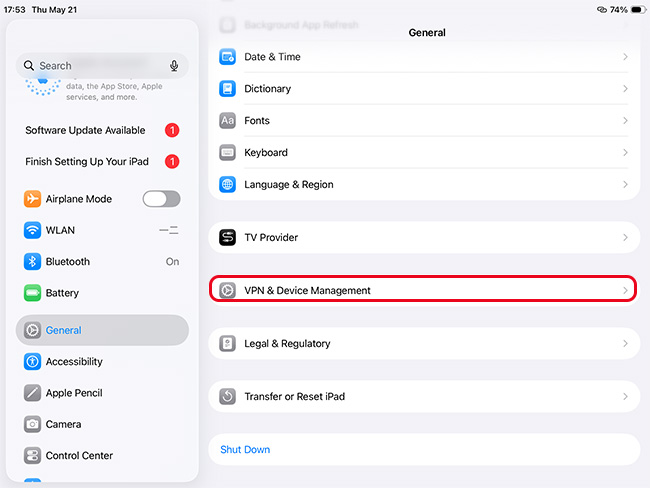
If you see a management profile, remote management settings, or organization information, your iPad is likely controlled through MDM.
You may also see a message near the top of Settings saying:"This iPad is supervised and managed." If your device is school-managed, some restrictions cannot be removed without administrator permission.

How to Get the App Store Back on a School iPad
Now that you know what may be causing the issue, you can start trying practical solutions. The best method depends on whether the App Store was accidentally hidden, restricted through Screen Time, or disabled by your school's management system on your iPad.
Method 1: Search for the App Store Using Spotlight
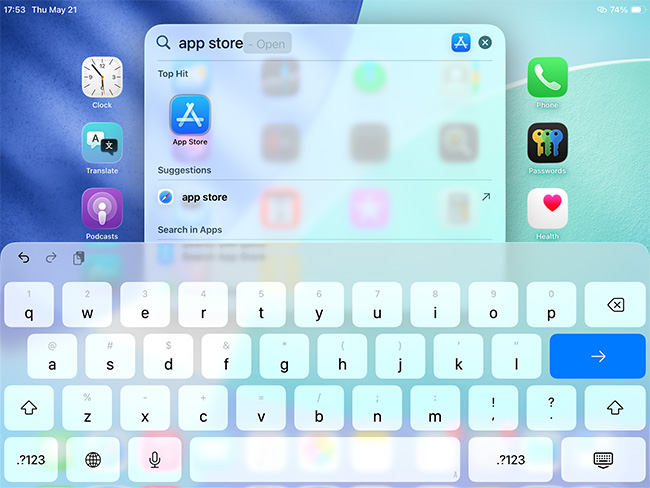
One of the easiest and most overlooked solutions is simply searching for the App Store directly. On iPads with many folders, customized Home Screens, or App Library organization enabled, the App Store icon may still exist on the device even though it no longer appears on the main screen. To search for it:
- Step 1. Swipe down on the Home Screen.
- Step 2. Type "App Store."
- Step 3. Tap the result if it appears. If the App Store opens normally, you can drag the icon back to the Home Screen.
Method 2. Allow App Installation in Screen Time
Screen Time restrictions are one of the most common reasons the App Store disappears on an iPad. Apple allows parents, schools, and administrators to disable app installations through Content & Privacy Restrictions. When this setting is turned off, the App Store may vanish entirely instead of simply becoming inaccessible.
If you have permission to change Screen Time settings, restoring app installation access may immediately bring the App Store back.
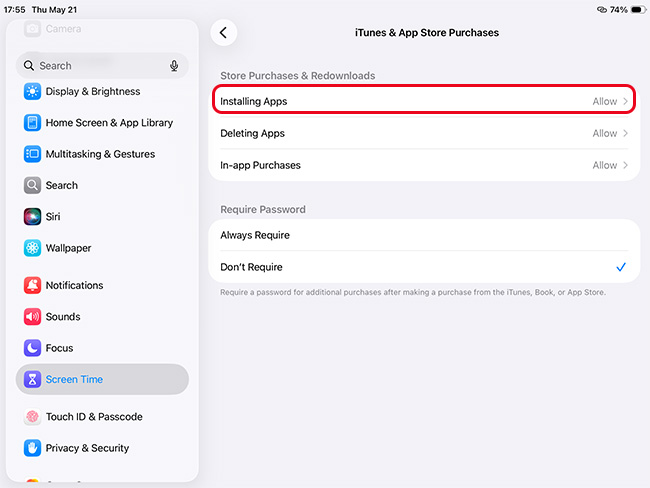
- Step 1. Open Settings.
- Step 2. Tap Screen Time.
- Step 3. Select Content & Privacy Restrictions.
- Step 4. Tap iTunes & App Store Purchases.
- Step 5. Set Installing Apps to Allow. After changing the setting, the App Store should reappear.
If you do not know the Screen Time passcode, you may need help from a parent or administrator. In addition, you can also ask professioanl tools like TunesKit iPhone Unlocker fro help to remove Screen Time passcode without data loss.
Method 3. Reset the Home Screen Layout
If the App Store still cannot be found, your Home Screen layout may have been heavily customized by either the user or the school. Some school configurations move apps into folders, secondary pages, or hidden layouts that are difficult to locate manually. Resetting the Home Screen layout can help restore missing default apps to their original positions without deleting your personal files, photos, or school documents.
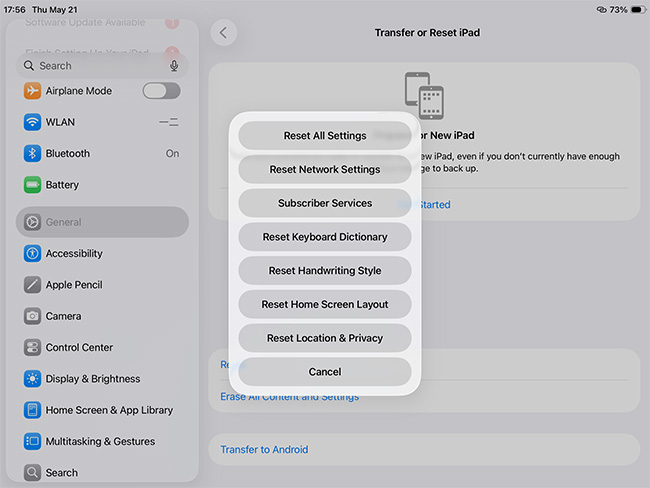
- Step 1. Open Settings. Tap General.
- Step 2. Choose Transfer or Reset iPad. Tap Reset.
- Step 3. Select Reset Home Screen Layout. This restores Apple's default app arrangement without deleting personal data.
Method 4. Sign In With an Apple Account
The App Store relies on an Apple Account for downloading and installing apps. If your iPad is not signed into an Apple account, or if account access is restricted, the App Store may not function correctly.
Checking your sign-in status can help determine whether the issue is related to account permissions rather than the App Store app itself.
- Step 1. Open Settings.
- Step 2. Tap Sign in to your iPad.
- Step 3. Enter your Apple Account credentials.
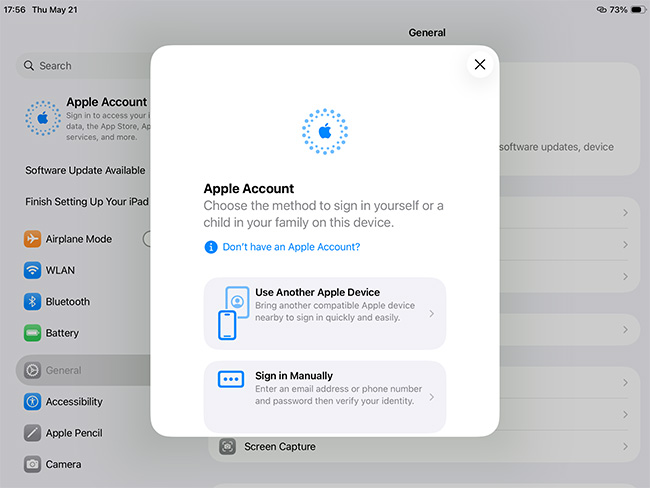
Some schools block personal Apple Accounts on managed devices. If sign-in is disabled, you may need to contact your school and ask for help.
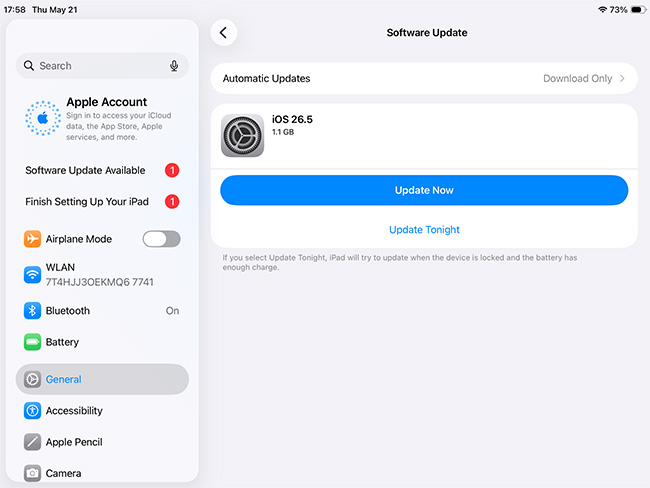
Method 5. Restart and Update the iPad
Although it sounds simple, restarting the iPad can sometimes resolve temporary software glitches that affect system apps and settings visibility. In rare cases, outdated versions of iPadOS may also cause bugs involving restricted apps, Home Screen behavior, or synchronization issues with school management systems.
If your school allows software updates, installing the latest version of iPadOS may also improve device stability and restore missing features.
- Step 1. Open Settings.
- Step 2. Tap General.
- Step 3. Choose Software Update. If available, tap Update Now to update iOS software.
Method 6. Remove MDM Restrictions from School iPad
If the school iPad now legally belongs to you — for example after graduation, resale, or a completed ownership transfer — you may still find that certain restrictions remain active. In some situations, the school may forget to fully remove management settings, Screen Time restrictions, or remote supervision profiles before handing over the device. When that happens, you might experience issues such as the App Store still being disabled, and Apple Account sign-in restrictions.
In this case, TunesKit iPhone Unlocker would be a better choice. TunesKit iPhone Unlocker is commonly used for certain iPad access issues such as removing MDM restrictions, removing Screen Time passcodes, and unlocking disabled iPads. If you want to get App Store from your school iPad that is supervised by an MDM, this tool will solve your problem without any data loss.
Use TunesKit iPhone Unlocker to Remove MDM
Remove MDM restrictions from iPad/iPhone/iPod without password. Easy-to-use feature and user-friendly interface. Fully compatible with the latest iOS device and iOS versions.
 600,000+ Downloads
Step 1Connect iPhone to Computer
Install and launch TunesKit iPhone Unlocker on your computer. Connect the iPad to the computer using a USB cable. Select the Remove MDM mode from the main interface. Wait for the software to detect the device.

Step 2Remove MDM
Click the Start button to begin the removal process. Keep the iPad connected until the process finishes. Restart the iPad and check whether the management profile has been removed.

FAQs About Getting the App Store on a School iPad
-
Can I get the App Store back by factory resetting my school iPad?
A factory reset will not permanently restore the App Store on a school-owned device. If you erase all content and settings, the tablet will simply connect to Apple's servers during the initial setup process. It will instantly recognize the serial number and force the device to redownload the school's Mobile Device Management (MDM) profile.
-
Can I download iPad apps using the Safari web browser instead?
No. Unlike a Windows PC or a Mac, Apple's iPadOS operating system strictly requires all applications to be installed either through an authorized App Store or directly via a Mobile Device Management (MDM) payload.
Conclusion
If you're trying to get the App Store back on a school iPad, the first step is identifying why it disappeared. In some cases, the fix is simple — like re-enabling app installation in Screen Time or restoring the Home Screen layout. In other situations, the iPad may be managed by your school through MDM restrictions. In this case, TunesKit iPhone Unlocker would be your best choice to get access to the App Store.


