


Can You Bypass Touch ID on iPad? 7 Ways [2026]
If you still know the screen passcode, there is no need to remove or “crack” Touch ID—you can use the passcode directly. If you forgot the passcode too, there is no normal Touch ID workaround that preserves access to the existing locked data. Try Apple's 72-hour Passcode Reset first; otherwise, resetting the iPad is usually required.
Can you bypass Touch ID on an iPad? Yes, depending on your situation. If you know the iPad passcode, you can simply use it instead of Touch ID or turn Touch ID off in Settings. If you recently changed the passcode, you may be able to use your previous passcode within 72 hours. If both Touch ID and the screen passcode are unavailable, you will usually need to reset the iPad to regain access.
This guide explains how to get around Touch ID on iPad in each situation and what happens to your data.

- Can You Bypass Touch ID on an iPad?
-
How to Bypass Touch ID on iPad
- Method 1. Use the Passcode Instead of Touch ID
- Method 2. Turn Off Touch ID on iPad
- Method 3. Use Your Previous Passcode Within 72 Hours
- Method 4. Bypass Touch ID and Forgotten Passcode with TunesKit iPhone Unlocker HOT
- Method 5. Reset the iPad from the Lock Screen
- Method 6. Reset iPad in Recovery Mode with a Mac or PC
- Method 7. Erase the iPad with Find My
- Can You Bypass Touch ID on iPad Without Losing Data?
- What If Touch ID Is Not Working on iPad?
- FAQs About Bypassing Touch ID on iPad
- Conclusion
Can You Bypass Touch ID on an iPad?
Touch ID is a biometric shortcut for authentication rather than a replacement for the iPad passcode. Your iPad may require the passcode after a restart, after several unsuccessful Touch ID attempts, or in other security situations. Apple also lets you disable Touch ID for device unlocking from Settings.
Which solution should you use? Start with this quick comparison:
| Your Situation | Best Solution | Data Loss? |
|---|---|---|
| You know the iPad passcode | Use the passcode instead | No |
| You no longer want to use Touch ID | Turn off Touch ID | No |
| You recently changed and forgot the passcode | Use the previous passcode | No |
| Touch ID fails and you forgot the passcode | TunesKit iPhone Unlocker | Yes |
| iPad shows Unavailable/Security Lockout | Reset from the Lock Screen | Yes |
| You have a Mac or Windows PC | Use Recovery Mode | Yes |
| Find My is enabled | Erase the iPad with Find My | Yes |
How to Bypass Touch ID on iPad
There are several ways to bypass Touch ID on iPad, depending on whether you still know the screen passcode. You can use the passcode instead, disable Touch ID, reset a recently changed passcode, or erase the iPad when access is completely lost.
Method 1. Use the Passcode Instead of Touch ID
The easiest way to get around Touch ID on an iPad is to enter the device passcode. This works when Touch ID does not recognize your fingerprint, your finger or sensor is wet, or the iPad specifically asks for the passcode.
- Step 1. Wake your iPad and go to the Lock Screen.
- Step 2. If Touch ID fails, enter your iPad screen passcode.
- Step 3. Once the correct passcode is accepted, you can use the iPad normally.
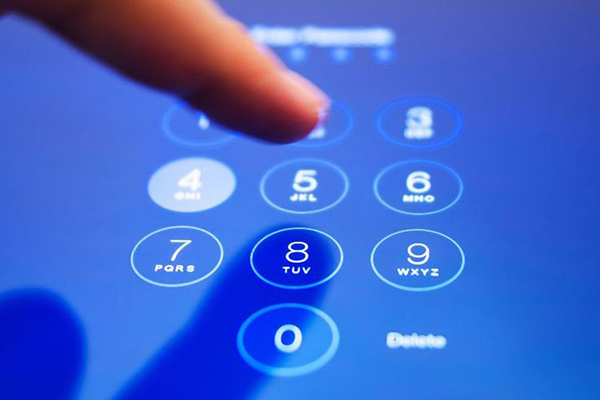
In some cases, the passcode is mandatory even if Touch ID usually works. For example, an iPad can require it after restarting or after repeated unsuccessful biometric authentication attempts.
Method 2. Turn Off Touch ID on iPad
If you know the passcode but no longer want Touch ID to unlock your iPad, you can disable it without erasing anything. Apple allows you to turn Touch ID on or off for functions such as device unlocking, purchases, and Apple Pay. You can also delete enrolled fingerprints individually.
- Step 1. Open Settings on the iPad.
- Step 2. Tap Touch ID & Passcode.
- Step 3. Enter your current iPad passcode.
- Step 4. Turn off iPad Unlock under the Touch ID settings.
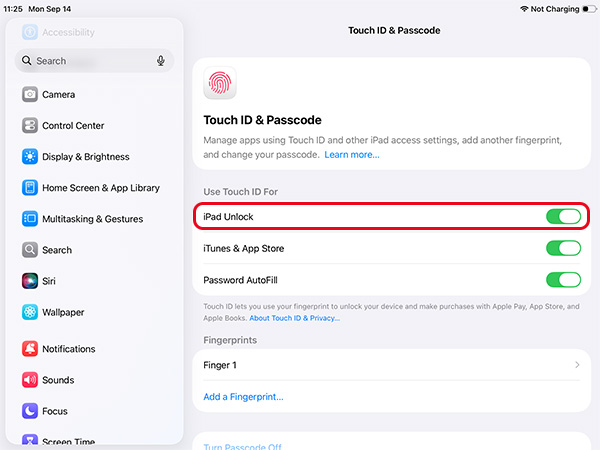
You can also tap an enrolled fingerprint and choose Delete Fingerprint if you want to remove it from the iPad.
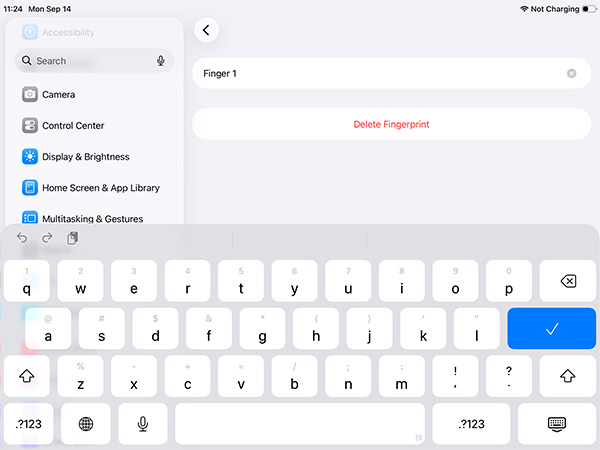
After that, your iPad will rely on the screen passcode instead of your fingerprint for unlocking.
How to Bypass Touch ID for App Store Purchases
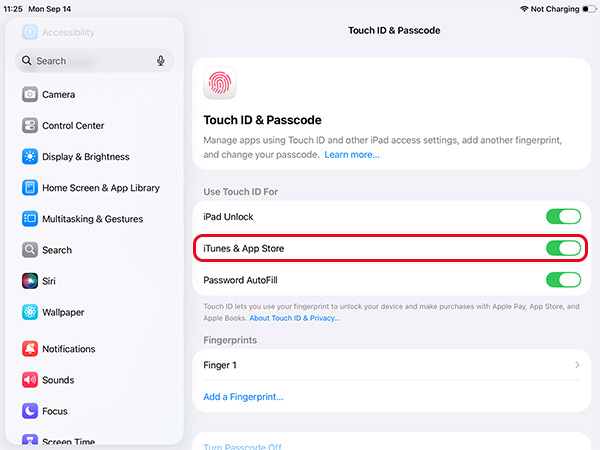
If your main problem is being asked for Touch ID when downloading or purchasing apps, you do not need to disable Touch ID entirely.
Go to Settings > Touch ID & Passcode. Then turn off Touch ID for iTunes & App Store or the corresponding purchase setting shown on your iPad.
Method 3. Use Your Previous Passcode Within 72 Hours
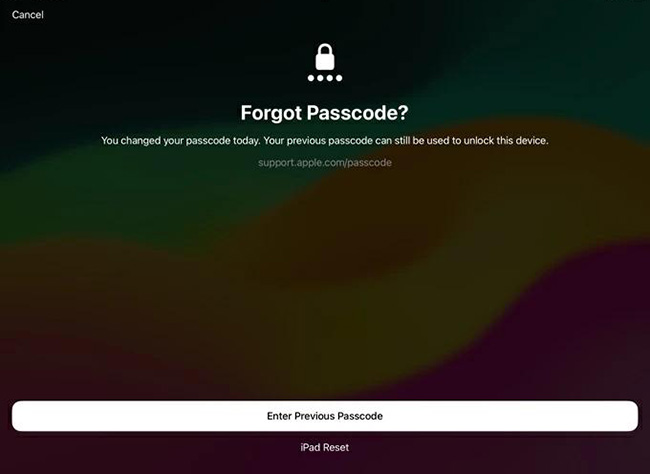
Did you recently change your iPad passcode and then forget the new one? Before erasing the device, try Passcode Reset. On iPadOS 17 and later, Apple gives you a 72-hour window after changing the passcode during which the previous passcode can be used to regain access.
- Step 1. Enter an incorrect passcode until the iPad Unavailable screen appears.
- Step 2. Tap Forgot Passcode? at the bottom of the screen.
- Step 3. Choose Enter Previous Passcode. Enter your old iPad passcode.
- Step 4. Follow the instructions to create a new passcode.
Method 4. Bypass Touch ID and Forgotten Passcode with TunesKit iPhone Unlocker
If Touch ID is unavailable and you also cannot remember the iPad screen passcode, a screen-lock removal tool becomes useful at this time.
TunesKit iPhone Unlocker can remove several types of iPhone and iPad screen locks, including 4-digit or 6-digit passcodes, Touch ID, and Face ID. It can also help when the screen is unavailable, unresponsive, or you cannot enter the passcode normally. The current product specifications list support for all iPad models and recent iOS/iPadOS versions.
Key Features of TunesKit iPhone Unlocker
Remove digit passcode, Face ID, Touch ID, and all kinds of screen lock. Support the latest iPhone, iPad, iPod models and system versions.
 600,000+ Downloads
How to Get Past Touch ID on iPad with TunesKit
- Step 1. Install and open TunesKit iPhone Unlocker on your Windows PC or Mac. Connect your iPad with a compatible USB cable. Choose Unlock iOS Screen and click Start.
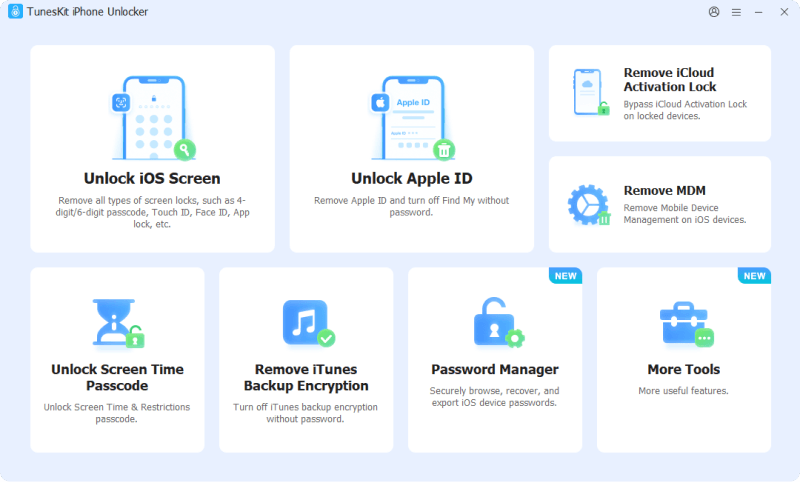
- Step 2. TunesKit will attempt to detect your iPad. If it cannot recognize the device normally, follow the onscreen instructions to put the iPad into Recovery Mode or DFU Mode.
- Step 3. Check the detected device model and firmware information. Click Download to obtain the firmware package required for your iPad.
- Step 4. When the firmware is ready, click Unlock. Keep the iPad connected until the process finishes. Afterward, you can set up the device again and restore an available backup.
Method 5. Reset the iPad from the Lock Screen
If your iPad becomes unavailable after repeated incorrect passcode attempts, newer iPadOS versions may let you reset it directly from the Lock Screen without a computer. Apple distinguishes the option by system version: devices using iPadOS 17 or later can show Forgot Passcode?, while iPadOS 15.2–16 devices can show Erase iPad.
For iPadOS 17 or Later
- Step 1. Enter an incorrect passcode until iPad Unavailable appears.
- Step 2. Tap Forgot Passcode?
- Step 3. Choose the Start iPad Reset option to start the iPad reset.
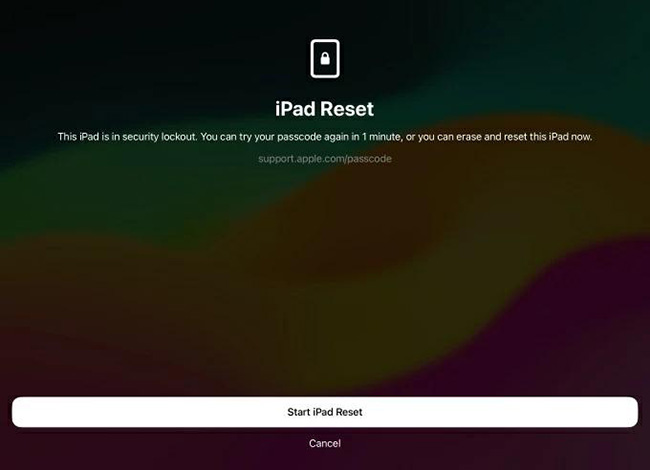
- Step 4. Enter your Apple Account password if prompted.
- Step 5. Confirm that you want to erase the iPad.
After the reset, set up your iPad again and restore an iCloud or computer backup if one is available.
 Further Reading: iPad Unavailable but No Forgot Passcode Option?
For iPadOS 15.2 to iPadOS 16
When supported, the Lock Screen may instead show Erase iPad. Tap it and follow the onscreen prompts to erase and reset the device.

Method 6. Reset iPad in Recovery Mode with a Mac or PC
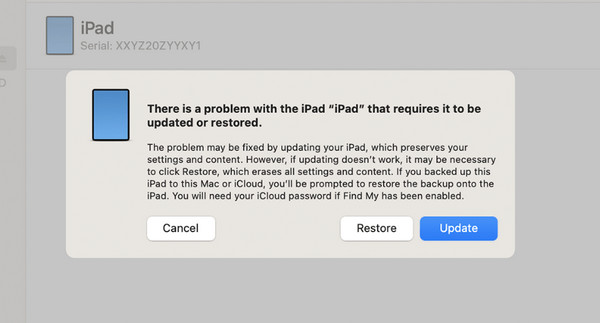
Recovery Mode is Apple's standard computer-based option when you forgot the iPad passcode and cannot use Passcode Reset. The reset deletes the device data and settings, including the forgotten passcode. Afterward, you can restore a backup or configure the iPad as a new device.
- Step 1. Turn off the iPad.
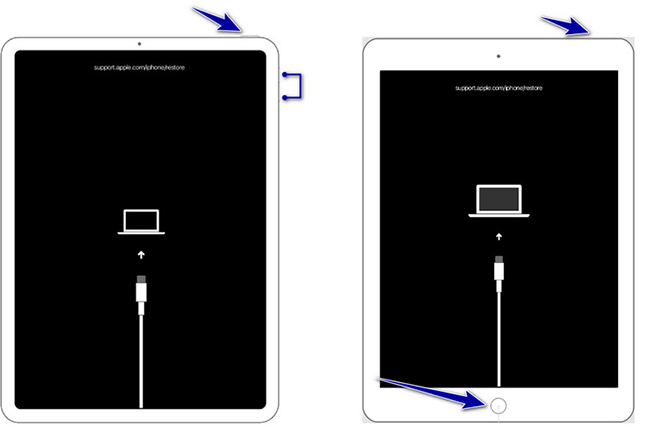
- Step 2. Keep the iPad connected to your computer. Put your iPad into Recovery Mode.
- For an iPad without a Home button: Quickly press and release the Volume button closest to the Top button. Quickly press and release the other Volume button. Press and hold the Top button. Keep holding it even when the Apple logo appears. Release it only when the Recovery Mode screen showing a computer and cable appears.
- For an iPad with a Home button: Press and hold the Home + Top/Side buttons together. Keep holding them when the Apple logo appears. Release them only after the Recovery Mode screen appears.
- Step 3. Open Finder on a Mac, or Apple Devices on a Windows PC.
- Step 4. Locate your iPad and choose Restore when prompted.
Method 7. Erase the iPad with Find My
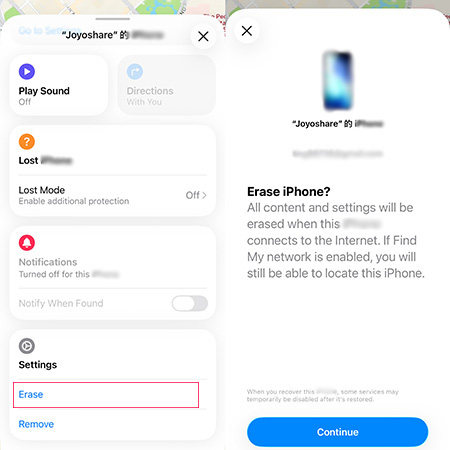
If Find My was enabled before you were locked out, you can remotely erase your iPad using another trusted Apple device or the Find My service. This removes the forgotten screen passcode along with the other data on the device.
Using Another Apple Device
- Step 1. Open the Find My app.
- Step 2. Tap Devices.
- Step 3. Select the locked iPad.
- Step 4. Choose Erase and follow the prompts.
Using Find My Online
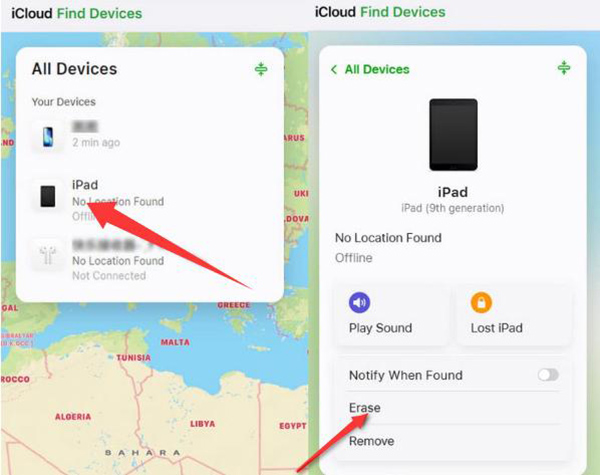
- Step 1. Sign in to the iCloud Find My website with the Apple Account associated with the iPad, select the device, and choose the Erase option.
- Step 2. Once the iPad has been erased, you can set it up again.
 Warning: If Activation Lock is enabled, you still need the Apple Account linked to that iPad to activate it after the reset process.
Can You Bypass Touch ID on iPad Without Losing Data?
It depends on why you need to bypass Touch ID.
If you know the current passcode, you can use the passcode instead of Touch ID or disable Touch ID in Settings without losing anything.
If you changed your passcode within the last 72 hours, Apple's Passcode Reset feature may let you regain access with the previous passcode without erasing your data.
If you have forgotten the passcode and cannot use Passcode Reset, Apple says resetting the iPad through Recovery Mode deletes its data and settings. You can then restore the information from a previous backup.
What If Touch ID Is Not Working on iPad?
If you still know your passcode, you usually do not need to erase the iPad just because Touch ID is failing.
First, clean and dry both your finger and the Touch ID sensor. Then check Settings > Touch ID & Passcode to make sure Touch ID is enabled and your fingerprint is still registered.
You can also delete the existing fingerprint and add it again. Apple supports up to five enrolled fingerprints. If the Touch ID sensor appears physically damaged or consistently fails, use the passcode for access and consider having the iPad inspected.
Further Reading: How to Fix iPad Touch ID Not Working
FAQs About Bypassing Touch ID on iPad
-
Why is my iPad asking for a passcode instead of Touch ID?
This can happen after restarting the iPad, after several unsuccessful Touch ID attempts, or when Apple's security rules require passcode authentication.
-
Will bypassing Touch ID erase my iPad?
Using your existing passcode or disabling Touch ID does not erase data. However, resetting an iPad to remove a forgotten screen passcode does erase the device. You can restore a backup afterward if one exists.
-
Can I bypass Touch ID to download apps?
If you know the iPad passcode, you can change the Touch ID purchase settings under Settings instead of removing the device lock entirely.
Conclusion
There are several ways to get around Touch ID on an iPad, but the right one depends on whether you still know the screen passcode. If you do, simply enter the passcode or turn off Touch ID. If you recently changed the passcode, try Apple's 72-hour Passcode Reset first.
When both Touch ID and the passcode are unavailable, resetting the device may be necessary. TunesKit iPhone Unlocker provides a guided option for removing an iPad screen lock from a Windows PC or Mac, while Apple's Lock Screen reset, Recovery Mode, and Find My are also available depending on your situation.



