


2026 How to Delete Lock Screen Wallpaper on iPhone
The redesign of the iOS Lock Screen introduced a wealth of customization options, from depth effects to automated photo shuffles. However, as you experiment with different styles and layouts, your wallpaper gallery can quickly become cluttered with outdated designs. If you are looking to prune your collection or start fresh, the process is straightforward once you know where the "hidden" delete gesture is located.
In this guide, we will walk you through the precise steps to delete unwanted lock screen wallpapers and address common concerns regarding your photo library.
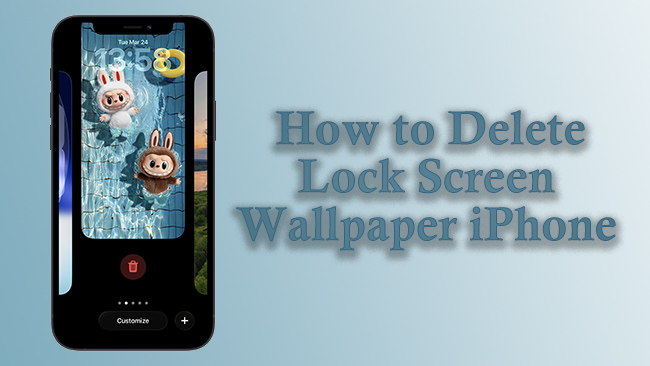
- How to Delete a Lock Screen Wallpaper on iOS 26/18/17
- Why Can't I Delete Wallpapers in the Settings App
- What to Do If I Cannot Delete a Lock Screen Wallpaper on iPhone
- Bonus: How to Unlock iPhone Without Passcode Before Deleting Wallpaper
- FAQs About Deleting Lock Screen Wallpaper on iPhone
- Conclusion
How to Delete a Lock Screen Wallpaper on iOS 26/18/17
Managing your wallpaper gallery requires you to enter "Edit Mode" directly from your device's wake screen. Because this interface relies on specific gestures, ensure your iPhone is unlocked via Face ID or Touch ID before attempting to modify the gallery, though you should remain on the Lock Screen itself.
- Step 1. Wake your iPhone and stay on the Lock Screen without swiping up to go to your Home Screen.
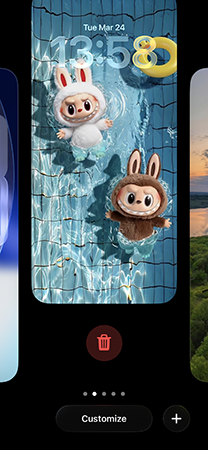
- Step 2. Long-press (press and hold) on any empty area of your current wallpaper until the screen zooms out to reveal the wallpaper gallery.
- Step 3. Swipe left or right through your collection to locate the specific wallpaper you wish to remove.
- Step 4. Once you have selected the unwanted wallpaper, swipe up on like you would to close an app in the App Switcher.
- Step 5. Tap the red Trash Icon that appears and select Delete This Wallpaper to confirm the action.
Why Can't I Delete Wallpapers in the Settings App
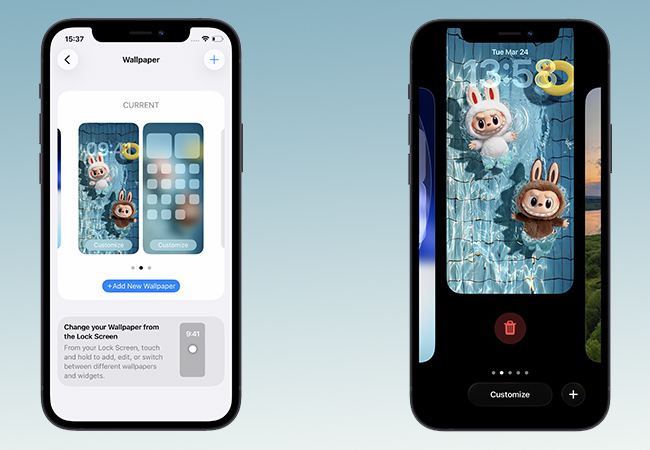
A common point of frustration for many users is searching through the Settings app for a "Delete" button. While you can navigate to Settings > Wallpaper to add a new look or customize your current pair, Apple has not included a deletion tool in this specific menu.
This design choice prioritizes a "fast-switch" experience on the Lock Screen. If you find yourself in the Settings menu looking for a way to clear out old designs, remember that you must return to the Lock Screen and use the long-press gesture described above. The Settings app is purely for configuration and creation, while the Lock Screen gallery is for organization and removal.
What to Do If I Cannot Delete a Lock Screen Wallpaper on iPhone
If you followed the standard "swipe up" method and still can't delete a wallpaper, you are likely encountering one of three specific iOS restrictions. In 2026, Apple's Lock Screen logic remains strict about Focus Mode links and gallery minimums. Here is how to troubleshoot and fix the issue:
1. You only have one wallpaper left
The system requires at least one active "Pair" (Lock Screen and Home Screen) to function. If you swipe up and the trash icon does not appear, it is because there are no other wallpapers to switch to.
- Step 1. Tap the (+) icon or swipe to the end of your gallery to add new.
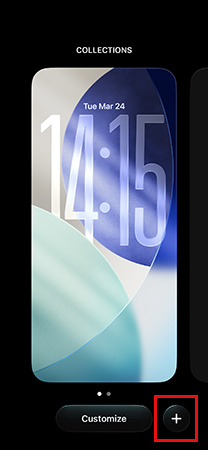
- Step 2. Create a temporary "placeholder" wallpaper.
- Step 3. Once the new one is active, go back to the old one, swipe up, and you will now see the red Delete button.
2. The wallpaper is linked to a Focus Mode
If a wallpaper is currently assigned to a Focus Mode (like "Work," "Sleep," or a custom "Gaming" mode), the system may prevent its deletion to avoid breaking that Focus profile's configuration.
- Step 1. Go to Settings > Focus.
- Step 2. Select the Focus Mode that is currently active or linked to that wallpaper.
- Step 3. Under the "Customize Screens" section, tap the minus icon to remove the wallpaper from Focus Mode or choose a different wallpaper to take its place.
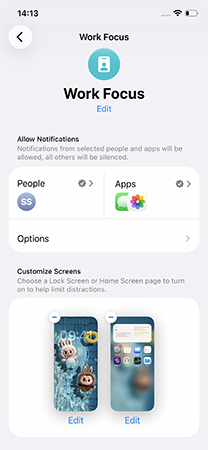
- Step 4. Return to the Lock Screen gallery to delete the original.
3.Your iPhone is not "Unlocked"
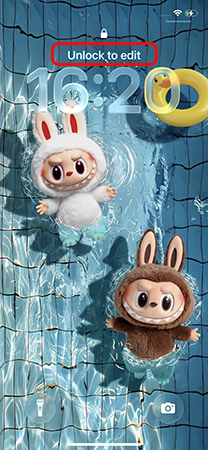
You cannot enter the gallery view while the phone is locked if your iPhone has not authenticated your face or passcode yet. At this time, you also cannot see your wallpapers but cannot swipe up or the trash icon is missing.
- Step 1. Look at the top of the screen for the small Padlock icon. If it is closed, the phone is still locked.
- Step 2. Ensure Face ID recognizes you or enter your passcode before long-pressing the screen. Once the padlock icon disappears (opens), you will have full administrative rights to delete items from the gallery.
Bonus: How to Unlock iPhone Without Passcode Before Deleting Wallpaper
If you find yourself in a situation where you cannot access your iPhone to manage or delete your wallpapers because you've forgotten your passcode, you are essentially locked out of the "Edit Mode" required for customization. In 2026, biometric failures or forgotten alphanumeric codes are common roadblocks, but professional tools like TunesKit iPhone Unlocker provide a reliable workaround to regain access.
It is important to note that removing a screen passcode on any modern iOS version will result in the erasure of all data on the device. However, this is the most effective way to restore functionality when you are locked out of your own hardware.
Why Choose TunesKit iPhone Unlocker?
Factory reset iPhone without passcode in few clicks. Unlock all kinds of screen lock and regain access to your iPhone, including Touch ID, Face ID, digits, etc.
 600,000+ Downloads
- Step 1. Download and install TunesKit iPhone Unlocker on your Mac or PC. Launch the application and connect your iPhone to the computer using an original USB cable.
- Step 2. On the main dashboard, select the Unlock iOS Screen option. Once your device is detected, click the Start button to begin the preparation phase.

- Step 3. You will be prompted to put your iPhone into Recovery Mode or DFU Mode. The software provides clear, on-screen instructions tailored to your specific iPhone model.
- Step 4. Verify that the device information displayed (model and iOS version) is correct. Click Download to obtain the matching firmware package required to reset the lock screen.
- Step 5. Once the firmware is ready, click Unlock. TunesKit will begin removing the passcode. Within a few minutes, your iPhone will restart as a fresh device with no lock screen or wallpaper restrictions.
FAQs About Deleting Lock Screen Wallpaper on iPhone
-
Does deleting a wallpaper delete the photo from my library?
No, deleting a wallpaper from your Lock Screen gallery does not affect the original image stored in your Photos app. The wallpaper is simply a copy of the image data used for display purposes; your original memories remain safe in your camera roll.
-
Can I delete the very last wallpaper?
iOS requires at least one active Lock Screen at all times. If you only have one wallpaper in your gallery, the swipe-up gesture will not reveal a trash icon. To delete your current one, you must first create a new "Add New" wallpaper to replace it.
Conclusion
Keeping your iPhone organized is all about knowing the right gestures. By mastering the "swipe-up" method in the Lock Screen gallery, you can easily remove outdated designs and maintain a clutter-free interface. If a wallpaper seems stuck, simply check for active Focus Mode links or add a new wallpaper to allow for deletion.
For those facing a forgotten passcode, TunesKit iPhone Unlocker remains the most reliable solution to regain access and start fresh. Whether you are managing your daily visuals or performing a complete device reset, these steps ensure your iPhone experience remains seamless and personalized.


