What to Do If You Forgot 28 Character Recovery Key
Losing a 28-character recovery key often creates immediate concern because it can feel like permanent lockout from your Apple Account. This key is part of Apple's high-security recovery system, designed so that even Apple cannot retrieve it. To resolve the issue, you first need to understand your exact situation, and then follow the correct recovery path step by step.
- What Is a 28 Character Recovery Key (Apple Recovery Key)?
- Can You Recover a Lost 28 Character Recovery Key?
- What to Do If You Forgot 28 Character Recovery Key?
- What Apple Account Recovery Can and Cannot Do
- How to Prevent Losing Your Recovery Key in the Future
- FAQs About Forgotten 28 Character Recovery Key
- Conclusion
What Is a 28 Character Recovery Key (Apple Recovery Key)?
The 28-character recovery key is a randomly generated security code used in Apple Account advanced security settings. It is created once and serves as a backup authentication method when normal account recovery options are unavailable. Apple designed it so that only the user can store it, making it extremely secure but also irreversible if lost.
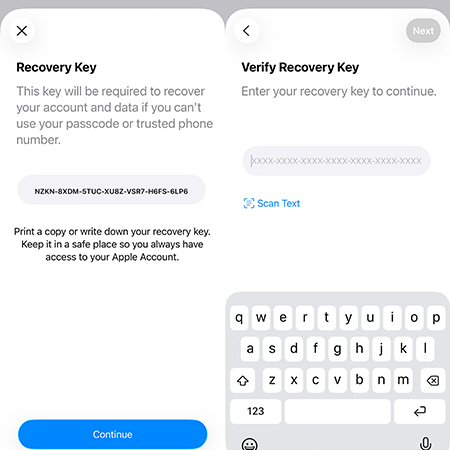
In practice, this key functions as a final safeguard for account access. If both your password and trusted devices are unavailable, it may be required to regain control of your Apple Account.
Can You Recover a Lost 28 Character Recovery Key?
Unfortunately, you can't. There is a common misconception that Apple Support can restore a lost recovery key, but this is not possible. The system is designed so that the key is never stored on Apple servers, meaning it cannot be retrieved, reset, or regenerated once lost.
The only exception is if you still have access to a trusted device or active Apple Account session, which may allow you to generate a new key. Otherwise, the recovery key itself is permanently unrecoverable.
What to Do If You Forgot 28 Character Recovery Key?
You can do different things which is up to your specific scenario. There are 3 common situations that you have forgot your 28 Character Recovery Key. Follow the Steps of each one may solve your problem.
Scenario 1: You Are Still Logged Into a Trusted Apple Device
If you still have access to a signed-in iPhone, iPad, or Mac, you are in the best possible situation. You can directly replace the lost recovery key or disable it before losing access. The key here is to act immediately, because once you log out or lose the device, this recovery advantage disappears permanently.
- Step 1. Open the Settings app on your iPhone or iPad.
- Step 2. Tap your Apple Account name at the top of the screen to enter account settings.
- Step 3. Select "Sign In & Security" from the available options.
- Step 4. Tap "Recovery Key" to access the security settings.Tap Replace Recovery Key to change your Recovery key.
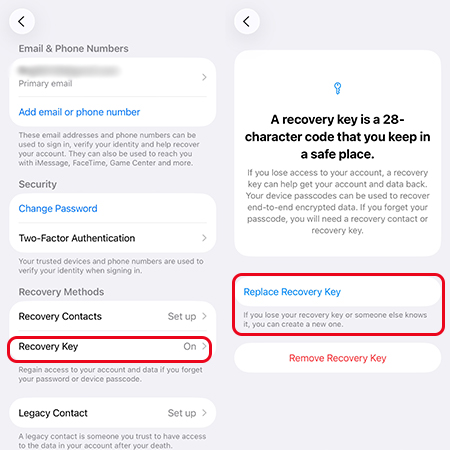
- Step 5. Choose to generate a new recovery key or disable the feature, then confirm your choice.
- Step 6. Store the new recovery key securely in a password manager or offline backup.
What If You Can't Access Your Trusted Device?
If your trusted iPhone or iPad is available but you cannot unlock it because you forgot the screen passcode, regaining access to the device becomes especially important. Tools such as TunesKit iPhone Unlocker are designed to remove screen locks from iOS devices.
TunesKit iPhone Unlocker can be useful when the device itself is the obstacle preventing you from checking Apple Account settings or security options. However, it is important to note that unlocking a device is different from recovering an Apple Account. The software cannot retrieve a lost recovery key, generate a new key, or bypass Apple's account security system.
Why Choose TunesKit iPhone Unlocker?
Unlock iPhone without passcode with high success rate. Also, it can remove Apple Account and activation lock, bypass MDM restrictions, etc.
 600,000+ Downloads

For users who still have a trusted device but are blocked by the device passcode, resolving the lock screen issue may help restore access to Apple Account settings, where account recovery options and security configurations can be reviewed.
Scenario 2: You Still Have Trusted Phone Number and Device Access
If you are not fully locked out but still have access to a trusted phone number and another Apple device, you may still be able to recover your Apple Account using standard verification methods. This does not restore the recovery key itself but can help you regain account access.
- Step 1. Open the Settings app on the Apple device, and then tap Apple Account.
- Step 2. Select "Forgot your password?" to start the recovery process.
- Step 3. Enter a trusted phone number or email address to receive a verification code.
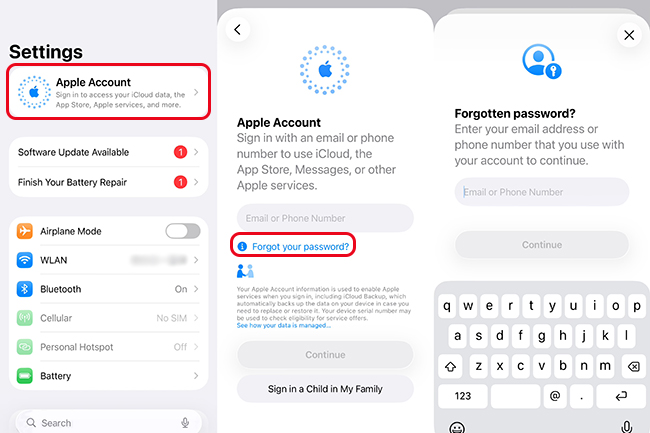
- Step 4. Enter the verification code you receive on your trusted device or phone.
- Step 5. Follow the instructions to reset your Apple Account password and restore access.
Scenario 3: You Are Completely Locked Out (No Key and No Trusted Access)
If you have lost both the recovery key and access to all trusted devices and phone numbers, recovery becomes significantly more difficult. At this stage, Apple's automated system is your only official option, and success is not guaranteed.
- Step 1. Visit iforgot.apple.com in a browser.
- Step 2. Enter your Apple Account email address to begin the recovery process.
- Step 3. Select the option to start account recovery when sign-in fails.
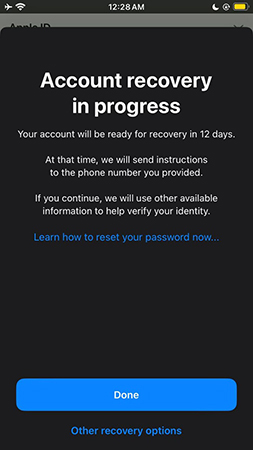
- Step 4. Wait for Apple to evaluate your request, which may take several days or longer.
- Step 5. Follow any additional instructions provided by Apple during the recovery period.
What Apple Account Recovery Can and Cannot Do
Apple Account Recovery can help restore access to your account if enough verification data is available, such as device history or trusted information.
However, it cannot bypass Apple's encryption system or retrieve your recovery key under any circumstances. In most cases, it may allow password resets or gradual account restoration, but it does not guarantee success if all trusted recovery methods are missing.
How to Prevent Losing Your Recovery Key in the Future
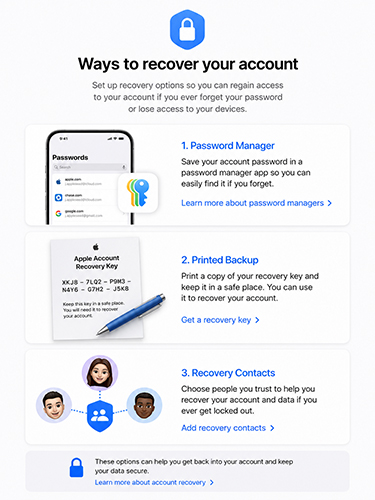
The most effective strategy is prevention, since recovery options are limited once the key is lost. Many users make the mistake of storing the key only on a single device, which creates a single point of failure.
A safer approach is to store the recovery key in multiple secure locations. A password manager is recommended for digital storage, while an offline written copy stored in a safe location adds an additional layer of protection. Enabling recovery contacts also improves account recovery flexibility in case of future lockouts.
FAQs About Forgotten 28 Character Recovery Key
-
What happens if I forgot my 28 character recovery key?
If you forget your recovery key, your recovery options will depend on whether you still have access to a trusted device, trusted phone number, or other account recovery methods. If all recovery methods are unavailable, regaining access to your Apple Account may be difficult or impossible.
-
Can I generate a new recovery key if I lost the old one?
Yes, but only if you are still signed in to your Apple Account on a trusted device. In that case, you can go to your Apple Account security settings and create a new recovery key to replace the old one.
-
Can I reset my Apple Account password without the recovery key?
In many cases, yes. If you still have access to a trusted device or trusted phone number, Apple may allow you to verify your identity and reset your password without using the recovery key.
Conclusion
A forgotten 28-character recovery key is not something that can be reset or recovered through normal support channels. It is part of Apple's strict security design, which prioritizes account protection over recoverability. Your next steps depend entirely on whether you still have trusted access to your Apple Account.
If you are still signed in, act immediately to create a new recovery setup. If not, initiate Apple Account Recovery as soon as possible, understanding that success depends on your account's available verification signals.