


Why Is My Excel File Locked for Editing?
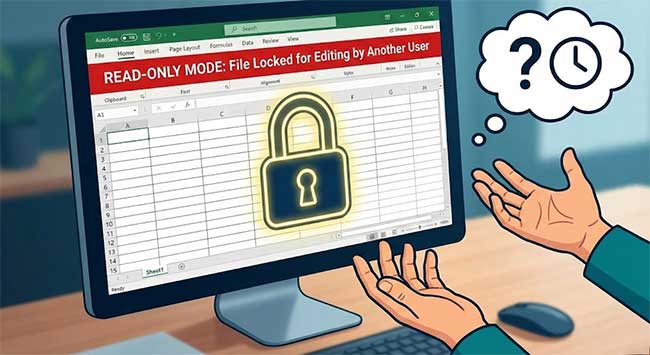
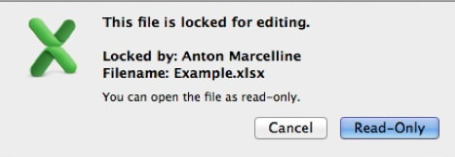
There are few things more frustrating than opening an urgent spreadsheet only to hit a digital wall. You are ready to work, but Microsoft Excel greets you with a restrictive pop-up preventing any changes. This specific error, indicating that your excel file locked for editing, effectively freezes your workflow and forces you into "Read-Only" mode.
Fortunately, resolving this issue is easy. Continue reading to get the most effective solutions.
- Part 1. Why Is My Excel File Locked for Editing?
- Part 2. How to Fix Excel File is Locked for Editing?
- Method 1: Confirm the File Is Not Open Anywhere Else
- Method 2: End the Stuck Excel Process
- Method 3: Delete the Temporary "Ghost" Owner File
- Method 4: Disable the Preview Pane in Explorer
- Method 5: Remove Editing Restrictions with TunesKit File Password RecoveryHOT
- Method 6: Open the File as Read-Only and Save a New Copy
- Method 7: Check and Correct File Permissions
- Method 8: Move the File to a Local Folder
- Part 3. FAQs about Excel File Locked for Editing
- Part 4. Conclusion
Part 1. Why Is My Excel File Locked for Editing?
This error is rarely caused by a colleague blocking access. More often, it stems from a "ghost" session or system glitch on your own device. Here are the most common culprits:
- The "Ghost" Owner File: When you open a workbook, Excel creates a temporary hidden file (~$filename.xlsx). If the program crashes or closes incorrectly, this file remains, tricking the system into thinking the document is still open.
- Stuck Background Process: Even if you close the window, the excel.exe process may still be running silently in the background, preventing a new session from starting.
- Windows Preview Pane: If you have the file selected in File Explorer while the Preview Pane is active, Windows "opens" the file to generate the image, triggering the lock.
- Co-Authoring Conflicts: On shared drives, older file formats (.xls) or password-protected files do not support simultaneous editing, so a single user will lock out everyone else.
- Cloud Sync Delays: Services like OneDrive or Dropbox briefly lock files while uploading changes to the server.
 View Also:
Part 2. How to Fix Excel File is Locked for Editing?
Now that you understand the common reasons why an Excel file becomes locked for editing, the next step is to resolve the issue. The following methods provide clear, step-by-step solutions to help you remove the lock and regain full editing access to your Excel file.
Method 1: Confirm the File Is Not Open Anywhere Else
Excel locks a file when it's already open—sometimes on another computer, another Windows/Mac user account, and another Excel window running in the background. So make sure your file is not open by anyone else.
Step 1: Ask anyone who might be using the file to close it.
Step 2: If you use multiple devices, just check your other laptop or PC, and check any remote desktop session.
Step 3: Wait 30–60 seconds, and try opening the file again. If it opens normally, the issue is solved.
Method 2: End the Stuck Excel Process
If Excel was not closed properly during your last session, the application might still be running in the background. This "zombie" process holds onto the file, preventing you from opening a new instance.
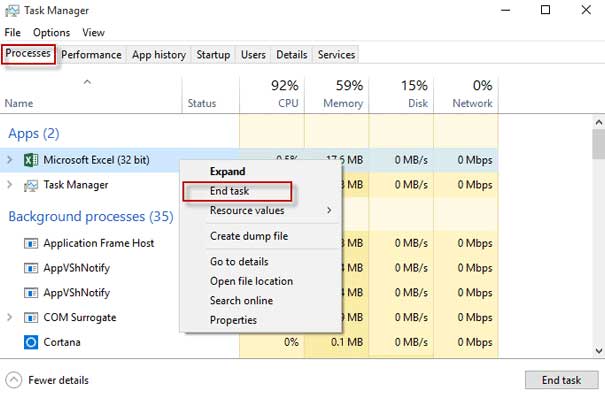
Step 1: Right-click the Windows Start button and select Task Manager.
Step 2: In the "Processes" tab, look for Microsoft Excel or Excel.exe.
Step 3: Select the process and click End Task. Try opening your file again.
Method 3: Delete the Temporary "Ghost" Owner File
As mentioned earlier, Excel creates a temporary file to track who is editing the document. If this file isn't deleted automatically, you need to remove it manually to release the lock.
Step 1: Navigate to the folder where your locked Excel file is saved.
Step 2: Ensure hidden files are visible. In File Explorer, click View > Show > Hidden items.

Step 3: Look for a file that starts with ~$ followed by your file name (e.g., ~$SalesData.xlsx).
Step 4: Delete this file. Your original Excel sheet should now unlock.
Method 4: Disable the Preview Pane in Explorer
The Windows Preview Pane is a common cause of this error. When you simply click a file to select it, Windows "opens" it silently to generate a preview image, which Excel interprets as an active user session.
Step 1: Open File Explorer (press Win + E).
Step 2: Click on the View tab at the top of the window.
Step 3: In the "Panes" section, ensure Preview pane is deselected. Alternatively, you can toggle it off by pressing Alt + P.

Method 5: Remove Editing Restrictions with TunesKit File Password Recovery
Sometimes, a file is "Locked for editing" not because of a glitch, but because the author applied an editing restriction password (also known as "Password to Modify"). If you do not have the password, the file forces you into Read-Only mode.
To bypass this without the original password, you can use TunesKit File Password Recovery. This tool is designed to remove editing restrictions and recover opening passwords for Excel files quickly. Therefore, if you forgot Excel password, this software enables you to recover apace. What's more. This program can also recover rar/zip file password quickly and safely. It's an all-in-one password recovery tool that you can't miss!

Why use TunesKit File Password Recovery?
It unlocks "Read-Only" files instantly so you can edit, print, and copy data, it supports all versions of Microsoft Excel (from 97 to 2024), and it ensures zero data loss during the recovery process.
 600,000+ Downloads
600,000+ Downloads
600,000+ Downloads
Here's how to fix Excel file is locked for editing using TunesKit File Password Recovery.
Step 1Select the file type
Download and launch TunesKit Office Password Recovery on your computer. Select Excel/Word/PPT option on the main interface.

Step 2Select the appropriate mode
If you need to remove a "Password to Modify" (editing restriction), click the "Remove Office Restriction" option. If you are locked out completely, select "Recover Office Password" to find the opening password.

Step 3Start to Remove Restrictions
Click the Start Remove or Start Recover button. The software will process the file and remove the restriction, allowing you to save and edit the file freely.

Method 6: Open the File as Read-Only and Save a New Copy
Opening a file in read-only mode bypasses the editing lock, allowing you to access the content. Saving a new copy creates a separate file that is not affected by the original lock.
Step 1: When the lock message appears, click the Read Only option.
Step 2: Once the file opens, go to the File menu and select Save As.
Step 3: Choose a different file name or location and save the file as a new copy.
Step 4: You can then edit the new file without restrictions.

Method 7: Check and Correct File Permissions
If a file is set to read-only or your user account does not have sufficient permissions, Excel will block editing even when no other user is accessing the file.
Step 1: Right-click the Excel file and open its properties or information panel.
Step 2: Verify that the file is not marked as read-only. If it is, unchecked the Read-only option.

Step 3: Ensure that your user account has read and write permissions.
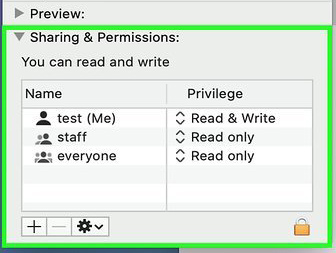
Step 4: Apply the changes and reopen the file to test editing access.
Method 8: Move the File to a Local Folder
Files stored on network drives, cloud storage, or external devices may remain locked due to sync delays or connection issues. Working with a local copy avoids these problems.
Step 1: Copy the Excel file from its original location.
Step 2: Paste it into a local folder such as Desktop or Documents.
Step 3: Open and edit the local copy of the file.
Step 4: After saving your changes, move the file back to its original location if necessary.
Part 3. FAQs about Excel File Locked for Editing
-
Q1: How can I unlock an Excel file if I don't know the password?
If the Excel file is locked for editing (Restriction): You can often open the file as "Read-Only" and then go to File > Save As to save a new, unlocked copy.
If the Excel file is locked to open (Encryption): If you cannot view the content at all without a password, you will need a dedicated password recovery tool like TunesKit File Password Recovery to decrypt it. -
Q2: Can I force-unlock a file on a shared network drive?
Yes, but proceed with caution. If you have administrative access to the server, you can use the Computer Management tool (run mmc.exe) to view "Open Files" and forcibly close the session. However, the safest method is to ask the user listed in the error message to simply close the file or restart their computer.
-
Q3: Does restarting my computer fix the "Locked for Editing" error?
Yes, frequently. Restarting your computer kills all background processes (including stuck instances of excel.exe) and clears temporary cache files. This is often the fastest way to resolve the error if you cannot find the specific cause.
Part 4. Conclusion
While the excel file locked for editing error is often caused by simple system glitches, password restrictions require a stronger tool. For these cases, TunesKit File Password Recovery is the ideal solution. It instantly removes "Read-Only" restrictions and recovers lost passwords, ensuring you can quickly unlock your spreadsheet and modify your data without any loss.


