Why Apple Maps Uses So Much Storage & How to Free It Up
If Apple Maps is taking up more storage than expected, the cause is usually cached map data, offline maps, saved routes, and other temporary files that build up over time. Understanding why Apple Maps takes up so much storage can help you quickly identify what is using the space and safely reduce it without affecting everyday navigation.
In this guide, we'll explain what causes Apple Maps storage to grow and show you practical ways to clear unnecessary data, manage offline maps, and free up space on your iPhone.

- Why Does Apple Maps Take Up So Much Storage?
-
How to Fix Apple Maps Taking Up So Much Storage?
- Method 1: Manage and Delete Offline Maps
- Method 2: Optimize Storage and Prevent Automatic Downloads
- Method 3: Clear Significant Locations History & Routes
- Method 4: Clear Recent Searches and Visited Places
- Method 5: Turn Off Routing and Traffic Data
- Method 6: Offload or Delete the Application
- Method 7: Repair iOS System Bugs Using TunesKit iOS System Recovery HOT
- Method 8: Perform a Factory Reset
- FAQs About Apple Maps Taking Up So Much Storage
- Conclusion
Why Does Apple Maps Take Up So Much Storage?
Apple Maps can gradually take up more storage as you use it for navigation, search for places, and download maps for offline use. In most cases, the extra space comes from downloaded offline maps, cached map data, and temporary files used to make the app load routes and map details faster.
Here are the main reasons Apple Maps may be using so much storage:
- 01 Offline Maps: Offline maps are often the biggest storage consumer. Downloading large cities, regions, or multiple areas can use hundreds of megabytes or even several gigabytes, depending on the size and level of detail. Apple Maps also updates downloaded maps automatically by default, which helps keep them current but means they continue occupying local storage.
- 02 Cached Map Data: Apple Maps temporarily stores map tiles, routes, search information, and other navigation data so frequently used content can load faster. Features such as detailed map views, satellite imagery, and 3D content may also contribute to cached data over time.
- 03 Searches, Saved Places, and App Data: Recent searches, favorites, saved places, guides, and other app-related information can add to Apple Maps' overall storage footprint. These files are usually much smaller than offline maps, but they can accumulate with regular use.
- 04 Temporary Data or Storage Reporting Issues: In some cases, Apple Maps may appear to use unusually large amounts of storage because temporary files have not yet been cleared or iOS is reporting app storage inaccurately. This can occasionally happen after heavy Maps usage or an iOS update.
If offline maps are responsible for most of the storage, you can delete individual downloads or enable Optimize Storage, which allows your iPhone to automatically remove offline maps that have not been used for a while.
How to Fix Apple Maps Taking Up So Much Storage?
Regaining control of your device's capacity only takes a few moments of adjusting your settings. If Apple Maps is taking up too much storage on your iPhone, there are several reliable ways to clear out the bloat and free up space.
Method 1: Manage and Delete Offline Maps
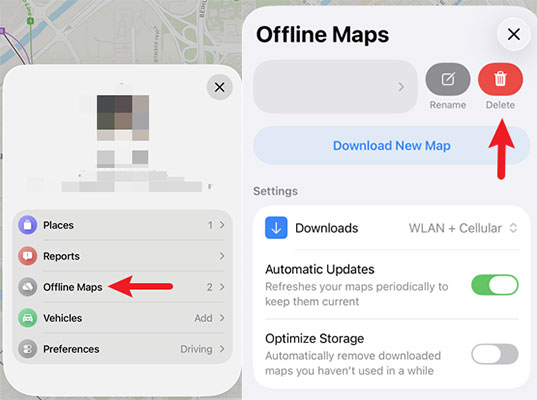
Offline maps are saved directly to your local device memory and can easily consume several gigabytes of space. Reclaiming this space is as simple as removing the geographic regions you no longer need. These downloads are completely independent of the core application files, meaning that simply reinstalling the app will not automatically erase them.
- Step 1. Open the Apple Maps application and tap on your personal profile icon located in the upper-right corner.
- Step 2. Choose the "Offline Maps" option to display a list of all your currently downloaded regions.
- Step 3. Swipe from right to left on any specific map you wish to discard, then tap "Delete".
Method 2: Optimize Storage and Prevent Automatic Downloads
Sometimes your device will automatically download regional maps based on your daily routines without prompting you first. Adjusting your settings to prevent this behavior and allowing the system to automatically remove unused maps can stop storage bloat before it begins. These background downloads are often the hidden culprit behind unexpected drops in your available phone capacity.
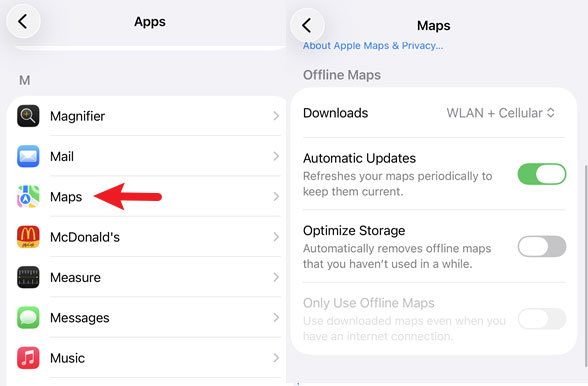
- Step 1. Launch your iPhone's Settings application, scroll down, and select the "Apps > Maps" menu.
- Step 2. Look for "Offline Maps" and switch off the toggle labeled "Automatic Updates" to stop unprompted data storage.
- Step 3. Ensure the "Optimize Storage" feature is enabled, which allows your iPhone to automatically discard offline maps that have not been used recently.
Method 3: Clear Significant Locations History & Routes
Your device monitors and saves your frequently visited locations to improve services like predictive traffic routing. Erasing this history not only protects your privacy but also clears out the hidden data taking up valuable storage space. Apple ensures this data is encrypted, but removing it provides a clean slate for your personalized routing services.
Step 1. Navigate to Settings, tap on "Privacy & Security," and then open "Location Services".
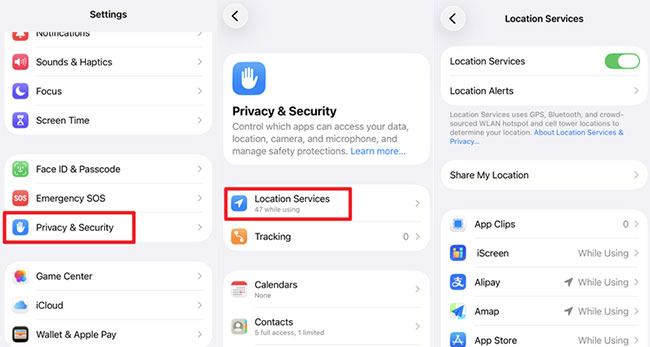
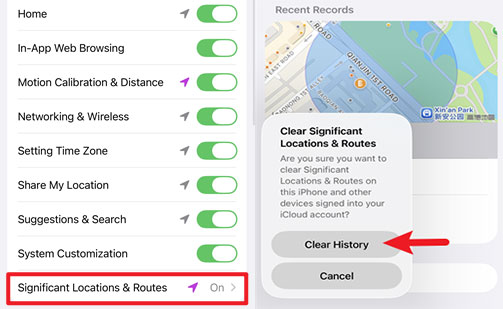
Step 2. Scroll to the very bottom of the menu to find and select "System Services," followed by "Significant Locations & Routes". Then use your Face ID to access to this feature.
Step 3. Tap on "Clear History", and from a pop-up box, tap it again to remove all saved significant locations from your device and across your associated Apple Account.
Method 4: Clear Recent Searches and Visited Places
Maps can store recent directions, searches, and location-related history. Clearing this information may reduce some app data, although it usually will not free as much space as deleting offline maps.
To clear recent searches or directions:
- Step 1. Open Maps.
- Step 2. Scroll to Recents.
- Step 3. Tap Clear to remove individual or all recent items.

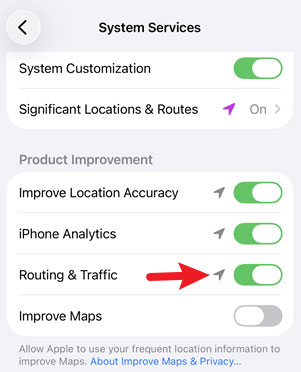
Method 5: Turn Off Routing and Traffic Data
The Maps app continuously collects routing and traffic information in the background as you move around. Disabling this data collection feature can effectively reduce the amount of hidden information being saved to your phone. It is a simple adjustment that helps keep background processes from hoarding unnecessary system resources.
- Step 1. Open the Settings app, navigate to "Privacy & Security," and choose "Location Services".
- Step 2. Scroll all the way down and tap on the "System Services" option.
- Step 3. Locate the feature for "Routing & Traffic" and toggle the switch to the off position.
Method 6: Offload or Delete the Application
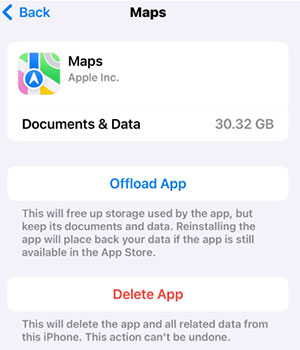
Because Apple does not provide a direct button to clear an app's cache, offloading is a great alternative to wipe temporary files while keeping your saved data. If you want a completely fresh start, you can fully delete the application instead. By utilizing the built-in storage management tools, you can force the system to dump built-up junk files.
- Step 1. Go to Settings, select "General," and then tap on "iPhone Storage".
- Step 2. Scroll through the list to find Maps, tap it, and select "Offload App" to erase temporary cache files.
- Step 3. Once the process is complete, choose "Reinstall App" to bring it back, or opt for "Delete App" option if you prefer a total wipe.
 Note
Note
Remember to always back up your data before attempting a full system reset.
Method 7: Repair iOS System Bugs Using TunesKit iOS System Recovery
If you have tried standard clean-up methods and your iPhone still reports massive storage usage by Maps or System Data, you might be dealing with a corrupted system file or an iOS glitch. In these scenarios, a dedicated repair tool like TunesKit iOS System Recovery can resolve the underlying software bug without requiring a complete factory reset.
The software works by repairing the iOS core system files, which can effectively fix false iPhone storage full errors and misreported space issues. It supports the latest iOS versions and offers a Standard Repair mode that resolves problems without data loss. The software also provides one-click Recovery Mode entry and exit. With its simple interface and guided repair process, TunesKit makes iOS system recovery easy even for beginners.
Apple Maps Taking Too Much Storage?
Clear Apple Maps cache issues, fix abnormal storage bugs, and recover your iPhone system without data loss using TunesKit iOS System Recovery.
 600,000+ Downloads
Here's how to fix Apple Maps taking up so much storage using TunesKit iOS System Recovery.
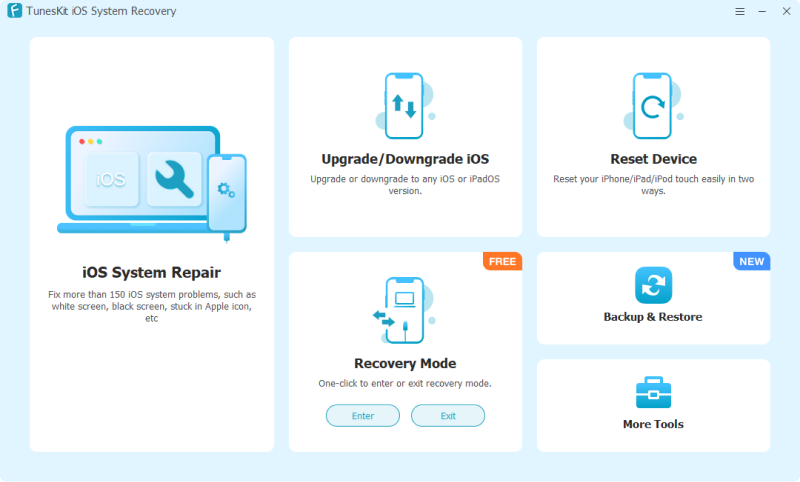
Step 1. Connect iPhone to PC
Download and install TunesKit iOS System Recovery on your Mac or Windows computer, connect your iPhone via USB, and select the "iOS System Repair" option. Then choose Other Problems, and click the Start button.
Step 2. Choose A Mode
Choose the "Standard Repair" mode to fix common software bugs without causing any data loss.

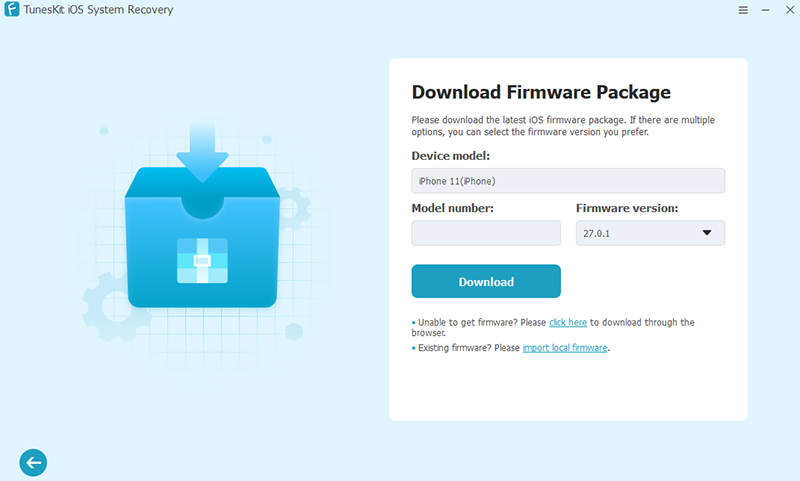
Step 3. Download the Firmware Package
Verify your device details, hit the Download button to download the required firmware package on your iPhone.
Step 4. Start to Repair
When the firmware package finishes downloading, click the Start Standard Repair button to fix the iOS issues without data loss. After your iPhone restarts, check the Apple Maps storage usage again.

Method 8: Perform a Factory Reset
In rare situations, a stubborn iOS bug may cause map data to expand uncontrollably, making standard deletion methods ineffective. When this happens, a factory reset is often recommended as the ultimate solution to clear deeply corrupted system files. Even Apple's own support teams occasionally suggest this extreme measure for persistent storage glitches.
- Step 1. Safely back up all of your important iPhone data using iCloud or a computer.
- Step 2. Open Settings app on your iPhone, go to "General," select "Transfer or Reset iPhone," and then choose "Erase All Content and Settings".
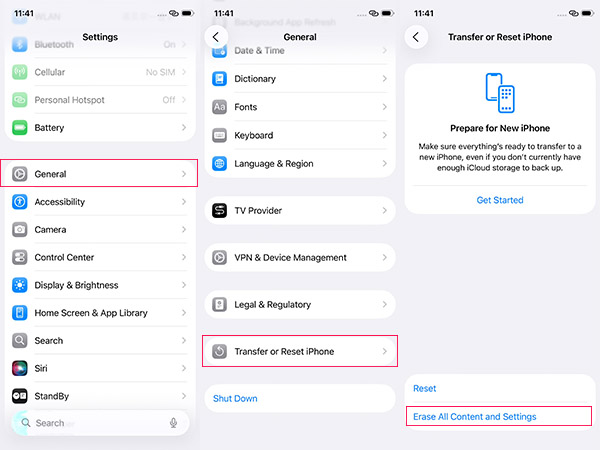
Step 3. Enter your lock screen passcode to confirm the reset, after restart, you can restore your required files from the backup you just created.
FAQs About Apple Maps Taking Up So Much Storage
-
How many gigabytes does Apple Maps typically use?
There is no fixed amount of storage that Apple Maps should use. Its size varies depending on cached data, usage patterns, and especially the number and size of offline maps you have downloaded. Offline maps can take up significant space, while unusually high figures such as 10 GB or 20 GB may indicate large downloads, accumulated temporary data, or a storage-related issue.
-
Why does Apple Maps still take up storage after I remove it?
If you offload Apple Maps, iOS removes the app itself but keeps its documents and data, so its storage footprint remain. Deleting the app removes the app and its related data, but downloaded offline maps are best removed directly from Maps > your profile picture > Offline Maps before deleting or reinstalling the app.
-
Can updating iOS fix unusually high Apple Maps storage usage?
It can help in some cases, especially if the excessive storage is caused by an iOS bug or temporary system issue. Apple regularly includes bug fixes in iOS updates, although it does not always identify every Maps-related fix in its release notes. If Apple Maps is unexpectedly using several gigabytes of storage, updating to the latest available iOS version is a reasonable troubleshooting step.
Conclusion
Apple Maps can take up a large amount of storage due to cached map data, offline information, navigation history, and temporary system files. While clearing cache, restarting the app, or updating iOS can help free up space, persistent storage problems may indicate deeper iOS system issues. In such cases, TunesKit iOS System Recovery can be a reliable solution to fix iOS-related glitches, optimize device performance, and resolve system problems without causing data loss.