


9 Best Ways to Fix iPhone 16 Not Connecting to CarPlay
"My new iPhone 16 Pro won’t connect to my 2018 Mazda CX-5 with CarPlay. When I plug it in, it charges but makes no sign of connecting. How can I fix it?" --From Apple Community
Few things are more annoying than getting into your car, starting the engine, and realizing your iPhone 16 is not connecting to CarPlay. You plug it in, unplug it, try again—still nothing. No maps on the dashboard and no music controls.
If you're dealing with iPhone 16 not connecting to CarPlay, you're definitely not alone. The good news? This problem usually has a clear reason behind it—and even better, some fixes you can try in minutes.

- Part 1. Why Is My iPhone 16 Not Connecting to CarPlay?
- Part 2. How to Fix iPhone 16 Not Connecting to CarPlay?
- Fix 1. Check Vehicle Compatibility
- Fix 2. Inspect Your Cable and Ports
- Fix 3. Reset the CarPlay Connection
- Fix 4. Restart Your iPhone 16 and CarPlay System
- Fix 5. Adjust iOS Privacy & Security Settings
- Fix 6. Eliminate Network Interference
- Fix 7. Fix System Glitches with TunesKit iOS System RecoveryHOT
- Fix 8. Update iOS to the Latest Version
- Fix 9. Reset All Settings on iPhone 16
- Part 3. Conclusion
Part 1. Why Is My iPhone 16 Not Connecting to CarPlay?
Here are the main reasons why an iPhone 16 may not connect to Apple CarPlay, the main reasons are listed below.
Vehicle Compatibility – The car may not support CarPlay or may only support certain connection types (wired or wireless).
Software Issues – Outdated or buggy iOS or car infotainment software can prevent connection.
Settings Restrictions – CarPlay may be blocked by iPhone settings, Screen Time, or disabled Siri.
Connection Problems – Faulty cables, Bluetooth/Wi-Fi issues, or previous pairing conflicts can interrupt CarPlay.
Hardware Issues – Problems with the car’s USB port, infotainment system, or antennas may stop the connection.
Part 2. How to Fix iPhone 16 Not Connecting to CarPlay?
So, you've known the possible reasons why this issue happened, below are the key solutions you can try to fix iPhone 16 CarPlay not working issue.
Fix 1. Check Vehicle Compatibility
Make sure your car supports Apple CarPlay and the connection type you're trying (wired or wireless). Since not all cars support new iPhone models immediately, and some older vehicles or head units were designed before newer iPhones (like iPhone 16). You can refer to your car's manual or manufacturer website if unsure.
Fix 2. Inspect Your Cable and Ports
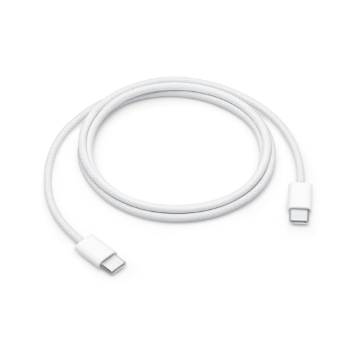
The iPhone 16 uses the USB-C standard. The most common point of failure is using a cable that supports charging but not data transfer. CarPlay relies on a stable, high-quality data connection, not just charging. Even small issues with the cable or ports can completely block CarPlay. So, follow these steps below to check your cable and ports.
Step 1. Swap your current cable for the woven USB-C cable included in your iPhone box, or use a certified high-speed data cable (Thunderbolt/USB 3).
Step 2. Inspect your car's USB ports. Ensure you are plugged into the port specifically marked with a CarPlay or smartphone icon, as some ports are designed only for charging.
Step 3. Clean the USB-C port on your iPhone with a non-conductive tool to ensure no lint is blocking the connection pins.
Fix 3. Reset the CarPlay Connection
Resetting the CarPlay connection can clear corrupted pairing data and connection glitches between the iPhone and the car's infotainment system. Over time, outdated or conflicting settings can prevent CarPlay from launching properly, and resetting forces both devices to establish a fresh, stable connection.
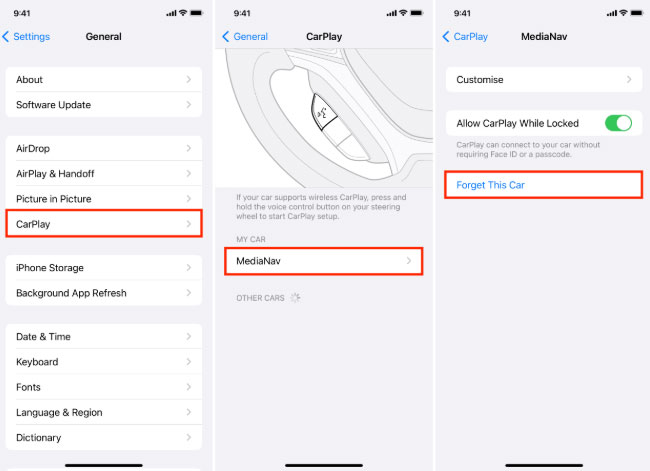
Step 1. On your iPhone, navigate to Settings > General > CarPlay.
Step 2. Select your vehicle from the list and tap "Forget This Car."
Step 3. On your car's infotainment screen, go to the device list and remove/delete your iPhone 16.
Step 4. Next, make sure your car is in pairing mode and go to Settings → General → CarPlay on your iPhone. Select your car from the available devices to reconnect. For wired connections, simply unplug and reinsert the USB cable to re-establish the connection.

Fix 4. Restart Your iPhone 16 and CarPlay System
Restarting your iPhone 16 and the CarPlay system can clear temporary software glitches, frees up system resources, and refreshes the communication between the devices. This simple step often resolves minor bugs or frozen processes that may prevent CarPlay from recognizing your iPhone.
For iPhone 16:
- Press and release the Volume Up button, then the Volume Down button.
- Press and hold the Side button until the Apple logo appears to perform a force restart.

For the CarPlay System:
- Turn off the car completely and wait about 30 seconds.
- Turn the car back on to allow the infotainment system to reboot.

This simple step often restores CarPlay functionality without any complicated adjustments.
Fix 5. Adjust iOS Privacy & Security Settings
CarPlay requires permission to access your iPhone while locked and to communicate with the car. If these settings are restricted, the connection may be blocked, therefore, enabling the necessary permissions ensures CarPlay can launch and function properly.
Step 1: Go to Settings > Siri & Search and verify that "Listen for Siri" is turned on. CarPlay will not function if Siri is disabled.
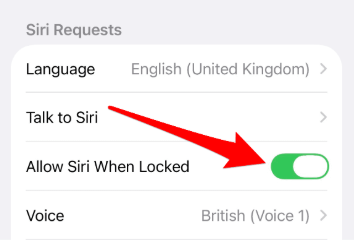
Step 2: In the same menu, ensure "Allow Siri When Locked" is enabled.
Step 3: Go to Settings > Face ID & Passcode, scroll to the "Allow Access When Locked" section, and toggle on "Accessories." This allows the data port to function while the screen is off.

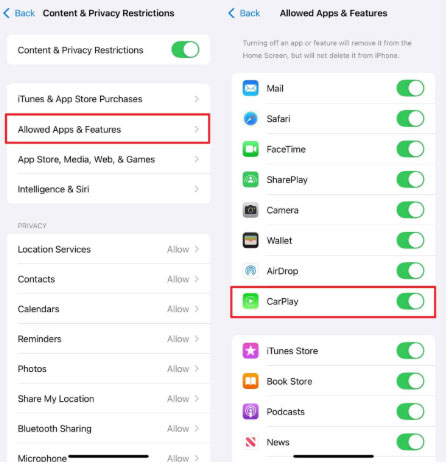
Step 4: Check Screen Time restrictions by going to Settings > Screen Time > Content & Privacy Restrictions > Allowed Apps & Features and ensuring the toggle for CarPlay is green (On).
Fix 6. Eliminate Network Interference
Wireless CarPlay relies on a stable Bluetooth and Wi-Fi connection. Strong Wi-Fi signals, or electronic interference can disrupt this communication, so reducing interference ensures a smoother and more reliable CarPlay connection.
Step 1: Open your VPN application and disconnect any active sessions.
Step 2: Alternatively, go to Settings > General > VPN &Device Management and ensure the status is "Not Connected."

Step 3: If using Wireless CarPlay, ensure Wi-Fi and Bluetooth are both active in your Control Center.
Fix 7. Fix System Glitches with TunesKit iOS System Recovery
When the usual quick fixes fail and your iPhone still refuses to cooperate, it might be time to bring in some heavier tools. That's where TunesKit iOS System Recovery steps in. Think of it as a reliable "iOS doctor" for those stubborn software glitches—CarPlay issues included.
Designed to fix system errors without messing with your personal data, TunesKit helps keep your photos, messages, and apps exactly where they belong. It's an all-in-one iOS repair tool capable of resolving over 150 iOS system problems, including iPhone keeps turning on and off while charging, iPhone boot loop, and iPhone frozen on lock screen issue, etc. With just a few clicks, it gives your iPhone a fresh start, making it much easier to get CarPlay working the way it should.
Why Use TunesKit iOS System Recovery?
TunesKit iOS System Recovery quickly fixes iPhone 16 not connecting to CarPlay issues by repairing iOS system errors safely without data loss.
 600,000+ Downloads
Here's a guide to fix iPhone 16 not connecting to CarPlay using TunesKit iOS System Recovery.
Step 1 Connect your device and launch the software
First, open the TunesKit iOS System Recovery application on your computer (Mac or Windows). Connect your iPhone 16 to the computer using a reliable USB-C cable. Once the software detects your device, select the "iOS System Repair" option from the main interface and click the "Start" button to begin the process.

Step 2Select the Standard Repair mode
You will be presented with two repair options. Choose "Standard Repair." This is the critical step for most users because it fixes common system issues without deleting any data on your iPhone. Avoid "Deep Repair" unless you have a full backup, as that mode will erase everything.

Step 3Download the firmware package
The software will automatically detect your iPhone 16's model and current iOS version. Verify that the device information displayed on the screen is correct. Click the "Download" button to start downloading the specific firmware package required to repair your phone.

Step 4Start the system recovery
Once the firmware has finished downloading, click the "Repair" button. TunesKit will automatically begin fixing the iOS system glitches. Keep your iPhone connected throughout the entire process. When the progress bar hits 100% and the phone restarts, try connecting it to your car again; the CarPlay issue should be resolved.

Fix 8. Update iOS to the Latest Version
Running an outdated iOS version can lead to compatibility issues with CarPlay. Apple regularly releases updates to fix bugs, improve system stability, and enhance support for in-car systems. Running the newest iOS ensures your iPhone can communicate properly with your car's system and reduces the chance of connection errors.
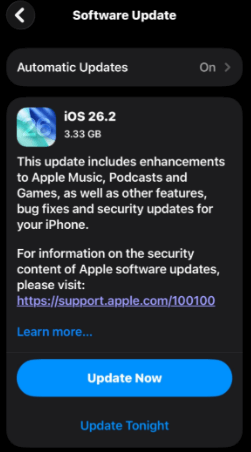
To check for updates, go to Settings → General → Software Update. If a new version is available, tap Update Now and allow your iPhone to complete the installation. Keeping iOS up to date often helps restore proper CarPlay connectivity.
Fix 9. Reset All Settings on iPhone 16
Resetting All Settings can fix CarPlay issues because it clears misconfigured system settings—like network, privacy, or Bluetooth preferences—without deleting your data. This restores default configurations, resolving conflicts that might prevent the iPhone from connecting to the car.
To do this, go to Settings → General → Transfer or Reset iPhone → Reset, then select Reset All Settings. Enter your passcode when prompted to confirm. Once done, reconnect your car and check whether CarPlay is working properly.

Part 3. Conclusion
This guide introduces the 9 best ways to fix iPhone 16 not connecting to CarPlay, covering quick fixes, system checks, and software-related solutions. For persistent iOS issues, TunesKit iOS System Recovery offers a reliable way to repair system errors, resolve CarPlay problems, and restore normal functionality without data loss.


