How to Fix iPhone 17 Camera Flickering
iPhone 17 camera flickering can be caused by lighting conditions, Auto Macro switching, outdated software, or system issues. This guide covers the most effective solutions to stop camera flickering and restore normal camera performance on your iPhone 17.
If you're experiencing iPhone 17 camera flickering, you're not alone. This issue can appear when using the camera in different lighting conditions, during video recording, or even while switching between modes. In most cases, it is caused by software glitches, incompatible settings, or lighting frequency mismatches, and can often be resolved with a few simple troubleshooting steps. In this post, lets fix the iPhone 17 camera flickering issue together.

Why Does iPhone 17 Camera Flicker?
If you're experiencing iPhone 17 camera flickering, several factors could be causing the issue. While occasional flickering may be related to environmental conditions, persistent flickering can indicate a software or hardware problem. Here are the common causes:
- 01 Lighting Frequency Interference – LED lights, fluorescent bulbs, and some indoor lighting systems can flicker at frequencies that interfere with your iPhone camera, causing visible flickering in photos or videos.
- 02 Camera Settings Conflicts – Features such as Auto FPS, HDR video, or automatic exposure adjustments may sometimes trigger flickering under certain lighting conditions.
- 03 Software Bugs or iOS Glitches – A bug in iOS can affect the camera app's performance and lead to flickering issues.
- 04 Third-Party Camera Apps – Some camera or social media apps may not be fully optimized for the iPhone 17, resulting in camera instability or flickering.
- 05 Outdated iOS Version – Running an older version of iOS may cause compatibility issues that affect camera functionality.
- 06 Physical Camera Damage – If the camera module has been damaged by drops, impacts, or liquid exposure, flickering may occur due to a hardware malfunction.
- 07 Lens or Sensor Issues – In rare cases, a defective camera sensor or image stabilization component can cause persistent flickering, especially during recording.
Identifying the root cause is the first step toward fixing the iPhone 17 camera flickering problem. In the following sections, we'll walk through several proven solutions to help restore your camera to normal.
How to Fix iPhone 17 Camera Flickering
Experiencing visual glitches on a brand-new device can be incredibly annoying, but the issue is often tied to software settings or environmental factors rather than a broken lens. Here are the most effective methods to resolve camera flickering on your device.
Method 1: Disable Auto Macro Mode
Often, what appears to be flickering is actually the camera rapidly switching back and forth between the standard wide lens and the ultra-wide macro lens. This usually happens when you are trying to take a close-up shot and the phone struggles to decide which lens offers the best focus for the subject. By turning off the automatic switching feature, you regain manual control over when the macro lens activates, which frequently stops the visual stuttering.
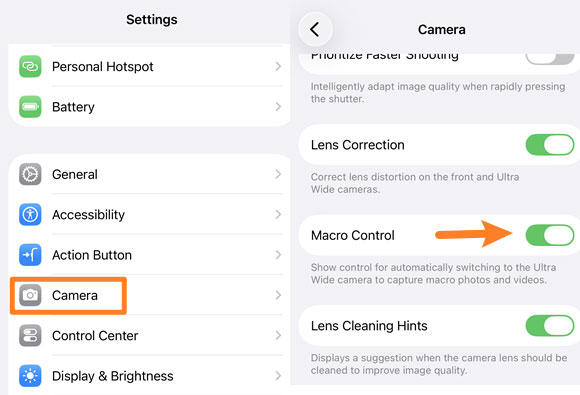
- Step 1. Open the Settings app on your device.
- Step 2. Scroll down and tap on Camera.
- Step 3. Toggle the switch next to Macro Control to the off position
Method 2: Adjust for Artificial Lighting
Sometimes the flickering is a physical clash between the frequency of indoor lighting and the camera's refresh rate. LED and fluorescent lights can pulse at rates that the human eye cannot perceive, but your advanced camera sensor definitely picks them up as moving horizontal bands or strobes. Changing your environment or manually adjusting how much light the camera takes in can quickly resolve this electronic interference.
It is a simple trick that often solves the problem immediately.
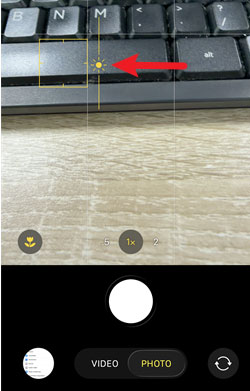
- Step 1. Physically move your phone to an area with natural sunlight to see if the issue persists.
- Step 2. Alternatively, tap your screen while in the Camera app and drag the sun icon slightly down to lower the exposure.
Method 3. Restart Your iPhone 17
When background processes or system services fail to function properly, the Camera app may experience issues such as screen flickering, autofocus problems, or unstable image previews. A simple restart can refresh the operating system and eliminate minor software conflicts that may be affecting the camera.
- Step 1. Press and hold the Side button and either Volume button.
- Step 2. Drag the power-off slider when it appears.
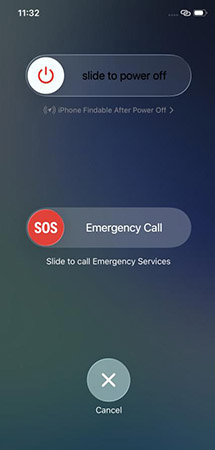
- Step 3. Wait about 30 seconds for your iPhone to shut down completely.
- Step 4. Press and hold the Side button again until the Apple logo appears.
- Step 5. Open the Camera app and check whether the flickering issue is gone.
Method 4. Change Video Recording Settings
Indoor lighting systems, especially fluorescent and LED lights, often operate at specific frequencies that can interfere with camera frame rates. When the camera's recording settings do not match the lighting frequency, visible flickering may appear in videos or the camera preview. Adjusting the frame rate can often reduce or eliminate this issue.
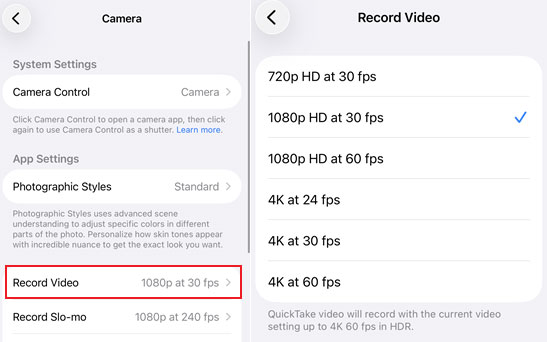
- Step 1. Go to Settings > Camera > Record Video.
- Step 2. Switch to a different frame rate, such as 720p HD at 30 fps or 1080p HD at 60 fps.
- Step 3. Return to the Camera app.
- Step 4. Record a short video under the same lighting conditions
- Step 5. Check whether the flickering persists.
Method 5. Repair iOS System Issues with TunesKit iOS System Recovery
If the camera continues flickering after trying the basic solutions above, the problem may be related to deeper iOS system bugs. In such cases, standard troubleshooting methods may not be enough. TunesKit iOS System Recovery can scan and repair various system-related issues that may affect camera performance, helping restore normal feature without data loss.
In addition, it can fix other 150+ iOS issues such as iPhone camera shaking when taking pictures, iPhone camera turns on by itself, and iPhone camera keeps refocusing issues, etc. With this almighty tool, you can fix all kinds iOS issues at home.
Key Features of TunesKit iOS System Recovery
Fix iPhone 17 camera flickering caused by iOS system glitches without data loss.
 600,000+ Downloads
600,000+ Downloads
600,000+ Downloads
Let's see how to fix iPhone 17 camera flickering via TunesKit iOS System Recovery.
Step 1 Connect iPhone 17 to PC
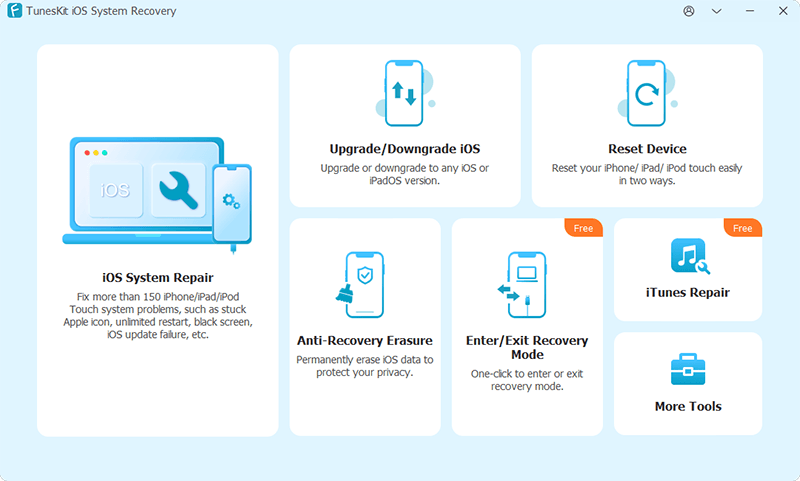
Launch the TunesKit iOS System Recovery program on your computer and physically connect your iPhone using the USB cable. Wait a few moments for the software interface to successfully detect your mobile device. Click the iOS System Repair button to proceed to the main selection screen. Then hit the Start button.
Step 2 Choose A Mode
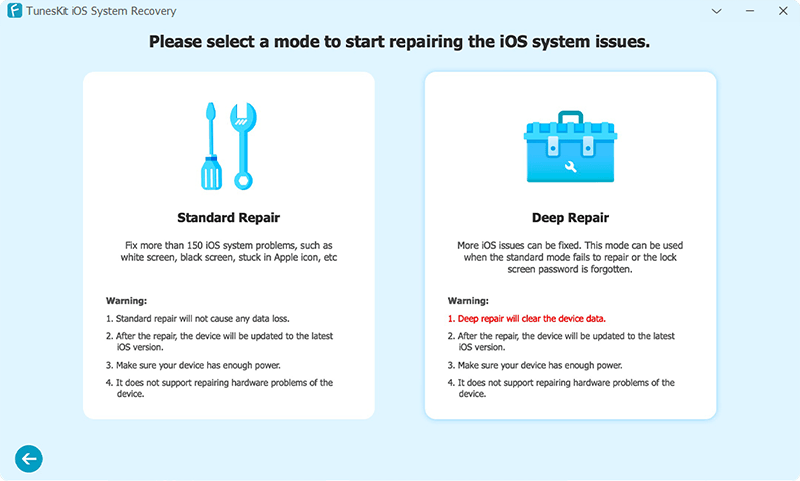
Choose the Standard Repair option presented in the repair menu interface. This specific mode safely resolves the majority of common system glitches while guaranteeing that all your existing photos, apps, and personal settings remain intact.
Step 3 Download Firmware Package
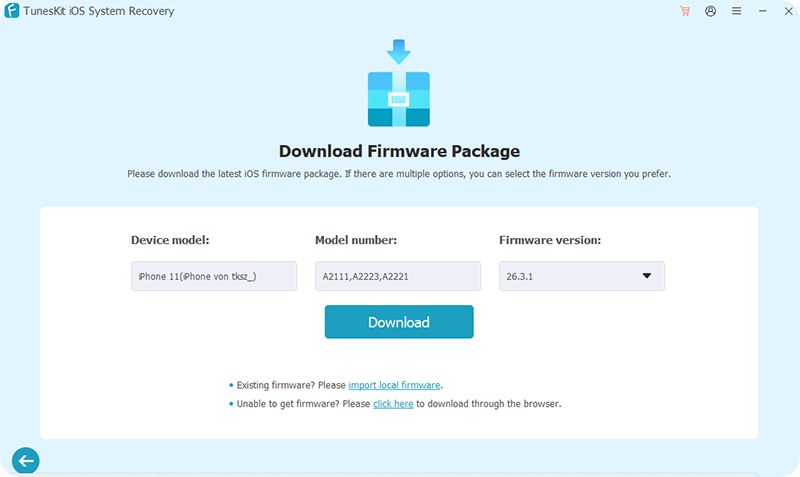
Review the device information4displayed on your monitor to ensure it perfectly matches your exact iPhone model and current iOS version. Click the Download button to instruct the software to fetch the appropriate, verified firmware package.
Step 4 Start to Repair
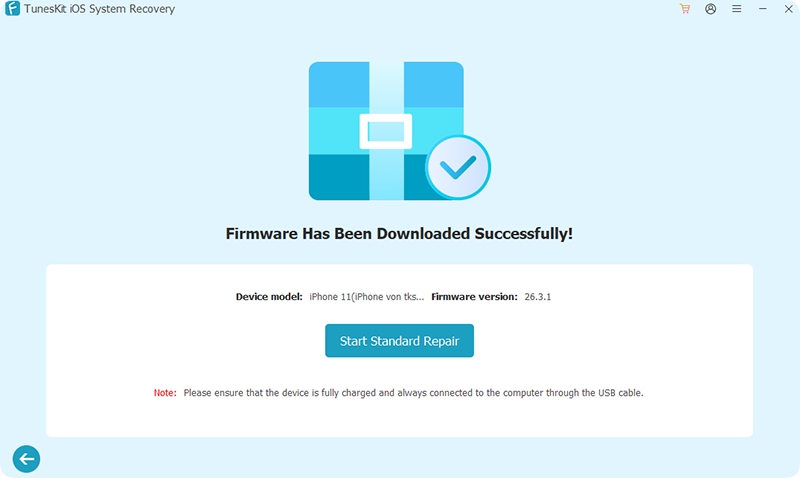
Click the Start Standard Repair button once the required firmware download reaches one hundred percent completion. Keep your device securely plugged in while the application automatically unpacks the files and successfully repairs the underlying operating system errors.
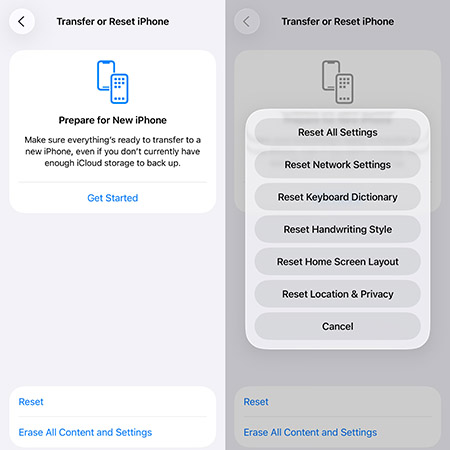
Method 6: Reset Camera Settings
If you have tweaked various toggles and sliders over time, a conflicting combination of settings might be causing the viewfinder to lag or flicker. Resetting your device settings restores the camera's default configuration without deleting any of your personal photos or apps. This gives you a clean slate to work from and often clears out stubborn software quirks that regular updates miss.
- Step 1. Open Settings, tap General, and scroll down to Transfer or Reset iPhone.
- Step 2. Tap Reset, then choose Reset All Settings and confirm your choice.
Method 7. Update iOS
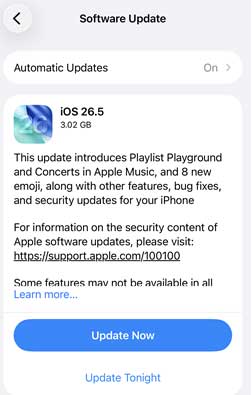
Software bugs are another possible reason for iPhone 17 camera flickering. Apple regularly releases iOS updates that contain bug fixes, security patches, and performance improvements. If the issue is caused by a known software problem, installing the latest iOS version may resolve it without any additional troubleshooting.
- Step 1. Open Settings app on your iPhone. Tap General > Software Update.
- Step 2. Check whether a new iOS version is available. If there is, just tap the Update Now button.
- Step 3. After the update is complete, test the Camera app again.
Conclusion
iPhone 17 camera flickering can be caused by various factors, ranging from lighting interference and camera settings to software glitches and system issues. In most cases, the problem can be resolved with simple troubleshooting methods above. However, if the flickering persists, the issue may be related to deeper system problems. In that case, TunesKit iOS System Recovery is worth trying, as it can help restore your iPhone's camera to normal operation without data loss.