


iOS 26: How to Enable and Use Live Translation on AirPods
If you want to communicate easily across languages, Live Translation on AirPods in iOS 26 can make conversations much simpler. This new feature allows your Apple AirPods to translate speech in real time while you listen. In this guide, you'll learn how to enable and use live translation on AirPods, including the setup process and basic requirements.
Once activated, your AirPods can help you understand and respond to different languages instantly, making travel and everyday conversations much easier.

Overview of Live Translation on AirPods
Live Translation on Apple AirPods is a powerful feature introduced with iOS 26 that helps users communicate across different languages in real time. It listens to conversations, translates speech instantly, and plays the translated audio directly through your Apple AirPods.
The feature is powered by Apple Intelligence and integrates with the Apple Translate app on your iPhone. This allows users to understand and respond naturally during multilingual conversations.
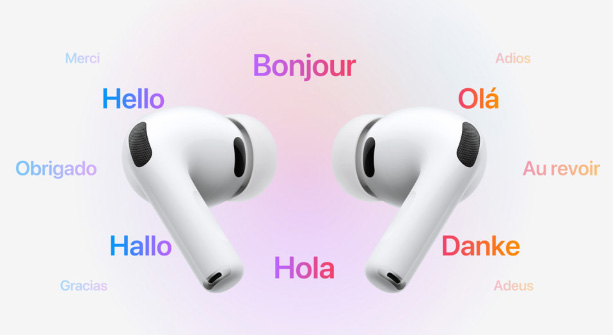
Key Features of Live Translation on AirPods
| Feature | Description |
|---|---|
| Real-time Translation | Instantly translates spoken language and delivers the translated audio through AirPods. |
| Powered by Apple Intelligence | Uses Apple's AI system to process and translate conversations quickly. |
| Works with Apple Translate | Integrates with the Apple Translate app on iPhone for language processing. |
| Two-way Conversation | Your iPhone can display or speak the translated response for the other person. |
| Useful Scenarios | Ideal for travel, international meetings, and everyday conversations with people who speak different languages. |
Requirements to Use Live Translation on AirPods
| Requirement | Details |
|---|---|
| Compatible AirPods | AirPods 4 (ANC), AirPods Pro 2, or AirPods Pro 3 |
| iPhone Model | iPhone 15 Pro or later |
| iOS Version | iOS 26 or later |
| AI Feature | Apple Intelligence must be turned on |
| Translation App | Apple Translate app installed |
| Firmware | AirPods must be updated to the latest firmware version |
Supported Languages for Live Translation
Live Translation on AirPods works with several major languages supported by the Apple Translate system. This allows users to have conversations with people speaking different languages while hearing translations directly through their AirPods.
Common supported languages include:
- English
- Spanish
- French
- German
- Chinese
- Japanese
- Italian
- Portuguese
Apple may expand the list of supported languages in future iOS updates, improving the translation experience and adding more regional language support.
iOS 26: How to Enable and Use Live Translation on AirPods
Live Translation lets your AirPods translate conversations in real time, playing the translated audio directly into your ears while also showing or speaking translations for the other person through your iPhone. Follow these steps to set it up:
- Step 1. Make sure you've meet the live translation requirements.
- Step 2. Open the AirPods case near your iPhone, put your AirPods in your ears, pair your AirPods via Bluetooth, and confirm the AirPods appear as connected in the iPhone Bluetooth settings.

- Step 3. Under Translation, tap Languages. Select the languages you want to download for Live Translation.

- Step 4. Make sure Apple Intelligence is turned on in Settings. Open the Translate app on your iPhone. Tap Live at the bottom of the app. Select the language the other person is speaking and you own language. Tap Start Translation to begin the live translation on AirPods.


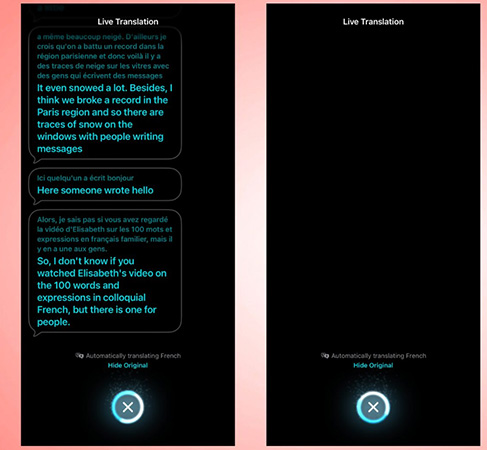
- Step 5. Your AirPods will automatically translate speech from the other person into your chosen language. Say your response naturally — your iPhone will translate it. You can display the translated text on your iPhone screen or tap the Play button to have your iPhone speak the translation.
- Step 6. Simply tap the X button in the Live Translation view when you’re done.
 Tips
Tips
You can press and hold both AirPods stems simultaneously to start live translation. Or ask Siri by saying, "Hey Siri, start Live Translation." Alternatively, you can use the Action button on your iPhone if it's set to launch Translate.
 Pro Tip:
If the person you're talking with also has supported AirPods and Live Translation set up, they'll hear your translated response directly.
Pros and Cons of Live Translation on AirPods in iOS 26
 Pros:
Pros:- Real-time translation: Hear translated speech instantly through your Apple AirPods.
- Convenient for travel: Makes conversations easier when speaking with people who use different languages.
- Seamless integration: Works with the Apple Translate app and other iOS features like Phone or FaceTime apps.
- Privacy-focused: Much of the translation processing happens directly on your iPhone..
 Cons:
Cons:- Limited device support: Requires newer devices like compatible AirPods and newer iPhones.
- Limited languages: Only several major languages are supported at launch.
- Possible delays: Real-time translation may have a short processing delay.
- Accuracy can vary: Background noise or strong accents may affect results.
AirPods Live Translation Not Working on iPhone? One-click Fix Here!
The new Live Translation feature for AirPods on iOS 26 is incredibly convenient, but it can be highly frustrating when it suddenly stops working. Sometimes, a simple restart or Bluetooth reconnection just does not solve the software glitch causing the communication breakdown. When standard troubleshooting fails, you might be dealing with a deeper system error that requires a more robust approach to get your translation tools functioning again.
TunesKit iOS System Recovery is an excellent tool specifically designed to tackle these stubborn operating system bugs without erasing your personal data. It seamlessly diagnoses and repairs a wide range of iPhone software problems, including iOS 26 call screening not working, black line on iPhone screen, and iPhone touch screen not responding, etc. Instead of booking an expensive repair appointment, you can run this utility right from your desk.
Fix AirPods Live Translation Not Working
Quickly repair iOS system glitches that prevent Live Translation on your Apple AirPods—no data loss and no technical skills required.
 600,000+ Downloads
Step 1Connect Your iPhone
Download, install and open TunesKit iOS System Recovery on your computer, then connect your iPhone using a compatible USB cable. Select the iOS System Repair on the main screen, and click the Start button to begin.

Step 2Choose a Repair Mode
Select the Standard Repair mode from the main menu, which is designed to fix common software anomalies while keeping your photos, messages, and apps completely safe.

Step 3Download Firmware Package
Confirm your device details on the screen, if there is nothing wrong, click to download the appropriate firmware package for your specific iPhone model.

Step 4Start the Repair Process
Click the Repair button once the firmware is ready, and leave your device connected until the software finishes restoring your system to normal.

FAQs about Live Translation on AirPods in iOS 26
-
Does Live Translation require an active internet connection?
One of the biggest advantages of this feature is that it processes entirely on your device, meaning it works perfectly offline. This is ideal for traveling in areas with spotty cellular service or avoiding expensive roaming charges. You just need to prepare your device ahead of time.
You should download the specific language packs you intend to use directly within the Apple Translate app before your trip. -
Do both people need to wear AirPods for it to work?
No, the feature works even if the other person does not own Apple devices. Your iPhone's Translate app can simply display a text transcription or read the translation aloud through its speaker.
However, the experience is much smoother when both people wear supported earbuds. This setup isolates your voices and creates a private, real-time interpreting session directly in each person's ears. -
Can I Use Live Translation During Phone Calls or Video Chats?
Yes, Apple Intelligence seamlessly integrates these translation features directly into the native Phone and FaceTime applications. During FaceTime calls, you can view live translated captions on your screen while still hearing the speaker's original tone. For standard phone calls, the system provides both spoken and text-based translations to ensure you catch every detail.
You can easily toggle these settings right from your active call screen.
Conclusion
Live Translation on Apple AirPods in iOS 26 makes cross-language communication easier than ever. By enabling this feature and setting up the Apple Translate app, you can listen to translated speech in real time and respond naturally during conversations. It's a helpful tool for travel, work, or everyday interactions with people who speak different languages.
If Live Translation isn't working properly due to system glitches or software issues, you can try repairing your iPhone with TunesKit iOS System Recovery. This tool helps fix common iOS problems without data loss, allowing your device—and your AirPods translation feature—to work smoothly again.


