


How to Turn Off SharePlay on iPhone/iPad/Mac/Apple TV
If you've ever been on a FaceTime call and had a movie or song start playing unexpectedly, you know how intrusive SharePlay can feel. While it's a great feature for watching content with friends, it's not always the right time for a shared session. Whether you're looking to save data, maintain your privacy, or simply streamline your calls, knowing how to turn off SharePlay on iPhone/iPad/Mac/Apple TV is essential for a tailored user experience.
In this guide, we'll walk you through the simple steps to disable this feature across all your Apple devices so you can get back to distraction-free communication.
Part 1: What Is SharePlay?
SharePlay is an Apple feature that lets you share experiences in real time with other people during a FaceTime call. Introduced in Apple Inc.'s ecosystem, it allows everyone on the call to watch movies or shows, listen to music, share screens, or use apps together while staying perfectly synchronized.
With SharePlay, you can:
- Watch TV shows and movies together
- Listen to music simultaneously
- Share your screen to browse apps, photos, or presentations
- Use supported third-party apps together
It works across iPhone, iPad, Mac, and Apple TV, making remote hangouts feel more like being in the same room.
 View Also: AirPlay Not Working? Try These Methods!
Part 2: How to Turn Off SharePlay on iPhone/iPad/Mac/Apple TV
Managing your shared experiences across the Apple ecosystem is straightforward once you know where to look. Follow these steps to disable the feature on your preferred device.
2.1 How to Turn Off SharePlay on iPhone/iPad
For most users, the iPhone/iPad is the primary place where SharePlay triggers automatically during FaceTime calls.
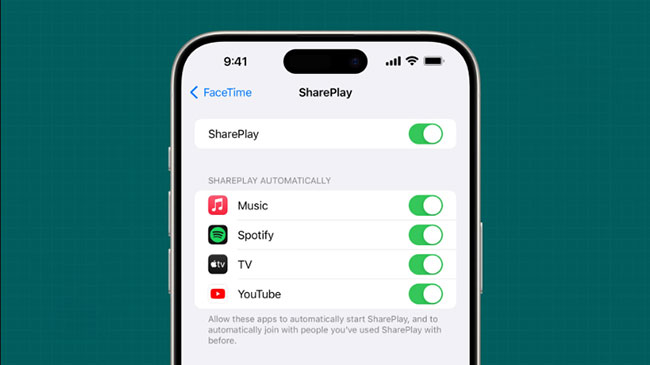
- Step 1. Open the Settings app.
- Step 2. Scroll down and tap on Apps → FaceTime.
- Step 3. Tap on SharePlay.
- Step 4. Toggle the SharePlay switch to the Off position (it will turn from green to grey).
Alternatively, you can use Screen Time to turn off SharePlay on iPhone/iPad. Unlike the standard FaceTime settings which only toggle the feature for the app itself, the Screen Time method entirely blocks the SharePlay across your iOS ecosystem.
This satisfies the search intent for users needing a permanent fix, particularly parents managing a child's device or privacy-conscious individuals aiming to avoid accidental broadcasting. Here's how to do.
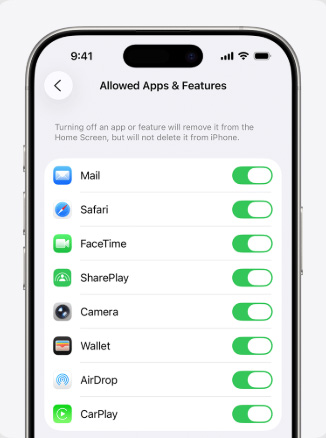
- Step 1. Open the Settings app on your iPhone or iPad, scroll down, and select Screen Time.
- Step 2. Navigate to Content & Privacy Restrictions and toggle the primary switch at the top of the screen to the "ON" position to enable modifications.
- Step 3. Tap on Allowed Apps (or Allowed Apps & Features depending on your iOS/iPadOS version), locate SharePlay in the list, and toggle the switch to the "OFF" position.
2.2 How to Turn Off SharePlay on Mac
On macOS, the settings are tucked within the FaceTime app preferences rather than the System Settings menu.
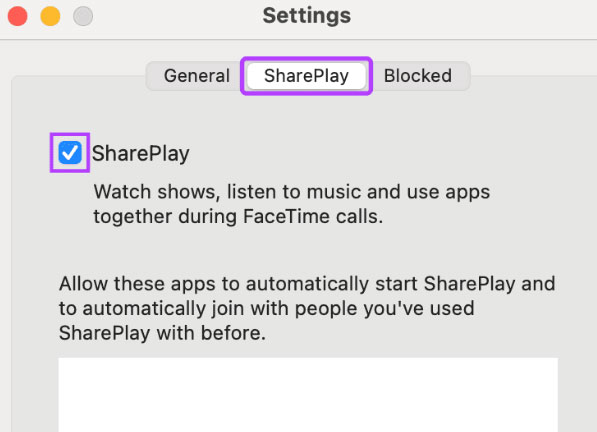
- Step 1. Launch the FaceTime app on your Mac.
- Step 2. In the top menu bar, click FaceTime > Settings (or Preferences on older macOS versions).
- Step 3. Click on the SharePlay tab at the top of the window.
- Step 4. Uncheck the box next to SharePlay to disable the feature entirely.
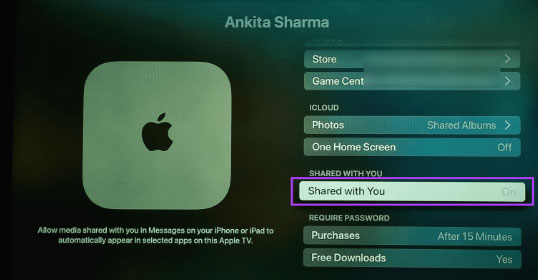
2.3 How to Turn Off SharePlay on Apple TV
If you want to prevent your Apple TV from joining sessions started on other devices in your home, follow these steps:
- Step 1. Open Settings on your Apple TV.
- Step 2. Select Users and Accounts.
- Step 3. Choose your Primary User profile.
- Step 4. Select Shared with You.
- Step 5. Toggle SharePlay to Off.
 Peer Tip
Disabling SharePlay doesn't delete the feature forever; it just stops it from launching automatically. If you ever want to host a watch party in the future, just follow these same paths to toggle it back on!
Part 3: What to Do When SharePlay Won't Turn Off on iPhone? Fix It Now!
Sometimes, standard methods fail because of underlying software glitches deeply embedded within your device. If your iPhone becomes unresponsive while navigating FaceTime settings or the SharePlay toggle switch remains stubbornly grayed out, a dedicated system repair is often the best solution.
TunesKit iOS System Recovery is a powerful utility designed to resolve these persistent iOS issues without losing your personal data. It helps eliminate hidden system bugs like Apple Pay not working on iPhone, iPhone not connecting to CarPlay, and iPhone stuck on Apple logo issues, with the powerful repair function, it ensures your iPhone function exactly as intended. And it supports the latest iOS/iPadOS version.
Fix SharePlay Won’t Turn Off on iPhone
Use TunesKit iOS System Recovery to resolve stubborn SharePlay issues by repairing iOS system glitches without data loss in Standard Mode.
 600,000+ Downloads
Step 1Connect Your iPhone
Download and install TunesKit iOS System Recovery on your Mac or Windows computer, then connect your iPhone using a reliable USB cable. Launch the program and click on the "iOS System Repair" module on the main interface to initiate the process. And click the Start button on the bottom.

Step 2Choose a Repair Mode
Select "Standard Repair" from the available diagnostic modes on the next screen. This specific mode is highly recommended because it effectively fixes common system errors—like a stuck SharePlay feature—while keeping your photos, messages, and apps completely safe.

Step 3Download Firmware Package & Start to Repair
Confirm your device model and the firmware version displayed on the screen, then click the "Download" button to obtain the necessary iOS firmware package.
After the download successfully finishes, click the "Repair" button to let the software automatically mend your operating system and restore full control over your SharePlay settings.

Part 4: FAQs About Turning Off SharePlay on iPhone
-
1. Does turning off SharePlay affect my regular FaceTime calls?
No. Disabling SharePlay only stops the automatic sharing of media like movies, music, and apps. Your standard video and audio calls will continue to work perfectly.
-
2. Can I still share my screen manually if SharePlay is turned off?
If you have disabled the automatic SharePlay setting, you can still manually initiate a screen share during a call on iPhone or Mac. However, you will have to trigger it by yourself rather than the device suggesting it.
-
3. Why does SharePlay keep turning itself back on?
This usually happens after a major iOS or macOS software update, as Apple sometimes resets system defaults. If you notice it's active again, simply revisit your FaceTime settings to toggle it off.
-
4. Can I turn off SharePlay for specific apps only?
Currently, the main toggle is "all or nothing" for FaceTime. However, some third-party apps have their own internal settings where you can disable SharePlay integration specifically within that app's menu.
Part 5: Conclusion
In short, disabling SharePlay on iPhone, Mac, or Apple TV helps restore privacy and prevent unwanted shared experiences. If you can’t turn it off due to system glitches, TunesKit iOS System Recovery can help by fixing various iOS issues, repairing the system without data loss in standard mode, and offering one-click recovery mode access—making it an efficient solution when normal settings fail.


