


403 Forbidden Error on iPhone Safari? Fixed!
When you encounter a "403 Forbidden" error while browsing on Safari for iPhone, it generally means the server has received your request but is refusing to grant you access for some reason. It's a bit like standing in line with a ticket, only to have the security guard tell you that, despite the ticket being valid, you aren't allowed inside today.
This situation is often related to browser cache data, network settings, or permission restrictions set by the website itself. While 403 forbidden error on iPhone Safari might sound a bit tricky, it can usually be resolved through a few simple steps.
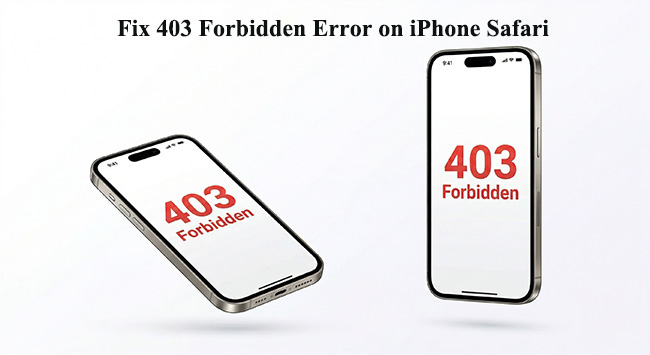
Why Am I Getting a 403 Forbidden Error on iPhone Safari
A 403 error in iPhone Safari means the server understood your request but is refusing to allow access. It's usually not a bug in Safari itself, but something about permissions, settings, or how the website sees your request.
Here are the most common causes:
- 01 Permission / Access Restrictions: The website blocks certain users, regions, or IP addresses. You may need to log in or have special access. Some pages are intentionally private (admin panels, restricted content).
- 02 Corrupt or Blocked Cookies: Websites rely on cookies to verify sessions. If cookies are disabled or corrupted in Safari, access may be denied. This often happens after clearing data or using strict privacy settings.
- 03 IP Address Blocking: Your IP might be flagged by the website (e.g., too many requests or suspicious activity). Using a VPN or shared network can trigger this.
- 04 VPNs, Proxies, or Private Relay: Services like iCloud Private Relay can mask your IP. Some websites block masked or anonymous traffic.
How to Fix 403 Forbidden Error on iPhone Safari
Now that you understand the common causes behind the 403 Forbidden error in Safari, the next step is to apply the right solutions. There are several practical methods to fix the 403 error on your iPhone.
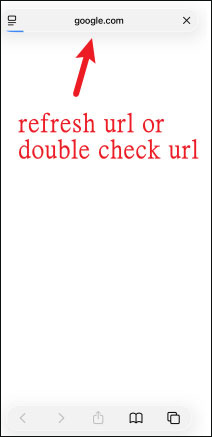
Fix 1. Refresh and Double-Check the URL
A simple refresh can fix temporary communication glitches, while verifying the URL ensures you aren't accidentally trying to access a private folder or a broken link that the server protects.
- Step 1. Start with the simplest fix: tap the refresh icon in the address bar.
- Step 2. Carefully examine the URL for typos, especially extra characters or symbols at the end.
Fix 2. Clear Browser History and Data
Websites store "cookies" to remember who you are. If these files become corrupted or contain outdated login info, the server may reject your request because it doesn't recognize your current session credentials.
- Step 1. Open the Settings app on your iPhone and scroll down to tap Apps → Safari.
- Step 2. Select Clear History and Website Data.
- Step 3. Choose the time frame (selecting "All history" is the most effective) and tap Clear History.
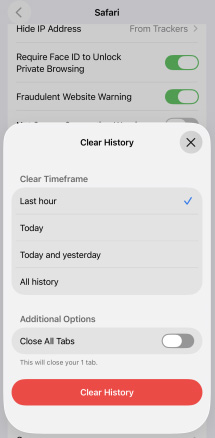
You can clear your cookies without erasing your entire browsing history. To do this:
- Step 1. Open Settings, then go to Apps → Safari.
- Step 2. Tap Advanced, then select Website Data, and choose Remove All Website Data.
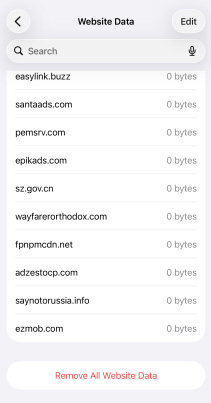
This removes stored cookies and site data while keeping your browsing history intact.
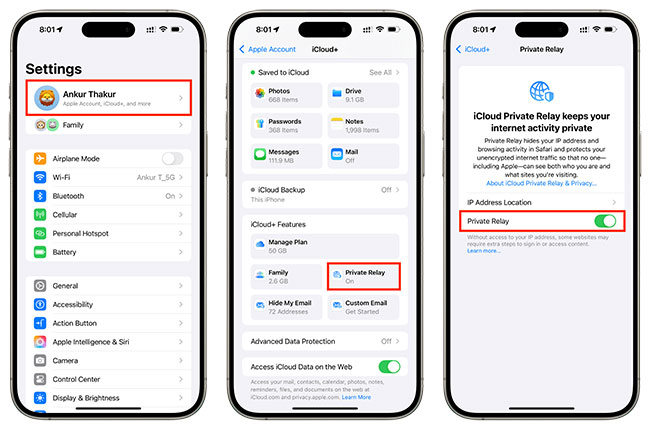
Fix 3. Disable iCloud Private Relay
This feature hides your IP address to protect your privacy, but some high-security websites (like banking or government portals) block "hidden" IPs to prevent fraud or bot attacks.
- Step 1. Go to Settings and tap your Apple Account name at the very top.
- Step 2. Navigate to iCloud and then select Private Relay.
- Step 3. Toggle the switch to Off and try reloading the page in Safari.
Fix 4. Adjust Network Settings
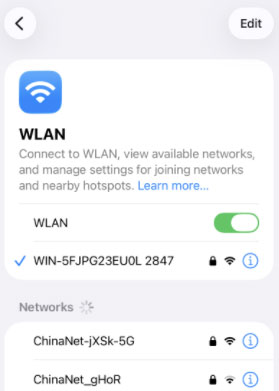
Sometimes your specific network connection or IP address is flagged by a website’s firewall. Switching how you connect to the internet can bypass these local blocks.
- Step 1. Toggle Wi-Fi. Open Settings, tap WLAN, and toggle the switch to Off. This forces your iPhone to use cellular data, providing you with a different IP address that might not be blocked by the website.
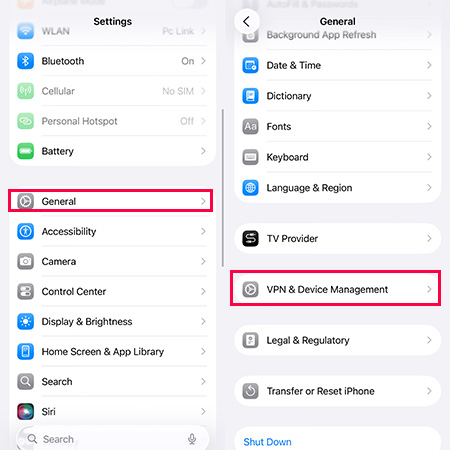
- Step 2. Disconnect VPNs. Go to Settings > General > VPN & Device Management. Ensure any active VPN is disconnected, as many websites block known VPN servers to prevent automated bot traffic or unauthorized regional access.
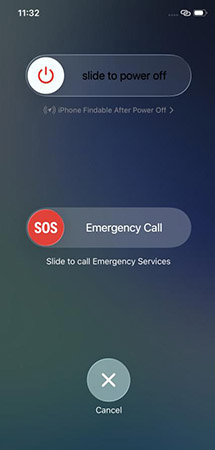
- Step 3. Restart your iPhone. Press and hold the Side button and either Volume button until the power-off slider appears. Drag the slider, wait 30 seconds, then press the Side button to turn your device back on to refresh your network stack and clear minor system hang-ups.
Fix 5. Fix iOS System Bugs via TunesKit iOS System Recovery
If standard browser settings and network resets haven't cleared the "403 Forbidden" error, the issue may stem from a deeper iOS system glitch or a corrupted configuration file. Using a professional tool like TunesKit iOS System Recovery can repair the underlying operating system without wiping your personal data.
It can fix 150+ iOS issues like unable to request SHSH error in 3uTools, iPhone black line on screen, and Safari can't open a page on iPhone, etc. It supports various iPhone, iPad, and iPod touch models, and it's compatible with the latest iOS/iPadOS versions. Apart from that, it enables your iPhone to enter or exit recovery mode with one click, and downgrade or upgrade iOS versions.
Fix 403 Forbidden Error on iPhone Safari
Quickly repair system-related issues causing Safari access errors—no data loss and no technical skills required.
 600,000+ Downloads
Here's how to Fix Safari 403 Error via TunesKit iOS System Recovery.
Step 1Connect Your iPhone to a Computer
Download and install TunesKit iOS System Recovery on your PC or Mac. Open the software and connect your iPhone using a certified lightning or USB-C cable. Once the device is recognized, click the iOS System Repair button. On the next page, click the Start button.

Step 2Select "Standard Repair"
On the mode selection screen, choose Standard Repair. This is crucial as it fixes common system issues (like Safari errors, boot loops, or frozen screens) without causing any data loss. Avoid "Deep Repair" unless you are prepared to factory reset the device.

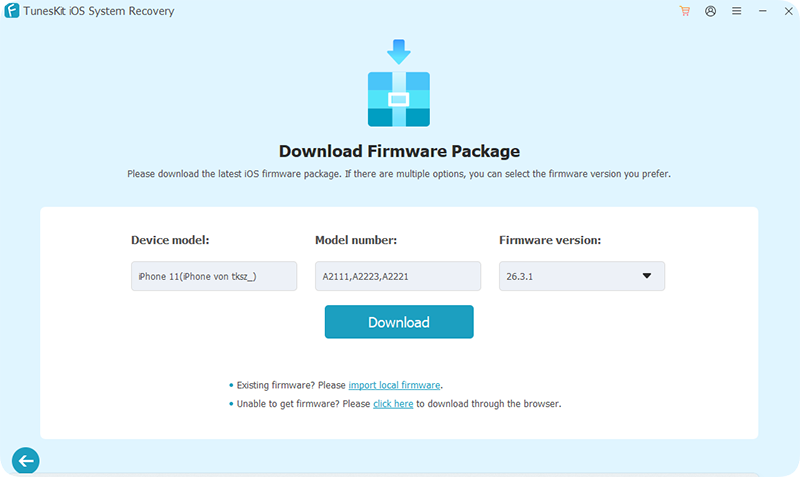
Step 3Download the Firmware Package
TunesKit will automatically detect your iPhone model and the latest compatible iOS version. Verify the information and click Download. The software will now fetch a fresh, official firmware package from Apple's servers.
Step 4Repair the iOS System
Once the download is complete, click the Start Standard Repair button. Keep your iPhone connected throughout this process. Once the repair is finished, your iPhone will restart, and the Safari 403 error should be resolved.

FAQs About 403 Forbidden Error on iPhone Safari
-
Does a 403 error mean my iPhone has a virus?
No. A 403 error is a standard HTTP status code sent by the website's server. It simply means the server understands your request but is refusing to fulfill it due to permission or security settings. It is a communication issue, not a sign of malware.
-
Could the problem be with the website itself?
Yes. If you've tried different browsers (like Chrome or Firefox) and different networks (Wi-Fi vs. Cellular) and still see the error, the website may be undergoing maintenance, or your account may lack the specific permissions required to view that page.
-
Can a VPN cause a 403 Forbidden error?
Yes. Many websites—especially streaming services, banks, and government portals—blacklist known VPN server IP addresses. If you are using a VPN, the website may interpret your connection as a "bot" or an unauthorized regional access attempt, resulting in a 403 block.
Conclusion
Most 403 Forbidden Error on iPhone Safari issues can be fixed by clearing cookies or toggling network settings, but persistent blocks often signal deeper system glitches. TunesKit iOS System Recovery offers a professional-grade fix by repairing the core firmware through its data-safe Standard Repair. This effectively eliminates underlying OS bugs and certificate conflicts that manual resets can't reach, quickly restoring your browser's access to restricted websites.


