


How to Fix Telegram Not Working on iPhone & iPad
Telegram, the popular messaging app, is a hit communication tool for many iPhone and iPad users. However, sometimes you may encounter issues where the Telegram app isn't working as expected on your Apple device. Whether you're unable to send messages or receive updates, or the app is crashing altogether, these problems can be frustrating to deal with.
If you're an iOS user struggling with a non-functioning Telegram app, don't worry. In this article, we'll cover the most common reasons why Telegram not working, as well as provide quick fixes on how to resolve Telegram not working on iPhone & iPad.

Why Is My Telegram Not Working?
If Telegram isn't working, it's usually caused by one of a few common issues. Here are the main reasons.
- 01 Unstable network connection: Telegram requires a stable internet connection to function properly.
- 02 Telegram server outage: Occasionally, Telegram's servers may experience temporary outages, which can cause the app to stop working.
- 03 App or device glitches: The problem could be with the Telegram app itself or your device.
- 04 Some countries ban Telegram: Several countries actively restrict or completely ban access to Telegram. Nations like China, Iran, Pakistan, and increasingly in places like Vietnam and Russia face similar network roadblocks.
- 05 Account-related issues: If you're able to access Telegram on other devices but not on your current one, the issue may be related to your Telegram account. You can try logging out and logging back in.
How to Fix Telegram Not Working on iPhone & iPad?
After understanding the possible reasons why Telegram may not be working on your iPhone or iPad, the next step is to try some practical solutions. Below are several effective methods that can help restore Telegram to normal operation.
Fix 1. Disable Focus Mode
If the Telegram notification sound on your iPhone/iPad doesn't work, you may have focus mode enabled, which prevents apps from sending notifications. Here's how to disable this mode on your device.
Swipe down from the top right corner of the screen to access the Control Center, and tap the focus pattern (crescent moon) to turn it off.

Fix 2. Remove Telegram App and Reinstall It
If you tap on Telegram app, it crashes and doesn't open, then you may consider removing and reinstalling it, here are the steps to do so.
- Step 1. Long press the Telegram app and select Remove app from it. Select Delete app in the pop-up box and click Delete again to confirm.
- Step 2. Tap on App Store, type Telegram in the search box, and tap on the Download button to reinstall this app.

Fix 3. Switch Your Internet Connection
The possible reason why Telegram is not working is an unstable internet connection, you can switch your internet connection to resolve this issue.
Try switching from cellular data to a Wi-Fi network, or switch to a different Wi-Fi network if the one you are currently using is not providing a stable connection. Changing the network you are using may help resolve any internet connectivity problems that are causing the Telegram app to not function properly.

Fix 4. Restart Your iPhone or iPad
Rebooting your device can fix any minor software glitches or bugs, including Telegram not working on iPhone. Below is how to restart your iPhone and iPad.
For iPhone
- Step 1. Press and hold the Side button and either volume button (on newer iPhone models) or the Top/Side button (on older iPhone models) until the "slide to power off" slider appears on the screen.
- Step 2. Drag the slider to the right to turn off your iPhone.
- Step 3. Wait a few seconds, then press and hold the Side/Top button again until you see the Apple logo appear.

For iPad
- Step 1. Press and hold the Top and either volume button (on iPad models with Face ID) or the Top button (on iPad models with a Home button) until the "slide to power off" slider appears.
- Step 2. Drag the slider to the right to turn off your iPad.
- Step 3. Wait a few seconds, then press and hold the Top button again until you see the Apple logo appear.

Fix 5. Turn Off Low Data Mode
When low data mode is turned on, it can restrict the use of cellular data, causing issues with Telegram not working. You can turn off low data mode to resolve it. Here's how:
- Step 1. Launch the Settings app on your iPhone or iPad.
- Step 2. Navigate to Cellular > Cellular Data Options > Data Mode.
- Step 3. Switch the data mode to Standard or Allow More Data on 5G option.

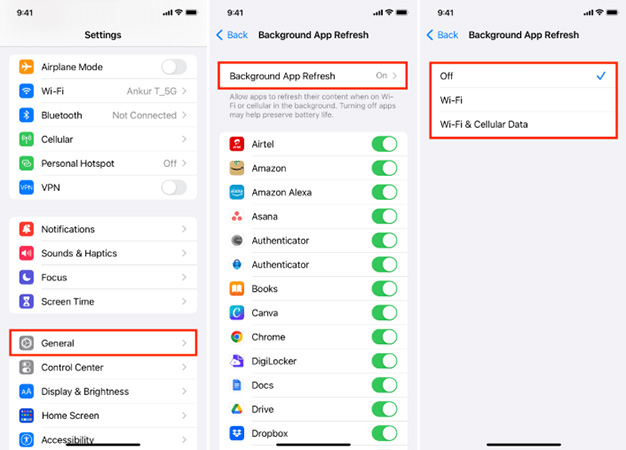
Fix 6. Enable Background App Refresh
Background App Refresh allows apps to update their content even when you're not actively using them. If this feature is disabled for Telegram, the app may not receive new messages, update chats, or refresh properly in the background. As a result, Telegram might appear stuck, fail to load new content, or stop working as expected. Here's how to enable it.
- Step 1. Open Settings on your iPhone or iPad.
- Step 2. Scroll down and tap General.
- Step 3. Select Background App Refresh.
- Step 4. Tap Background App Refresh again and choose Wi-Fi & Mobile Data (or Wi-Fi).
- Step 5. Scroll down and make sure Telegram is toggled ON.
Fix 7. [Ultimate Solution] Use TunesKit iOS System Recovery to Fix iOS System
Sometimes, after updating to the latest version of iOS, software glitches inside iPhone and iPad can cause Telegram notification not working. Thus, you need a professional iOS repair tool to solve this problem. TunesKit iOS System Recovery comes in handy, this is an all-in-one tool that can fix 150+ iOS issues on iPhone/iPad/iPod touch without losing data, such as iPhone stuck in boot loop, iPhone black screen of death, iPad Bluetooth not working.
It has the highest success rate and fast recovery features that you can use to repair your device at home. In just 4 steps, Telegram not working can be fixed easily.
Repair Telegram Not Working on iPhone/iPad
Use TunesKit iOS System Recovery to fix underlying iOS problems and restore Telegram to normal quickly.
 600,000+ Downloads
See the tutorial to fix Telegram not working on iPhone & iPad via TunesKit iOS System Recovery.
Step 1Attach iPhone to PC
First of all, you are required to download and install this program on your Windows or Mac computer, then launch it. Link your iPhone or iPad to computer using a USB data cable. Choose iOS System Repair on the main interface, and hit Start button to proceed.

Step 2Choose Standard Repair
There are two repair mode available. Choosing Standard Repair, you won’t lose your vital information, while choosing Deep Repair, you will lose all your data. If you're going to opt for Deep Repair, it's recommended that you back up your data first. You can select Standard Repair, and if that doesn't work, then select another mode.

Step 3Get the appropriate firmware package
TunesKit will automatically detect your device model, and version. Select the appropriate firmware package from the drop-down options. Then click the Download button to start downloading and verifying the latest firmware package.

Step 4Fix Telegram not working issue in minutes
Click the Repair button when the firmware package finishes downloading. TunesKit will auto-repair iOS errors on your device. Once it's done, your iPhone will restart, then open the Telegram app to see if the non-working issue is fixed.

FAQs about Telegram Not Working
-
Why is my Telegram app perpetually stuck on "Connecting..."?
This endless loading loop is almost always tied to a network barrier preventing the app from reaching Telegram's servers. It typically happens when your Wi-Fi drops, your cellular data signal is too weak, or a regional firewall is actively blocking the connection.
-
What does the small clock icon next to my sent message mean?
The clock icon indicates that your message is currently stuck on your device and has not yet been transmitted to Telegram's servers. This is a definitive sign that your smartphone lacks an active internet connection at that exact moment. Once your iPhone regains a stable network connection, the clock will instantly change to a single checkmark, confirming the server has received your text.
-
How do I know if Telegram's servers are down globally?
If you have thoroughly verified your own Wi-Fi and cellular data but the app still refuses to connect, the problem might be on Telegram's end. Server outages happen occasionally due to overwhelming traffic spikes or scheduled backend maintenance.
Conclusion
In a nutshell, this article listed all the reasons and solutions about Telegram not working on iPhone & iPad. Hope this guide can solve your problems. If your encounter other iOS issues, don’t hesitate to choose TunesKit iOS System Recovery. It is a powerful tool that can solve all your iOS errors without data loss. Download it now to enjoy its great features.


