


Detailed Guide on How to Fix 4G Not Working on iPhone
Are you experiencing issues with your iPhone's 4G connectivity? Suppose the 4G on your iPhone isn't available. In that case, you can't surf the Internet, use FaceTime, iMessage, or other social media apps, or share real-time location information with family and friends. Having no internet on your cell phone can be a huge inconvenience, but don't worry.
Whether you're unable to connect to 4G networks or experiencing slow speeds, we've got you covered with troubleshooting tips to fix 4G not working on iPhone and get your iPhone back online with optimal 4G performance.

Why Is My 4G Not Working on iPhone?
There could be several reasons why your 4G is not working on your iPhone. Understanding the causes can help you better fix this issue. Common causes are listed below.
- 01 Poor Signal or Network Coverage: If you're in an area with weak cellular coverage, your iPhone may struggle to connect to 4G. This often happens in basements, rural areas, elevators, or crowded places.
- 02 Cellular Data Is Turned Off: Sometimes 4G isn't working simply because cellular data is disabled.
- 03 4G/LTE Is Not Enabled: Your iPhone might be set to 3G or another network mode.
- 04 Carrier Settings Need an Update: Outdated carrier settings can cause connectivity problems.
- 05 SIM Card Issues: A loose, damaged, or improperly inserted SIM card can prevent 4G from working properly.
- 06 iOS Software Glitch: Temporary system bugs may interfere with mobile data.
- 07 Carrier Network Problems: Sometimes the issue isn't your phone — it's your carrier. There may be outages or maintenance in your area. Contact your carrier or check their service status page to confirm.
 View Also: How to Fix 5G Not Working on iPhone
How to Fix 4G Not Working on iPhone?
Now that you understand the possible reasons behind 4G not working on your iPhone, it's time to apply the right fixes. Below, we'll walk you through practical and effective methods to restore your 4G connection and get your mobile data working normally again.
Tip 1: Turn Off Airplane Mode
If your iPhone has Airplane Mode turned on, the phone won't be able to connect to a mobile network or Wi-Fi, and you won't be able to receive incoming calls or text messages. To use the 4G/3G network on your iPhone, make sure Airplane Mode is turned off. Below is the specific steps.
- Step 1. Swipe down from the top right corner of your iPhone to access the Control Center, and tap the Airplane icon to turn off Airplane Mode.
- Step 2. If Airplane Mode has been turned off, try turning it on for about five seconds and then turning it off again.

Tip 2: Update Carrier Settings
While carrier settings updates aren't common, it's critical to install them when they're available because they can help improve your iPhone's connection to your carrier's network.
A pop-up window should appear on your iPhone when a new carrier settings update is available. Simply click Update button to apply the carrier update.
Alternatively, you can manually check for carrier settings updates. Tap Settings -> General -> About on your iPhone. Then, wait for about ten seconds for a pop-up window to appear on your iPhone. Then tap Update. If there is no pop-up window, try the next fix.

Tip 3: Turn Cellular Data Off and On
When you toggle Cellular Data off, your iPhone disconnects from the carrier’s data network. Turning it back on forces the phone to reconnect and request a new data session. If the previous connection was stuck or unstable, this refresh can restore 4G service.
- Step 1. Navigate to Settings app, and tap Cellular.
- Step 2. Then, check the switch next to Cellular Data. If the switch is currently in the On or green position, tap it to turn cellular data off.
- Step 3. Wait a few seconds, then tap it again to turn cellular data back on. If the switch is currently in the Off or gray position, tap it to turn cellular data on. This will help refresh the network connection.

Tip 4: Restart Your iPhone
Over time, small software bugs can interfere with cellular functions. Restarting shuts down all running processes and reloads the operating system, removing minor glitches that may prevent 4G from working properly. Your iPhone continuously communicates with cellular towers in the background. A restart resets the phone's network components, forcing it to reconnect to your carrier’s 4G network from scratch. Here's how.
For iPhones without Face ID
- Step 1. Press and hold the power/top button on your iPhone.
- Step 2. When the Slide to Power Off option appears on the screen, slide the power icon from left to right to turn off.
- Step 3. Wait a few seconds, then press and hold the power button again to turn your iPhone back on.
For iPhones with Face ID
- Step 1. Simultaneously press and hold the side button and either volume button on your iPhone.
- Step 2. When the Slide to Power Off option appears on the screen, power off your iPhone.
- Step 3. After a brief moment, press and hold the power button to power your iPhone back on.

Tip 5: Eject and Reinsert Your SIM Card
Ejecting and reinserting the SIM card may help resolve the cellular connectivity issues. The SIM card is responsible for connecting your device to your carrier's wireless network, and sometimes it can become dislodged from the tray, causing a loss of cellular connection.
- Step 1. Locate the SIM card tray, usually on the left side of your iPhone.
- Step 2. Use a SIM card ejector tool or a straightened paper clip to gently press the small hole next to the tray and pop it.
- Step 3. Carefully remove the SIM card tray and ensure the SIM card is positioned correctly within the tray.
- Step 4. Slide the tray back into the iPhone, making sure it clicks into place securely.

After reinserting the SIM card, check if the 4G not working on iPhone issue has been restored.
Tip 6: Reset Network Settings
Sometimes, you may have accidentally messed up your network settings, thus causing 4G not working on iPhone. Reset Network Settings can restore all of your iPhone's cellular, Wi-Fi, APN, and VPN settings to factory defaults. This will not cause any data loss. Here's how to reset network settings on your iPhone:
- Step 1. Tap Settings app on your iPhone, tap General, then slide to the bottom to select Transfer or Reset iPhone. And tap Reset button.
- Step 2. In the pop-up box, select Reset Network Settings. Enter your iPhone's passcode and Screen Time passcode, then tap Reset Network Settings again in the pop-up prompt.
- Step 3. Then your iPhone will auto-restart, after reboot, check if 4G not working on iPhone issue is resolved.

Tip 7: Fix 4G Not Working on iPhone Caused By Software Glitch
If you still can't solve the 4G not working on iPhone issue after trying the above fixes, then it is liable that your iPhone has a software glitch or bug. Glitches or bugs can interfere with the normal operation of your iPhone and lead to such problems. You need a professional iOS repair tool. TunesKit iOS System Recovery is a powerful tool to fix iOS errors in one click.
It solves all iOS related iPhone or iPad errors and keeps your data intact, such as iPhone stuck in boot loop, iPhone green screen and iPhone battery percentage stuck. It has a user-friendly interface that makes it easy to operate even for novices. Besides the repair function, it comes with the following main highlights.
Fix 4G Not Working on iPhone with 1-Click
Repair iOS system glitches that cause 4G not working on iPhone quickly and safely—no data loss required with TunesKit iOS System Recovery.
 600,000+ Downloads
Now follow the step-by-step tutorial to fix 4G not working in iPhone via TunesKit iOS System Recovery.
Step 1Connect iPhone to PC
Download and install TunesKit iOS System Recovery software on your computer, then launch it. Connect your iPhone to the computer. Click on iOS System Repair in the interface. A variety of system problems are listed on the next page. You can click on the Start button to continue.

Step 2Choose a repair mode to start
You have two repair modes to choose from. Standard Repair can fix your iOS issue without losing data, while Deep Repair will clear all your device data. Given that your data is salient to you. It is recommended to choose Standard Repair.

Step 3Download the firmware package
Once TunesKit detects your iPhone model, select the appropriate firmware package from the drop-down menu, then click the Download button to confirm the firmware download.

Step 4Fix 4G not working on iPhone in minutes
After successfully downloading the firmware package, click the Repair button on the screen. Wait patiently for the progress bar to complete, during this period, please keep your iPhone connected to the computer and do not use your iPhone. After the repair is completed, your iPhone will reboot and then you can check if the iPhone not connecting to 4G issue is solved.

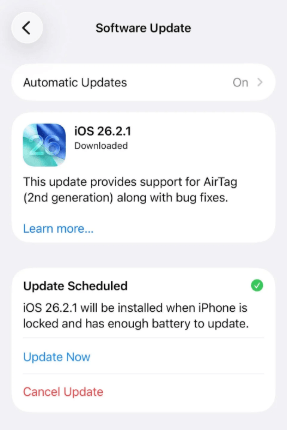
Tip 8: Update iOS to The Latest
Sometimes, mobile data issues are caused by software glitches introduced in previous iOS versions. Updating iOS installs bug fixes that can restore proper 4G functionality. System updates optimize overall performance, including cellular modules. This can resolve glitches that cause intermittent or slow 4G connections.
- Step 1. Make sure your iPhone is connected to a stable Wi-Fi network and has at least 50% battery or is charging.
- Step 2. Go to Settings > General > Software Update.
- Step 3. Your iPhone will check for available updates. If an update is available, tap Update Now button.
- Step 4. Follow the on-screen instructions. Your iPhone will restart automatically after the installation. After the update, check if your 4G connection is restored by browsing the internet or using apps that require mobile data.
FAQs About iPhone 4G Not Working
-
1. Why does my iPhone show 4G but there's no internet?
If your iPhone displays 4G but you can't access the internet, it may be due to a temporary network glitch, carrier issue, expired data plan, or incorrect APN settings. Try toggling Cellular Data off and on or restarting your device as discussed above.
-
2. Why is my iPhone stuck on 3G or E instead of 4G?
Your iPhone is programmed to automatically connect to the most stable cellular signal available in your immediate vicinity. If you are traveling through a rural area, heavily congested network zone, or inside a thick concrete building, the device will drop down to a lower frequency like 3G or Edge (E) to keep you connected.
Once you move back into an area with overlapping cell tower coverage, the modem should automatically upgrade your connection back to 4G or LTE. -
3. Can hardware damage cause 4G not to work?
Yes. If your iPhone has suffered physical damage (such as a drop or water exposure), the internal antenna or cellular components may be affected. In this case, professional repair may be required.
Conclusion
4G does not work on iPhone can be a frustrating thing, it causes you to be unable to access the Internet. This detailed guide explores the best solutions to fix this issue. Well, by the end of the read, you should be able to fix 4G not working on iPhone. The most effective way to resolve iOS-related issues on your iPhone or iPad is by using the powerful TunesKit iOS System Recovery software. Within minutes, it can get your device back to normal.


