


iPhone No Sound Problem? 6 Fixes For You!
There's nothing more frustrating than pressing play on your favorite song in Apple Music only to realize your iPhone has no sound. You check the volume, try other apps, and even restart the audio — but nothing works. Whether there's no sound during calls, media playback, or notifications, the issue can quickly become annoying.
Although the iPhone no sound problem may seem minor at first, it can seriously affect your daily use. The good news is that you don't need to rush to the Apple Store or pay expensive repair fees right away. In this guide, you'll learn 6 effective solutions to fix the iPhone no sound issue quickly and easily.

Why Does My iPhone Have No Sound?
If your iPhone suddenly has no sound, these are the most common reasons to try in order:
- The iPhone may be in Silent Mode, have the volume turned down, or have certain sound settings disabled.
- Audio may be connected to another device, such as Bluetooth earbuds, speakers, or a car audio system.
- Software issues, including app glitches, iOS bugs, or system errors, can sometimes affect sound output.
- Dust, water exposure, or physical damage may interfere with the speakers or other internal audio components.
- In some cases, the problem may be caused by a hardware failure related to the speaker or audio chip.
How to Fix iPhone No Sound Issues?
Since the possible causes have already been covered, the next step is to go through a few practical troubleshooting methods to restore sound.
Method 1: Clean Your Speakers and Charging Port
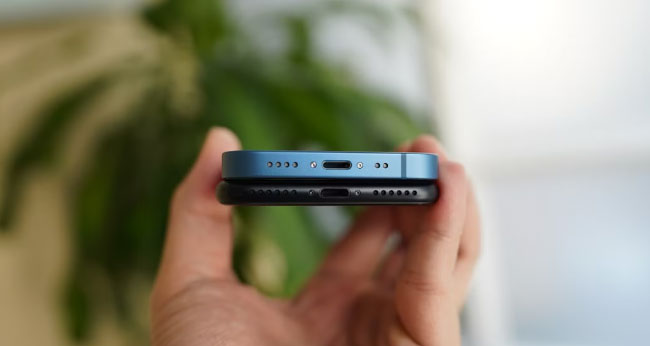
Many sound issues are caused by physical blockages rather than software glitches. Dust, pocket lint, or debris can easily accumulate inside the speaker grilles or your charging port (Lightning or USB-C). When the port is dirty, your iPhone might falsely detect a connected audio accessory, causing iPhone to become stuck in "headphone mode" and completely muting the external speakers.
- Step 1. Shine a flashlight into the charging port and the speaker grilles at the bottom of your device to check for blockages.
- Step 2. Use a clean, dry, soft-bristled brush to gently sweep away any visible lint or debris.
- Step 3. Test your audio again. If you use wired headphones, ensure the connector is clean and try testing with a different pair to rule out a faulty cable.
Method 2: Test the Speaker Hardware
If your device is completely clean but still produces no audio, you need to determine if the physical speaker itself is damaged. Accidental drops or liquid exposure can easily break the internal audio components. Apple provides a built-in settings tool to force audio through the main speaker, which is the fastest way to verify its basic functionality.
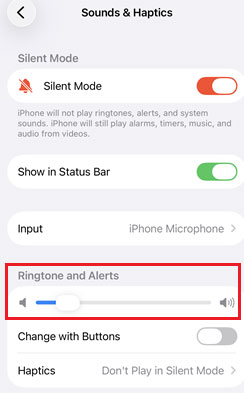
- Step 1. Open the Settings app and navigate to Sounds & Haptics.
- Step 2. Locate the volume slider under the Ringtone and Alerts section.
- Step 3. Drag the slider back and forth. If the internal hardware is functioning properly, you should immediately hear your selected ringtone play.
Method 3: [Highest Success Rate] Use iOS Repair Software
When you find no sound on iPhone and want to fix it immediately, you can choose this method to fix it directly. The iOS repair software can be an iOS device repairer in your computer and is ready to help you whenever you need it.
Among loads of iOS repair programs, TunesKit iOS System Recovery is the most suitable iOS repair software for you to solve this problem. This software can fix iPhone sound not working, iPhone stuck on Apple logo, and other 150+ iOS system problems on iPhone, iPad, and iPod touch. Don't worry about the operation of this tool. It is as easy as turning on a door. I conclude with 3 steps to use this tool. You can download, install it, and follow my instructions below.
Key Features of TunesKit iOS System Recovery
Fix iPhone sound problems caused by iOS glitches without data loss, and quickly restore normal audio with a simple, user-friendly repair process.
 600,000+ Downloads
Step 1Connect iPhone to PC
Connect the iPhone with your PC using an original USB cable. Start to turn on TunesKit iOS System Recovery. Click the iOS System Repair button. And on the next page, click the Start button to move on.

Step 2Choose Standard Repair
You can choose the Standard Repair to fix your problem without data loss. For a few serious problems, you need to use the Deep Repair to handle them.

Step 3Download Firmware and Repair iPhone No Sound
Check the information of your iOS device. Finding no mistake, you should click the Download button to download the firmware. Finally, choose the Start Standard Repair button when the download is over and wait until the repair is finished.

Method 4: Inspect the Ring/Silent Switch or Action Button
Apple devices traditionally feature a physical switch on the left edge dedicated to muting ringtones and notification alerts. When flipped into silent mode, a small orange strip becomes visible inside the switch. Newer models, such as the iPhone 15 Pro lineup, have replaced this classic toggle with a customizable Action Button that handles muting by default.
Sometimes, simply toggling this hardware switch back and forth can clear up software bugs causing audio dropouts.
- Step 1. Locate the physical switch or Action Button on the upper left side of your device.

- Step 2. Toggle the switch to ensure the orange indicator is hidden, placing the iPhone back into Ring mode.
- Step 3. Test your device by playing a standard notification sound or having a friend call you.

Method 5: Manage Bluetooth Connections
Wireless audio routing is a frequent culprit when you unexpectedly lose sound from your primary speakers. If you leave Bluetooth enabled, your phone might automatically connect to nearby wireless headphones, car audio systems, or smart speakers without your knowledge. Consequently, all your media and alert sounds get transferred to that external device, leaving your iPhone completely silent.
Disconnecting all active pairings is a quick way to force the audio back to your local hardware.
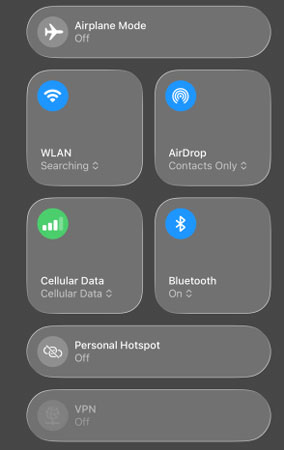
- Step 1. Open the Settings app and select Bluetooth.
- Step 2. Toggle the main Bluetooth switch at the top of the screen to the off position.
- Step 3. Alternatively, swipe down from the top right corner to access the Control Center and tap the Bluetooth icon to disable the connection temporarily.
Method 6: Review Focus and Do Not Disturb Modes
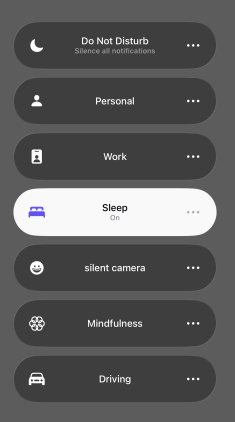
Modern iOS updates have expanded the classic Do Not Disturb feature into a broader, highly customizable system known as Focus modes. When activated, these profiles intentionally silence incoming calls, notifications, and alert sounds so you can concentrate or sleep peacefully. It is remarkably easy to accidentally trigger these restrictive modes from your lock screen or Control Center.
If you spot a crescent moon icon or another Focus symbol in your status bar, your device is blocking alert sounds.
- Step 1. Swipe down from the top right corner of your screen to open the Control Center.
- Step 2. Look for the Focus tile, which might display a crescent moon icon and say "Do Not Disturb" or "Sleep."
- Step 3. Tap the highlighted Focus tile once to deactivate it and restore your standard system alerts.
Summary
You can also try to restore iPhone from DFU mode to fix iPhone no sound problem. But it is not necessary for you to use this method because it will make your iPhone lose all the data and settings. Compared with it, a third-party iOS repair tool such as TunesKit iOS System Recovery is much more efficient and will not cause any data on your iPhone.


