


What If FaceTime Share Screen I Can't Hear Their Voice? Fix It
FaceTime screen sharing lets you show apps, settings, photos, and other on-screen content during a call. However, you may find that the shared screen works normally while the other person’s voice becomes quiet or disappears completely.
If you can't hear their voice during FaceTime screen sharing, the problem may be caused by muted audio, incorrect volume settings, Bluetooth devices, network instability, SharePlay conflicts, or a temporary iOS issue. This guide explains the possible causes and provides step-by-step solutions to restore FaceTime audio.

- Why Can't I Hear the Other Person During FaceTime Screen Sharing?
-
What to Do If FaceTime Share Screen I Can't Hear Their Voice
- Method 1. Turn Up the Call Volume and Check the Other Person's Mic
- Method 2. Stop Screen Sharing and Restart the Call
- Method 3. Change or Check Your Audio Output Source
- Method 4. Restart Both Devices
- Method 5. Make Sure Your iOS is Up to Date
- Method 6. Check Both Internet Connections
- Method 7. Ask Professional Tool for Help - TunesKit iOS System Recovery HOT
- FAQs About FaceTime Screen Sharing with No Voice
- Conclusion
Why Can't I Hear the Other Person During FaceTime Screen Sharing?
If you can see the shared screen but can't hear the other person, screen sharing itself is not necessarily the cause. The problem is more related to the microphone, call volume, audio output, network connection, or a temporary FaceTime issue.
Also, FaceTime screen sharing is different from SharePlay. Screen sharing lets someone show apps, webpages, and other on-screen activity, while SharePlay is designed to play supported movies, music, and other content together. If the issue happens while opening a video or music app, the media audio may be covering the person's voice, or the app may not fully support SharePlay.
Common causes include:
- The other person accidentally muted their FaceTime microphone.
- The media volume is too loud to hear the conversation clearly.
- Call audio is being sent to AirPods, a Bluetooth speaker, or another connected device.
- The speaker or receiver volume is too low.
- An unstable internet connection is interrupting FaceTime audio.
- A temporary FaceTime or iOS glitch is affecting the call.
- The media app does not properly support screen sharing or SharePlay.
What to Do If FaceTime Share Screen I Can't Hear Their Voice
Based on the possible reasons, there are several proven methods to fix FaceTime share screen but you can't hear other's voice. Every method is detailed and comprehensive.
Method 1. Turn Up the Call Volume and Check the Other Person's Mic
FaceTime audio relies on your iPhone's regular speaker and microphone system. If the volume is too low, the mute switch is on, or the in-call settings are muted, you might not hear the other person even if everything else seems to be working fine.
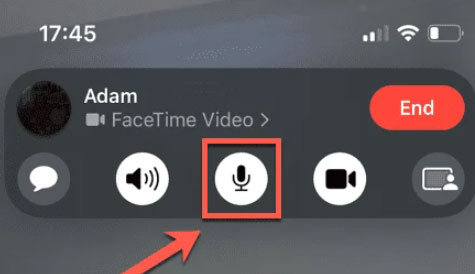
- Step 1. While the FaceTime call is active, press the Volume Up button several times.
- Step 2. Ask the other person to tap the screen and display the FaceTime controls.
- Step 3. Have them check the microphone button. If their microphone is muted, they should tap it to turn the mic back on.
- Step 4. Pause any video, music, or game audio temporarily and check whether their voice becomes audible.
Method 2. Stop Screen Sharing and Restart the Call
FaceTime and SharePlay use real-time connections that can sometimes glitch, especially if screen sharing is involved. Ending and rejoining the call resets the connection and gives both devices a fresh start, which often restores lost audio or fixes synchronization issues.
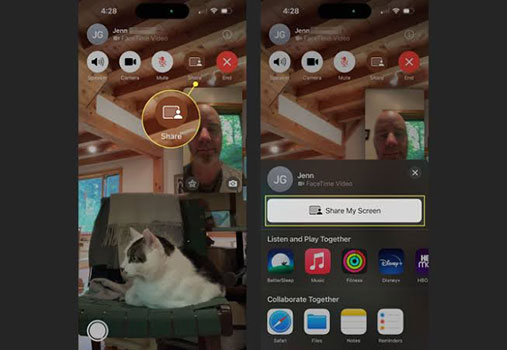
- Step 1. Ask the person sharing their screen to tap the FaceTime controls.
- Step 2. Tap More, then tap Stop next to Screen Sharing.
- Step 3. Continue talking without screen sharing and check whether you can hear their voice.
- Step 4. If the audio is still missing, end the FaceTime call and wait a few seconds.
- Step 5. Start a new call. To share the screen again, tap the screen, choose More > Screen Sharing > Share My Screen.
Method 3. Change or Check Your Audio Output Source
During FaceTime calls, especially when using other apps or SharePlay, iOS might route the audio to the wrong device (e.g., a Bluetooth speaker you forgot was connected). Manually switching audio output ensures you're actually hearing sound.

- Step 1. While on the FaceTime call, tap the screen to bring up call options.
- Step 2. Tap the audio button (it may show a speaker, AirPods, or other icon depending on your setup).
- Step 3. A list of audio outputs will appear, choose one: iPhone, Speaker, AirPods, or Bluetooth device.
- Step 4. Try switching between these to see if audio returns.
- Step 5. If using Bluetooth headphones, disconnect and reconnect them: go to Settings > Bluetooth, find the device, and tap Disconnect or Forget and then pair again.
Method 4. Restart Both Devices
A temporary iOS or FaceTime process may prevent the microphone, speaker, or screen-sharing session from working correctly. If FaceTime is misbehaving - especially during SharePlay - force quitting and reopening the app gives it a fresh start and clears temporary glitches affecting audio or video.

- Step 1. End the FaceTime call.
- Step 2. Restart your iPhone or iPad.
- Step 3. Ask the other person to restart their device as well.
- Step 4. Start a new FaceTime call and test the voice before enabling screen sharing.
- Step 5. If the normal call works, start screen sharing and test the audio again.
Method 5. Make Sure Your iOS is Up to Date
Apple frequently patches bugs with FaceTime, SharePlay, and audio handling. If you're on an outdated version of iOS, it may contain known issues that are already fixed in newer updates.
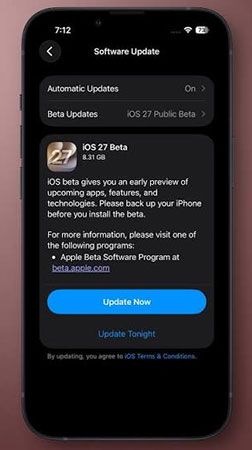
- Step 1. Go to Settings > General > Software Update.
- Step 2. If an update is available, tap Update Now.
- Step 3. Follow the prompts to complete installation (Wi-Fi and charging are required).
- Step 4. After the device restarts, make a FaceTime call and test screen sharing again.
Method 6. Check Both Internet Connections
FaceTime audio and SharePlay require a stable, high-bandwidth connection. If your Wi-Fi is weak or your cellular data is slow or spotty, the audio may cut out even if the screen share appears to work. FaceTime sometimes prioritizes video/screen sharing over audio in poor conditions.

- Step 1. Make sure both people are connected to a strong Wi-Fi or cellular network.
- Step 2. Stop downloads, video streaming, cloud backups, or other high-bandwidth activities on the same network.
- Step 3. Switch from Wi-Fi to cellular data, or connect to another Wi-Fi network.
- Step 4. If using cellular data, go to Settings > Cellular and make sure FaceTime is allowed to use cellular data.
- Step 5. Restart the Wi-Fi router if other devices are also experiencing network problems.
 Note
Note
Apple notes that slow or busy Wi-Fi and cellular connections can affect FaceTime call quality, so both participants should check their connections.
Method 7. Ask Professional Tool for Help - TunesKit iOS System Recovery
It is possible that iOS bugs and glitches cause FaceTime share screen but you can't hear their voice. A one-click fix is to use TunesKit iOS System Recovery which is a professional iOS system repair tool for iPhone/iPad/iPod. More than 150 iOS issues can be solved with the help of this software. Those issues include iPhone white screen, iPhone stuck on slide to power off screen, and so on. It can fix the hidden issues on your devices and give you smoother experience of your devices.
Fix FaceTime Audio Issues with TunesKit
Repair potential iOS glitches that may cause missing voice audio during FaceTime screen sharing—without data loss using Standard Repair.
 600,000+ Downloads
How to Fix FaceTime Share Screen I Can't Hear Their Voice Via TunesKit iOS System Recovery?
Step 1. Connect your device to a computer
Connect your device to a computer Download and install TunesKit iOS System Recovery on your Mac or Windows PC and connect your iOS device to that computer. Enter the software and choose the iOS System Repair feature. On the next page, click the Start button.

Step 2. Select repair mode
Two options: Standard Repair and Deep Repair. Here you can select Standard Repair to fix this issue without data loss.

Step 3. Download firmware package
Confirm your device info. If no problem, click the Download button to download a firmware package for your device.

Step 4. Repair system issue
Click the Start Standard Repair button to finally start the fix process. After the process, you can restart your FaceTime share screen to check if the issue is repaired.

FAQs About FaceTime Screen Sharing with No Voice
-
Why can I hear shared media but not the other person's voice?
The media volume may be covering their voice, or FaceTime may be using the wrong audio input or output device. Pause the media, increase the call volume, and disconnect Bluetooth accessories temporarily.
-
Why is FaceTime audio playing through another device?
Your iPhone may be routing the call audio to AirPods, a Bluetooth speaker, HomePod, or another connected device. During the call, tap the Audio button and select iPhone or Speaker.
-
Does FaceTime screen sharing mute the microphone?
No. Screen sharing should not automatically mute the person's microphone. Ask the other person to check the microphone button in the FaceTime controls and make sure it is turned on.
Conclusion
Not being able to hear the other person during a FaceTime screen share can be frustrating, but it's usually caused by simple settings or temporary glitches. By checking audio output, restarting the call, or updating iOS, you can quickly get things working again. If those are not working, try TunesKit iOS System Recovery to fix possible iOS system issues causing the FaceTime share screen i can't hear their voice issue.
Keep these fixes in mind to avoid interruptions during future SharePlay sessions. For more iPhone and FaceTime tips, be sure to bookmark this guide - and share it with someone who might need it!



