


Edit or Unsend Messages Not Working on iPhone? 7 Fixes!
Have you ever sent a message that completely changed meaning because of a typo—or accidentally messaged "Love you~" to someone you don’t like? It can be really frustrating. Being able to edit or withdraw messages, photos, and videos is essential, letting you correct mistakes without having to retype or resend anything.
Apple supports unsending messages within 2 minutes and editing messages within 15 minutes on iOS 16 and later. However, many users have encountered so many problems while using Message on the iPhone, such as why the edit text messages iphone not showing and why can't I unsend messages on iPhone. How can I fix edit or unsend messages not working on iPhone? In this article, reasons and solutions are written in detail.

- Part 1: How to Edit and Unsend Messages on iPhone?
- Part 2: Why Can't I Edit or Unsend Messages on iPhone?
- Part 3: How to Fix Edit/Unsend Messages Not Working on iPhone?
- Method 1: Check Your Network Connection
- Method 2: Upgrade Your iOS Version
- Method 3: Enable iMessage on Your iPhone
- Method 4: Edit/ Unsend Messages within Limited Time & Chances
- Method 5: Verify the Status of Apple's System Services
- Method 6: Reboot iMessages App
- Method 7: Fix Your iOS System with TunesKit iOS System RecoveryHOT
- Part 4: FAQs about Editing and Unsending Messages on iPhone
- Part 5: Conclusion
Part 1: How to Edit and Unsend Messages on iPhone
Before fixing the malfunctioning "Edit or Unsend" message feature on iPhone, we have to make sure that we are using it in the right way. Misunderstanding how a new feature works can often lead to a false sense of malfunction.
To edit messages on iPhone, you should follow these steps:
- Step 1. Select the individual whose conversation you wish to modify in the Messages app.
- Step 2. Press and hold the blue text bubble, then choose the Edit option from the menu that appears.
- Step 3. Correct the typo in the message, then click the tick icon to resend it or the x icon to undo the changes.

To unsend a message on iPhone, it is quite easy to implement. You can simply press and hold the sent message for a moment, then select Undo Send to retract it. The message will disappear and the notification "You unsent a message" will appear. Please note that you can only unsend messages within 2 minutes of sending.

Part 2: Why Edit or Unsend Messages Not Working on iPhone?
The edit and unsend features in iMessage don't always work due to several limitations:
- iOS Version Requirement: These features are only available on iOS 16 or later. Both you and the recipient must be using iOS 16+ for editing or unsending messages to work.
- Recipient's Device: If the recipient's device runs iOS 15.6 or earlier, the edit or unsend option won't appear for them.
- Time Limit: iMessage only allows unsending messages within a limited time window. Once this time passes, you cannot undo the message.
- Only for iMessage: Editing and unsending do not work for regular SMS/MMS—only for iMessages.
- Network or System Issues: Unstable networks or iOS glitches can prevent the feature from functioning properly.
 Tip
Tip
Diagnose your iPhone and try the following 7 solutions to fix editing and unsending issues.
Part 3: How to Fix Edit/Unsend Messages Not Working on iPhone
Now let's explore the following 7 methods to fix edit or unsend messages not working issue on iPhone.
Method 1: Check Your Network Connection
You need a stable internet connection to send a message. Strong internet connection is essential for editing or sending a message on iPhone. If your internet connection is weak or unstable for more than 15 minutes, editing a message becomes difficult and the recipient may not receive it.
To fix internet connection issues, you can check your cellular data or reset your router. If these steps don't work, try to restart iPhone's network settings: Settings > General > Transfer or Reset iPhone > Reset > Reset Network Settings.

Method 2: Upgrade Your iOS Version
The edit and unsend message features are only available on iOS 16 or later. To use these features successfully, both you and the recipient must be running iOS 16 or higher.
When a message is edited, both parties can view the original version by tapping "Edited" below the message bubble, or hide the edit history by selecting "Hide Edits."
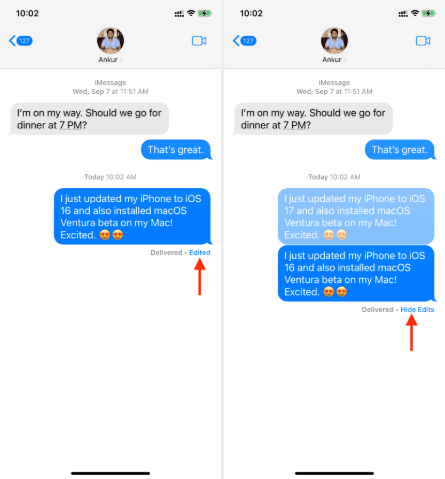
Therefore, to ensure that editing and unsending messages work properly, make sure your iPhone is updated to iOS 16 or above. Follow the steps below to upgrade your iOS version.
- Step 1. Navigate to Settings.
- Step 2. Tap General and look for Software Update.
- Step 3. Tap on Update Now button to upgrade your iOS version to the latest one.
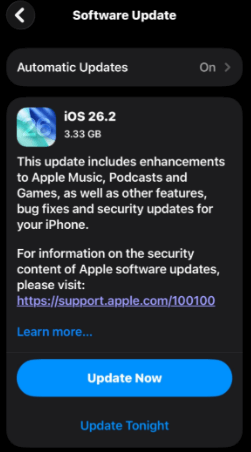
Method 3: Enable iMessage on Your iPhone
Edit and unsend messages are only available in iMessage. If you text someone with Message, you cannot edit or unsend the messages. How to tell if a message was sent as an iMessage? Actually, we can identify it by the color of the message bubble. If the message bubble turns green, it means that you have sent a message. And if it's blue, that means you've already sent a message with iMessage. Therefore, make sure that you have enabled iMessage on your iPhone.
- Step 1. Go to Settings.
- Step 2. Scroll down to find Messages and tap on it.
- Step 3. Turn on the iMessage button.

Method 4: Edit/ Unsend Messages within Limited Time & Chances
Some are wondering why can't I unsend a messages on iMessage anymore and why can't I edit my iMessage even though they have successfully used the features an hour earlier. That's because of the specific time and chance set by Apple. Users can only withdraw messages within 2 minutes and edit messages in 15 minutes, and a message only can be edited 5 times. You cannot edit your messages again if you have edited it more than 5 times.
Method 5: Verify the Status of Apple's System Services
If the Edit or Unsend option isn't working in iMessage, the issue may not be caused by your iPhone at all. Apple's system services—such as iMessage or iCloud—can occasionally experience outages or disruptions. When this happens, message-related features may fail to work properly. Checking Apple's System Status helps you quickly determine whether the problem is on Apple's side before trying other fixes.
- Step 1. Open a browser on your iPhone or computer.
- Step 2. Visit Apple's System Status page.
- Step 3. Look for iMessage and iCloud in the service list.
- Step 4. Check the status icon, the Green dot indicates the service is working normally; while the Yellow or Red dot indicates the service is experiencing issues.
- Step 5. If there is an outage, wait until Apple resolves the issue, then try editing or unsending messages again.

Method 6: Reboot iMessages App
If you're experiencing issues with iMessages, such as being unable to edit or unsend messages, it might be helpful to refresh the app. To do this, you can force close the iMessages app by swiping up from the bottom of the screen. After closing the app, you can also reboot your iPhone to ensure a fresh start. Once your phone has restarted, simply tap on the Messages app icon to open it and continue using iMessages.

Method 7: Fix Your iOS System with TunesKit iOS System Recovery
If the solutions mentioned above do not help you at all, some system problems may occur to your iPhone. It is a good choice to select a professional and practical tool to figure out the difficulty. The complex issues can be fixed with the 100% working system repair tool TunesKit iOS System Recovery.
TunesKit iOS System Recovery is an system repair tool with a high success rate. It can fix 150+ iOS issues, including settings errors, black screen problems, and messaging glitches. The software supports system upgrades and downgrades, device resets, and one-click entry or exit from Recovery Mode. With a clean interface and step-by-step guidance, it helps you quickly resolve issues such as iMessage edit or unsend not working and iMessage not showing contact names.
Fix Edit or Unsend Messages Not Working
TunesKit iOS System Recovery quickly fixes iOS glitches that prevent editing or unsending messages—no data loss and no technical skills required.
 600,000+ Downloads
Here's the detailed guide to fix edit or unsend messages not working on iPhone with TunesKit iOS System Recovery.
Step 1 Connect Your Device
You need to download TunesKit iOS System Recovery first, then launch it. Use a USB cable to connect your device to the PC. After that, click iOS System Repair. Ensure your device keeps connecting while repairing your system.

Step 2 Choose problems & Repair type
Click "Device Problems" showed on the left of the interface, then click Start. If you click Standard Repair, the data will not be removed in this mode. Standard Repair is recommended first. And if it still does not work for you, you can use Deep Repair to fix your system issues, but it will erase all the data on your device. Choose the appropriate mode to fix your system problems according to your condition.

Step 3 Download firmware package & Start to repair
Check your device's info and then download the matched firmware package. After verify the firmware package, click Repair button to fix your system. Be patient and wait for it. It only takes a few minutes to fix edit and unsend messages not working on your iPhone and other iOS system issues.

Part 4: FAQs about Editing and Unsending Messages on iPhone
-
1. Can the recipient see my edit history?
Yes. When you edit a message, it is marked as "Edited." If the recipient taps the small Edited label, they can view all previous versions of that specific message.
-
2. What happens to media files when I delete a message?
If you delete a message for everyone, any photos or videos sent will be removed from the chat. However, if a recipient on Android has "Save to Gallery" enabled, the file may still be saved on their device.
-
3. Does editing or unsending an iMessage delete it from the recipient's device?
Unsending removes the message from both devices, but editing does not erase the original message entirely, as the recipient can still view the edit history.
-
4. Can I edit or unsend messages in group chats?
Yes, but all members in the group chat must be using iOS 16 or later for the feature to work properly.
Part 5: Conclusion
In short, make sure of your network is stable enough, upgrade your system to iOS 16 or higher, enable iMessages and edit and unsend message within the specific time and chances, you can successfully access to this feature. And TunesKit iOS System Recovery is highly recommended to help you fix unsend iMessage not working with its high success rate. Hope that you can learn something or fix your issues with this article.


