


iPhone Stuck in Recovery Mode After iOS 18/26 Update? Fixed!

Updating to the latest iOS 18/26 can be exciting, it offers new features and improvements. However, encountering issues like your iPhone getting stuck in recovery mode can be frustrating. Don't worry! We've got you covered with simple ways to fix your iPhone and get it back to normal operation.
In this guide, we'll walk you through the process of diagnosing and resolving the recovery mode issue, ensuring your device is up and running with the latest iOS features. Our step-by-step instructions will help you fix iPhone stuck in recovery mode after iOS 18/26 update with ease.
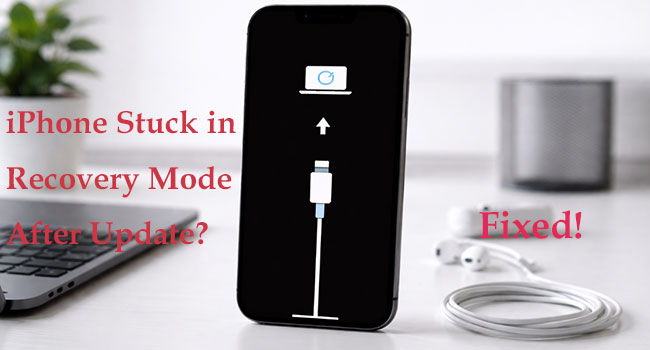
Part 1. Why My iPhone Stuck in Recovery Mode after Updating to iOS 18/26?
There are several reasons why your iPhone stuck in recovery mode after updating to the iOS 18/26. Understanding these causes can help in preventing similar issues in the future and addressing the current problem more effectively.
1. Incomplete Update Process: Sometimes, the update process might be interrupted due to a poor internet connection, low battery, or accidental disconnection from the computer. This can leave the iPhone in an unstable state, causing it to get stuck in recovery mode.
2. Software Bugs: New iOS version often contain bugs that can lead to unexpected issues, including getting stuck in recovery mode.
3. Incompatible Apps or Settings: Some apps or settings on your iPhone may not be fully compatible with the new update, causing conflicts that prevent the device from booting up properly.
4. Corrupted Firmware: During the update, if the firmware gets corrupted, it can cause the iPhone to fail to start normally, leading it to be stuck in recovery mode as a safety measure.
5. Hardware Issues: In rare cases, underlying hardware problems, such as a failing battery or damaged components, can cause the device to fail to update properly and end up in recovery mode.
Understanding these causes can help you troubleshoot and resolve the issue more effectively. The next section will guide you through the ways to fix your iPhone and get it out of recovery mode.
Part 2. How to Fix iPhone Stuck in Recovery Mode after iOS 18/26 Update?
Now that you've identified the possible reasons why your iPhone gets stuck in Recovery Mode after the iOS 18/26 update, let's move on to the solutions. Below are several effective methods you can try to safely exit Recovery Mode and get your iPhone back to normal.
Way 1. Manually Exit Recovery Mode
You can try the following steps to exit recovery mode. Here's how:
Step 1: Press and quickly release the Volume Up button.
Step 2: Press and quickly release the Volume Down button.
Step 3: Press and hold the Power button on the right side until you see the Apple logo on the screen.
Step 4: Wait a few moments, and your iPhone will exit recovery mode.

Way 2. Exit Recovery Mode in One Click
If you feel complicated about manually exiting recovery mode, then TunesKit iOS System Recovery can do you this favor. It enables you to enter or exit recovery mode in one click. No technical proficiency is required, even novices can get started easily. Simply follow these 2 steps:
Step 1: Get TunesKit iOS System Recovery on your PC, and launch this program. Connect your iPhone to PC using a lightning cable. Select Enter/Exit Recovery Mode option on the main screen.
Step 2: Simply hit the Exit Recovery Mode option, wait for a while, your iPhone will restart automatically and restore to the normal state.

Way 3. Force Restart Your iPhone
A force restart can often resolve minor software issues, including iPhone stuck in Recovery mode after iOS 18/26 update issue. The steps vary depending on your iPhone model:
For iPhone 8 and later: Quickly press and release the Volume Up button, quickly press and release the Volume Down button, then press and hold the Side button until you see the Apple logo.
For iPhone 7 and 7 Plus: Press and hold both the Volume Down button and the Side button until you see the Apple logo.
For iPhone 6s and earlier: Long press and hold both the Home button and the Top (or Side) button until you see the Apple logo.

Way 4. Fix iPhone Stuck in Recovery Mode after iOS 18/26 Update without Data Loss
When attempting to fix your iPhone stuck in recovery mode, data loss can be a significant concern. Is there an easy and quick way to fix this issue without data loss? One of the most reliable solutions is TunesKit iOS System Recovery, an all-in-one solution that can help you resolve various iOS issues without data loss
For instance, iOS 18 game mode not working, iPhone stuck in Apple logo, and AirDrop not working on iPhone, etc. It boasts a user-friendly interface and is loved by a wide range of users. Let's see what other great features it has!
Why Use TunesKit iOS System Recovery?
TunesKit iOS System Recovery can fix an iPhone stuck in Recovery Mode after the iOS 18/26 update without data loss, helping you restore your device quickly and safely in just a few clicks.
 600,000+ Downloads
Here's a step-by-step guide to fix your iPhone stuck in recovery mode using TunesKit iOS System Recovery.
Step 1Install TunesKit iOS System Recovery and Connect Your iPhone
Install TunesKit iOS System Recovery on your computer, then launch it. Use a USB cable to connect your iPhone to the computer. You should choose iOS System Repair on the main screen. On the next page, select your device problems and hit the Start button to continue.

Step 2Select Standard Repair
You will see two options: "Standard Repair" and "Deep Repair."Select "Standard Repair" to fix the issue without data loss. "Deep Repair" is also available but will erase your data.

Step 3Download Firmware Package
TunesKit will display the available firmware versions for your device. Confirm the information and click "Download" to start downloading the necessary firmware package.

Step 4Start to Fix the Issue Without Data Loss
Once the firmware package is downloaded, click the "Repair" button to begin the repair process. TunesKit will then proceed to fix your iPhone stuck in recovery mode. The repair process may take a few minutes. Make sure your iPhone stays connected to the computer during this time. Once completed, your iPhone will exit recovery mode and restart normally.

Way 5. Use iTunes or Finder to Restore Your iPhone
If a force restart doesn't work, you can use iTunes (on Windows or macOS Mojave and earlier) or Finder (on macOS Catalina and later) to restore your iPhone:
Step 1: Connect your iPhone to your computer using a USB cable.
Step 2: Open iTunes or Finder.
Step 3: When your device is detected, you should see a message saying your iPhone is in recovery mode and needs to be restored.
Step 4: Click on "Restore" to download the latest official iOS version and restore your device.

Way 6. Reinstall iOS 18/26
Reinstalling the iOS 18/26 version can sometimes resolve the recovery mode issue. However, it's important to note that this process carries a risk of data loss, similar to the iTunes restore method. Due to the nature of software, Apple may not always offer the option to reinstall the exact same iOS 18/26 version you were previously using.
You can reinstall iOS 18/26 without erasing data using iTunes or Finder. Here's how:
Step 1: Connect iPhone to your Mac (Finder) or Windows PC (iTunes) using a USB cable. Open Finder or iTunes.
Step 2: Select your iPhone. Click Update. Confirm your action, then the system downloads and reinstalls the current iOS version.

Part 3. FAQs about iPhone Stuck in Recovery Mode
-
1. Will I lose my data if my iPhone is in recovery mode?
Simply being in recovery mode does not delete your data. However, the actions you take to exit it might. If you use a computer to fix the device and choose the "Update" option, your data remains safe. If you choose "Restore," the device will be wiped to factory settings.
-
2. Why does my iPhone keep looping back to the recovery screen?
This is often referred to as a "boot loop." It typically occurs when the internal storage is completely full, preventing the operating system from loading, or when there is a hardware fault with the charging port or battery. If a software restore fails to break the loop, the issue is likely a physical component that needs replacement.
-
3. What is the difference between Recovery Mode and DFU Mode?
Recovery mode uses the "iBoot" bootloader to try and repair the software. DFU (Device Firmware Update) mode is a deeper state that bypasses the bootloader entirely, allowing you to reinstall the operating system from a near-total software failure. DFU mode always leaves the screen completely black.
Part 4. Closing Thoughts
In a nutshell, encountering an iPhone stuck in recovery mode after iOS 18/26 update can be a frustrating experience. However, with the right ways, this issue can be effectively resolved. By utilizing TunesKit iOS System Recovery, users can successfully exit recovery mode and restore their iPhone to full functionality.


