


Fixed: iPhone Black Screen with Spinning Wheel
"Suddenly, the screen of my iPhone goes black, and then the issue of that iPhone spinning wheel of death occurs. It seems that it will stuck on this interface forever. Is there any workable method that can overcome this annoying problem? Appreciate all the suggestions."
If your iPhone has a black screen with a spinning wheel, it usually means iOS has temporarily frozen, crashed, or is having trouble restarting. The spinning wheel may disappear after a few seconds, but in some cases, the iPhone can stay stuck on this screen or repeatedly return to it.
This problem can happen after an iOS update, when the iPhone is low on storage, because of a software glitch, or during an unexpected system crash. In this guide, we'll explain why your iPhone black screen spinning wheel appears and walk you through the most effective ways to get your iPhone working again.

- Why Is My iPhone Screen Black with Spinning Wheel
-
7 Solutions to Fix iPhone Stuck on Black Screen with Spinning Wheel
- Method 1. Force Restart iPhone
- Method 2. Charge Your iPhone and Try Again
- Method 3. Update iOS If Your iPhone Starts Normally
- Method 4. Reset All Settings
- Method 5. Use Third-Party Software to Fix Spinning Wheel Problem HOT
- Method 6. Update or Restore iPhone in Recovery Mode
- Method 7. DFU Restore Your iPhone as a Last Resort
- FAQs About iPhone Black Screen with Spinning Wheel
- Conclusion
Why Is My iPhone Screen Black with Spinning Wheel
An iPhone black screen with a spinning wheel usually appears when iOS is restarting, reloading, or temporarily stops responding. If the loading circle disappears quickly, it may only be a minor system crash. If your iPhone stays stuck on the screen or the issue keeps returning, a deeper software problem may be involved.
Common causes include:
- 01 Temporary iOS crash: A system process may fail and force the iPhone interface to reload.
- 02 Low storage: When your iPhone has very little free space, iOS may become unstable or fail to start normally.
- 03 iOS update issues: An interrupted, failed, or problematic update can cause a black screen with a spinning wheel.
- 04 App crashes: A buggy or incompatible app may sometimes trigger a system restart or respring.
- 05 Corrupted system files: Damaged iOS files can interfere with startup and normal system processes.
- 06 Boot or restart errors: Your iPhone may get stuck while trying to restart or load iOS.
If the spinning wheel appears only once and your iPhone returns to normal, it is usually not serious. If it happens repeatedly or your iPhone becomes completely unresponsive, you should troubleshoot the device.
7 Solutions to Fix iPhone Stuck on Black Screen with Spinning Wheel
There are several ways in which we can try to solve to issue. The solutions provided in this post are well researched and tested. All methods are simple, fast and effective. All you need is to test them out from the simplest troubleshooting technique to somewhat complex methods. The guide below lays out comprehensive procedures that will make life simple!
Method 1. Force Restart iPhone
It is the easiest technique to solve the iPhone black screen spinning wheel issue. Apple has for a long time asked its clients to embrace and use this method to solve less complex software glitches especially in iPhones. There is always a better chance that a force restart on iPhone will fix this problem. It will automatically fix iOS bugs. Always make sure that the iPhone is charged to reasonable capacity before initiating a force restart.
- For iPhone 6S and earlier models: press and hold both the Power and Home buttons until the Apple logo appears on your screen.
- For iPhone 7 and 7 plus: Press and hold the Power and the Volume Down button simultaneously until the Apple logo appears on your screen.
- For iPhone 8, 8 Plus and the X series: Press Volume Up and let go and do the same for Volume Down button; Press and hold the Power button until the Apple logo appears.

Method 2. Charge Your iPhone and Try Again
If your iPhone remains black and does not respond to a force restart, connect it to a charger. A very low battery can sometimes prevent the device from completing the startup process.
- Step 1. Connect your iPhone to a reliable charger and power source.
- Step 2. Leave it charging for about an hour.
- Step 3. Try turning it on or performing another force restart.

If the screen still shows a spinning wheel, continue with the next method.
Method 3. Update iOS If Your iPhone Starts Normally
If the spinning wheel disappears and you can access your iPhone again, check whether an iOS update is available. A newer iOS version may contain fixes for system crashes, startup problems, and other software bugs.
- Step 1. Connect your iPhone to Wi-Fi and make sure it has enough battery power.
- Step 2. Go to Settings > General > Software Update.
- Step 3. If an update is available, tap Update Now. Keep your iPhone connected to power until the update is complete.

Method 4. Reset All Settings
If the black screen with spinning wheel keeps returning but you can still use your iPhone, resetting system settings may help remove incorrect configurations.
This does not erase your photos, apps, messages, or other personal files. However, settings such as Wi-Fi networks, privacy preferences, keyboard settings, and Apple Pay cards may need to be configured again.
- Step 1. Open Settings on your iPhone.
- Step 2. Go to General > Transfer or Reset iPhone.
- Step 3. Tap Reset > Reset All Settings. Enter your passcode and confirm the reset.

After your iPhone restarts, check whether the spinning wheel problem appears again.
Method 5. Use Third-Party Software to Fix Spinning Wheel Problem
If all the above solutions are not working, you should consider using the TunesKit iOS System Recovery tool. There are so many tools on the Internet today, some of them, however, are crappy. That is why we got you covered with a well-designed and up-to-standard tool to help you solve the iPhone spinning wheel of death problem without necessarily having to lose your data. TunesKit iOS System Recovery guarantees you 100% fixing as well as data safety.
Besides, this professional iOS fixing tool can fix more than 150 iOS problems like iPhone boot loop, iPhone won't restart, or iPhone won't turn off without causing any data loss. With the user-friendly interface, users can fix iOS problems within several simple clicks.
Fix iPhone Black Screen & Spinning Wheel
Repair an iPhone stuck on a black screen with a spinning wheel using TunesKit iOS System Recovery—without data loss in Standard Repair mode.
 600,000+ Downloads
All you need to do is download the software on your PC or Mac and follow the following steps.
Step 1. Connect Your iPhone
Launch TunesKit iOS System Recovery on your computer and connect your iPhone with a USB cable. Choose iOS System Repair to continue. On the next page, select Other Problems, and click the Start button.

Step 2. Choose Standard Repair
Select Standard Repair if you want to repair the iPhone while keeping your personal data.

Step 3. Download the Firmware Package
Make sure that device detains on the screen are correct. Click 'Download' to initiate download action and then verify the firmare package.

Step 4. Repair the iPhone
After complete download, click 'Start Standard Repair' to begin the recovery process. Do not unplug the device until process is over. When the repair finishes, the device should restart automatically.

Method 6. Update or Restore iPhone in Recovery Mode
If your iPhone cannot start normally, Recovery Mode allows a Mac or Windows PC to reinstall iOS.
You should choose Update first when possible because it attempts to reinstall iOS without erasing your data. Use Restore only if updating fails, because restoring removes the data and settings from the iPhone.
- Step 1. Connect your iPhone to Finder on a Mac, Apple Devices on a Windows PC, or iTunes on older supported systems.
- Step 2. Put the iPhone into Recovery Mode.
- Step 3. When your computer detects an iPhone in Recovery Mode, you should see the options Update and Restore. Choose Update first. Your computer will download and reinstall iOS while attempting to preserve your data.
- Step 4. If the update cannot fix the problem, repeat the Recovery Mode process and choose Restore.
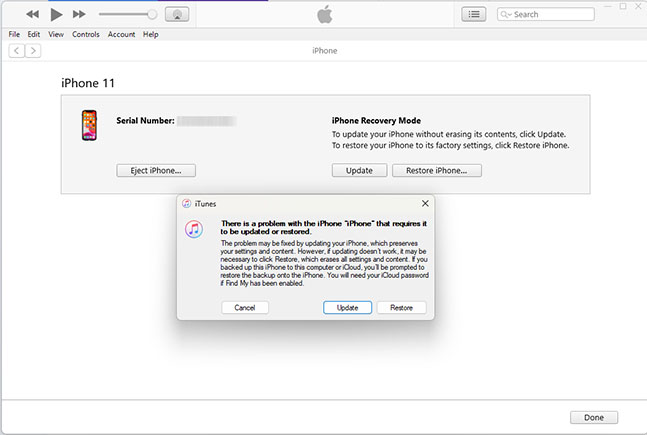
 Warning: Restoring the iPhone erases its data and settings. Make sure you have a backup if possible.
Method 7. DFU Restore Your iPhone as a Last Resort
If Recovery Mode also fails, a DFU restore is one of the final software troubleshooting options you can try. DFU Mode allows the computer to reload the device firmware and iOS. However, completing a DFU restore erases the iPhone, so it should only be used after other methods have failed.
For iPhone 8 or Later
- Step 1. Connect the iPhone to your computer.
- Step 2. Quickly press and release Volume Up, then quickly press and release Volume Down.
- Step 3. Hold the Side button until the screen turns black.
- Step 4. While holding the Side button, press and hold Volume Down for about 5 seconds.
- Step 5. Release the Side button but continue holding Volume Down for several more seconds.
For iPhone 7 and iPhone 7 Plus
- Step 1. Hold the Side button + Volume Down button together for about 8 seconds.
- Step 2. Release the Side button.
- Step 3. Keep holding Volume Down for about 10 seconds.
- Step 4. The screen should remain black while the computer detects the iPhone.
For iPhone 6s, iPhone SE (1st generation), and earlier models:
- Step 1. Hold the Home button + Side/Top button together for about 8 seconds.
- Step 2. Release the Side/Top button.
- Step 3. Continue holding the Home button for about 10 seconds.
- Step 4. The screen should remain completely black.
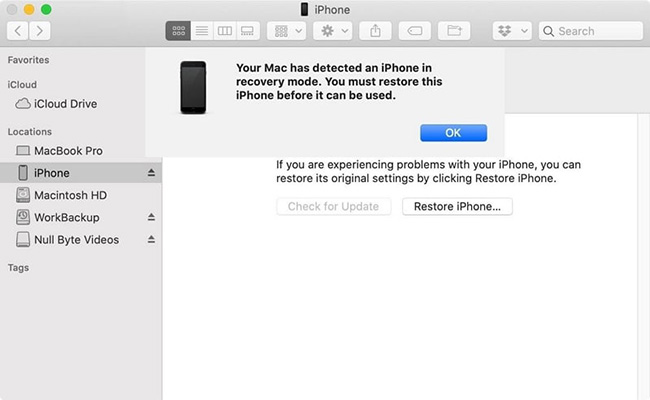
If the screen remains black and the computer detects an iPhone in recovery state, the device has entered DFU Mode.
You can then use Finder, Apple Devices, or iTunes to restore the iPhone.
If your iPhone is up to date you should consider the next solution for the spinning wheel problem.
 Important
If an Apple logo or Recovery Mode graphic appears, the iPhone is not in DFU Mode and you will need to try again.
 Further Reading: Fix iPhone Won't Go into DFU Mode [No Data Loss]
FAQs About iPhone Black Screen with Spinning Wheel
-
How long should the spinning wheel stay on my iPhone?
A spinning wheel may appear briefly while your iPhone restarts or performs system tasks. If the screen remains stuck for several minutes and the iPhone does not respond, you may need to force restart it.
-
Can full iPhone storage cause a black screen with a spinning wheel?
Yes. When your iPhone has little or no available storage, iOS may become unstable, freeze, restart repeatedly, or get stuck on a black screen with a spinning wheel.
-
Does an iPhone black screen with a spinning wheel mean the phone is broken?
Not necessarily. Most cases are related to temporary software or iOS problems. However, if the issue continues after system repair or restoration, a battery, display, or other hardware problem may need diagnosis.
Conclusion
"iPhone spinning wheel of death" is undeniably a common problem for iPhone X users. The above seven solutions are workable with the use of TunesKit iOS System Recovery tool being the most recommended method. If the problem persists, which is rare, you should consider calling Apple Customer. They will definitely help you out. Try out TunesKit and do not forget to share you experience below!



