


9 Best Ways to Fix iMovie Not Working on iPhone
iMovie is a popular video editing app, but many users report issues when using it. Sometimes, iMovie keeps crashing or won't open on an iPhone, which can be frustrating. Don't worry—we'll walk you through several effective ways to fix the problem. But before diving into the solutions, let's first understand why iMovie is not working on your iPhone.

Why Does iMovie Keep Crashing on iPhone?
When a matter occurs, it is significant for us to understand why it happens. Finding out the reasons not only help us to work out the problem more efficiently, but also stop it from happening again. So why does iMovie app continue crashing on iPhone after using for some time? Following causes may give us the explanation.
- 01 Low Storage Space: iMovie needs free space to render and save videos. If your iPhone is full, crashes are very likely.
- 02 App Glitch / Bug: Temporary bugs can cause iMovie to crash randomly.
- 03 Outdated iOS or App Version: Compatibility issues happen if your system or app isn't updated.
- 04 Corrupted Project File: A specific project may be damaged—especially large or complex edits.
- 05 Too Many Background Apps: Limited RAM on iPhones can cause crashes when multitasking.
- 06 Overheating: Editing video (especially 4K) can heat up your phone.
- 07 App Needs Reinstalling: Sometimes files inside the app get corrupted.
How to Fix iMovie Won't Play on iPhone?
Now that we have understood the reasons causing iMovie not responding on iPhone problem, it's time for us to figure out the fixes to the issue, which leads us to the next part—8 best ways.
Way 1. Check the Latest Version of iMovie App
As spoken of the reasons listed above, outdated iMovie app can cause iMovie not working on iPhone. Thus to solve the problem and prevent it from occurring one more time, we have to check the availability of iMovie update.
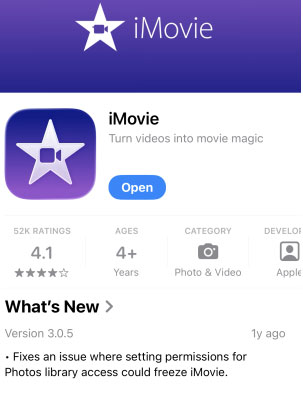
To update iMovie to the latest version, open the App Store on your iPhone. If a new version is available, tap the blue "Update" button. If you see the "Open" button, it means your app is already up to date.
Way 2. Re-install iMovie App
Besides updating the iMovie app, a re-installation is a wise choice to get rid of the iMovie not working on iPhone issue. To uninstall the iMovie app from your iPhone, here are the steps.
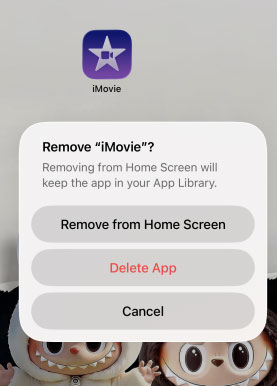
- Step 1. You can keep pressing the iMovie icon on the Home page.
- Step 2. Tap the Remove App option from the list, and from the pop-up box, tap the Delete App to confirm the uninstallation of the iMovie app.
- Step 3. Then, you can download the iMovie app again from the App Store.
Way 3. Free Up iPhone Storage
Users may also encounter iMovie crashing or freezing if their device storage is nearly full. Video editing apps require sufficient cache space to function smoothly. You can easily manage your device's capacity to resolve this performance issue.
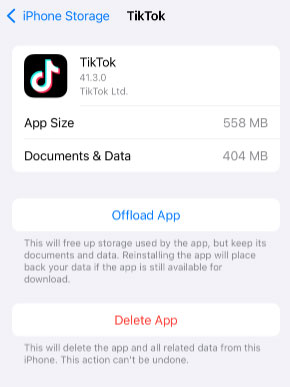
- Step 1. Navigate to Settings > General > iPhone Storage to check your available space.
- Step 2. If the storage is depleted, scroll down the list to identify rarely used applications.
- Step 3. Tap on any unwanted app and select the Delete App option to free up essential memory for iMovie.
Way 4. Update iOS
Similar to the first method, we should also check the iOS version. As is known that an old iOS is not compatible with the latest iMovie, so in order to make iMovie perform normally, we need to update the latest iOS to fix the app keeps crashing on iPhone. Following steps are what you should do.
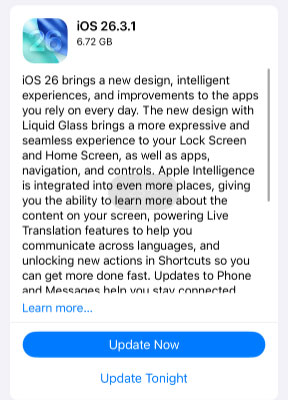
- Step 1. Open General in Settings.
- Step 2. Tap Software Update option.
- Step 3. Tap Update Now button if there is a new iOS version.
Way 5. Force Restart Your iPhone
Evidently, above ways to fix iMovie not responding on iPhone issue don't work if you have seen here. But take it easy! Force restarting your iPhone can also do the trick.
- For iPhone 8 and later: Press and release quickly the Volume Up and Volume Down buttons respectively. Then press the Power button.
- For iPhone 7 and 7 Plus: Tap the Power and Volume Down buttons until you see the Apple logo.
- For iPhone 6 and former: Hold the Power and Home buttons till the Apple logo is shown on the interface.

Way 6. Factory Reset Your iPhone
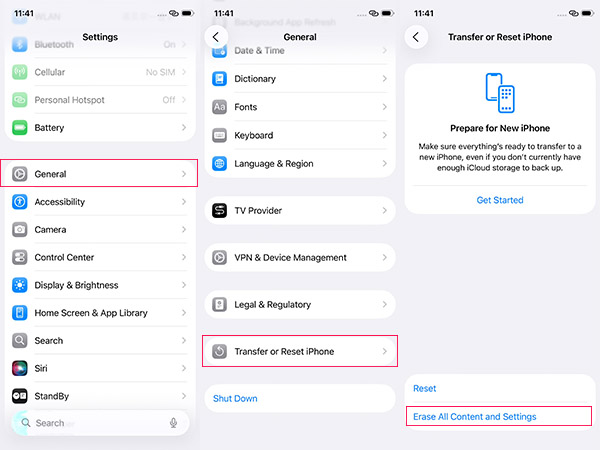
Usually, a factory reset can get rid of the problem of iMovie won't play on iPhone, because it can remove some settings that cause the issue. But this way will erase all data of your iPhone. So, backup data before you factory reset your iPhone.
To factory reset your iPhone, follow steps as presented here.
- Step 1. Open Settings, then the General.
- Step 2. Scroll down to find and tap the Transfer or Reset iPhone option.
- Step 3. Tap Erase all Contents and Settings. Enter your iPhone lock screen passcode to confirm the action.
Way 7. Use A Third-party iOS Repair Tool
If you are reluctant to remove all information on your iPhone to get iMovie not working on iPhone problem solved, then you are highly suggested to use professional iOS system recovery tools like TunesKit iOS System Repair. Besides fixing iMovie won't open on iPhone, this third-party tool can deal with other diverse kinds of problems including Apple Music not working on iPhone, black screen, some iPhone error, etc. Besides, it supports many iDevices such as iPad and iPod. And the most important part is that it can fix the problem with no data loss.

TunesKit iOS System Recovery
Quickly resolve iMovie crashes, freezes, and glitches without data loss using a powerful one-click iOS repair solution.
 600,000+ Downloads
600,000+ Downloads
600,000+ Downloads
To resolve iMovie not responding on iPhone, try following steps.
Step 1 Launch TunesKit and Choose a Mode
Open TunesKit iOS System Recovery program. Then connect your iPhone via a USB cable and wait until it's detected. Next, click "iOS System Repair" option and select the "Start" button.

Step 2 Choose a Repair Mode
There are two repair modes available, if you don't want to cause data loss, select the Standard Repair option. If it doesn't work, choose the another option-- Deep Repair.

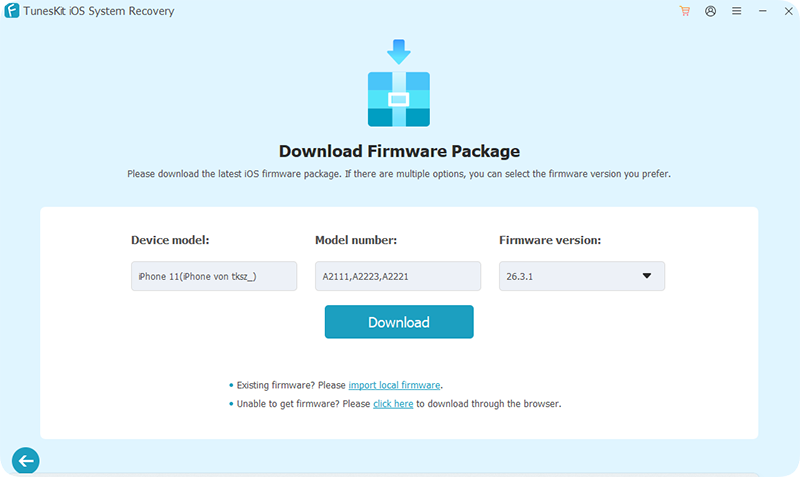
Step 3 Download Firmware Package
Check your device info. Then click the "Download". Lastly downloading and verifying the firmware will get started.
Step 4 Fix iMovie Not Working on iPhone
Tap the "Start Standard Repair" button. Keep your device connected before completing the process.

Way 8. Remove Unwanted Applications
If you are still looking for other possible methods to resolve iMovie not working on iPhone problem, then remove unwanted applications can also help you. Because some not-needed apps will occupy iPhone's space and shared resources which iMovie need.
To clear up space, you just first long-press the apps you want to remove, then select the Remove App option from the drop-down menu and tap Delete App from a pop-up prompt, and the unwanted apps will be deleted.

Way 9. Contact Apple Store
You are required to personally settle the problem through above 8 ways. Yet if you are either unwilling to do it by yourself, nor the above methods ever work, you can send the device to nearest Apple store to fix iMovie won't open on iPhone. Professional workers will offer you help to solve the problem.

FAQs About iMovie Not Working on iPhone
-
Why is there no sound on my iMovie project?
This often happens due to simple hardware settings or muted clips rather than a complex software bug. Check if your iPhone's physical mute switch is engaged or if the media volume is turned down. Sometimes, the audio track itself might be accidentally muted during editing.
-
Why does iMovie say "Export Failed"?
Export failures usually occur when media files are corrupted or haven't fully synced from iCloud. iMovie requires local access to every frame of your video to render the final product successfully.
If you see a small cloud icon on any clip, it means the file is still downloading. Simply connect to a stable Wi-Fi network and wait for the media to finish downloading before trying to export again. -
What if iMovie completely freezes and won't open?
When a native Apple app becomes entirely unresponsive, it usually points to a deeper iOS system conflict. While a standard force restart can sometimes clear temporary background glitches, persistent freezing requires a more thorough fix.
Using a dedicated repair tool like TunesKit iOS System Recovery is the most effective way to resolve these stubborn firmware issues. It safely fixes the underlying iOS glitches causing the app to crash without deleting your personal data or unsaved projects.
Summary
If iMovie is not working on your iPhone, you can try the 9 methods above to resolve the issue. Among them, TunesKit iOS System Recovery is a reliable option if the problem is caused by iOS system bugs. If this guide has helped you fix the issue, feel free to share your feedback. If you've discovered other effective solutions, you're also welcome to let us know.


