


iPhone Stuck on Text Message Screen? Here are Solutions!
Do you come across this situation? When you want to go back the Home interface after editing a message and sending it, the screen is unresponsive and the iPhone stuck on that interface. You keep clicking and nothing works. You begin to get irritated and would like to throw your iPhone. Well, calm down and don't be frustrated!
The problem is not a rare thing and there is something you can do to deal with it for good. In this article we will offer you 7 ways to fix the problem of iPhone stuck on text message screen, which are quite easy to operate and effective.

- Part 1: Why iPhone Stuck on Message Screen?
- Part 2: Top 7 Methods to Fix iPhone Stuck on Message Screen
- Method 1. Force Close the App and Relaunch It
- Method 2. Disable and Enable iMessage
- Method 3. Clear up Some Space of the Message
- Method 4. Force Restart Your iPhone
- Method 5. Use Professional iOS System Repair Program (No Data Loss) HOT
- Method 6. Update iOS to the Latest Version
- Method 7. Reset All Settings of Your iPhone
- Part 3: Video Tutorial: How to Fix iPhone Stuck on Text Message Screen
- Part 4: FAQs about iPhone Messages Issues
Part 1: Why iPhone Stuck on Message Screen?
If your iPhone freezes on the Messages screen, it may be caused by several common issues:
- Outdated iOS or software glitches: Running an old iOS version or encountering minor system bugs can make the Messages app unresponsive.
- Low storage or device overheating: Insufficient storage can slow down apps, and prolonged use may cause your iPhone to overheat, leading to crashes or freezes.
- Network or message data issues: A poor internet connection can disrupt iMessage, while corrupted message threads, attachments, or accumulated cache can also cause the app to hang.
- Third-party interference: Some apps or system settings may conflict with Messages, affecting its normal operation.
If your Messages app is still frozen, continue reading for effective solutions.
Part 2: Top 7 Methods to Fix iPhone Stuck on Message Screen
Now that we've explored the common reasons why your iPhone may get stuck on the Messages screen, it's time to look at practical ways to fix the problem. Here are the top 7 methods you can try to get your Messages app working again.
Method 1. Force Close the App and Relaunch It
When your iPhone stuck on text message screen, the device sometimes becomes unresponsive too, as a frozen application will lead to the iPhone to freeze at times. In this case, you need to force quit Message app and relaunch it. Here's how:
- Step 1. On iPhones with Face ID, swipe up from the bottom of the screen and pause in the middle; on iPhones with a Home button, double-click the Home button.
- Step 2. Swipe left or right to locate the Messages app, and swipe the Messages app card upward off the screen.
- Step 3. Tap the Messages icon on your home screen to reopen it.

Method 2. Disable and Enable iMessage
Another simple solution to stop your iPhone messages frozen is to disable and then re-enable the iMessage feature in Settings. This can help improve the performance of iMessage and potentially resolve the issue. Follow these steps to do so:
- Step 1. Open the Settings app on your iPhone.
- Step 2. Scroll down and tap on Messages.
- Step 3. Toggle off the iMessage switch.
- Step 4. Wait a few seconds, then toggle the iMessage switch back on.

Method 3. Clear up Some Space of the Message
Now, let's look at the second way. If there is no room left in Message, the application and even the device may get frozen. So it's significant for you to free up some space to fix iPhone stuck on text message screen issue. You can do as follows:
- Step 1. Open Settings and find the Messages.
- Step 2. Click keep Messages button.
- Step 3. Delete older messages to release the space.

Method 4. Force Restart Your iPhone
When faced with many problems occurred, people often resort to force restarting iPhone. And you can try this trick to get the problem of the iPhone messages freezing solved.
- For iPhone 8 and later: Quickly press and release the Volume Up button first and then the Volume Down button. Finally hold the Power button till you watch the Apple logo.

- For iPhone 7 and 7 Plus: Hold the Power and Volume Down buttons until the Apple logo appears.

- For iPhone 6 and former: Press the Power and Home buttons until the Apple logo is shown on the interface.

If your iPhone won't respond, our guide on how to fix iPhone force restart not working can help you troubleshoot the issue.
Method 5. Use Professional iOS System Repair Program (No Data Loss)
If you are unwilling to lose all your data on the iPhone, professional iOS system repair software like TunesKit iOS System Recovery can help you most. This tool settles diverse kinds of iOS issues including iPhone stuck on text message screen, recovery mode, white Apple logo, iPhone black screen but still on, etc. Moreover, it supports diverse devices like iPhone, iPad, iPod touch, and all iOS versions, including the latest iOS 26. Finally, it has a simple interface which is easy to operate.
Fix iPhone Stuck on Text Message Screen with TunesKit
Quickly repair iOS system issues without data loss and get your Messages app back to normal.
 600,000+ Downloads
Relevant steps to solve the problem of iPhone stuck on text message screen are as presented here.
Step 1. Connect iPhone to PC
Open TunesKit iOS System Recovery program first. Then you need to connect your iPhone to PC using a USB cable before it is detected. Next, click iOS System Repair button and choose the Start button to continue.

Step 2. Select Standard Repair
Choose Standard Repair to fix common iOS issues without erasing data. Only use the Deep Repair if the Standard Repair doesn't work.

Step 3. Download the Firmware Package
Download the firmware package of your device after completing the first step. Before that, you have to check your device info, including the model version, iOS version, etc. You can correct it if there's anything wrong. If all information is correct, click the Download and it will start downloading and verifying the firmware.

Step 4. Start to Repair
When the firmware has been downloaded successfully, you just click the Repair button and the program will begin to fix your iPhone. Don't disconnect your device until the process is completed. Otherwise, the device might become bricked.

Method 6. Update iOS to the Latest Version
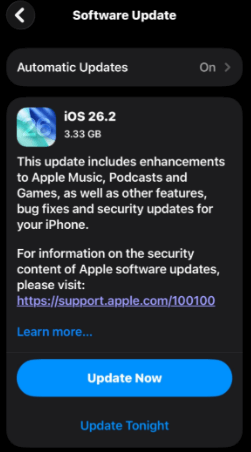
An old system or software usually leaves an application or device unresponsive. Thus you can fix the messages frozen on iPhone issue both by updating iOS wirelessly or through iTunes. But to remind you, you had better backup your device before you try this approach.
To update iOS wirelessly:
- Step 1. Connect your iPhone to the internet.
- Step 2. Click General in Settings and then tap Software Update.
- Step 3. Click Update Now button, and follow the guide.
To update iOS through iTunes:
- Step 1. Open iTunes and make your iPhone and the computer connected.
- Step 2. Enter your iPhone passcode to trust your computer, then click Check for Update in Summary.

- Step 3. Tap Download and Update.
- Step 4. Check device info and start the process.
Method 7. Reset All Settings of Your iPhone
If you are still looking for another way to fix iPhone stuck on text message screen problem, you can try resetting all settings of your iPhone. Don't be worried, it will not cause any data lose from your iPhone. Otherwise, you can try following steps.
- Step 1. Go to Settings > General.
- Step 2. Tap Transfer or Reset iPhone > Reset.
- Step 3. Select the Reset All Settings from the drop-down menu.

Part 3: Video Tutorial: How to Fix iPhone Stuck on Text Message Screen
In this video tutorial, we'll show you step by step how to fix an iPhone that's stuck on the text message screen. Whether it's a frozen Messages app or minor iOS glitches, these methods will help you get your iPhone back to normal quickly.
Part 4: FAQs about iPhone Messages Issues
-
Q1: How can I clear the Messages app cache?
There is no direct way to clear the cache, but deleting old message threads and restarting your iPhone always can help.
-
Q2: How to prevent an iPhone from getting stuck on text messages?
Occasionally, insufficient storage space or excessive multitasking can slow down the device's performance when sending text messages. To prevent this issue, it is essential to clear the cache and close any unnecessary applications running in the background. Additionally, keeping your device's software up-to-date can help resolve minor technical problems, which is beneficial for the smooth operation of the Messages app.
-
Q3: Why am I not receiving messages?
You can perform these steps to troubleshoot this issue. First of all, ensure your network connection is active, then check if iMessage is enabled, and make sure your phone number is correct under Settings > Messages > Send & Receive.

Final Verdict
Although the problem of a frozen iPhone text screen is a little irritating, the above 7 methods can be used to solve it. Yet you are suggested to check whether your device's data is damaged after you try some ways such as resetting your iPhone and update iOS. If you want the other way around which won't cause data loss, then you are highly recommended to employ the third-party tool like TunesKit iOS System Recovery to unfreeze iPhone stuck on text message screen efficiently.


