


How to Fix iPhone Find My Friends Location Not Available?
If you're experiencing the iPhone Find My Friends location not available issue, you're not alone. Many users see the "Location Not Available" message when trying to locate friends or family members in the Find My app, making it impossible to share or view real-time locations. This issue can be caused by disabled location services, network problems, incorrect settings, or temporary system glitches. In this guide, we'll explain why the iPhone Find My Friends location not available error occurs and walk you through the most effective solutions to fix it.

- What Is Find My Friends on iPhone?
- Why Does Find My Friends Say Location Not Available?
-
How to Fix iPhone Find My Friends Location Not Available
- Method 1: Close and Reopen the Find My App
- Method 2: Check the Internet Connection on Both iPhones
- Method 3: Check Apple System Status
- Method 4: Turn On Location Services
- Method 5: Enable Share My Location
- Method 6: Set the Date and Time Automatically
- Method 7: Restart Both iPhones
- Method 8: Update iOS
- Method 9: Reset Network or Location Settings
- Method 10: Repair the iOS System with TunesKit HOT
- Bottom Line
What Is Find My Friends on iPhone?
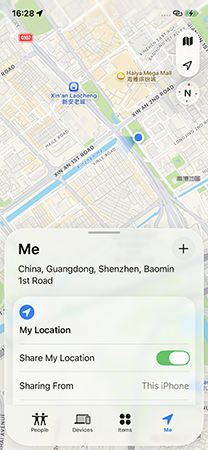
Find My Friends is now part of Apple's Find My app. When location sharing is enabled, you can use the People tab to view the current or live location of friends, family members, or a partner. It can help parents confirm that a child has arrived safely, allow family members to coordinate plans, or make it easier to meet someone.
Why Does Find My Friends Say Location Not Available?
Find My may show "Location Not Available" when it cannot receive an updated location from your friend's iPhone. This happens because location sharing is disabled, the device is offline, or Location Services can't determine the device's position.
Common causes include:
- 01 The person stopped sharing their location. They may have turned off Share My Location, removed you from their sharing list, or changed the Apple device used to share their location. Apple allows users to stop location sharing.
- 02 Their iPhone has no internet connection. Find My needs a Wi-Fi or cellular connection to send an updated location. The location may be unavailable when the phone has a weak signal, is in Airplane Mode, or is outside network coverage.
- 03 Their iPhone is turned off or has no battery. A powered-off device cannot continuously send its current location, so Find My may display an unavailable or previously recorded location.
- 04 Location Services is turned off. Find My relies on Location Services and GPS-related data to determine where an iPhone is located. If these services are disabled or restricted, the app may not update the person’s position.
- 05 Find My is not set up correctly. The person must enable location sharing and choose the correct Apple device under My Location. Otherwise, Find My may be unable to provide their current position.
- 06 There is a temporary network or software problem. A weak connection, an iOS glitch, or a temporary Find My service problem may prevent the location from refreshing.
 View Also:
 How to Fix iPhone Find My Friends Location Not Available
There are many factors that can influence this app and further to cause this problem, such as GPS, internet, this app itself, settings, or iOS system. So, the solutions are various, too. This tutorial will talk about different solutions to fix this issue.
Method 1: Close and Reopen the Find My App
A temporary Find My app error may prevent a shared location from refreshing. Closing and reopening the app can reload its connection and location information.
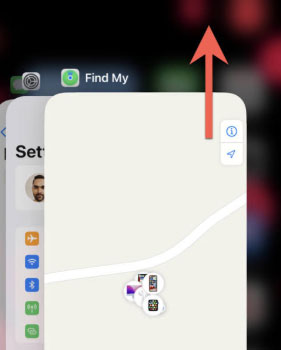
- Step 1. Swipe up from the bottom of the screen and pause in the middle to open the App Switcher.
- Step 2. Find the Find My app and swipe up on its preview to close it.
- Step 3. Open Find My again, tap People, and select your friend's name to check whether the location updates.
 Note
Note
You do not need to clear the app cache. iPhone does not provide a separate cache-clearing option for Find My. Apple also recommends closing an app only when it is unresponsive or not working correctly.
Method 2: Check the Internet Connection on Both iPhones
Find My needs an internet connection to send and receive updated location information. If either iPhone is offline, the shared location may become unavailable.
- Step 1. Open Safari or another internet-based app on your iPhone to test the connection.
- Step 2. Ask your friend to ensure their iPhone is connected to Wi-Fi or cellular data and that Airplane Mode is turned off.
- Step 3. Switch between Wi-Fi and cellular data, then reopen Find My and refresh the location.
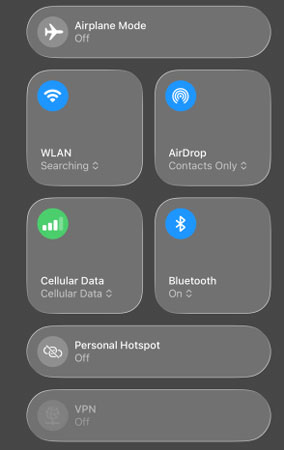
If cellular access is restricted, go to Settings > Cellular and make sure the required Apple services can use cellular data.
Method 3: Check Apple System Status
An outage affecting iCloud or a related Apple service may temporarily stop Find My from updating locations. In this situation, changing your iPhone settings will not solve the problem.
- Step 1. Open Apple's System Status page in a browser.
- Step 2. Look for an outage or maintenance notice affecting Find My, iCloud, or Apple Account services.
- Step 3. If a service problem is reported, wait until Apple resolves it and try Find My again.
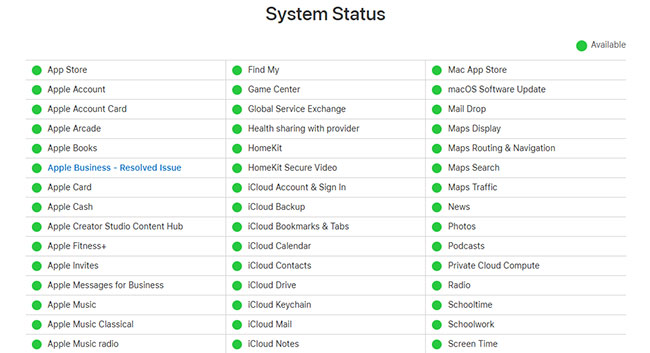
Apple recommends checking its System Status page when an iCloud service cannot connect or work normally.
Method 4: Turn On Location Services
Your friend's iPhone must be able to determine its location before it can share that location with you. Ask your friend to check Location Services on the device that shares their location.
- Step 1. Open Settings > Privacy & Security > Location Services.
- Step 2. Turn on Location Services.
- Step 3. Scroll down to Find My, allow location access, and turn on Precise Location if the option appears.

Location Services uses GPS, Wi-Fi, Bluetooth, and cellular information to determine an iPhone's approximate or precise location. There is no separate GPS switch that needs to be enabled.
Method 5: Enable Share My Location
If your friend has disabled location sharing, Find My cannot display their current position. They should also confirm that the correct Apple device is being used as their location source.
- Step 1. Ask your friend to open Find My and tap Me at the bottom.
- Step 2. Turn on Share My Location.
- Step 3. Check the device shown next to Sharing From. If necessary, tap Use This iPhone as My Location.

Your friend can then open the People tab, select your name, and confirm that their location is being shared with you. Apple allows users to stop sharing their location with one person or everyone at any time.
Method 6: Set the Date and Time Automatically
An incorrect date, time, or time zone can interfere with connections to Apple services.
- Step 1. Open Settings > General > Date & Time.
- Step 2. Turn on Set Automatically.
- Step 3. Confirm that the displayed time zone is correct, then reopen Find My.
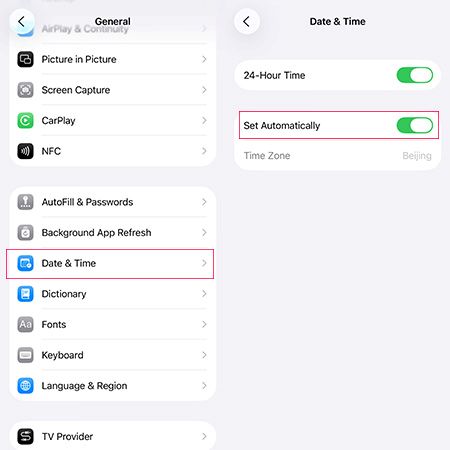
When automatic time is enabled, iPhone uses network information to set the correct date, time, and time zone.
Method 7: Restart Both iPhones
Restarting can clear temporary network, app, and iOS processes that prevent a location from updating.
- Step 1. Press and hold the side button and either volume button until the power-off slider appears.
- Step 2. Drag the slider and wait about 30 seconds for the iPhone to turn off.
- Step 3. Press and hold the side button until the Apple logo appears.
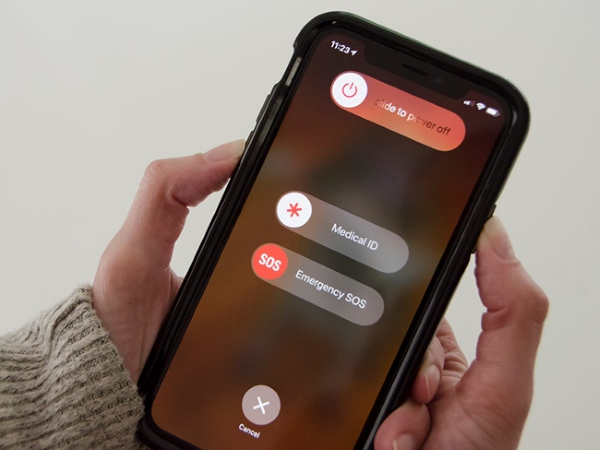
Ask your friend to restart their iPhone as well, especially when other people also cannot view their location.
Method 8: Update iOS
An outdated iOS version may contain bugs that affect Find My, Location Services, or Apple Account synchronization.
- Step 1. Back up the iPhone and connect it to Wi-Fi and a power source.
- Step 2. Go to Settings > General > Software Update.
- Step 3. If an update is available, tap the Update Now button and follow the onscreen instructions.
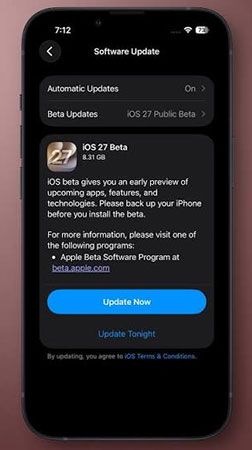
After the update finishes, open Find My and check the person’s location again.
Method 9: Reset Network or Location Settings
Try this method only when Find My still does not work after you have checked the basic settings. Resetting these settings does not erase photos, messages, or other personal media, but it changes saved preferences.
- Step 1. Go to Settings > General > Transfer or Reset iPhone > Reset.
- Step 2. Choose Reset Network Settings if the iPhone has continuing Wi-Fi or cellular connection problems.
- Step 3. Choose Reset Location & Privacy instead if Find My or other apps cannot access Location Services correctly.

Reset Network Settings removes saved Wi-Fi networks and passwords, cellular settings, and VPN or APN configurations. Reset Location & Privacy returns location permissions to their defaults, so apps will request access again. Try one reset option at a time.
Method 10: Repair the iOS System with TunesKit
When you try the methods above and get no effect, you exclude all the reasons except for iOS system problem. Now you need to fix this iOS system problem which is hard to resolve without an iOS system repairing tool.
An iOS system repairing tool is used to fix iOS system glitches. One of the best iOS system repair tools is TunesKit iOS System Repair. TunesKit is so powerful that can fix more than 150 kinds of iOS system issues, including iPhone stuck in Apple logo, recovery mode, iPhone maps not working, and other issues. Not only iPhone, but iPad and iPod touch can be fixed by it, if they have any iOS system problems.
What's more, it provides two modes: Standard Repair (used to fix common problems) and Deep Repair (used to fix issues hard to resolve). The problems like location not found on iPhone Find My Friends can be fixed by Standard Mode and the process will not cause data loss.
Fix Find My Location Errors with TunesKit
Repair iOS glitches that cause Find My to show “Location Not Available” using Standard Repair without erasing your data.
 600,000+ Downloads
You can follow the 4 steps below to fix iPhone Find My Friends location not available with TunesKit iOS System Recovery.
Step 1. Connect the iPhone
Download and install TunesKit iOS System Recovery on a Windows PC or Mac. Connect your iPhone to the computer with a compatible USB cable. Open TunesKit, select iOS System Repair, and click Start.

Step 2. Choose Standard Repair
Select Standard Repair first because it is intended to repair common iOS problems without deleting data. Use Deep Repair only if Standard Repair fails and you have already created a backup, because Deep Repair erases the device.

Step 3. Download the Firmware Package
Confirm that the detected iPhone model and device information are correct. Select an available firmware version, click Download, and wait for the firmware package to finish downloading and verifying.

Step 4. Repair the iOS System
Click Start Standard Repair and keep the iPhone connected throughout the process. After the repair is complete, the iPhone will restart. Open Find My, tap People, and check whether the shared location is available again.

Bottom Line
In a word, when the GPS, settings, the Find My Friends app itself, or iOS system have problems, iPhone Find My Friends location not available problem may appear. To fix it, this passage collects 10 solutions. The most effective solution is using TunesKit iOS System Recovery to fix it without data loss. Hope this passage can help you.



