


How to Unlock iPhone While Wearing Apple Vision Pro
Every Vision Pro user knows the frustration: you glance at your iPhone, but Face ID fails because the headset obstructs the sensors. Instead of breaking your immersion to type a passcode, there is a seamless native fix hidden in your settings.
This feature allows your iPhone to bypass Face ID securely when it detects your verified Vision Pro. In this guide, we will show you exactly how to unlock your iPhone while wearing Apple Vision Pro. Also, we'll explain the security mechanics and help you troubleshoot common connection issues.
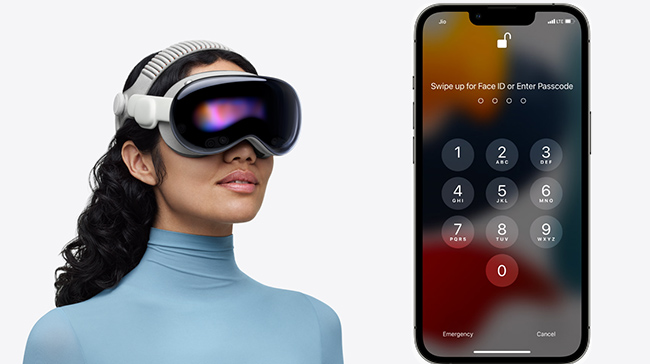
How to Unlock iPhone with Vision Pro
You do not need third-party apps or complicated workarounds to solve the occlusion problem. Apple includes a specific bridge between iOS and visionOS designed to verify your identity biometrically across devices.
Once enabled, your iPhone communicates directly with your headset. If the headset verifies your identity via Optic ID (iris scanning), it sends a secure token to the iPhone, unlocking it instantly as you pick it up.
Prerequisites for Setup
Before attempting the setup, ensure your hardware meets these requirements:
- Software: Your iPhone must run iOS 17 or later (iOS 26 is recommended for optimal stability).
- Account: Both devices must be signed into the same iCloud account.
- Security: Two-factor authentication must be active on your Apple ID.
- Connectivity: Bluetooth and Wi-Fi must be enabled on both devices.
How to Enable "Unlock with Nearby Devices" for Apple Vision Pro
Now, you can follow these steps to bridge the security gap between your devices.
Step 1. Put on your Apple Vision Pro and complete the eye setup to ensure it is unlocked and active.
Step 2. Pick up your iPhone and open the Settings app.
Step 3. Scroll down and tap Face ID & Passcode. You will need to enter your iPhone's numeric passcode to access this secure menu.
Step 4. Scroll past the initial "Use Face ID For" options until you locate the section labeled Unlock with Nearby Devices.
Step 5. Find "Apple Vision Pro" in the list of devices and toggle the switch to the ON (green) position.
Step 6. Tap Turn On to confirm the selection by entering your iPhone passcode one final time.
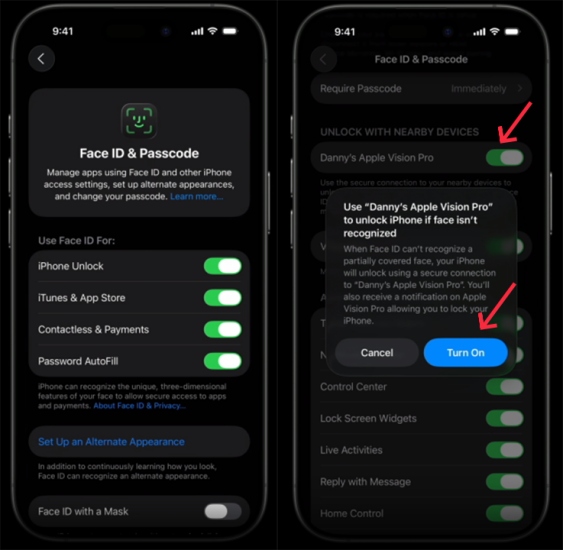
The change is immediate. When you raise your iPhone while wearing the headset, the lock icon will open as if it had recognized your face. You will likely feel a subtle haptic tap on the phone indicating the unlock was successful.
What You Can Actually Do When "Unlocking" With Vision Pro
Here's the complete list of actions Vision Pro can authenticate on your iPhone:
| Feature | Supported by Vision Pro? | Notes |
|---|---|---|
| Unlock iPhone screen | ✔️ (Conditional) | When the iPhone is awake & detects a trusted device |
| Approve password dialogs | ✔️ | Works instantly |
| AutoFill passwords | ✔️ | Similar to Mac/Watch authentication |
| Approve Apple ID security prompts | ✔️ | With a glance inside Vision Pro |
| Install apps | ✔️ | Uses Optic ID |
| Unlock iCloud Keychain | ✔️ | Confirm inside Vision Pro |
| Unlock after restart | ❌ | Passcode required |
| Unlock iPhone for Apple Pay | ❌ | Face ID required |
| Sign into Apple ID from another device | ✔️ | Vision Pro acts as trusted authenticator |
How Optic ID Secures the Connection
It is important to understand that this feature does not replace Face ID; it bypasses it using a "chain of trust".
When you wear the Vision Pro, the device continuously verifies your identity using Optic ID. As long as the headset remains on your head and unlocked, you are a verified user. When you pick up your iPhone, the phone detects the headset's proximity via Bluetooth.
The iPhone essentially asks the headset, "Is the verified owner currently wearing you?" If the headset replies "Yes", the iPhone unlocks. This is why the feature stops working the moment you take the headset off — the chain of trust is broken, ensuring no one else can pick up your headset and unlock your phone.
Why Your iPhone Won't Unlock with Vision Pro
If you have enabled the setting but your iPhone still demands a passcode, the issue usually stems from proximity or state mismatches.
1. The Proximity Check
This feature relies on Bluetooth signal strength to determine distance. It prevents your phone from unlocking if you are merely in the same room as the headset.
 The Fix:
- Ensure the iPhone is within arm's reach (12–18 inches) of the headset. Holding the phone in your lap or bringing it closer to your chest usually triggers the unlock.
2. The Headset Lock State
Your iPhone will only unlock if the Vision Pro itself is unlocked. If you have removed the headset and put it back on without entering your PIN or completing an Optic ID scan, it cannot vouch for your identity.
The Fix:- Glance at the Optic ID icon inside the headset to ensure visionOS is fully active before trying to open your phone.
3. Connection Conflicts
The secure handshake uses a mix of Bluetooth Low Energy and direct Wi-Fi protocols. Occasionally, these radios can get out of sync.
The Fix: - Toggle Bluetooth off and back on for both devices. Ensure neither device is in Airplane Mode.
4. Security Timeouts
Biometric bypasses have hard security limits designed to protect your data. You cannot use the Vision Pro to unlock your iPhone if:
- You just restarted the iPhone.
- You haven't unlocked the iPhone for more than 48 hours.
- You have triggered the "Emergency SOS" mode (holding power and volume buttons).
In these specific scenarios, you must enter the numeric passcode once to re-enable biometric features.
Alternative Method: Unlocking iPhone with Apple Watch
If you are unable to get the Vision Pro integration working, or if you own an Apple Watch but the headset is currently off, you can use the legacy method.
Just navigate to Settings > Face ID & Passcode on your iPhone. Then scroll to the Unlock with Apple Watch section. Now toggle the switch for your specific watch to ON.
This method functions identically to the Vision Pro unlock but relies on wrist detection rather than iris scanning. Note that the Vision Pro unlock is generally faster and more reliable during spatial computing sessions because the headset is already the primary active device.

 See More: How to Unlock iPhone with Apple Watch
Troubleshooting: What If You Forgot Your iPhone Passcode?
There is one common hurdle many users face when setting up this feature. To access the Face ID & Passcode menu (Step 3), iOS strictly requires you to enter your alphanumeric passcode. If you have relied exclusively on Face ID for months or years, you may have forgotten the underlying numeric code. Since the Vision Pro prevents Face ID from working, you might find yourself completely locked out of the very settings menu you need to access.
If you cannot recall your passcode, you cannot enable the Vision Pro unlock feature. In this specific scenario, you will need to reset the iPhone to regain access.
Using TunesKit iPhone Unlocker to Reset a Forgotten Passcode
If you are locked out and iCloud's "Find My" erase options are not working for you, tools like TunesKit iPhone Unlocker can help you factory reset the device without the passcode. It's quite useful, especially when you are completely locked out of your iPhone and cannot access Settings to set up the Vision Pro integration.
Key Features of TunesKit iPhone Unlocker
Easily unlock iPhone without passcode, unlock Apple ID and iCloud Activation Lock, remove MDM lock and Screen Time passcode.
 600,000+ Downloads
Here are the quick steps to reset with TunesKit iPhone Unlocker.
- 1. Connect your iPhone to a computer and launch TunesKit iPhone Unlocker.
- 2. Select "Unlock iOS Screen" and put your iPhone into DFU/Recovery mode following the on-screen prompts.
- 3. Download the firmware package matched to your device.
- 4. Click "Unlock" to wipe the forgotten passcode.

Once your iPhone is reset and restored from backup, you can set a fresh passcode and immediately proceed to enable "Unlock with Nearby Devices".
Note:Like all unlocking tools, this will factory reset your iPhone. You will need to restore your data from an iCloud or computer backup afterward.
FAQs About Unlocking iPhone with Apple Vision Pro
Here are the most commonly asked questions related to unlocking iPhone with Vision Pro from our users. You can quickly get answers to them.
-
1. Is this feature secure?
Yes, but with caveats. The system detects "intent" by monitoring the motion of raising the phone. However, because it relies on proximity rather than a direct face scan, there is a slight risk if someone takes your phone while standing extremely close to you. For most users, the convenience outweighs this theoretical risk.
-
2. Does this work for banking apps?
No. High-security applications (banking, password managers, and system settings) typically do not accept "Nearby Device" unlocking. They require strict Tier-1 biometric authentication (Face ID or an exact Passcode). If you try to open a banking app while wearing Vision Pro, the app will likely fail the Face ID check and force you to type your password manually.
-
3. Does Optic ID allow me to control my iPhone?
No. This feature is strictly for unlocking the lock screen. It does not allow you to control the iPhone with your eyes or hands through the headset. For control, you would need to use the "Mac Virtual Display" feature or iPhone mirroring capabilities in newer visionOS updates.
The Bottom Line
Unlocking your iPhone while wearing Apple Vision Pro is a core ecosystem feature that significantly improves the spatial computing experience. By utilizing the setting, you bridge the gap between your physical and virtual environments.
If your Vision Pro isn't unlocking your iPhone, this guide also provides troubleshooting steps to fix it and alternative ways. And remember, if a forgotten passcode is the only thing standing between you and this feature, tools like TunesKit iPhone Unlocker can help you reset your device and get connected.


