


Pinfinder Review: Is It Still Worth Using in 2026?
Forgot your Screen Time passcode and wondering if Pinfinder can help? While this free open-source tool was once a popular way to recover Screen Time and Restrictions passcodes from encrypted iTunes backups, it only supports older iOS versions. In this review, we'll test whether Pinfinder still works in 2026, examine its pros and cons, explain its limitations, and compare it with a more up-to-date alternative for newer iPhones.

Quick Verdict
If you're looking for a quick answer, here's our overall assessment after evaluating Pinfinder.
| Category | Rating |
|---|---|
| Ease of Use | ⭐⭐⭐☆☆ |
| Success on Supported Devices | ⭐⭐⭐⭐☆ |
| Compatibility | ⭐⭐☆☆☆ |
| User Interface | ⭐⭐☆☆☆ |
| Update Frequency | ⭐☆☆☆☆ |
| Overall Rating | 3.6/5 |
 Pros:
Pros:- Completely free and open source
- Can recover Screen Time passcodes without data loss
- Works offline using encrypted backups
- Available for Windows, macOS, and Linux
 Cons:
Cons:- Supports only older iOS versions
- Requires an encrypted Finder/iTunes backup
- Command-line interface may be difficult for beginners
- No official customer support
- Development is no longer actively maintained
Pinfinder is still a useful utility for users with older devices and compatible backups, but it's no longer the best choice for most iPhone users in 2026.
What Is Pinfinder?
Pinfinder is a free, open-source program created to recover Restrictions and later Screen Time passcodes from encrypted iTunes or Finder backups. Instead of removing the passcode directly from the device, it analyzes the backup stored on your computer and attempts to reveal the original passcode. Because it works with local backups rather than communicating with Apple servers, Pinfinder became popular among users who forgot their parental control settings but didn't want to factory reset their iPhone.
It's important to understand that Pinfinder is a passcode recovery tool, not a passcode removal tool. If no compatible encrypted backup is available, the software cannot retrieve the Screen Time passcode.
Main Features
- Recover Screen Time and Restrictions passcodes from encrypted backups
- Free and open-source
- Runs locally on your computer
- Supports Windows, macOS, and Linux
- Doesn't upload your backup data to online servers
Our Hands-on Test for Pinfinder
To evaluate whether Pinfinder is still practical today, we tested it using different backup scenarios.
| Test Scenario | Result |
|---|---|
| Older encrypted backup (supported iOS) | ✅ Successfully recovered the Screen Time passcode |
| Newer encrypted backup (modern iOS) | ❌ Unsupported |
| Unencrypted backup | ❌ Could not recover the passcode |
| No backup available | ❌ Recovery not possible |
Testing Environment
- Windows 11 PC
- Latest available version of Pinfinder
- Encrypted Finder/iTunes backups
- Multiple iPhone backups created on different iOS versions
Our Experience
For supported encrypted backups, Pinfinder completed the recovery process quickly and accurately. However, preparing an encrypted backup and using a command-line tool may feel intimidating for less experienced users. The biggest limitation we encountered wasn't the recovery speed—it was compatibility. If your backup comes from a newer iOS version, Pinfinder simply won't be able to recover the Screen Time passcode, regardless of how many times you try.
Which iOS Versions Does Pinfinder Support?
Compatibility is one of the most important factors to consider before downloading Pinfinder. The tool was originally developed for older iOS versions and has not kept pace with Apple's changes to Screen Time encryption.
| iOS Version | Compatibility |
|---|---|
| iOS 7–11 | ✅ Supported |
| iOS 12–12.4 | ✅ Supported |
| iOS 13 and later | ❌ Not supported |
If your iPhone, iPad, or iPod touch is running a recent version of iOS, Pinfinder is unlikely to recover your Screen Time passcode successfully.
How to Use Pinfinder to Recover Screen Time Passcode
If your device and backup meet Pinfinder's compatibility requirements, you can try recovering your Screen Time passcode by following the steps below. Remember that Pinfinder only works with encrypted Finder or iTunes backups created from supported iOS versions.
For Windows Uers:
- Step 1. Connect your iOS device to computer and run the newest version of iTunes.
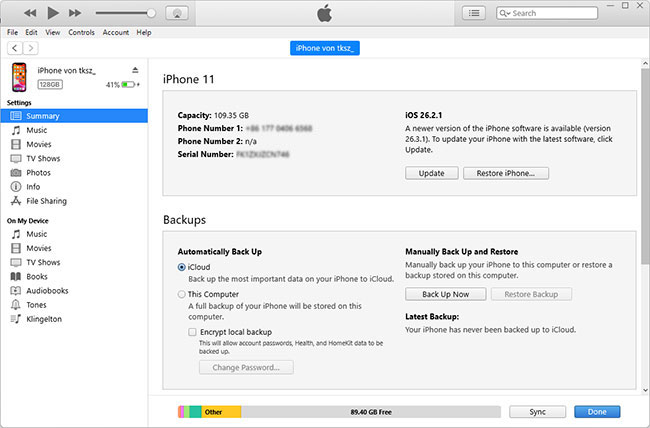
- Step 2. Once your device is detected, click on the device icon in iTunes.
- Step 3. Head to Summary → Backups → Back Up Now to create an iTunes backup. (For device running iOS 12, you should click on Encrypt iPhone backup to set a backup password.
- Step 4. After backup finishes, download Pinfinder on your Windows.
- Step 5. Run Pinfinder for Windows, type your iTunes encryption password, and press Enter.

- Step 6. Wait for Pinfinder to scan backup, you can see Screen Time passcode under RESTRICTION PASSCODE column.

For Mac Users:
- Step 1. Plug your iOS device and back up data to Mac computer using iTunes.
- Step 2. Download and install Pinfinder for Mac.
- Step 3. If your Mac version is 10.14, please go to System Preferences → Security & Privacy → Privacy to add Terminal program.

- Step 4. Now right-click on Pinfinder program icon and choose Open to launch it.
- Step 5. Enter the password used to encrypt iTunes backup and you can then get the Screen Time passcode.
For Linux Users:
- Step 1. Connect your device and use a tool such as libimobiledevice to back up your iOS device on Linux.
- Step 2. Download Pinfinder for Linux and get the program run.
- Step 3. Pass the path to the backup directory as an argument.
- Step 4. Once Pinfinder completes backup analysis, you can check the Restrictions passcode.
Why Do Users Look for a Pinfinder Alternative?
Pinfinder remains a useful utility for older devices, but it's no longer suitable for many modern iPhone and iPad users. You may need an alternative if:
- Your device is running a newer version of iOS.
- You don't have a compatible encrypted backup.
- You want to remove the Screen Time passcode instead of recovering it.
- You prefer a graphical interface rather than a command-line tool.
- You want a solution that continues to receive software updates and customer support.
If any of these situations apply to you, a dedicated Screen Time removal tool may provide a more practical solution.
Best Alternative to Pinfinder - TunesKit iPhone Unlocker
If Pinfinder isn't compatible with your device or you don't have an encrypted backup, TunesKit iPhone Unlocker is a practical alternative worth considering.
Unlike Pinfinder, which focuses on recovering the existing Screen Time passcode from a backup, TunesKit is designed to remove the Screen Time passcode directly from supported iPhones and iPads. The software features a simple graphical interface, making it easier for users who aren't comfortable using command-line tools.
Key Features of TunesKit iPhone Unlocker
Remove Screen Time passcodes without recovering the original code. Supports recent iOS and iPadOS versions. Compatible with both Windows and macOS.
 600,000+ Downloads
- Step 1. Download the latest version of TunesKit iPhone Unlocker and complete software installation. Once it's launched on computer, connect your iOS device that has a Screen Time lock and choose Unlock Screen Time Passcode.

- Step 2. Click the Start button in TunesKit iPhone Unlocker to start to remove Screen Time passcode. Make sure that you have disabled Find My feature on your connected device. Otherwise, you have to turn it off in Settings > [Your Name] > Find My.
- Step 3. To avoid data loss, you should strictly follow the onscreen instructions in TunesKit to set up your device. Choose "Don't Transfer Apps & Data" in the "Apps & Data" screen and "Set Up Later in Settings" in the "Screen Time" screen.
Pinfinder vs. TunesKit iPhone Unlocker
Choosing between the two tools depends on your device, iOS version, and whether you want to recover or remove the Screen Time passcode.
| Feature | Pinfinder | TunesKit iPhone Unlocker |
|---|---|---|
| Recover Screen Time Passcode | ✅ | ❌ |
| Remove Screen Time Passcode | ❌ | ✅ |
| Requires Encrypted Backup | ✅ | ❌ |
| Supports Recent iOS Versions | ❌ | ✅ |
| Graphical User Interface | ❌ | ✅ |
| Beginner Friendly | ⭐⭐☆☆☆ | ⭐⭐⭐⭐⭐ |
| Ongoing Updates | ❌ | ✅ |
| Customer Support | Community | Professional Support |
FAQs About Pinfinder
-
Does Pinfinder support iOS 13 or later?
No. Pinfinder was designed for older iOS versions and doesn't support Screen Time passcode recovery on iOS 13 or later. If you're using a modern iPhone or iPad, you'll need to consider another solution that's compatible with newer iOS versions.
-
Is Pinfinder safe to use?
Yes. Pinfinder is an open-source utility that runs locally on your computer and doesn't upload your backup data to external servers. However, you should always download it from its official website or GitHub repository to avoid modified or unofficial versions.
-
Do I need an encrypted backup to use Pinfinder?
Yes. An encrypted Finder or iTunes backup is required because Screen Time data isn't stored in unencrypted backups. Without an encrypted backup, Pinfinder can't recover the passcode.
Conclusion
Pinfinder remains an impressive open-source utility despite its age. If you have an older iPhone, iPad, or iPod touch with a compatible encrypted Finder or iTunes backup, it can still recover your Screen Time passcode quickly and completely free of charge.
If your device isn't supported or you don't have an encrypted backup, a modern Screen Time removal tool such as TunesKit iPhone Unlocker may be a more practical choice.



