Not Receiving Verification Codes on iPhone? 2026 Fixes!
It is incredibly frustrating when you are locked out of your bank account or Apple Account simply because a six-digit text refuses to arrive. If you find yourself repeatedly tapping "Resend Code" to no avail, you are far from alone in dealing with this technical headache. The issue of not receiving verification codes on an iPhone usually boils down to an overzealous iOS filter or a hidden carrier spam block.
Fortunately, getting these One-Time Passwords (OTPs) flowing again is usually a straightforward process. Here, we will list several proven fixes to help you receive verification codes quickly.
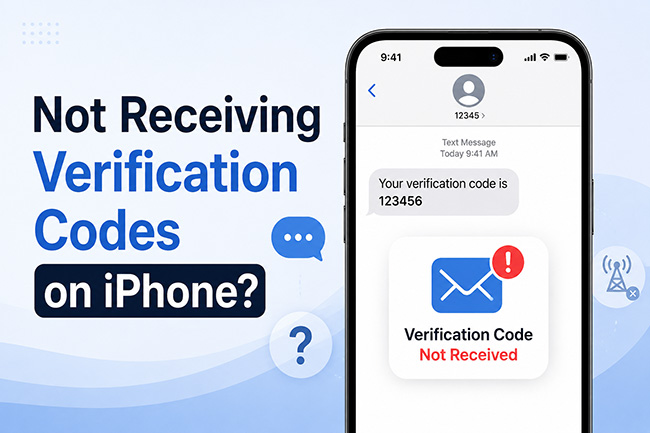
Why Can't My iPhone Receive Verification Codes?
Before diving into the troubleshooting steps, it helps to understand why this problem happens in the first place. Your iPhone failing to receive verification codes is rarely a hardware failure. Instead, it is almost always a communication breakdown among your cellular provider, Apple's software, and the automated system that sends the text.
There are three primary reasons why your One-Time Passwords are getting lost in transit:
- Network-Level Spam Blocks: Cellular carriers often aggressively filter automated 5- or 6-digit short codes to protect users from spam, silently blocking your verification texts before they even reach your device.
- iOS Message Filtering: Apple's built-in privacy settings, such as the "Unknown Senders" filter or auto-delete features, might be hiding or immediately erasing the codes without notifying you.
- Connectivity Conflicts: SMS texts require a stable cellular handshake, meaning weak signals, hung eSIM profiles, or interference from Wi-Fi calling can disrupt the delivery process.
Knowing the root cause saves you from wasting time on the wrong fixes. By systematically checking your device settings and network connection, you can quickly identify where the blockage is occurring.
Fix iOS Settings and Device Glitches
Modern Apple devices have built-in mechanisms to reduce spam, but these can occasionally flag important SMS short codes as junk. Verification texts are often sent from 5- or 6-digit automated numbers rather than standard ten-digit phone numbers. This discrepancy frequently causes your iPhone's messaging app to silently hide or block them, making it appear as though the network is failing.
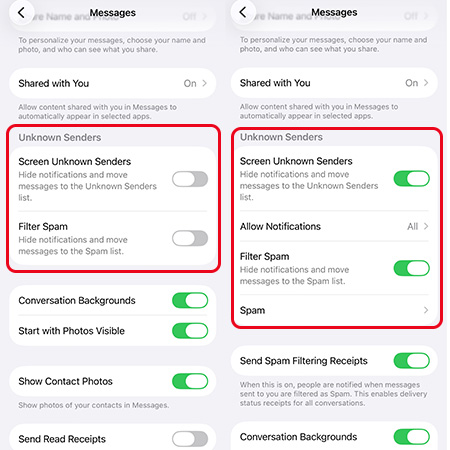
1. Turn Unknown Senders Filter On and Off
The iOS Messages app has a dedicated feature to separate unknown senders from your known contacts. Often, your 2FA codes are sitting quietly in a separate inbox without triggering a home screen notification. You can easily fix this by flushing the filter system.
- Step 1. Open your iPhone Settings and scroll down to select Messages.
- Step 2. Find the "Screen Unknown Senders" and "Filter Spam" toggles.
- Step 3. Turn them on, wait a few seconds, and then turn them back off to reset the message sorting logic.
2. Retrieve Blocked 5-Digit Numbers
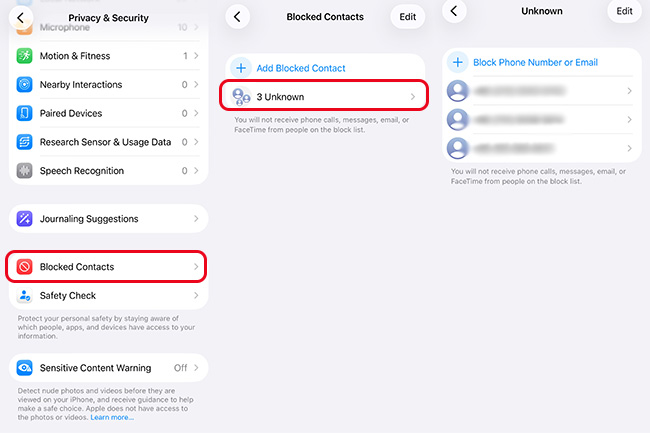
It is surprisingly easy to accidentally block a short code if you previously mistook an automated promotional text for spam. Once a number is blocked at the iOS level, no future verification texts from that service will ever reach you.
- Step 1. Navigate to Settings, then tap on Privacy & Security.
- Step 2. Select Blocked Contacts and carefully review the list for any 5-digit or 6-digit numbers.
- Step 3. Swipe left on any short codes you find to unblock them immediately.
3. Address iOS 26 Syncing Bugs and Auto-Delete
With the recent updates in iOS 26, iCloud syncing across devices like iPads and Macs can sometimes cause messages to get stuck in transit. Another common point of confusion is the modern autofill behavior where Apple's system can automatically delete verification codes immediately after they are used.
Sometimes, the system silently hides them if it mistakenly thinks the code was already captured by Safari.
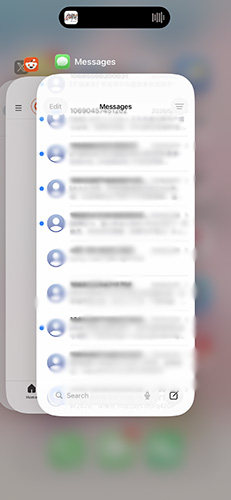
- Step 1. Turn off iMessage entirely by swiping up from the bottom of the iPhone screen.
- Step 2. Then, turning it back on forces a fresh sync across your Apple Account, often dislodging stuck texts.
Fix Network Connectivity Issues
SMS verification codes rely entirely on a stable cellular network connection rather than internet data. If your cellular routing is experiencing a temporary hiccup, standard iMessages might still work perfectly over Wi-Fi while short codes fail to deliver. Resetting your network handshake is often the quickest path to a resolution.
1. Turn Airplane Mode On and Off
Sometimes your device simply needs to be forced to re-register with the nearest cellular tower. This simple action clears out temporary delivery queues on the network side and allows pending SMS data to push through.
- Step 1. Swipe down from the top right of your screen to open the Control Center.
- Step 2. Tap the Airplane Mode icon to disconnect all radios, and wait roughly ten seconds.
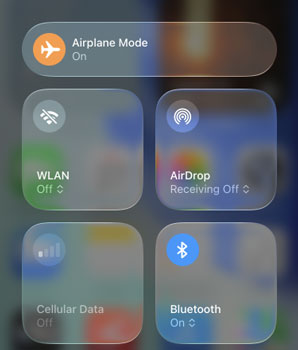
- Step 3. Tap it again to reconnect to the cellular network and prompt pending texts to download.
2. Wi-Fi Calling and Network Resets
Users relying heavily on Wi-Fi calling in areas with poor cellular reception frequently report missing OTPs. SMS short codes do not always route reliably over a Wi-Fi connection, depending heavily on your specific carrier's architecture. Disabling Wi-Fi temporarily ensures the text routes exclusively through the standard cellular band.
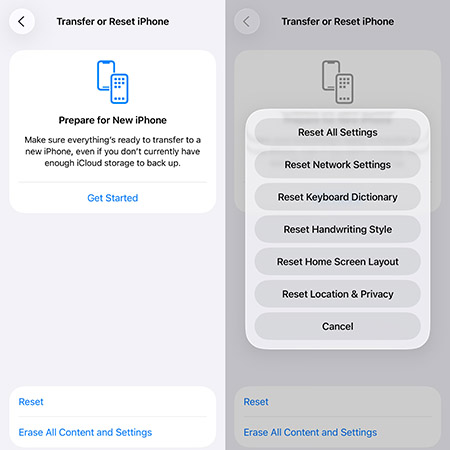
If basic toggles fail, clearing your saved network configurations is the next logical step. Doing this will delete saved Wi-Fi passwords, but it effectively clears out corrupted cellular caches or hung eSIM profiles that commonly block incoming SMS.
- Step 1. Go to Settings, tap General, and select Transfer or Reset iPhone.
- Step 2. Choose Reset, then tap Reset Network Settings.
Fix Carrier-Level Spam Blockers
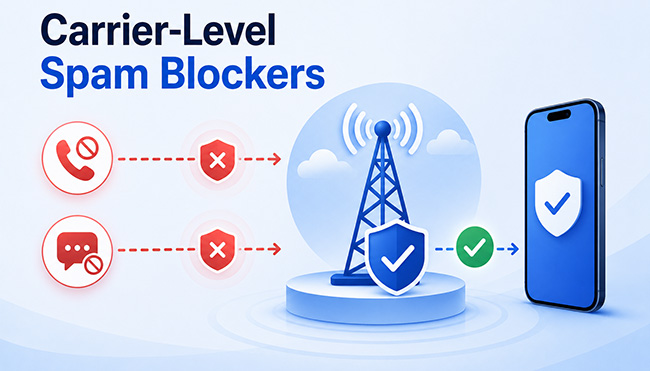
When every device setting is perfectly configured and you are still not getting texts, the problem is almost certainly happening before the message even reaches your phone. Major cellular carriers often employ aggressive, backend spam filters that blanket-block short code texts to protect consumers from scams. Unfortunately, users cannot view or disable this specific restriction from their own iOS settings menu.
How to Talk to Tech Support
Calling your carrier is the ultimate fix, but you need to use specific terminology to avoid being bounced back to Apple support. Frontline representatives might not immediately recognize the short code blocking issue, so you have to gently guide them to the correct backend tools.
Tell the representative that you are not receiving SMS short codes and ask them to explicitly check for any spam blockers active on your line.
- Step 1. Ask the agent to look for a "short code block" or "premium SMS block" on your account.
- Step 2. Request that they perform a complete "network refresh" or "re-sync" of your phone on their system.
A simple fifteen-minute network refresh on the carrier side resolves this hidden issue in the vast majority of cases.
What If You Are Completely Locked Out?
In worst-case scenarios, failing to receive a verification code means you are permanently locked out of your Apple Account or cannot bypass a security prompt on your device. If you have exhausted network resets and carrier support, you may need to use a dedicated third-party bypass tool to regain access to your phone.
This is where a robust software solution like TunesKit iPhone Unlocker becomes invaluable. Designed specifically for iOS users, TunesKit iPhone Unlocker can safely remove various locks from your device without requiring you to input an SMS verification code. Whether you need to bypass a forgotten Apple Account, unlock a disabled iPhone, or remove Screen Time and MDM restrictions, this tool handles the heavy lifting in just a few clicks.
Why Choose TunesKit iPhone Unlocker?
Unlock screen lock, Apple Account, MDM, and Activation Lock with a few clicks. Remove Screen Time passcode without data loss. High success Rate.
 600,000+ Downloads
- Step 1. Launch TunesKit iPhone Unlocker on your computer and connect your locked iPhone using a USB cable.
- Step 2. Select the specific issue you are facing on the main interface, such as "Unlock Apple ID" or "Unlock iOS Screen," and click Start.
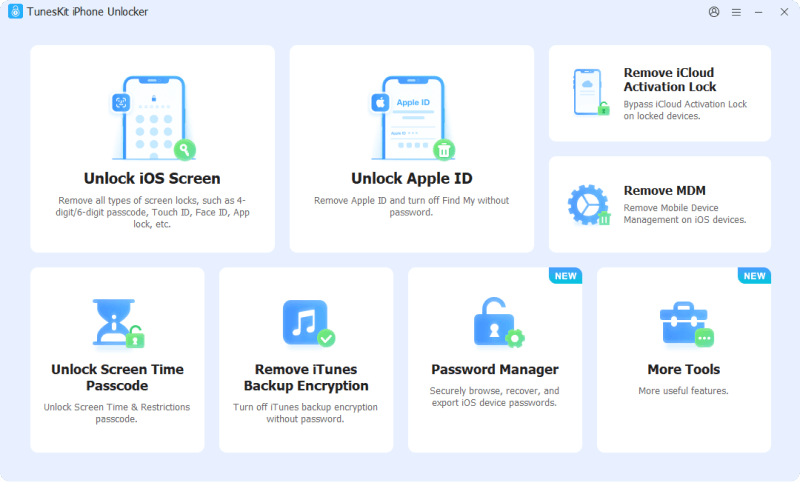
- Step 3. Follow the on-screen prompts to download the matching firmware package, then click the "Unlock" button to bypass the restriction and regain full access to your device.
Conclusion
iPhone that cannot receive verification codes can completely derail your day, but applying these troubleshooting steps methodically will usually isolate the exact blockage. Start with the quick iOS settings toggles, test your cellular connection, and do not hesitate to demand a network refresh from your carrier. If all else fails and you find yourself totally locked out, tools like TunesKit iPhone Unlocker provide a reliable safety net.