


How to Change Passcode on iPad [Updated]
Securing your personal photos and work documents starts with a strong iPad passcode. While Apple suggests updating this code regularly, finding the right menu can be tricky depending on whether your device uses Face ID or a Home Button.
This guide simplifies the process. We will cover how to update your passcode, switch to a custom 4-digit PIN, and recover access if you have forgotten your current code.
Go to Settings > Face ID & Passcode (or Touch ID & Passcode) > Enter current code > Tap Change Passcode.

How to Change Passcode on iPad (Standard Method)
Depending on your iPad model, the menu names differ slightly. Newer iPads (iPad Pro, iPad Air, and newer iPad minis) use facial recognition, while older standard iPads still use the fingerprint scanner.
Here is the step-by-step process for both:
Step 1. Open the Settings app on your home screen.
Step 2. Locate the security menu.
- For iPads with Face ID: Tap on Face ID & Passcode.
- For iPads with Home Button: Tap on Touch ID & Passcode.
Step 3. You will be prompted to enter your current passcode. You must enter this correctly to access the security settings.
Step 4. Scroll down the list of options until you see Change Passcode in blue text. Tap it.
Step 5. Enter your old passcode one last time for verification.
Step 6. Enter your new passcode. You will need to type it twice to confirm. Once verified, your iPad is instantly updated with the new security credential.

How to Switch to a 4-Digit or Alphanumeric Code
By default, Apple forces a 6-digit numeric code because it is more secure. However, some users prefer a shorter code for speed, while security experts often prefer a complex password including letters. You can choose either.
Step 1. Follow the steps above until you reach the screen asking you to "Enter your new passcode".
Step 2. Do not type a number yet. Instead, look above the keypad and tap the small blue link labeled Passcode Options.
Step 3. A menu will pop up with three choices:
- Custom Alphanumeric Code: Allows you to create a strong password using letters, numbers, and symbols (Highest Security).
- Custom Numeric Code: Allows for a PIN longer than 6 digits.
- 4-Digit Numeric Code: The classic, short PIN style (Fastest Access).
Step 4. Select your preferred style and set your new code.

What If You Forgot Your Passcode? (3 Solutions)
A common issue users face is wanting to change an old passcode but realizing they cannot remember it. If you cannot enter the current code, the Settings method will not work. You are technically locked out.
In this scenario, you cannot simply "change" the password; you must remove the existing one.
Method 1: Reset iPad Passcode with TunesKit (No Tech Skills Required)
If you want to bypass the passcode quickly without navigating complex iTunes menus, professional unlocking software is the easiest and most efficient solution.
TunesKit iPad Unlocker is designed specifically for this scenario. It can remove the screen lock from any iPad model, allowing you to set a fresh passcode from scratch. It works even if your screen is broken or if the iPad is disabled after too many wrong attempts.
Why Choose TunesKit iPad Unlocker?
Easily reset your iPad when you forgot iPad passcode. Easy to operate for anyone, and no tech skills required.
 600,000+ Downloads
Here is how to use TunesKit to reset your iPad passcode.
Step 1. Download and launch TunesKit iPad Unlocker on your computer (Mac or Windows). Connect your iPad using a USB cable.
Step 2. Select "Unlock iOS Screen" from the main menu and click "Start".

Step 3. Follow the on-screen instructions to put your iPad into DFU or Recovery Mode. This is a necessary security step to allow the software to access the firmware.

Step 4. The software will detect your iPad model. Click "Download" to get the correct firmware package.

Step 5. Once downloaded, click "Unlock". TunesKit will remove the forgotten passcode. When the iPad restarts, you can set it up as a new device with a brand new passcode.

Method 2: Reset iPad Passcode with iTunes (Recovery Mode)
If you prefer not to use third-party software, you can use a computer with iTunes (Windows) or Finder (Mac). This method is more complex and often fails if the USB connection is unstable or if iTunes is outdated.
Step 1. Connect your iPad to your computer using a USB cable.
Step 2. Open iTunes (on Windows or older Macs) or Finder (on macOS Catalina or later).
Step 3. Force your iPad into Recovery Mode. The buttons you press depend on your specific model:
- For iPads with Face ID: Press and quickly release the Volume Up button. Press and quickly release the Volume Down button. Then, press and hold the Top button. Do not let go when you see the Apple logo; keep holding until you see the recovery mode screen (a cable pointing to a computer).
- For iPads with Home Button: Press and hold both the Home button and the Top (or Side) button at the same time. Keep holding them both until the recovery mode screen appears.
Step 4. A pop-up window will appear on your computer screen asking if you want to Restore or Update. Click Restore.
Step 5. Confirm your choice to erase the device. Your computer will download the software and restore your iPad. Once finished, the passcode will be removed, and you can set up the device as new.

Method 3: The 72-Hour Passcode Reset (iOS 17 & Later)
If you have updated your iPad to iPadOS 17 or later, there is a new lifesaver feature that most people don't know about. If you change your passcode but forget the new one within 72 hours of changing it, Apple allows you to use your OLD passcode to get back in.
Step 1. Attempt to unlock your iPad until you see the "iPad Unavailable" or "Security Lockout" screen. Don't worry, this won't erase your data yet.
Step 2. Tap the Forgot Passcode? option in the bottom corner.
Step 3. Tap Try Passcode Reset.
Step 4. Enter your previous passcode. You will immediately be prompted to create a new one.

 Note:
Note:
This only works for 72 hours. After that, you can use TunesKit iPad Unlocker to reset it easily and quickly.
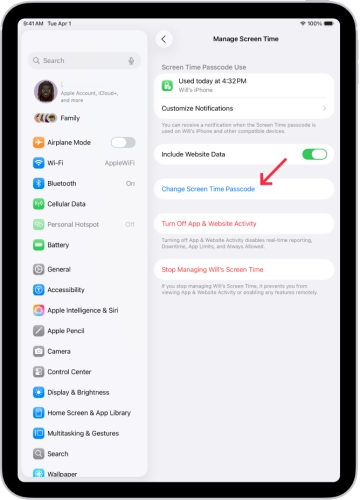
Bonus: How to Change Screen Time Passcode
Many users confuse the Screen Lock Passcode with the Screen Time Passcode. The Screen Time code is used to restrict app usage or content ratings (often used for parental controls). Changing this requires a different menu.
Step 1. Go to Settings and tap on Screen Time.
Step 2. Scroll down and tap Change Screen Time Passcode.
Step 3. A menu will appear; tap Change Screen Time Passcode again.
Step 4. Enter your old Screen Time passcode. (If you forgot this, you can tap "Forgot Passcode?" and use your Apple ID to reset it).
Step 5. Enter your new 4-digit code.
FAQs About Changing iPad Passcode
-
1. Why is the 'Change Passcode' option grayed out?
This usually happens because of a restriction profile. Go to Settings > Screen Time > Content & Privacy Restrictions. If this is turned on, it may be blocking passcode changes. It can also happen if your iPad is managed by a school or workplace (MDM).
-
2. Will changing my passcode delete my data?
No. Changing your passcode via Settings does not affect your data. However, if you forgot the code and have to use TunesKit iPad Unlocker or iTunes to unlock it, your data will be erased unless you have a backup.
-
3. Is a 4-digit code safe?
A 4-digit code has 10,000 combinations, while a 6-digit code has 1 million. For home use, 4 digits are usually fine, but if you travel with your iPad or store banking apps on it, we strongly recommend the 6-digit or Alphanumeric option.
Concluding Thoughts
Regularly changing your iPad passcode is a key step in securing your data. Whether you prefer a quick 4-digit PIN or a stronger alphanumeric password, iPadOS offers flexible options to fit your needs.
If you do get locked out, check if the 72-hour reset rule applies first. For older forgotten codes, TunesKit iPad Unlocker provides a fast and reliable way to regain access. To avoid future lockouts, we recommend saving your new passcode immediately in a secure password manager.


