


How to Fix "The Supplied iCloud Account Was Unable to Unlock This Volume" on Mac
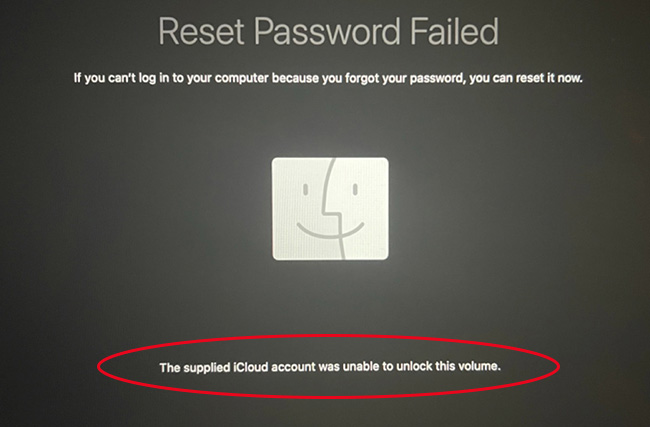
If you're trying to unlock your Mac and see the message "The Supplied iCloud Account Was Unable to Unlock This Volume," it can be frustrating. The good news is that this error doesn't always mean your Apple Account password is wrong. In most cases, it's related to FileVault disk encryption, your Mac's recovery settings, or the relationship between your Apple Account and the encrypted startup volume.
In this guide, we'll explain what the error really means, why it occurs, and walk you through the safest troubleshooting methods, starting with simple checks before moving on to more advanced solutions.
- What Does "The Supplied iCloud Account Was Unable to Unlock This Volume" Mean?
- Why Does "The Supplied iCloud Account Was Unable to Unlock This Volume" Appear?
-
How to Fix "The Supplied iCloud Account Was Unable to Unlock This Volume"?
- Method 1. Verify You're Using the Correct Apple Account
- Method 2. Try Your Mac Login Password
- Method 3. Unlock the Disk Using the FileVault Recovery Key
- Method 4. Reset Your Password in macOS Recovery
- Method 5. Run First Aid in Disk Utility
- Method 6. Reinstall macOS
- Method 7. Erase Your Mac (Last Resort)
- Can You Recover Your Files Before Erasing?
- How to Prevent "The Supplied iCloud Account Was Unable to Unlock This Volume" in the Future?
- FAQs About Mac “The Supplied iCloud Account Was Unable to Unlock This Volume”
- Conclusion
What Does "The Supplied iCloud Account Was Unable to Unlock This Volume" Mean?
This error appears when macOS cannot use the Apple Account (formerly Apple ID) you entered to unlock the encrypted startup volume protected by FileVault.
Many users mistakenly believe the message means their Apple Account password is incorrect. However, the authentication itself may succeed—the problem is that the Apple Account isn't authorized to unlock the encrypted APFS volume.
To better understand the issue, it's helpful to distinguish between several different credentials:
| Credential | Purpose |
|---|---|
| Mac login password | Signs in to your Mac and usually unlocks FileVault. |
| Apple Account | Can be configured as a recovery method for FileVault. |
| FileVault Recovery Key | Emergency key used to unlock the encrypted startup disk. |
| Activation Lock | Prevents unauthorized use of a Mac linked to Find My. |
In short, this error is primarily a FileVault authorization problem rather than an iCloud service problem.
Why Does "The Supplied iCloud Account Was Unable to Unlock This Volume" Appear?
Before trying fixes, it's important to understand what may have caused the error. Several different situations can trigger it.
Wrong Apple Account
If you've used multiple Apple Accounts over the years, you may be entering the wrong one. For example, you might currently use a different Apple Account than the one originally associated with FileVault recovery. Even if the Apple Account successfully completes two-factor authentication, it won't unlock the encrypted volume unless it has been authorized.
FileVault Recovery Isn't Linked to Your Apple Account
When FileVault is enabled, users can choose how they'll recover access if they forget their password. Some Macs are configured to use:
- A FileVault Recovery Key
- An Apple Account
- Neither (enterprise-managed devices)
If your Apple Account wasn't configured as a recovery option, you'll receive this error.
You Recently Changed Your Apple Account
Some users change their primary Apple Account after purchasing a new device or migrating data. However, FileVault may still reference the previous Apple Account, preventing the new one from unlocking the startup disk.
macOS Recovery or Startup Issues
The problem can also occur after:
- Failed macOS updates
- Interrupted installations
- Corrupted Recovery Mode
- Startup volume corruption
In these situations, the authentication process may fail even if you're using the correct credentials.
You Purchased a Used Mac
If the Mac wasn't properly removed from the previous owner's account or the startup volume is still tied to the previous configuration, the Apple Account you enter won't be able to unlock the encrypted volume.
How to Fix "The Supplied iCloud Account Was Unable to Unlock This Volume"?
The following solutions are arranged from the safest and easiest to the most advanced. Work through them in order to maximize your chances of resolving the issue without losing data.
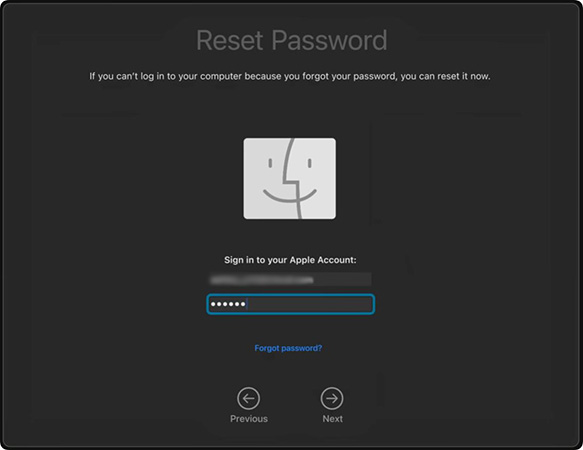
Method 1. Verify You're Using the Correct Apple Account
Many users unknowingly enter the Apple Account they currently use rather than the one originally associated with FileVault. Check whether you've ever:
- Changed Apple Accounts.
- Used a work or school Apple Account.
- Shared the Mac with another family member.
- Restored the Mac from another user's backup.
If you have access to another Apple device signed in with the same account, verify that the email address matches the one originally used on the Mac.
 Warning: Receiving a verification code doesn't necessarily mean that account can unlock the encrypted volume.
Method 2. Try Your Mac Login Password
Many users immediately choose the Apple Account recovery option, even though the Mac login password is often the preferred way to unlock FileVault. If you've recently changed your password, try:
- Your previous login password
- Your most recent successful login password
- Any administrator password that previously unlocked the Mac
Sometimes FileVault continues recognizing an older password until the encryption settings are updated.

Method 3. Unlock the Disk Using the FileVault Recovery Key
If you saved your FileVault Recovery Key when enabling FileVault, use it instead of your Apple Account. Follow the steps below to use the recovery key.
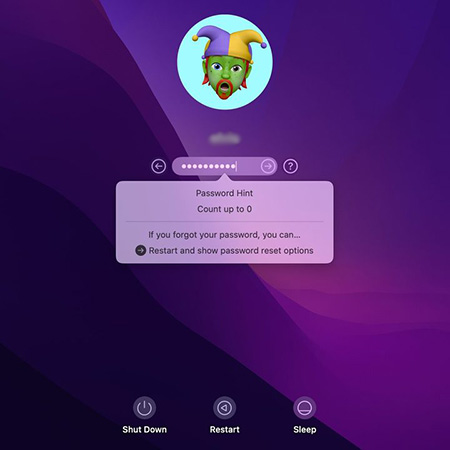
- Step 1. Click the ? icon next to the password bar. If no that option, you can enter wrong password in several times.
- Step 2. Select the Reset and show password reset options option. Find Recovery Key from the options.
- Step 3. Enter the 24-character recovery key exactly as you noted.
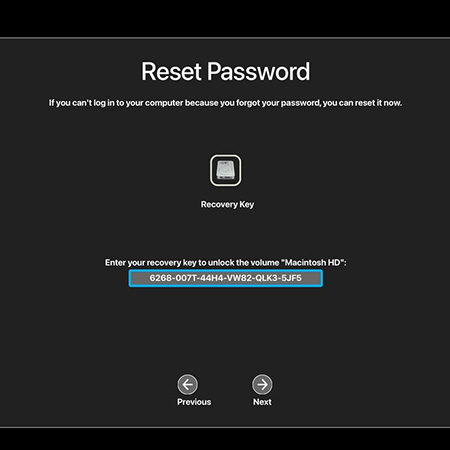
- Step 4. Follow the on-screen instruction and finally create a new password for your Mac.
If the recovery key is correct, your Mac should unlock the encrypted disk regardless of Apple Account issues.
Method 4. Reset Your Password in macOS Recovery
If you've forgotten your login password, you can attempt a password reset from macOS Recovery.
- Step 1. Put the Mac into macOS Recovery:
On Apple Silicon Macs
- 1. Shut down your Mac.
- 2. Press and hold the Power button.
- 3. Wait until Loading startup options appears.
- 4. Click Options > Continue.
On Intel Macs
- 1. Restart your Mac.
- 2. Hold Command (⌘) + R immediately after startup.
- 3. Release the keys when the Apple logo appears.
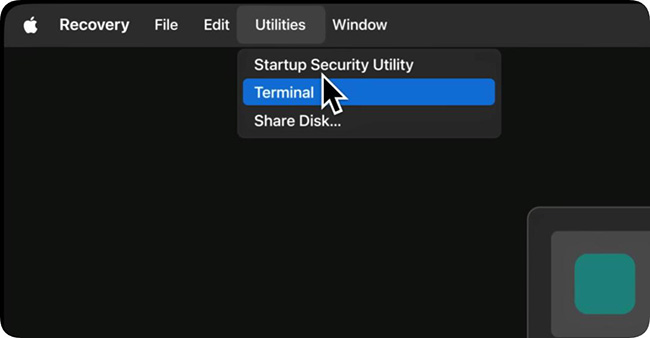
- Step 2. Once in Recovery, click the Utilities menu and select Terminal.
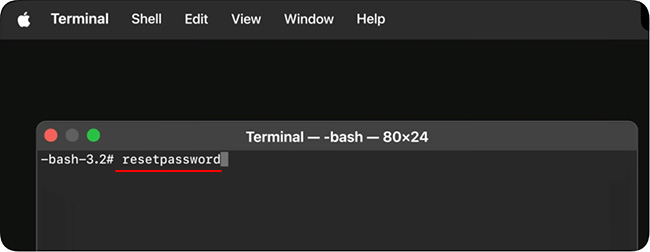
- Step 3. In the Terminal window, type resetpassword. Then, press the Return key on your keyboard to open the Recovery Assistant window.
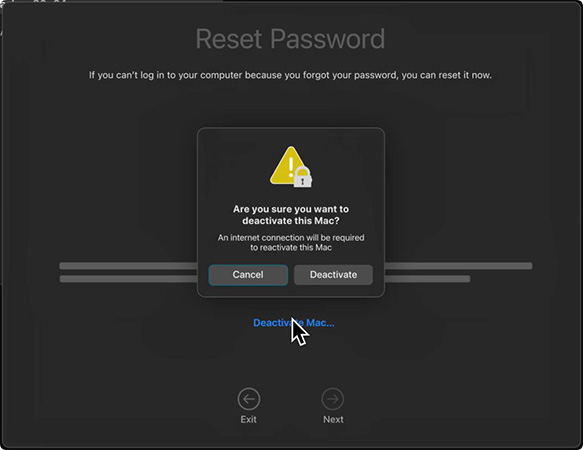
- Step 4. Click Deactivate Mac and click Deactivate to confirm.
- Step 5. Now, you can type your new password in the Reset Password window.
If the Apple Account still cannot unlock the volume, continue to the next method.
Method 5. Run First Aid in Disk Utility
If the startup volume has minor file system problems, Disk Utility may be able to repair them. Here are the steps to run First Aid in Disk Utility.
- Step 1. Boot into macOS Recovery.
- Step 2. Open Disk Utility.
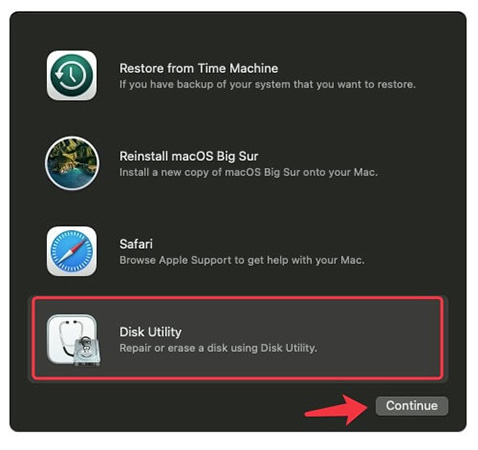
- Step 3. Select the startup disk.
- Step 4. Click First Aid. Wait for the scan to complete.
- Step 5. Restart your Mac.
First Aid cannot repair every FileVault problem, but it may resolve disk-related issues that interfere with problem.
Method 6. Reinstall macOS
If Recovery Mode is functioning normally but the operating system has become corrupted, reinstalling macOS may resolve the authentication issue without erasing your personal files. To reinstall macOS, you should follow these steps.
- Step 1. Enter macOS Recovery.
- Step 2. Choose Reinstall macOS.
- Step 3. Follow the installation wizard.
- Step 4. Wait for installation to finish.
- Step 5. Try signing in again.
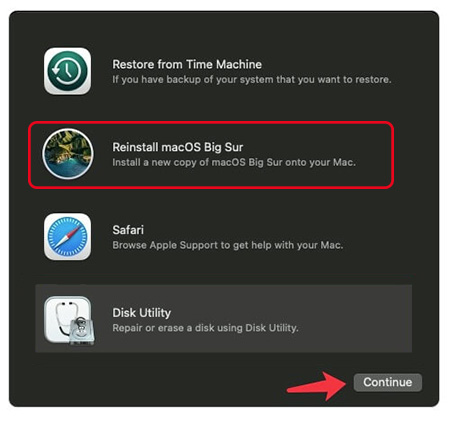
Before reinstalling, ensure your Mac remains connected to a stable internet connection throughout the process.
Method 7. Erase Your Mac (Last Resort)
If none of the previous methods work and you no longer have access to:
- Your login password
- FileVault Recovery Key
- The Apple Account linked to FileVault
you may need to erase the Mac and reinstall macOS.
Warning: Erasing the startup disk permanently deletes all data stored on the encrypted volume unless you have a backup or can recover the encryption credentials.
How to Erase Your Mac?
- Step 1. Start in macOS Recovery.
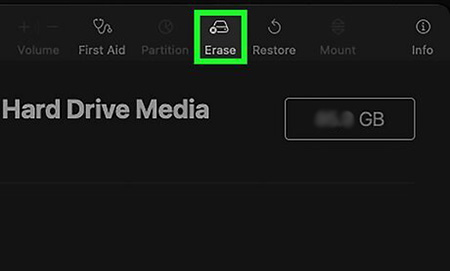
- Step 2. Open Disk Utility.
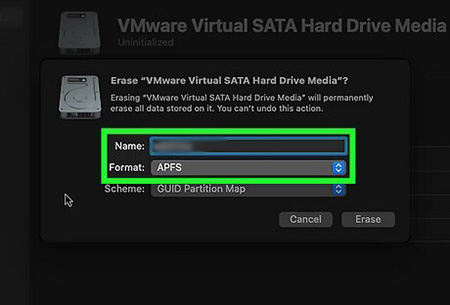
- Step 3. Select the internal startup disk. Click Erase.
- Step 4. Choose APFS as the format (if appropriate).
- Step 5. Quit Disk Utility.
- Step 6. Reinstall macOS.
Only proceed after confirming you no longer need to recover files from the encrypted disk.
Can You Recover Your Files Before Erasing?
In many cases, yes—but only if you still have one of the valid credentials needed to unlock the encrypted volume. You may still recover your data if you have:
- Your Mac login password
- A valid FileVault Recovery Key
- The Apple Account that was originally configured for FileVault recovery
If none of these are available, the encrypted data is generally inaccessible because FileVault encryption is specifically designed to prevent unauthorized access. If your files are important, avoid erasing the Mac until you've exhausted all recovery options or consulted Apple Support.
How to Prevent "The Supplied iCloud Account Was Unable to Unlock This Volume" in the Future?
A few proactive steps can help prevent this issue from happening again.
- Store your FileVault Recovery Key in a secure location.
- Keep your Apple Account recovery information up to date.
- Record your Mac login password in a trusted password manager.
- Verify your FileVault recovery settings after changing your Apple Account.
- Create regular Time Machine backups.
- Remove Activation Lock and sign out of your Apple Account before selling or giving away your Mac.
Following these best practices will make recovering access much easier if you ever forget your password or encounter startup problems.
FAQs About Mac “The Supplied iCloud Account Was Unable to Unlock This Volume”
-
Will reinstalling macOS erase my files?
Not necessarily. Reinstalling macOS without erasing the startup disk typically preserves your personal data. However, if you erase the disk first, all data stored on that encrypted volume will be removed.
-
Can Apple Support unlock my FileVault-encrypted disk?
Apple Support can help you troubleshoot recovery options, but they cannot bypass FileVault encryption or recover data without valid recovery credentials. This design helps protect user privacy and security.
Conclusion
Seeing "The Supplied iCloud Account Was Unable to Unlock This Volume" can be alarming, but it doesn't necessarily mean your Apple Account is incorrect or that your Mac is permanently inaccessible.
By verifying you're using the correct recovery credentials, trying your Mac login password or FileVault Recovery Key, using macOS Recovery, and only considering erasing the Mac as a final option, you can often resolve the problem while protecting your data.
Key Features of TunesKit iPhone Unlocker
Unlock iOS screen when you fogort passcode. Remove Apple ID, MDM, and Activation Lock from iPhone/iPad if you forgot the Apple password.
 600,000+ Downloads



