


Forgot Your Rar File Password? Unlock in Minutes
It is a sinking feeling familiar to many digital users: you double-click an important archive you haven't accessed in years, only to be blocked by a prompt demanding a code you simply cannot remember. If you find yourself staring at the screen thinking, "I forgot my RAR file password," and worrying that your data is lost forever, do not panic just yet.
While RAR encryption is designed to be secure, losing the key doesn't always mean your files are gone for good. Whether through built-in guesswork, specialized recovery software, or simple command-line tricks, there are several viable methods to regain access to your documents.

Method 1: Using Specialized Recovery Software
RAR files use strong encryption (often AES-128 or AES-256), meaning there is no "backdoor" to simply bypass the password. Instead, recovery software works by automating the process of guessing the key at extremely high speeds.
When you realize, "I forgot my RAR file password," the most reliable solution is often specialized recovery software. This is where TunesKit File Password Recovery comes in handy, it's designed to handle the complexity of modern encryption. Apart from the powerful decryption feature, it can also remove the read only from Word document, excel, and PDF. With a simple, intuitive interface, it is suitable for beginners and professionals.

Forgot Your File Password? Recover It in Minutes
TunesKit File Password Recovery quickly unlocks password-protected files with powerful recovery algorithms—no technical skills required.
 600,000+ Downloads
600,000+ Downloads
600,000+ Downloads
Here is how to use TunesKit File Password Recovery to recover your forgotten Rar file password.
Step 1Select the File Type
Download, install and launch this program. Select the RAR/ZIP option on the main screen.

Step 2Import File and Start Recover
On the left pane, click to add your password-protected Rar file to this software. Then select the attack mode to recover your password. Configure any specific settings for your chosen attack type (e.g., setting the password length range) and click "Start Recover" to begin the recovery process.
- Choose Dictionary Attack if you think it's a common word.
- Choose Combination Attack if you recall details like the length or specific characters.
- Choose Brute Force Attack if you remember absolutely nothing (note: this takes the longest).

Step 3 Successfully Recover Rar File Password
Once the software finds the correct key, it will display it on the screen. Click the "Copy" button to save it to your clipboard, then use it to unlock your RAR archive.

Method 2: Using an Online Recovery Service
If you are hesitant to install new software or are working on a computer with restrictions (like a work laptop), using an online service is a convenient alternative. This method leverages cloud computing to solve the problem.
A popular example of this type of service is LostMyPass, which offers a "weak password recovery" service for free and a paid version for complex passwords.
Step 1: Navigate to a reputable online recovery website (such as LostMyPass or OnlineHashCrack) using your web browser.
Step 2: Locate the file upload area. Click to browse your computer or drag and drop the locked RAR file directly onto the designated box. Note that most free tiers have a file size limit (often around 100MB).
Step 3: The recovery process will start automatically once the upload is complete. The server will run a dictionary or simple brute-force check against your file.
Step 4: If the password is weak, the site will display it within a few minutes. If it is complex, you may be prompted to pay for a premium "Strong Recovery" which utilizes more computing power.

 View Also:
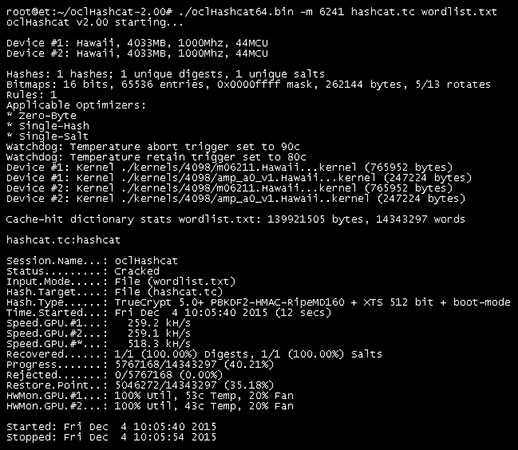
Method 3: Using the Hashcat or John the Ripper
If you are comfortable with command-line interfaces and want the most powerful free solution available, you should look into Hashcat or John the Ripper.
These are the tools used by cybersecurity professionals. Instead of trying to open the RAR file over and over (which is slow), these tools extract the "hash" (the unique digital fingerprint of the password) and attack that directly. This method allows for millions of guesses per second, utilizing your computer's GPU (Graphics Processing Unit).
Step 1: You must first extract the hash from your RAR file using a sub-tool (often called rar2john).
Step 2: Once you have the hash string saved in a text file, you feed it into Hashcat with a specific command code.
Step 3: Hashcat will relentlessly attack the hash until the original password is revealed.
Method 4: Using the Notepad Command Line
For those who prefer a "Do It Yourself" approach and want to avoid installing paid software, there is a clever workaround using a simple Batch script. This method uses your computer's built-in Command Prompt to cycle through numeric passwords.
 Important Constraint
This method is primarily effective for files locked with numeric passwords. If your password contains letters or symbols, this script will likely fail or take an eternity.
Step 1: Open a new Notepad file on your computer.
Step 2: You will need to paste a specific batch script code into this document. (You can easily find this by searching online for "RAR password recovery batch script code"). The code essentially tells your computer to try opening the file with the number "1", then "2", then "3", and so on, in a rapid loop.
Step 3: Save the file. When naming it, do not use the standard .txt extension. Instead, name it Unlock.bat.
Step 4: Run the script by double-clicking your new Unlock.bat file. A black command window will appear. Follow the on-screen prompts, which usually involve typing the file name and path.

FAQs about RAR File Password
-
Q1: Can I remove a password from a RAR file once I have opened it?
Yes. If you know the password and want to remove it for future access, first of all, right-click the RAR file and select "Extract Here" (entering the password). Then, right-click the extracted folder/files and select "Add to archive..." Finally, in the new window, simply create a new RAR file without setting a password. Note: You cannot "strip" a password from a locked file without first unlocking it.
-
Q2: Is there a limit to how many times I can guess a RAR password?
No. Unlike an iPhone or a bank account, a RAR file does not "lock you out" or delete data after too many failed attempts. You can try as many passwords as you like without damaging the file.
-
Q3: Can I use my phone to unlock a RAR file?
Yes, there are apps available for Android (e.g., RAR for Android) that can extract files if you know the password. For recovery (cracking), there are apps available, but phone processors are much slower than PC processors, so they are only effective for very simple passwords.
Conclusion
In conclusion, forgetting your RAR file password doesn’t have to mean losing access to your data. With TunesKit File Password Recovery, you can quickly and safely regain entry to protected archives using powerful recovery modes, high success rates, and an easy-to-use interface. Whether you remember part of the password or nothing at all, this tool offers a reliable, secure, and efficient solution for effortless RAR password recovery.


