


Full Guide to Recover PDF Files from iPhone, iPad and iPod Touch
"I accidentally deleted some PDF files from iBooks and I want to retrieve them from iCloud or Time Machine if possible. Does anyone know where iBooks under Mavericks or Sierra stores PDF files?" – From Apple Community
Accidentally deleted an important PDF from your iPhone, iPad, or iPod touch? PDF files can disappear after accidental deletion, an iOS update, device damage, sync issues, or a system error. Fortunately, there are several ways to get them back.
In this guide, you'll learn how to recover PDF files from iPhone, iPad, and iPod touch using the Files app, iCloud, backups, and iPhone data recovery software. Whether you have a backup or not, you can find a suitable recovery method below.

Why PDF Files Are Lost on Your iPhone, iPad, iPod touch
PDF files can disappear from your iPhone, iPad, or iPod touch for several reasons. Knowing what caused the loss can help you choose the right recovery method.
- 01 Accidental deletion: You may delete a PDF from the Files app, Books, Mail, or another app by mistake.
- 02 iCloud sync issues: PDFs stored in iCloud Drive may disappear temporarily if syncing is interrupted or disabled.
- 03 iOS update or restore: A failed update, factory reset, or device restore may remove locally stored PDF files.
- 04 App deletion: Removing an app that stores PDFs locally can also delete its associated documents.
- 05 Device or system problems: Crashes, storage errors, or iOS glitches may make PDF files inaccessible.
- 06 File moved: Sometimes the PDF is still on the device but has been moved to another folder or cloud location.
Before using a recovery tool, check the Recently Deleted folder, iCloud Drive, and any apps where the PDF was saved.
How to Find Missing PDF Files on iPhone, iPad, and iPod touch
If a PDF disappears from your iPhone or iPad, it may still be stored in Apple Books, the Files app, or iCloud rather than being permanently deleted. Before trying a data recovery method, use the following ways to locate your missing PDF files.
Way 1. Check PDF Files in Apple Books
If your PDFs disappear after an iOS update or a syncing problem, first restart your device and check the Apple Books app again. A temporary syncing or system issue may prevent your files from appearing correctly.
- Step 1. Open the Books app on your iPhone or iPad.
- Step 2. Go to Library and look for the missing PDF.
- Step 3. Check your collections or use Search to find the PDF by its file name.
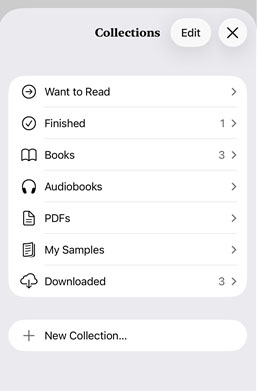
If you can see the PDF but it has not been downloaded to your device, tap it to download it again.
Way 2. Check Apple Books and iCloud Sync
If you previously synced PDFs through iCloud, make sure Apple Books and iCloud Drive syncing are enabled. Apple Books can keep your library and other content available across devices signed in with the same Apple Account.
- Step 1. Go to Settings > [your name] > iCloud.
- Step 2. Make sure iCloud Drive is enabled.
- Step 3. Under the apps saved to iCloud, make sure Books is turned on.
- Step 4. Go to Settings > Apps > Books, then enable Home and iCloud Drive under Syncing.
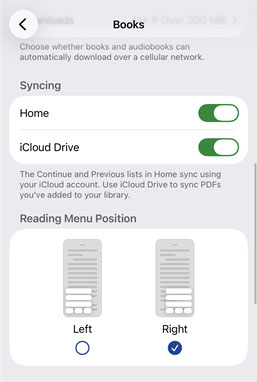
Open Apple Books again and check whether the missing PDFs reappear. You can also check Files > Browse > iCloud Drive for PDFs stored directly in iCloud Drive.
 Note
Note
If you chose Delete Everywhere for a PDF in Apple Books, or deleted a PDF stored in iCloud Drive, the deletion may be synced across your devices. In that case, proceed to the recovery methods below instead of relying on another synced device.
Recover PDF Files on iDevices with TunesKit iPhone Data Recovery
TunesKit iPhone Data Recovery, a smart and outstanding iOS data recovery tool, is designed with an excellent ability to recover 20+ files from iDevices (iPhone/iPad/iPod touch) as well as extract various types of data from iTunes and iCloud backup. In addition to PDF files, you can independently retrieve any deleted or missing data such as notes, photos, voice memos, messages, calendars, etc. Thanks to its advanced feature, you can freely preview the recoverable files and selectively recover your desired data. As a result, it can save lots of time and storage without overwriting the existing data.
Recover Deleted PDF Files Quickly
Retrieve lost or deleted PDFs from iPhone, iPad, or iPod touch with flexible recovery options.
 600,000+ Downloads
Mode 1. Recover PDF Files Without Backup
If you do not have an iTunes or iCloud backup, start by scanning the iPhone, iPad or iPod touch directly.
Step 1. Connect iOS Devices to Computer
First of all, install and launch TunesKit iPhone Data Recovery. Then you need to connect your iDevices to computer. Make sure that they are connected and detected successfully. Select iPhone/iPad Data Recovery from the main screen.
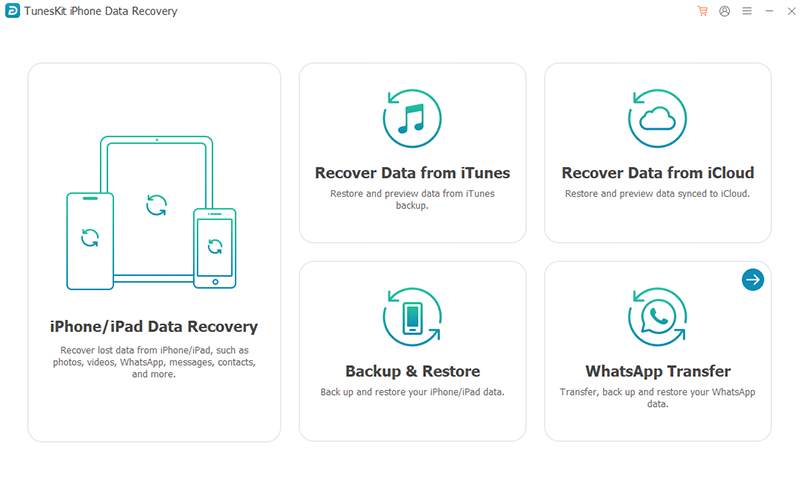
Step 2. Scan the Device for Lost PDF Files
Select the file types you want to search for and click Scan. TunesKit will analyze the device for existing and recoverable data.
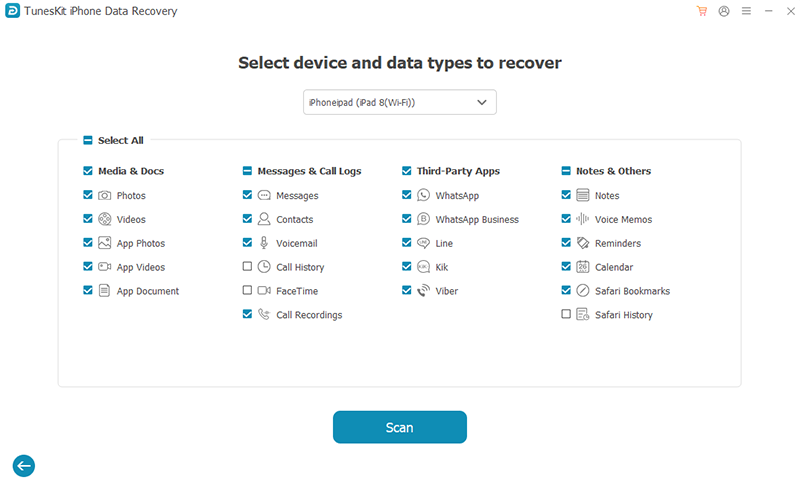
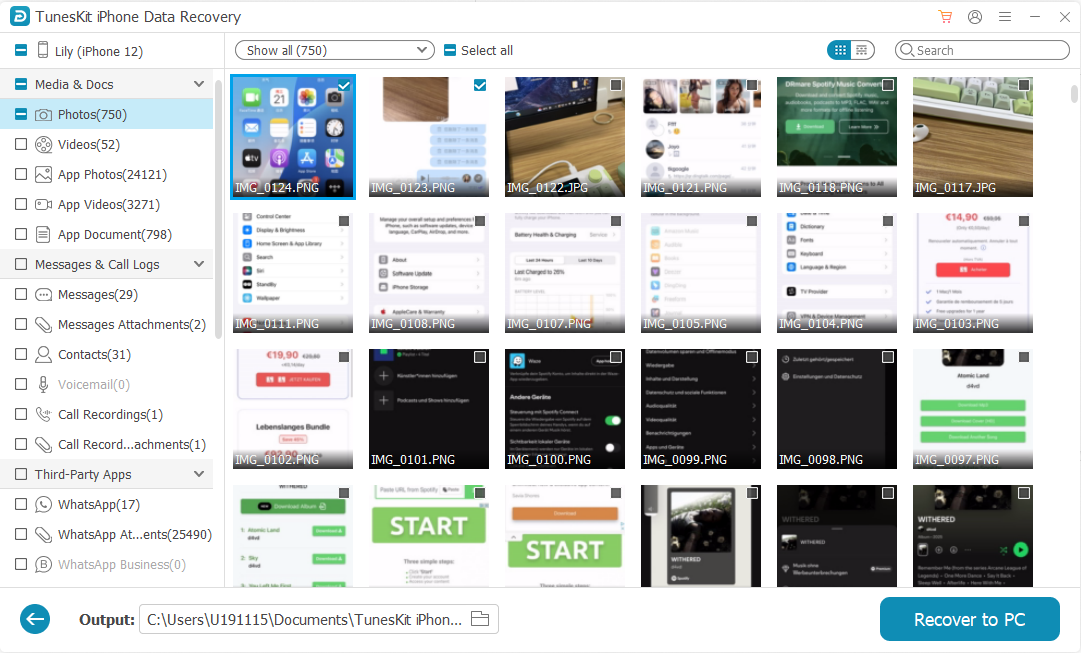
Step 3. Preview and Recover the PDF Files
After the scan finishes, browse the results and locate the PDF files you want. Select the recoverable items and click Recover to PC to save them to your computer.
Mode 2. Recover PDF Files from an iTunes Backupackup
If you previously backed up your iPhone or iPad with iTunes, TunesKit can scan the backup and extract individual PDF files without restoring the entire backup to your device.
Step 1. Choose Recover Data from iTunes
Open TunesKit iPhone Data Recovery and select Recover Data from iTunes. The program will display compatible backups detected on the computer.
Step 2. Scan the iTunes Backup
Choose the backup that may contain the missing PDF and select the data types you want to recover. Click Scan to analyze the backup.

Step 3. Preview and Recover PDF Files
Then you can preview all data in real time and restore all files or select some important ones for recovery. Click "Recover" button to save PDF files on your devices.

Mode 3: Recover PDF Files from iCloud Backup
TunesKit also provides an iCloud recovery mode for users who previously synced or backed up their data to iCloud.
Step 1. Choose Recover from iCloud
Similarly, Select the third recovery mode - "Recover Data from iCloud". Then enter your Apple Account and password to log in to iCloud account. This mode allows users to recover deleted files from iCloud easily.
Step 2. Download and Scan the Available iCloud Data
Select one of the listed iCloud backup files or add other backups saved on your computer. Hit "Download" icon and then click on "Scan" button to proceed to the recovery procedure.

Step 3. Restore PDF File on iPhone, iPad and iPod Touch
After viewing all data orderly displayed on the interface, tick desired PDF files, click on the "Recover" button and get them back to your devices and computer.

Conclusion
We've listed and enumerated these methods by which you are expected to know how to recover PDF files from iPhone, iPad and iPod Touch. Some of them require you to back up your files in advance while others are workable only when you don't delete them or have synced your Apple Books collection.
If you permanently delete the PDF files, I recommend that you should download and resort to TunesKit iPhone Data Recovery. With free previewing feature and advanced recovery function, you are able to figure out whether the PDF files can be recovered and selectively recover the desired PDF files.



