


[Top 5] iPhone Settings Icon Missing: How to Get Back?
The Settings app on iPhone allows us to control the rest of your device. From here, you can connect to Wi-Fi, and change your data and time. The Settings icon on an iPhone plays a vital role in the iOS operating system software, and cannot be deleted under normal circumstances. While there are other third-party apps that you can delete, Settings is not one of them.
If the Settings icon your iPhone does not appear, or has been replaced with a blank or corrupted image, you may just accidentally delete the settings icon. A missing Settings app icon on iPhone doesn't mean you deleted the app. To know it better, this article will show you 5 useful tips to get rid of the iPhone settings icon missing issue.

Why Did My Settings Icon Disappeared on My iPhone?
As mentioned above, the settings app cannot be deleted by yourself directly. You may just move the settings icon to a folder accidentally. This issue can also be caused by jailbreak failure, virus attack or other unknown system errors on your iPhone.
Also, when you long-press an icon and hit the remove option, iOS often lets you choose between deleting the app entirely or just removing it from the visual layout. Since Settings cannot be deleted, iOS automatically sends it to your hidden App Library instead. Occasionally, a minor software bug following a crash or an iOS update can also cause system icons to temporarily become invisible.
No matter what the reason is, you don't need to worry too much about it. You can try these workable methods in the following to find the settings icon on your iPhone again.
What You Need to Do Before Fixing iPhone Settings Icon Missing?
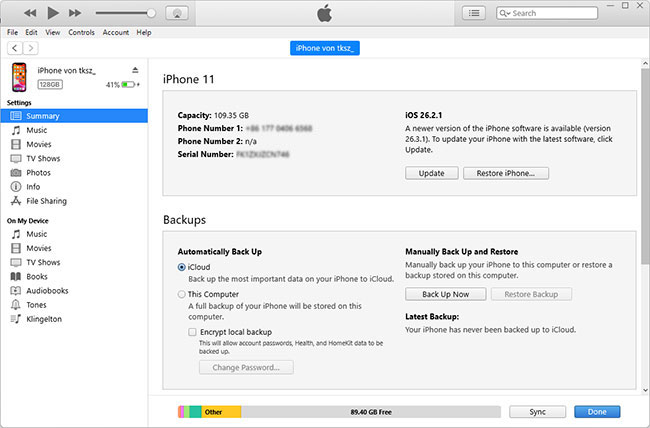
Before retrieving the missing settings icon on iPhone, it's suggested that you back up your data on the iPhone via iTunes first. Then, you'll not lose your data if unexpected things happen when you fix your iPhone. You can take the detailed steps below to back up your iPhone using iTunes.
- Step 1. To start with, connect your iPhone to the computer, and run iTunes on your computer.
- Step 2. Hit on the iPhone icon when it appears on the screen to go to another interface.
- Step 3. Tap on the Summary option, and then choose Back Up Now. Your data on iPhone will be saved through iTunes.
How to Get the Settings Icon Back on iPhone?
If you've already identified why the Settings icon disappeared, the next step is getting it back quickly. Whether it's hidden, moved, or affected by a system glitch, there are several simple methods you can try. Below, we'll walk you through the most effective ways to restore the Settings icon on your iPhone.
Method 1: Find Settings via Search Bar
If you find the icon is missing on your iPhone, you can first browse through all the Home screen and see if it is moved to other place. Apps can be moved into another folder when they are held onto the home screen. So, the Settings app may have gotten lost in one of your many folders.
How to get settings icon back on iPhone:
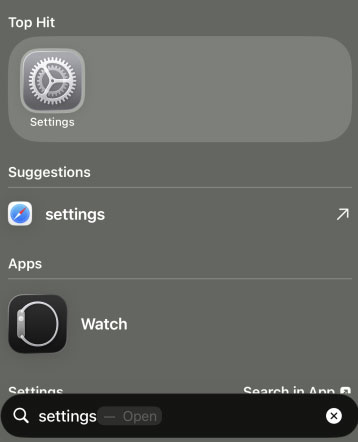
- Step 1. On the iPhone home screen, swipe left and the Search bar will appear.
- Step 2. Tap on it and search for Settings. Look for a folder name on the right side of the Settings results page when you search for Settings. There is a name on the right that indicates the location of the Settings icon. Just back to the Home screen to check if still the settings icon disappearing on iPhone.
Method 2: Reset Home Screen Layout
Resetting your Home Screen layout is the ultimate brute-force method for recovering lost native apps. When you trigger this reset, iOS automatically destroys all custom folders and unhides any apps you removed from your main viewing pages. It forces every built-in Apple application, including your core control center, directly back to its original factory position.
This is the most surefire way to unearth a stubborn Settings icon without wiping any of your personal data. Here's how:
- Step 1. Access the hidden Settings app by swiping down on your Home Screen and typing "Settings" into the Spotlight Search bar to open it.
- Step 2. Navigate to "General," scroll to the very bottom of the page, and tap on "Transfer or Reset iPhone."
- Step 3. Tap "Reset" at the bottom of the screen, select "Reset Home Screen Layout," and confirm your decision.
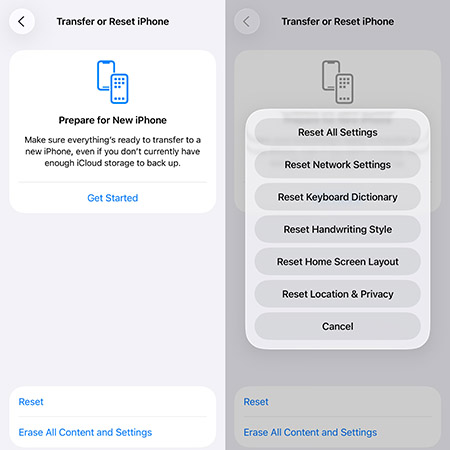
Once the process is complete, your app arrangement will revert to exactly how it looked when you first took the device out of the box. Your third-party apps will simply be arranged in alphabetical order on the subsequent pages.
Method 3: Force Restart iPhone
Should you have been unable to find the Settings app after searching for it in Spotlight, there might be a bug on your device that prevents the Settings app from showing up. Try to force restart your device, the software will refresh and analyze for any problems. This is an easier way to troubleshoot your software, and fix settings icon disappeared.
- For iPhone 6S and earlier: Press Sleep/Wake button & Home button until the Apple logo shows up on the screen.
- For iPhone 7/ 7 Plus: Simply long-press the Sleep/Wake key and Volume Down key.
- For iPhone 8 or later: Quickly press and release the Volume Up button, followed by the Down button. Hold the Power button until the Apple logo shows up.

Method 4: Restore iPhone via iTunes or Finder
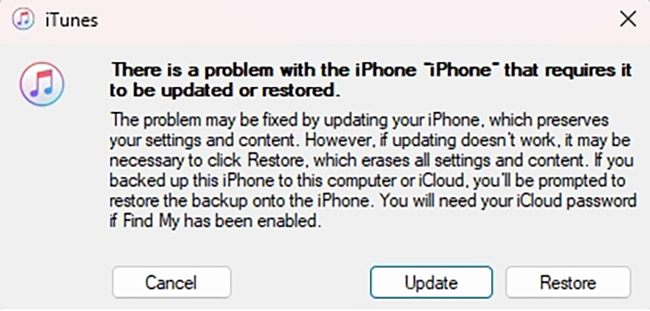
If the Settings icon still won't come back, you always have the option to restore your phone. Please note that using iTunes to restore will remove all data from your iPhone. After backing up your iPhone, try to restore iPhone to fix iPhone settings icon missing issue as described in the following steps.
- Step 1. First, connect your iPhone to a computer by a USB cable.
- Step 2. Next, run the iTunes or Finder app on your computer. And enter your iPhone passcode to trust your computer.
- Step 3. Put your iPhone into recovery mode, and once you have clicked the Restore button, your system software will be reinstalled, and your iPhone will automatically resynchronize when the process is complete.
Method 5: Fix Settings Icon on iPhone Missing via TunesKit iOS System Recovery
If you want to find the best solution that is truly workable to fix settings icon missing on iPhone, check out TunesKit iOS System Recovery, a repairing tool that fixes 150+ iOS system issues, based on your requirements, whose functionality will blow you away. From settings icon on iPhone missing, iPhone Settings forzen, to iPhone stuck on recovery mode, iPhone won't update, and more, it can handle any iOS issues. It is perfect for those iOS users who want to fix the iPhone/iPad/iPad issue remaining all of the important data. Simply download it for free to have a trial use.
Restore Missing Settings Icon on iPhone Easily
Fix system glitches causing the Settings icon to disappear without data loss using TunesKit iOS System Recovery.
 600,000+ Downloads
Follow these steps so you can use this program quickly and correctly.
Step 1Connect Your iPhone to Computer
There is one thing you should notice about this tool: it is not an iOS app. It is rather a desktop application that needs to be installed on a computer. After installing it on your computer, use a matched USB cable to get your iPhone connected to it. Click the iOS System Reapir button on the main screen, and go to click the Start button.

Step 2Choose a Repair Mode to Fix Missing Settings Icon
Once your iPhone has been detected, click on Standard Repair to save the missing settings icon on iPhone if you don't want to delete your data.

Step 3Download iOS Firmware
On this page, you'll see all of your iPhone's details. Should the device information be incorrect, please choose the right one manually, and then click on the Download button download the correct firmware.

Step 4Start to Fix
You'll see an option to Repair after a successful download. Click on that and your iPhone Settings icon will be back in no time. Your iPhone will restart normally at the end of the process and you'll see this Repair Completed screen.

FAQs About Lost Setting App on iPhone
-
Can the Settings app be permanently deleted?
The short answer is no.
Apple intentionally designs its core iOS system applications to be undeletable to prevent users from accidentally locking themselves out of vital controls. While you can remove third-party downloads entirely, native apps like Settings, Phone, and Camera are permanently baked into your iPhone's operating software. Even if you tap the "Remove App" option by mistake, iOS simply hides it from your main viewing pages, but it remains fully installed and functional. -
Where does the app go when it disappears?
Most of the time, an unintentionally removed app gets sent straight to your App Library. This is the organizational hub located at the very end of your Home Screen pages, acting as a background storage locker for everything installed on your device.
In other cases, you might have accidentally dragged the gear icon into a cluttered folder without realizing it. Minor software glitches following an iOS update can also cause system icons to temporarily become invisible until the device's software refreshes.
Conclusion
Using the methods described above, you should be able to resolve the iPhone settings icon missing issue and get your iPhone on the latest iOS version. If you have any such iOS problems in the future, or if you need to fix them much quicker, make sure to have TunesKit iOS System Recovery at your hands.


