


AirDrop No People Found? Easy Fixes That Work
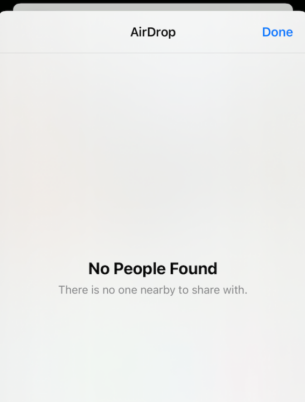
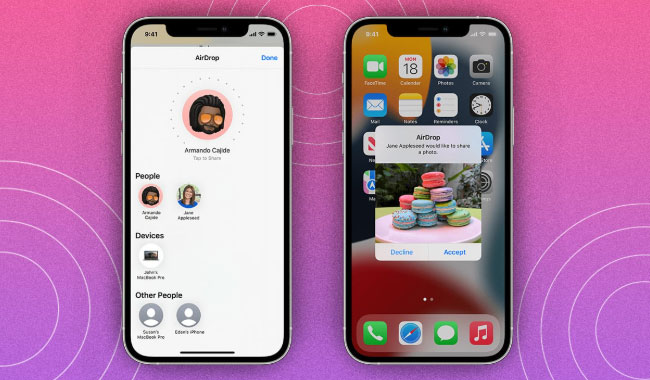
AirDrop is a incredibly convenient feature on Apple devices that allows for the quick transfer of photos, videos, documents, and more between nearby iPhone, iPad, and Mac. However, it can be frustrating when you're trying to share something and your device simply won't detect the intended recipient, leading to the dreaded "AirDrop no people found" message.
This common issue can stem from incorrect settings or temporary glitches. Before you give up on sharing that file, let's explore some common reasons why does AirDrop say no people found and walk through practical solutions to get it running again.

- Why Does AirDrop Say No People Found?
- [Video Guide] Quick Solutions to Fix AirDrop No People Found
- How to Fix AirDrop No People Found Issue?
- Fix 1. Adjust AirDrop Visibility Settings
- Fix 2. Disable Personal Hotspot
- Fix 3. Check Wi-Fi and Bluetooth
- Fix 4. Unlock and Wake Devices
- Fix 5. Check Screen Time Restrictions
- Fix 6. Keep Devices Close
- Fix 7. Force Restart iPhone
- Fix 8. Fix System Glitches Using TunesKit iOS System RecoveryHOT
- Fix 9. Reset Network Settings
- Fix 10. Update iOS to the Latest Version
- FAQs about AirDrop No People Found
- Conclusion
Why Does AirDrop Say No People Found?
When AirDrop says "No People Found," it usually means your device can't see any nearby, compatible devices. The most common causes are below.
- Visibility settings: AirDrop may be set to Contacts Only, making devices invisible to non-contacts.
- Bluetooth discovery failure: AirDrop uses Bluetooth to discover nearby devices; if Bluetooth is not functioning properly, no devices appear.
- Wi-Fi unavailable: AirDrop relies on Wi-Fi for peer-to-peer communication; if Wi-Fi is unavailable, discovery fails.
- Device locked or asleep: Locked or sleeping devices often stop advertising themselves for AirDrop.
- Personal Hotspot interference: An active Personal Hotspot can take control of the Wi-Fi radio, blocking AirDrop.
- Hardware or model incompatibility: Older or unsupported devices cannot participate in AirDrop discovery.
- Operating system bugs: Software issues or unstable OS versions can break AirDrop's discovery process.
- Wireless interference or distance: Signal interference or excessive distance can block discovery.
[Video Guide] Quick Solutions to Fix AirDrop No People Found
Is your AirDrop not detecting nearby devices? Don't worry—this quick video walks you through simple, effective fixes to get AirDrop working again in minutes. Whether it's a settings issue or a connection glitch, we've got you covered step by step.
How to Fix AirDrop No People Found Issue?
Now that we've explored the common reasons behind the "AirDrop No People Found" issue, it's time to look at practical solutions. The following methods will help you quickly troubleshoot and restore AirDrop functionality on your iPhone.
Fix 1. Adjust AirDrop Visibility Settings
The most common culprit is that the receiving device is set to "Receiving Off" or "Contacts Only." If the sender is not in your contacts (or if there is an iCloud sync issue), "Contacts Only" will prevent the device from appearing.
Step 1. Swipe down from the top-right corner of your screen to open the Control Center.
Step 2. Press and hold the network settings card (the box with Wi-Fi and Bluetooth icons) to expand it.
Step 3. Tap the AirDrop icon and select Everyone for 10 Minutes.
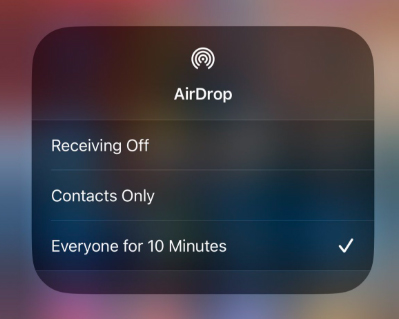
Step 4. Have the other person do the same on their device. If the device appears, you can switch back to "Contacts Only."
 Note
Note
On newer iOS versions (16.2 and later), the "Everyone" setting automatically reverts to "Contacts Only" after 10 minutes to prevent unwanted file requests.
Fix 2. Disable Personal Hotspot
Disabling Personal Hotspot is crucial because it monopolizes the Wi-Fi antenna that AirDrop requires to transfer data. Since your iPhone cannot broadcast an internet signal and maintain the necessary peer-to-peer AirDrop connection simultaneously, turning off the hotspot frees up the hardware to successfully detect nearby devices and share files.
Step 1. Open Settings and tap Personal Hotspot.
Step 2. Toggle off Allow Others to Join.

Step 3. Check the Control Center again to ensure the Personal Hotspot icon is off.
Fix 3. Check Wi-Fi and Bluetooth
AirDrop requires Bluetooth to discover devices and Wi-Fi to transfer data, so both must be enabled for the feature to work. Toggling these settings off and back on resets the hardware connections, clearing temporary glitches that prevent your iPhone from detecting nearby users.
Step 1. Open the Control Center.
Step 2. Ensure both the Bluetooth and Wi-Fi icons are blue.
Step 3. If they are already on, toggle them off, wait a few seconds, and turn them back on to reset the radio modules.

Fix 4. Unlock and Wake Devices
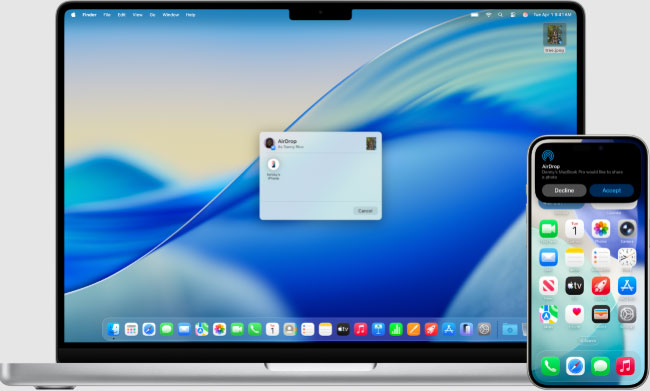
Apple disables AirDrop discoverability on locked devices to save battery and prevent unwanted transfers. Waking and unlocking the screen makes the iPhone visible again, allowing other devices to detect it.
Step 1: Ensure the receiving iPhone is awake and unlocked.
Step 2: Keep the screen active on the recipient's device until the AirDrop pop-up appears.
Fix 5. Check Screen Time Restrictions
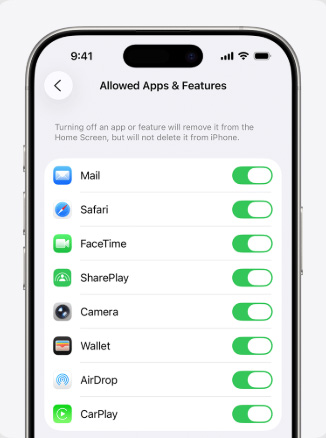
Content & Privacy Restrictions feature can completely disable AirDrop, effectively removing it from your device's interface. If AirDrop is not toggled on under "Allowed Apps," your iPhone becomes invisible to other devices and cannot send or receive files, causing the "No People Found" error regardless of your other settings.
Step 1: Go to Settings > Screen Time > Content & Privacy Restrictions.
Step 2: Tap Allowed Apps & Features.
Step 3: Ensure the toggle next to AirDrop is green (active).
Fix 6. Keep Devices Close
AirDrop needs devices to be close because it uses Bluetooth for discovery and Wi-Fi for transfers, both of which weaken with distance or obstacles. Too far apart, blocked by walls, or in areas with wireless interference can cause "No People Found."
You can keep devices within 1–3 meters (3–10 feet), face devices toward each other and remove obstacles, keep devices awake and unlocked, and avoid crowded Wi-Fi or Bluetooth areas.
Fix 7. Force Restart iPhone
Force restarting your iPhone resets temporary system glitches that may block Bluetooth or Wi-Fi, which AirDrop relies on for device discovery. It's often the fastest way to fix minor software issues causing AirDrop no people found. Here's how to force restart iPhone:
- For iPhone 8 and later: Quickly press and release the Volume Up button. Quickly press and release the Volume Down button. Press and hold the Side (Power) button until the Apple logo appears.
- For iPhone 7 / 7 Plus:: Press and hold both the Volume Down and Side (Power) buttons together. Keep holding until the Apple logo appears.
- For iPhone 6s, SE (1st gen), and earlier:: Press and hold both the Home button and Side (or Top) button together. Release when the Apple logo appears.
After the restart, unlock your iPhone and try AirDrop again—this often resolves the “No People Found” issue caused by temporary software glitches.

Fix 8. Fix System Glitches Using TunesKit iOS System Recovery
If the basic methods above haven't resolved the "AirDrop No People Found" error, the issue may be rooted in a deeper iOS system glitch. In these cases, a dedicated repair tool like TunesKit iOS System Recovery can fix the underlying software bugs without causing data loss. This software is designed to repair over 150 different iOS issues, including AirDrop stuck on waiting on iPhone, no video option on iPhone, and iPhone no services, etc.
With broad compatibility across iPhone, iPad, and iPod touch models, full support for the latest iOS versions, and one-click Recovery Mode control, it delivers a smooth, beginner-friendly experience with a high success rate. Safe, secure, and available on both Windows and macOS, it's an all-in-one iOS repair tool you can trust to get your device back to normal fast.
Fix AirDrop No People Found Instantly
TunesKit iOS System Recovery effectively repairs the deep-seated system glitches causing AirDrop visibility issues without erasing any of your data.
 600,000+ Downloads
Here is how to use TunesKit iOS System Recovery to fix AirDrop no people found issue:
Step 1 Connect Your iPhone
Download and launch TunesKit iOS System Recovery on your computer. Connect your iPhone using a USB cable and wait for the software to detect your device. Once connected, click the "iOS System Repair" button to begin the process. Then click the Start button to move on.

Step 2Choose a Repair Mode
Select Standard Repair from the mode options. This mode is specifically designed to fix common system issues like AirDrop not working on iPhone without erasing any of your data.

Step 3Download the Firmware Package
The program will ask you to confirm your device information. Verify the model details and click "Download" to acquire the correct firmware package for your specific iPhone.

Step 4Start to Fix
Once the firmware has finished downloading, click "Repair." TunesKit will automatically fix the system glitches affecting your AirDrop. After the process is complete, your iPhone will restart, and you should be able to detect nearby people again.

Fix 9. Reset Network Settings
If the issue persists, your device's network configurations might be corrupt. This step will not erase your data, but it will remove saved Wi-Fi passwords and Bluetooth pairings.
Step 1. Go to Settings > General > Transfer or Reset iPhone.
Step 2. Tap Reset and select Reset Network Settings.
Step 3. Enter your passcode and confirm. Your iPhone will restart.

Fix 10. Update iOS to the Latest Version
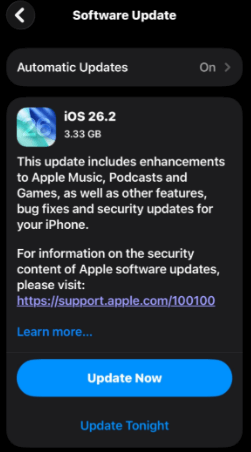
Newer versions often resolve Bluetooth/Wi-Fi bugs, improve device compatibility, and enhance connection stability. Keeping both devices updated ensures AirDrop works reliably.
You can open Settings → General → Software Update, tap Update Now button if an update is available, and enter your passcode and follow the prompts.
FAQs about AirDrop No People Found
-
1. Does blocking a contact affect AirDrop visibility?
Yes. If you have blocked a person's phone number or Apple ID, you will not appear in their AirDrop list, and they will not appear in yours. You would need to unblock them to transfer files.
-
2. Why can I see my friend, but they can't see me?
This is often due to the Receiving settings on your specific device. If you can see them, their settings are likely correct (set to Everyone or they have you as a contact). If they cannot see you, your AirDrop is likely set to "Receiving Off" or "Contacts Only" without their info saved, or your Bluetooth/Wi-Fi is disabled.
-
3. Does having a VPN turned on affect AirDrop?
Sometimes. Since AirDrop creates a direct Wi-Fi connection between devices, some strict VPN configurations can interfere with local network discovery. If you are having trouble, try temporarily disabling your VPN.
Conclusion
The reasons and solutions above cover the AirDrop no people found issue. If the basic troubleshooting methods don't work, TunesKit iOS System Recovery quickly repairs iOS errors, restores full functionality, and resolves persistent AirDrop problems—all safely and without losing your data. Get your iPhone back to smooth, reliable performance in minutes.


